

Vignette Effect for Photos —
Add a Cinematic Post-Crop Vignette Online


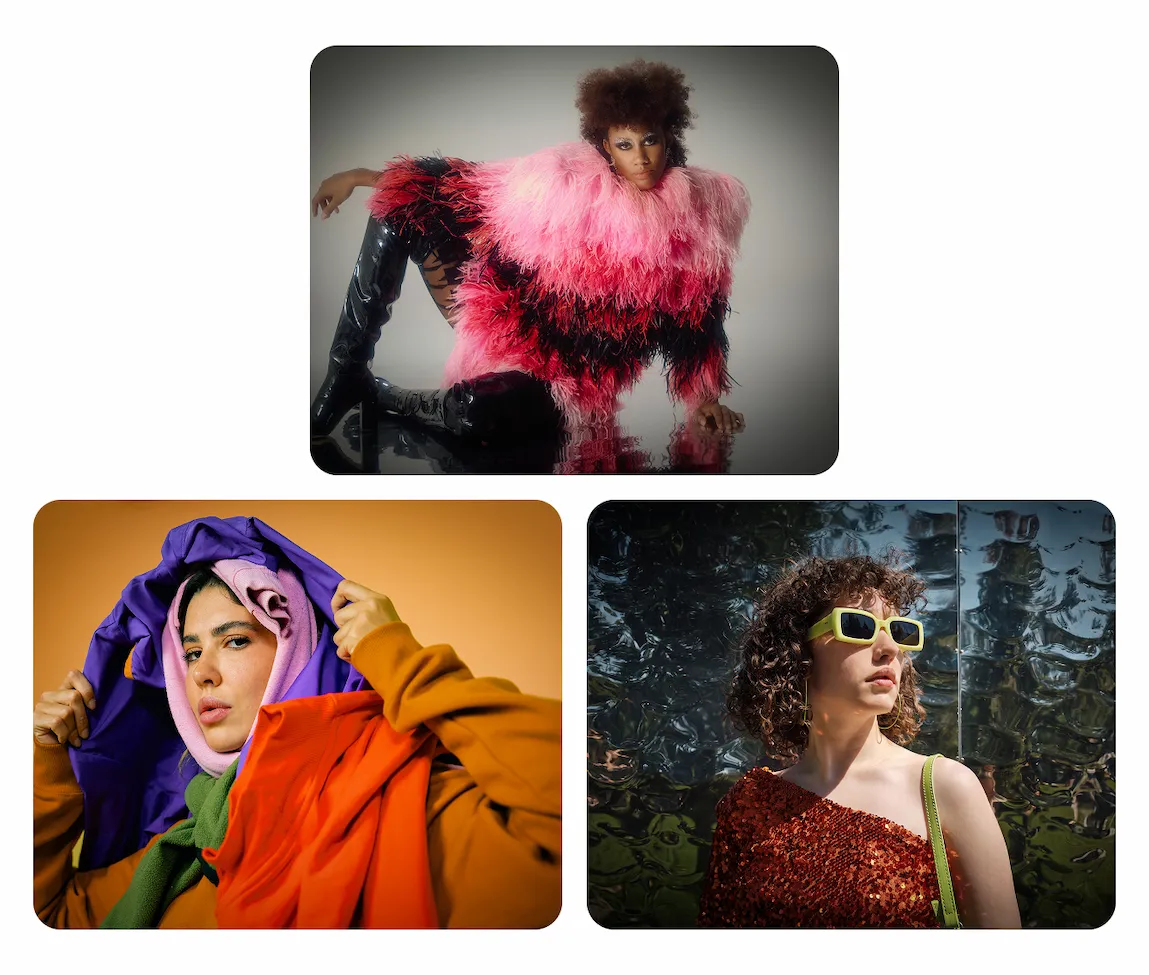
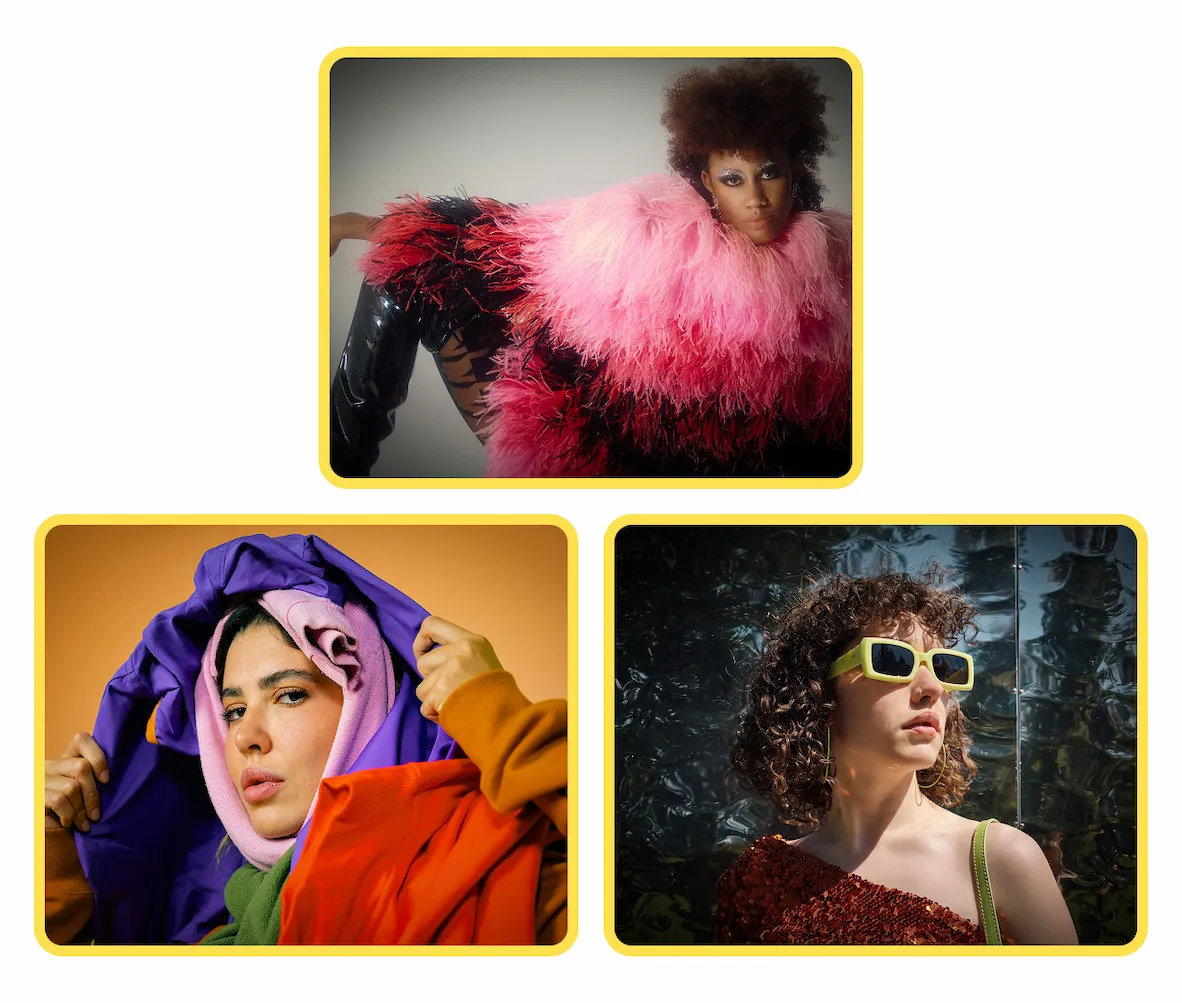
Add a cinematic vignette effect to any photo with Evoto. Deepen the edges of your frame or lift a bright halo to guide the eye—perfect for wedding portraits, editorial covers, moody dark portraits, and social-ready finishes.
Before and after wedding portrait with a cinematic vignette effect added post-crop in Evoto Before
Before and after wedding portrait with a cinematic vignette effect added post-crop in Evoto After
Before
After
Upload Image
* JPEG, JPG, PNG or WebP image allowed.
No image? Try one of these
Before and after wedding portrait with a cinematic vignette effect added post-crop in Evoto
Example 2
AI Photo Editor
Upload Image
Free to try. Pro Editing at Your Fingertips.
Desktop
Buy now
Buy now

Everything You Need to Add a Cinematic Vignette

From dark vignettes that pull the eye inward to bright halos that soften the frame, Evoto gives you full control over the last creative step of your edit.

Dark or Light Vignette in One Slider

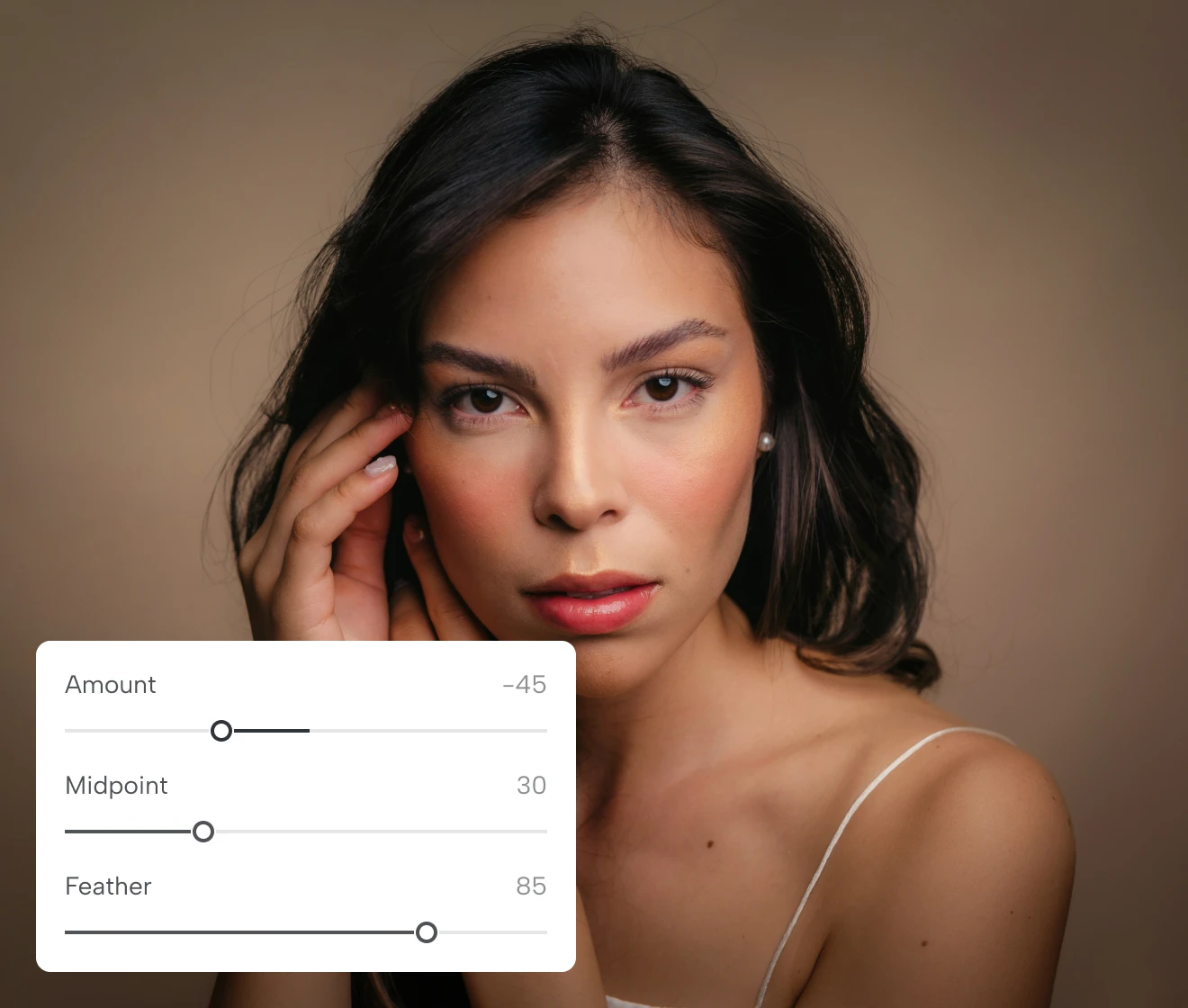
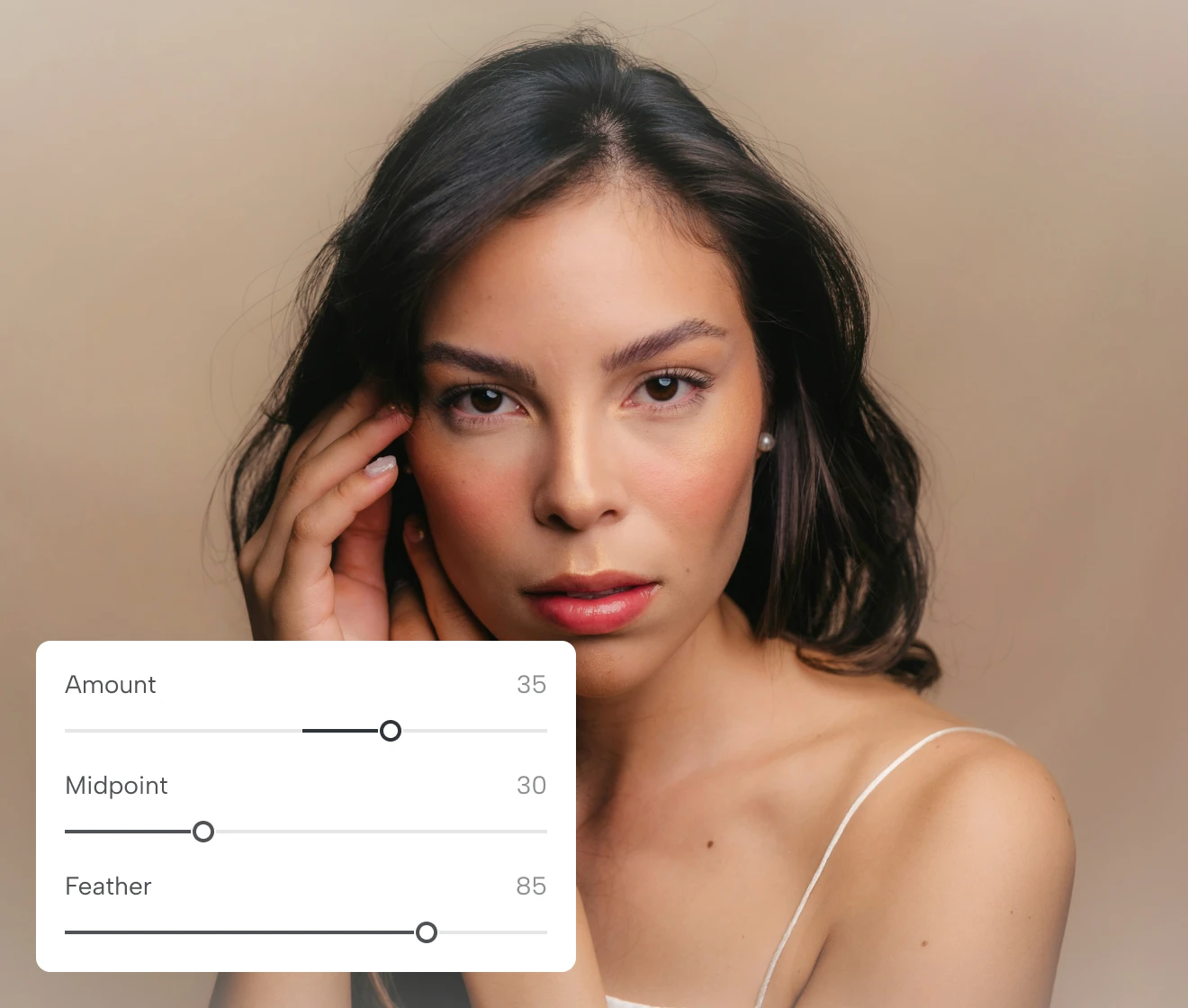
Drag the Amount slider left for a dark cinematic vignette or right for a bright halo. The effect renders on the cropped frame, so it lands exactly where you want the eye to go.

Vignette Amount slider adding a dark cinematic vignette to a portrait session in Evoto
Before
After

Highlight-Safe Vignetting Keeps Skin and Sky Natural

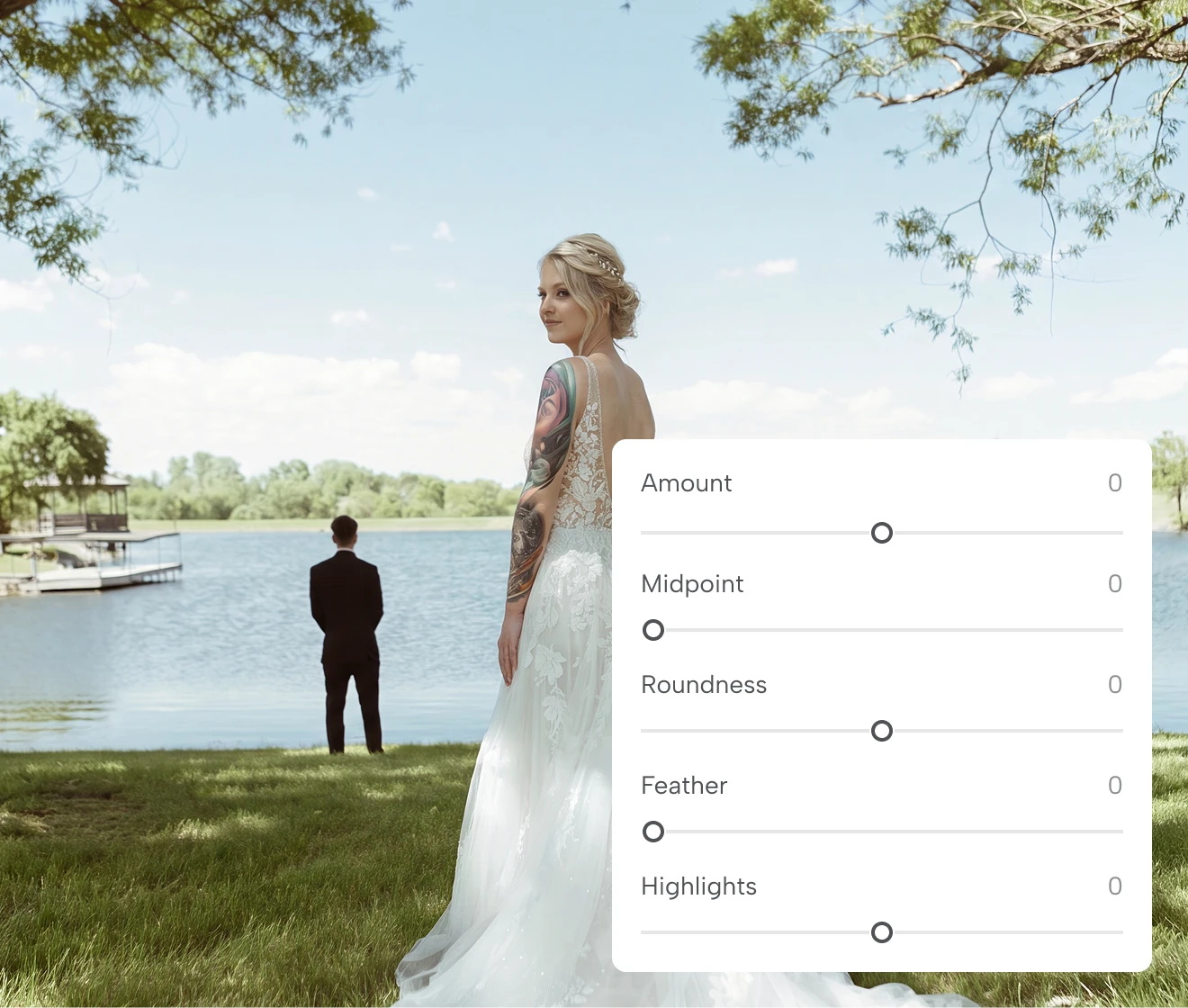
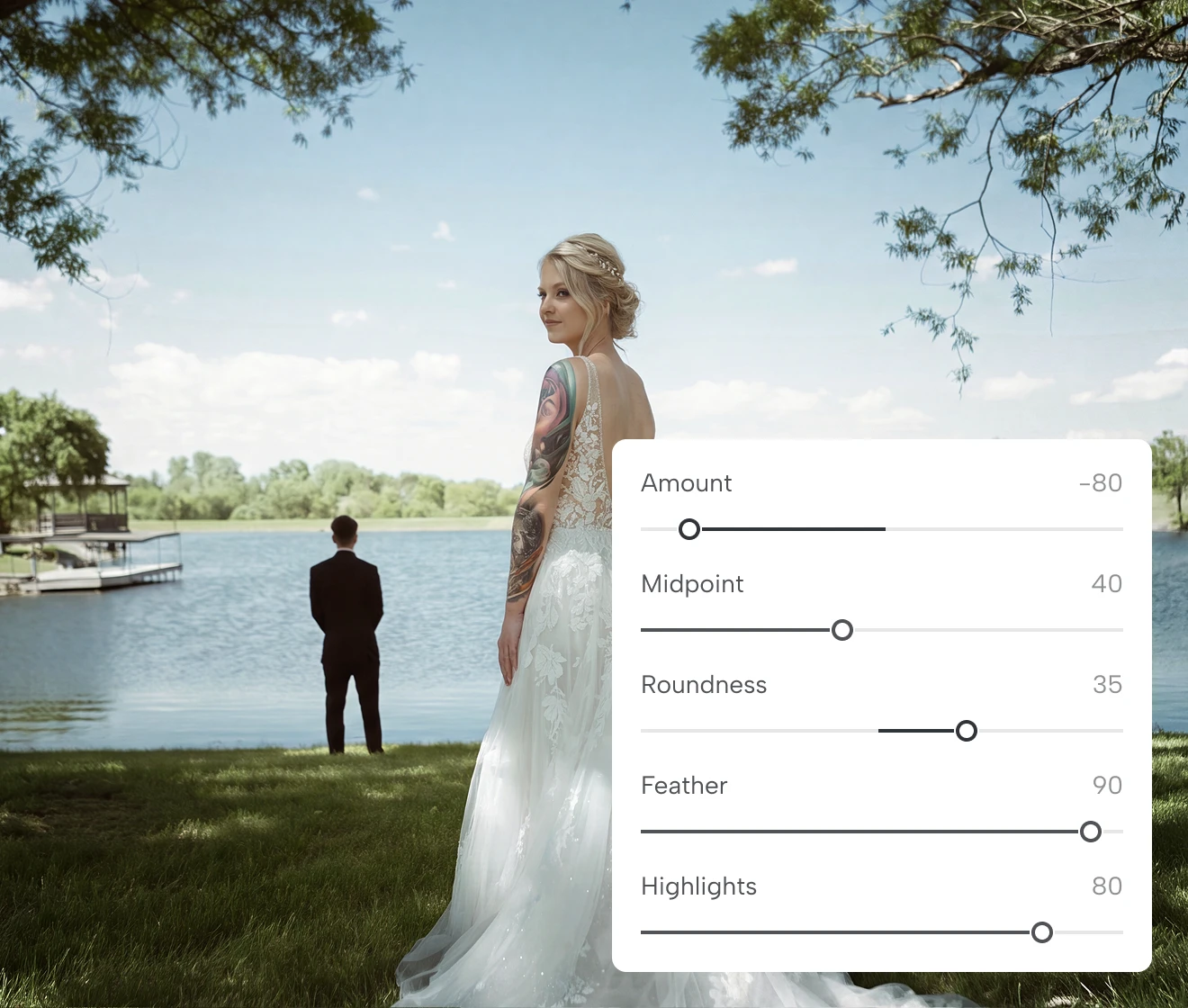
Traditional vignettes muddy bright skin, blown skies, or bridal white by darkening everything at the edges. The Highlights slider keeps skin, sky, and bridal white bright inside the vignette area, so faces stay natural and detail stays intact.

Highlight-preserved vignette keeping bright skin natural on a commercial headshot in Evoto
Before
After

Finish Your Portrait with Vignetting in One Workspace

Set your final crop, then add a post-crop vignette without leaving Evoto. The vignette follows the cropped frame, letting you darken or brighten the edges while keeping the composition focused—no layers, masks, or app switching.

A portrait cropped and finished with post-crop vignetting inside Evoto

Sync One Vignette Across an Entire Shoot

Save your vignette recipe as a Preset and use Sync to Selected to apply the same finishing look across a studio portrait set, editorial series, or brand campaign—consistent tone across every image in seconds.

Same vignette synced across a studio portrait series inside Evoto
Before
After

Why Photographers Choose Evoto's Vignette Effect

Real slider control, natural results, and preset-ready — here's why Evoto's vignette fits into a professional finishing workflow.
  • Vignette effect applied to a securely processed social media portrait in Evoto

    Your Photos Stay Private


    Evoto processes every photo securely and never uses your images, edits, or facial data to train AI models without your explicit consent — your creative work stays yours.
  • Post-Crop Vignetting control panel in the free Evoto desktop app

    Simple Sliders,
    Precise Control

    Go beyond Amount and dial in Midpoint, Roundness, Feather, and Highlights to shape exactly the vignette your shot needs — from subtle finish to strong cinematic frame.
  • Vignette settings saved as an Evoto Preset and applied to a full photo set

    Preset-Ready,
    Sync-Ready

    Save your vignette recipe as part of any Preset, then apply it across an entire selection with Sync to Selected. Perfect for photographers who deliver consistent series work.
  • Vignette effect previewed on a photo directly in Evoto's online editor

    Works Right in Your Browser


    Start your vignette edit directly in the browser. Upload a JPG, PNG, or WebP image, preview the effect online, and explore the look before deciding how to export.

How to Add a Vignette Effect Online — 3 Easy Steps

Uploading a wedding portrait to Evoto's online vignette effect tool
1.**Upload Your Photo**23
Click the upload button or drag and drop your JPG, PNG, or WebP into Evoto's online vignette editor to start editing instantly. For RAW files, download the free Evoto desktop app.
  1. 1. Upload Your Photo

    Click the upload button or drag and drop your JPG, PNG, or WebP into Evoto's online vignette editor to start editing instantly. For RAW files, download the free Evoto desktop app.
  2. 2. Shape the Vignette with 5 Sliders

    Drag the Amount slider for a dark cinematic vignette or bright halo, then fine-tune Midpoint, Roundness, Feather, and Highlights to shape it exactly to your frame — all live-previewed on the cropped photo.
  3. 3. Export Your Edited Photo

    Click Export to download your edited photo.

Faster Edits, Finer Control.

Transform your photos with Evoto Post-Crop Vignetting today.
Available for Windows, macOS, and iPadOS.

Desktop

FAQs

  • What is a vignette in photography?

  • What's the difference between a pre-crop and post-crop vignette?

  • What image formats does Evoto support?

  • How do I add a vignette without making the whole image too dark?

  • Will a post-crop vignette clip highlights or reduce image quality?

  • When should I add a vignette to a photo?

  • Does the vignette tool work on portraits, weddings, and product photos?

  • Can I add a vignette on iPhone or mobile?

  • Can I apply the same vignette to hundreds of photos at once?

  • Are my photos kept private when I use Evoto?

Last updated: 2026-08-21. Reviewed by: Evoto Product Team. Results may vary depending on image quality, lighting, subject pose, file format, and selected settings.