AI Background Changer to Combine Photos and Overlays Online
Change backdrops with AI Background sets, combine images with foreground overlays, and harmonize lighting with Evoto background combiner and overlay editor.
Backdrop Changer & Photo Layer Combiner Built for Portrait Studio Photographers
AI extracts the portrait subjects and merges it with a creative background scene, foreground overlays, and harmonized lighting. A compositing workflow built to handle the pace and volume of professional studio delivery.
AI Background Scene Sets
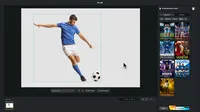
Select AI background scene sets by session type: School, Sport, Children, Wedding, and Maternity. Each set applies a paired background and foreground instantly. Drag, resize, and reposition the subject on canvas for holiday, dance recital, and graduation portrait orders. Swap from a plain studio wall to a seasonal change backdrop in one click. No sourcing required.
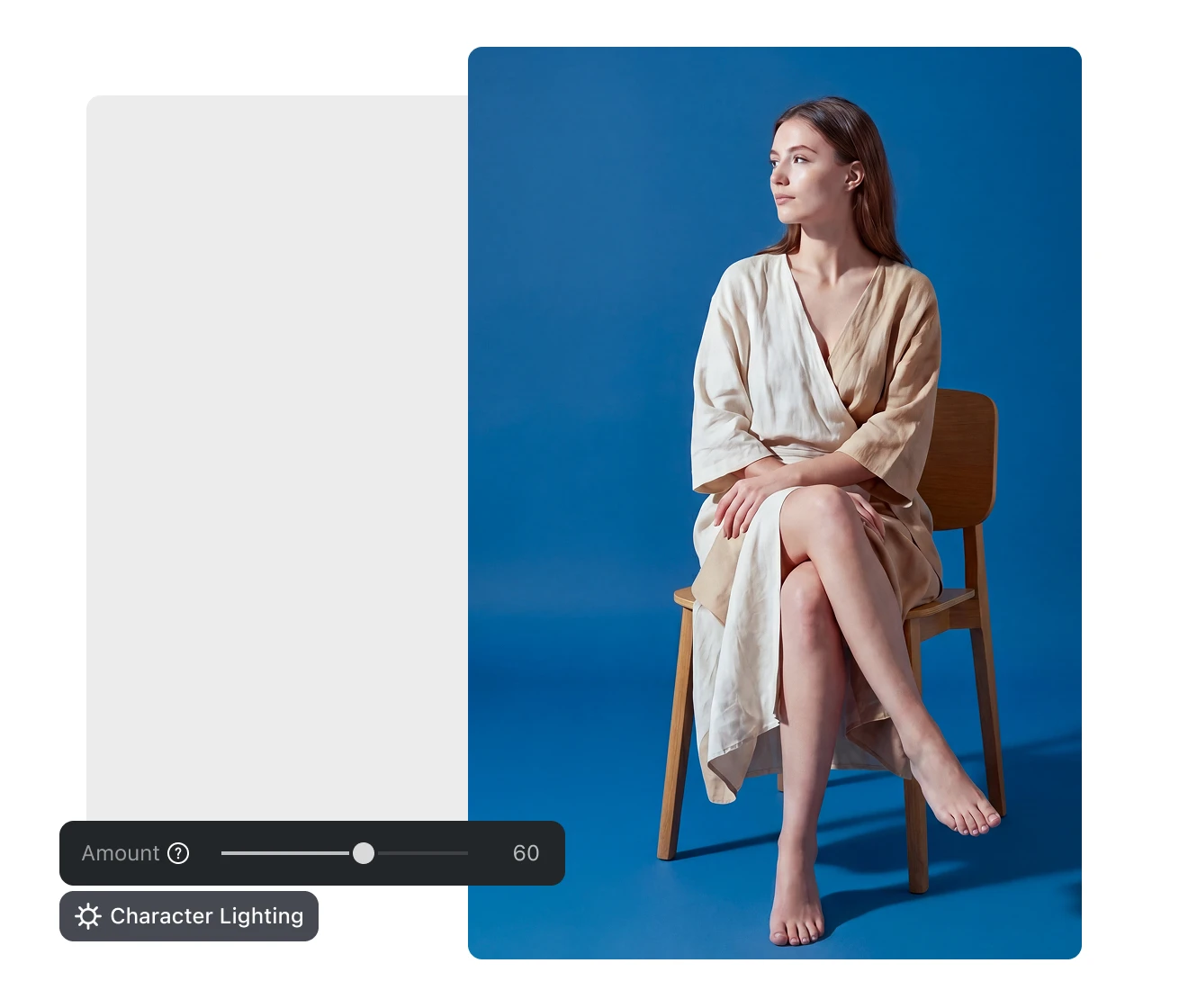
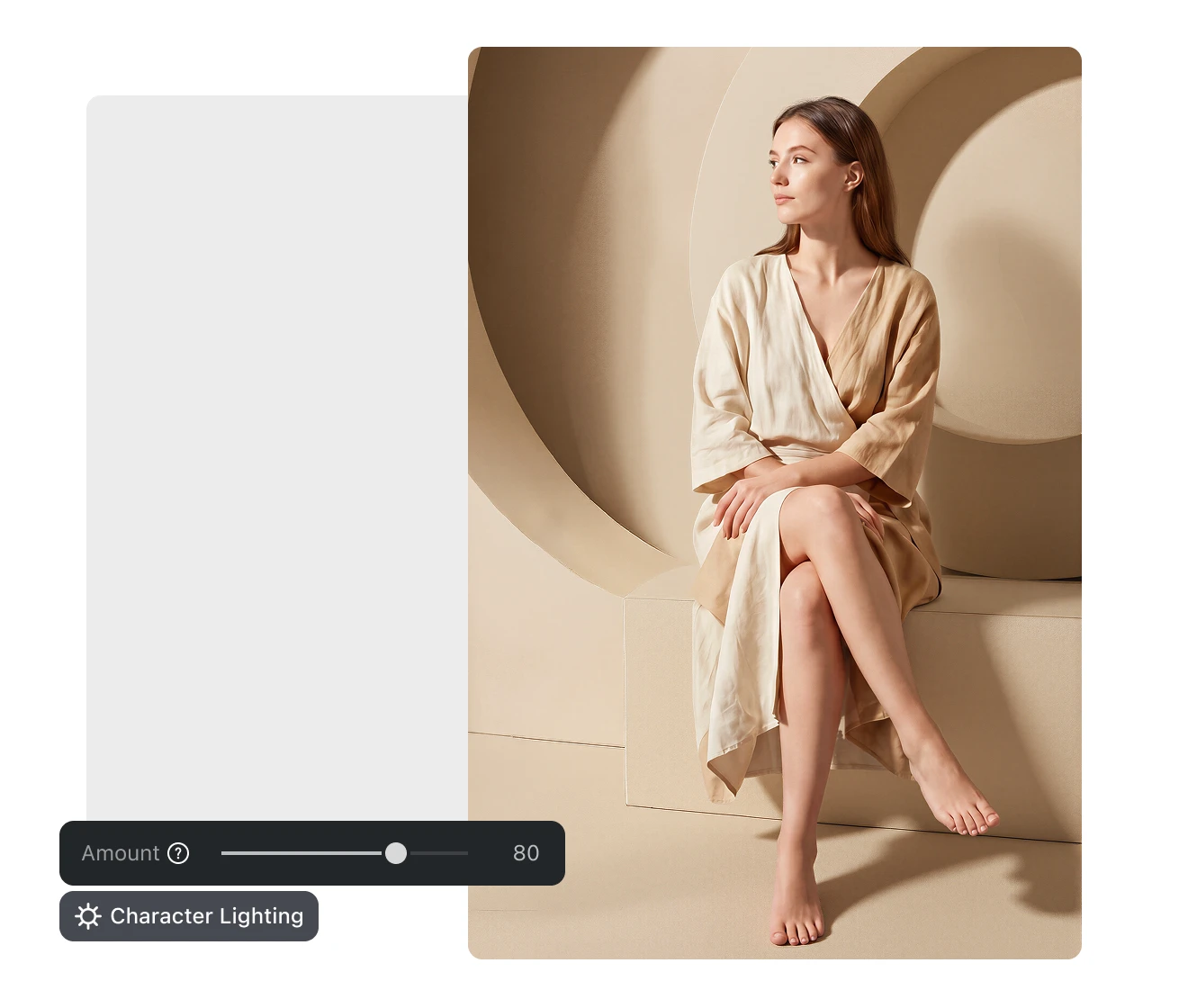
Adjust the Character Lighting slider to read background ambient tone and shadow direction, then apply AI character lighting harmonization for portrait compositing onto the subject. Remove the lighting mismatch that makes composites look staged. Suited for golden-hour outdoor scenes, dramatic interiors, and nature settings.
Layer portrait content across three compositing levels: Background Scene, Subject, and Foreground Props. Reposition, scale, rotate, and flip the subject on canvas to combine images into a print-ready result. Upload custom foreground assets or use background library elements. Suited for editorial sessions, concept shoots, and fantasy portraits. Iterate until it's right.
Add up to 50 foreground prop layers: florals, bokeh, seasonal snowfall, clouds, lanterns, stickers, or more custom PNG uploads. Control each with rotation, scale, mirror flip, and z-order to layer photos with precision. Use this overlay edit toolkit for personalized overlay texture and overlay images in editorial, festive, and branded portrait composites. Your scene, your details.
No text prompts, no black-box AI generation: built as a professional image combiner for studio post-processing workflows. Every compositing, overlay edit, and scene decision stays in the photographer's hands. Sometimes you just gotta try it out for yourself.
Curated AI background scene sets for holiday, wedding, newborn, sport, and maternity sessions. Mark favorite scenes and props for quick reuse in changing background across client orders.
Bring Your Own Assets
Upload custom JPG, PNG, or WebP backgrounds and PNG foreground props. Bring existing studio assets directly into the compositing canvas without re-purchasing materials.
Studio Batch and Edit Mask
Work in high efficiency. Batch AI background replacement for portrait studios: process up to 1,000 portraits per run. Refine cutout edges with the Edit Mask brush.
Your Data Stays Private
All processing runs locally on your device. No portrait data is uploaded externally or used to train AI models. Clients' compositing sessions and creative works remain entirely private.

Do More with Evoto AI Photo Editor
From professional photo background combine to color grading and more, we’ve got you covered.
Launch Evoto Desktop and load your portrait session. Click "AI Lab" in the top navigation, then select "AI Background Fusion" to enter the compositing workspace.
In the right panel, click "Featured" to browse scene sets by category: School, Indoor, Infant, Maternity, and more. Click "Custom" to upload your own JPG, PNG, or WebP background. Select a scene thumbnail to apply it to the canvas.
Reposition, resize, or rotate the portrait subject and foreground elements on the canvas. Select "Subject Only" or "Subject and Related objects" in the subject dropdown. Add extra prop layers or upload custom PNG assets. Then click "Generate".
Review the background changing result on the canvas. Click "Character Lighting" and adjust the slider to blend the lighting. Then, click "Save" to store the photo in your project.
1. Open AI Background Fusion
Launch Evoto Desktop and load your portrait session. Click "AI Lab" in the top navigation, then select "AI Background Fusion" to enter the compositing workspace.
2. Change Background
In the right panel, click "Featured" to browse scene sets by category: School, Indoor, Infant, Maternity, and more. Click "Custom" to upload your own JPG, PNG, or WebP background. Select a scene thumbnail to apply it to the canvas.
3. Position Subject and Arrange Foreground
Reposition, resize, or rotate the portrait subject and foreground elements on the canvas. Select "Subject Only" or "Subject and Related objects" in the subject dropdown. Add extra prop layers or upload custom PNG assets. Then click "Generate".
4. Adjust Character Lighting and Save
Review the background changing result on the canvas. Click "Character Lighting" and adjust the slider to blend the lighting. Then, click "Save" to store the photo in your project.
What makes AI Background Fusion different from a regular background changer?
A
A standard background changer replaces the backdrop and outputs a flat result. AI Background Fusion goes further: it composites three layers — background scene, portrait subject, and foreground props — then applies AI character lighting to blend the subject's ambient tone with the new environment. Adjust the composition and regenerate iteratively until the AI background composite is print-ready. The result is a fully dimensional image combiner output, not a flat cutout-and-paste.
Q
Will composited portraits look natural, or will they look obviously AI-edited?
A
Naturalness depends on scene selection, subject positioning, and the "Character Lighting" adjustment. Choosing a scene whose ambient light direction matches the original portrait, positioning the subject at realistic depth, and dialing in the Amount slider (0-100) removes the visual cues that reveal a change backdrop edit. Results vary with input photo lighting quality, but a well-adjusted AI background composite from this image combiner holds up in commercial print delivery.
Q
What is the difference between an image combiner, image overlay, image merge, image blender, and image fusion?
A
These terms describe distinct operations: - Image combiner / AI image combiner: composites multiple content layers (subject + background + foreground props) into a single output image. AI Background Fusion is this type of AI image combiner tool. - Overlay edit / overlay images: places one image layer over another with position, scale, and opacity control. The foreground prop system in AI Background Fusion is an overlay edit operation. - Image merge: typically describes side-by-side collage or grid layouts — a different task from layer compositing. - Image blender: artistic double-exposure mixing of two images. - Image fusion / Image mixer: AI generative techniques that stylistically blend or style-transfer between images — not the same as portrait scene compositing. Use combine images in AI Background Fusion to composite portrait layers; use image merge tools for collage grids.
Q
Can I upload my own foreground props and scene elements?
A
Yes. Upload any transparent-background PNG asset as a foreground overlay layer: studio florals or flower bouquets, seasonal props (falling leaves, snowflakes, bokeh light leaks, lanterns, balloons), fabric textures, animal or bird elements, signage boards, or character accessories. Assets saved as PNG-24 or PNG-32 with a clean transparent background composite most precisely. The official scene library also includes curated props matched to each category. All layers support independent rotation, scale, mirror flip, and z-order control, making AI Background Fusion a full overlay edit, overlay images, and layer photos compositor.
Q
What creative portrait styles work well with AI Background Fusion?
A
Beyond standard studio categories, AI Background Fusion is well-suited for concept and creative portrait work: fantasy and fairy-tale portraits with dramatic scene composites, fashion editorials with architectural or nature backgrounds, newborn sessions with seasonal holiday themes, boudoir photography with elegant interior room scenes, and cosplay or character portraits that require elaborate staged environments. For the sharpest subject extraction, shoot the portrait against a plain evenly-lit backdrop with clear separation between the subject and background — front-lit subjects with well-defined edges produce the cleanest AI cutouts and the most realistic AI background composites.
Q
Can I use AI Background Fusion for commercial client deliverables?
A
Yes. The photographer controls every compositing decision — scene selection, subject placement, overlay edit layer arrangement, and final output. The AI performs automated subject extraction and lighting analysis but makes no creative choices on your behalf. The photography editing background and image combiner result is full-resolution and export-ready for print or digital delivery.
Q
Does AI Background Fusion support batch processing for full portrait sessions?
A
Batch image combiner processing of up to 1,000 portraits is available exclusively in the Desktop version. To combine photos online for individual session previews, the free trial is the right entry point; switch to Desktop to combine images across 1,000 portraits in a single batch run.
Q
Is it safe to process client portrait photos with an AI compositing tool?
A
All AI background processing runs on your local device. No portrait data is uploaded to external servers, stored in the cloud, or used to train any AI model. This architecture meets the standard of data privacy for professional photographers — your clients' images and compositing session data remain entirely under your control throughout the editing process and after export.
Q
How is AI ethics and creative control handled in AI Background Fusion?
A
Every layer selection, prop placement, lighting value, and final output is a deliberate photographer decision. The AI performs automated subject cutout and background light analysis; the photographer selects the scene, positions the subject, arranges foreground layers, and decides which result to save. Evoto does not claim ownership of composited outputs, does not use uploaded portraits for any purpose beyond the current session, and does not introduce unprompted AI changes at any stage.
Q
What is the difference between the online trial and the Desktop version of AI Background Fusion?
A
Both versions include scene set selection, AI background compositing, Edit Mask, and Character Lighting adjustment. Evoto Desktop adds batch processing for up to 1,000 portraits, long-term custom asset storage, and keyboard shortcuts for faster compositing. Supported export formats include RAW, TIFF, JPG, and PNG at full resolution. Desktop is the professional studio version for photographers delivering large session volumes.