



Remove Tan Lines from Photos
with AI

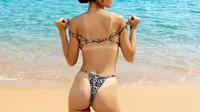
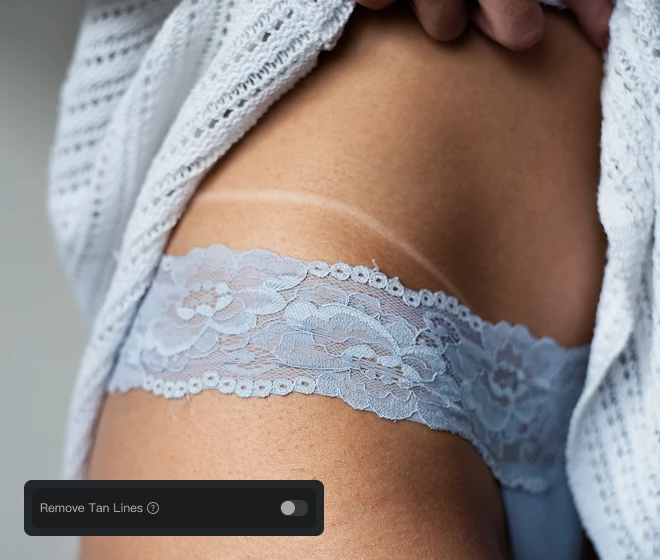
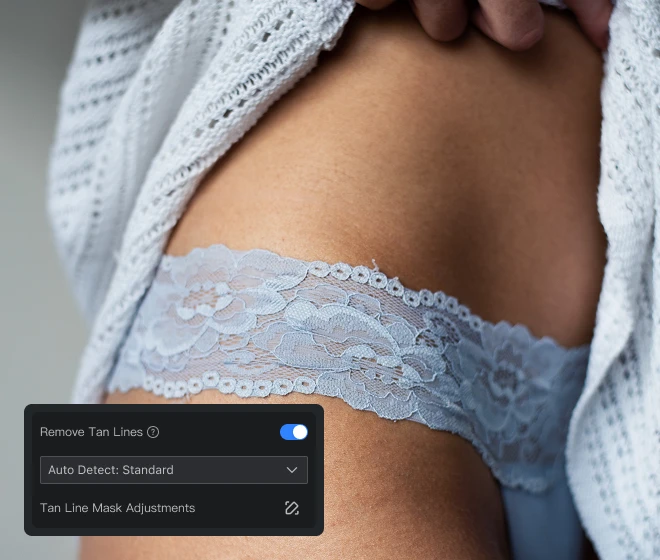
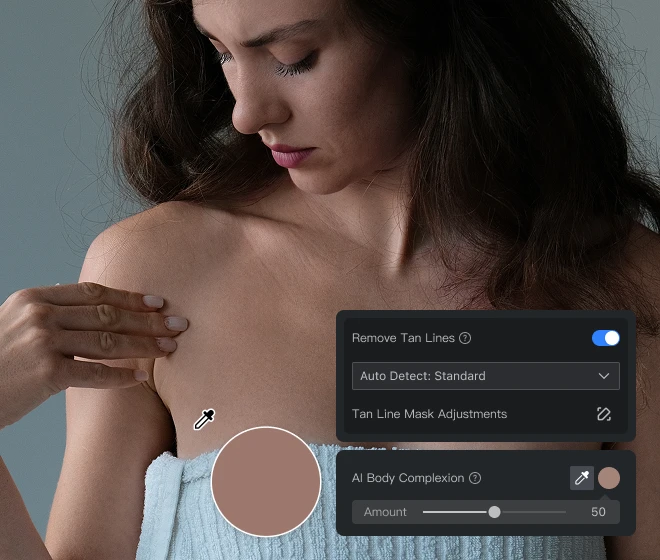
Get rid of tan lines on backs, shoulders, and arms before wedding, swimwear, and beach delivery. Effortlessly remove tan lines, smooth transitions, and restore natural, even skin tones with AI Tan Lines Remover by Evoto.
Desktop
AI photo editor
AI photo editor
Before
After
how to remove tan lines​1
how to remove tan lines​2
how to remove tan lines​3

Instant Tan Lines Removal for Pro-Level Portrait

Fix visible strap or bikini tan lines before albums, prints, and social crops ship. From quick batch passes to final mask polish,
one portrait panel covers all. Say goodbye to distracting tan lines and uneven skin tones.

Double Tan Lines Detection

Switch between “Standard” and “Enhanced” Auto Detect to control how hard AI hunts for tan lines. Single-pass photo editing tools miss faint strap marks or over-blur clean skin. Standard mode clears everyday wedding and swimwear galleries fast; Enhanced mode rescues high-contrast beach shots. Right mode, right pass.

Desktop
Standard and Enhanced mode to remove tan lines from photo

One-Click Remove Tan Lines

Get rid of tan lines in one click. “Tan Line Mask Adjustments” help edit tan lines along stubborn edges when auto results fall short. Give up those full-auto passes that often flatten skin texture on delivery frames. Embrace our dedicated tan lines editor for swimwear hero shots and album selects. Auto first, refine second.

Desktop

Body Tan Lines Fix

Sharp marks steal attention in boudoir frames. Fix farmer tan and strap marks across backs, shoulders, arms, and chest on boudoir or bikini portrait in one workflow. Built for editorials, strapless portraits sessions from lingerie bedroom sets to client album selects. One panel, every zone.

Desktop
Fix tan lines from back shoulder arm chest in boudoir body photos
Before
After

Skin Tone Unify Even Out

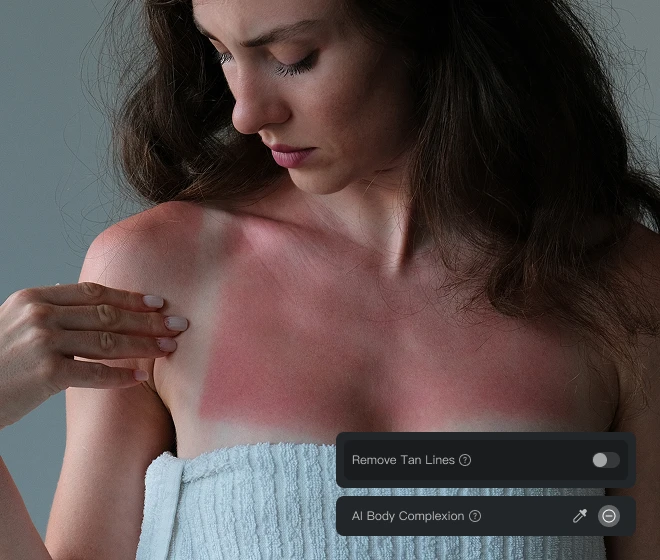
Even out face-to-body shifts with skin tone “AI Unify”. Removal alone can leave complexion reading two colors. Sample target skin with the eyedropper, then balance skin tone across the frame. Runs right after bikini tan lines passes, before background composites ship. Even skin, one story.

Desktop
Edit uneven skin tone and unify face body skin tone balance
Before
After

Tan Lines Editor Built for Studio Portrait Workflows

Professional tan lines control without outsourcing or rebuilding Photoshop layer stacks.
AI handles detection; you keep every delivery decision. Let the results speak for themselves.
  • Auto retouch service queue icon

    No Manual Service Queue

    Skip the wait. Replace per-image manual retouch services with an in-house tan lines remover that allows you to control on every client order.
  • Image layer stack icon

    Zero Photo Filter Stack

    Skip the stack. No complicated layer workflow required: zero photo filter layers, hand-drawn paths, or 20-minute passes per frame.
  • Batch sync settings gallery icon

    Sync across the Session

    Sync once. Apply the same “Remove Tan Lines” settings across multiple photos with Evoto Desktop batch edits on matching skin tones.
  • Local desktop client photo privacy editing icon

    Client Files Stay Local

    Your studio. Your files. Our AI photo editor supports data privacy for professional photographers. Client portraits stay on your workflow, not a black-box queue.

How to Remove Tan Lines from Photos

Desktop
Step 1 import portrait photos to remove tan lines
1.**Import Your Image**234
Open Evoto AI and click the “Import Image” to upload your tan lines photo(s). You can import a single image or multiple photos for batch editing.
  1. 1. Import Your Image

    Open Evoto AI and click the “Import Image” to upload your tan lines photo(s). You can import a single image or multiple photos for batch editing.
  2. 2. Remove Tan Lines from Photo

    Navigate to the “Portrait Retouching” panel, then select “Skin Retouching” >“Skin Tone". Turn On "Remove Tan Lines" button, then instantly preview with the real-time before-and-after comparisons.
  3. 3. Adjust Tan Line Mask (Optional)

    Open “Tan Line Mask Adjustments” for “Manual Tuning”. Use “Erase Mask” or “Add Mask” to edit tan lines along edges. Adjust brush size and softness. Toggle “Show original image and mask” to check transitions.
  4. 4. Export Your Edited Photos

    Click “Export” to save your image in JPG, PNG, RAW, or TIFF format.

    Pro Tip: Use Ctrl + C / Ctrl + V to copy and paste settings for fast batch editing across multiple images.
Desktop

Faster Edits, Finer Control.

Retouch your photos with Evoto AI Tan Lines Remover today. Available for Windows, macOS, and iPadOS.

Desktop

FAQs

  • What are tan lines, and can I remove tan lines from a photo?

  • What's the difference between removing tan lines and a tan filter/skin tanner?

  • Can Evoto fix a sunburn or sunburn lines in a portrait?

  • When should I use Standard vs Enhanced Auto Detect?

  • Should I fix tan lines in post, or ask the client to reshoot?

  • How to get rid of tan lines without Photoshop?

  • Can this photo editor fix bikini, strap, and arm tan lines?

  • Should I use Skin Tone Unify after removing tan lines?

  • Can I edit tan lines manually and batch-process on Desktop?

  • Is my clients' photo data safe when using Evoto?

Last updated: 2026-07-24. Reviewed by: Evoto Product Team. Results may vary depending on image quality, lighting, subject pose, file format, and selected settings.