Pro AI Perspective Correction

Quickly fix perspective distortions—straighten tilted buildings, interiors, products, or horizons with fast, professional results.

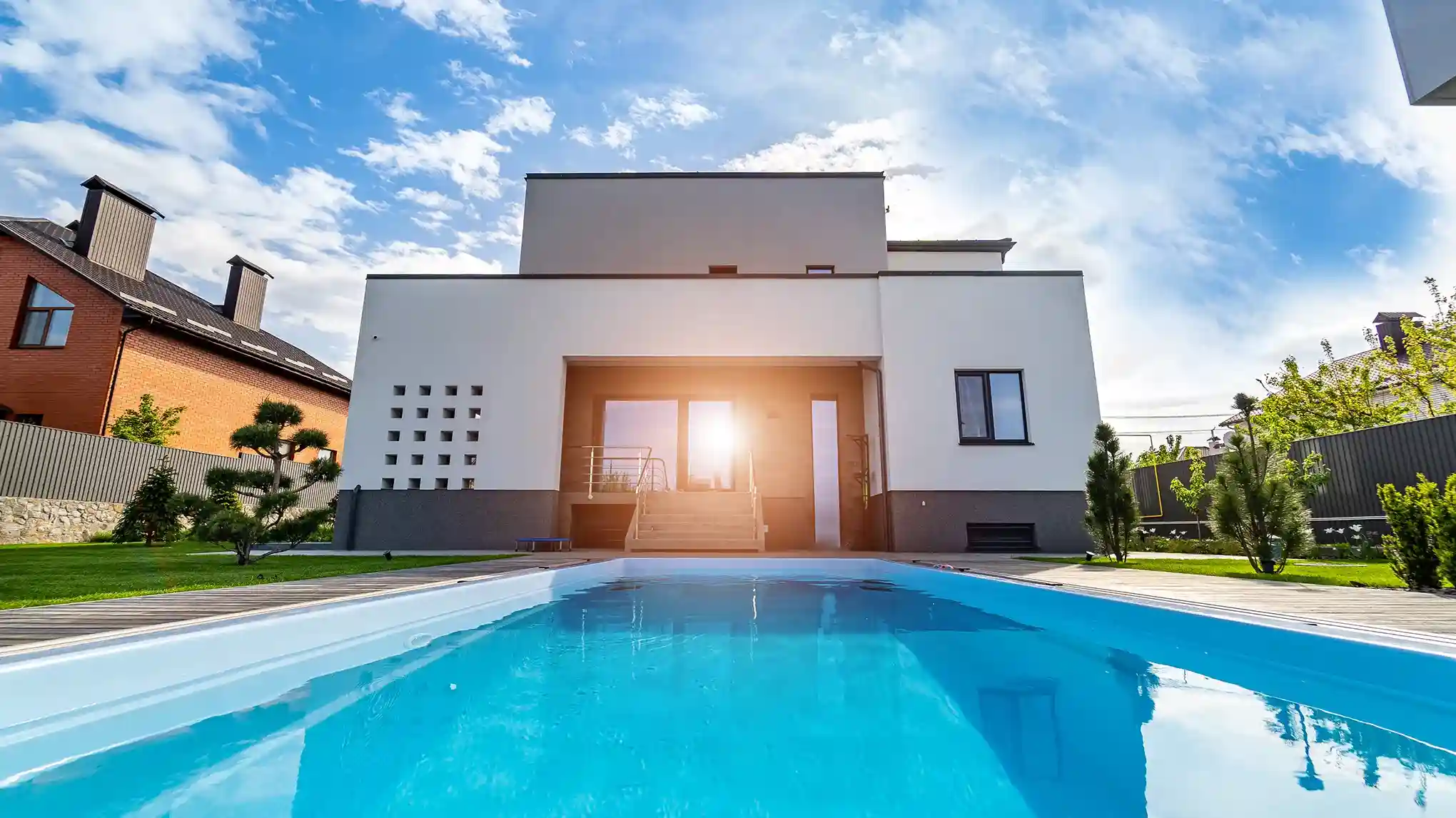
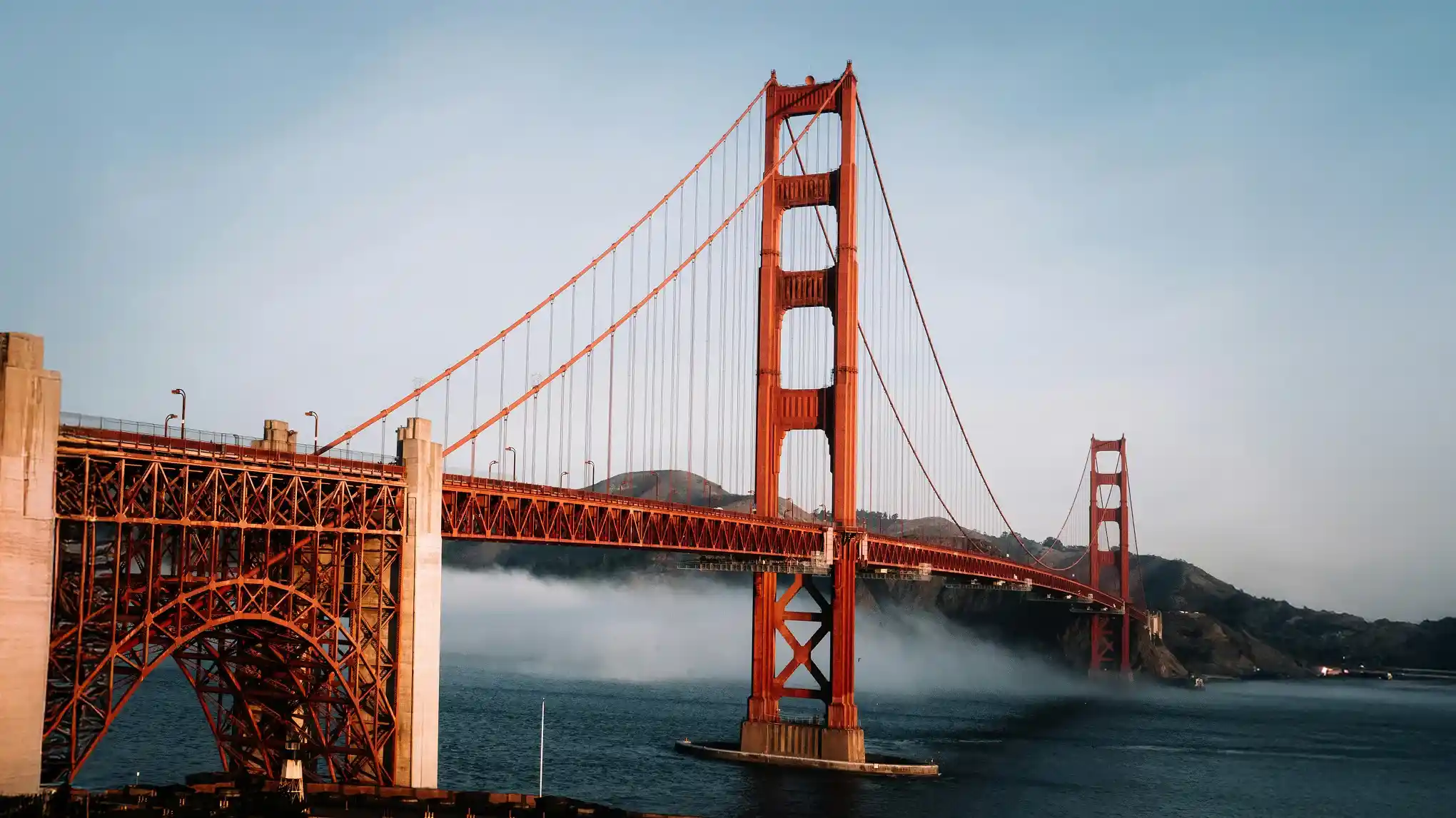
Create perfect photos perspective correction.
Before
After
Create perfect photos perspective correction.1
Create perfect photos perspective correction.2

Instant Perspective Correction for Perfectly Aligned Images

Achieve professional-grade photos with the Perspective Tool. Quickly correct perspective distortion, straighten lines, and enhance image quality with both AI and manual techniques.

Automatic Perspective Correction

Get instant, ready-to-use results with precise automatic perspective correction—especially for architectural photos. In family travel shots, it straightens warped buildings or tilted horizons while leaving people untouched.

ravel shot: straight buildings, people unchanged
Before
After

Accurate Vertical & Horizontal Adjustments

Especially useful for buliding photos, vertical and horizontal lines can be easily corrected. Straighten titled columns or distorted walls with just a few clicks for perfect alignment: 


Smart: Automatically corrects both vertical and horizontal alignment.
Level: Corrects only the horizontal alignment.
Vertical: Corrects only the vertical alignment.

Align images with precision
Before
After

Manual Adjustments for Perfect Details

In addition to automatic corrections, Evoto AI also provides manual tools for specific adjustments. Fine-tune the perspective, adjust angles, and modify proportions to create the perfect image tailored to any style.


Vertical: Adjust vertical alignment
Horizontal: Adjust horizontal alignment
Rotate: Rotate within the canvas
Aspect: Correct aspect ratio, stretch or compress
Scale: Scale within the canvas
X Offset: X-axis displacement
Y Offset: Y-axis displacement

Fast and accurate image editing.
Before
After

Adjust Distortions and Straighten Lines

Camera angles and lens distortions can skew walls, windows, and lines in interior photos, making spaces look unbalanced. With AI perspective correction and tilt correction, you can quickly straighten lines and achieve clean, professional results.

Adjust photos manually for custom edits.
Before
After

AI Perspective Correction - Why Choose Evoto AI?

Effortlessly correct distortion—AI straightens tilted buildings and warped backgrounds with precision, no layers or guesswork needed.

  • Advanced AI fixes perspective, lens distortion, and geometry for flawless images.

    Advanced Distortion Fixing

    AI Transform Corrections automatically corrects perspective, lens distortion, and geometric issues, ensuring a flawless image without manual adjustments.

  • Automatically fix perspective, lens, and geometric distortions.

    Seamless Image Alignment

    Evoto allows for the precise alignment and merging of multiple images, ensuring perfect harmony and a professional look.

  • Align and merge multiple images seamlessly with Evoto AI.

    Automatic or Manual Control

    Whether using automatic corrections for fast results or manual editing for more control, Evoto offers flexible options to suit different needs.

  • AI quickly corrects perspective distortions for natural results.

    Instant Perspective Adjustment

    The AI-powered tool quickly restores an image to its natural upright perspective, saving time compared to manual editing.

Do More Photos with AI Perspective

Easily enhance photos with the AI Perspective Tool. Straighten lines, adjust angles, and achieve a professional look in just a few clicks!

AI Transform Corrections: Step-by-Step Guide

Upload Photos to Evoto
1.Upload Photos to Evoto234

Upload your photos in RAW, TIFF, PNG, or JPG formats to the platform for quick and easy editing.

  1. 1. Upload Photos to Evoto

    Upload your photos in RAW, TIFF, PNG, or JPG formats to the platform for quick and easy editing.

  2. 2. Enable Automatic Transform Correction

    Go to Color Adjustments, then select AI Transform Corrections to automatically fix perspective, lens distortion, and geometric issues, and correct lines for a more natural and balanced photo.

  3. 3. Use Manual Adjustments (Optional)

    For more control, you can fine-tune specific areas—such as tilted objects or distorted shapes—and adjust distortions with precision.


  4. 4. Precise adjustments for distortion control

    Check the results using the preview feature, compare before and after, then confirm and export.

Faster Edits, Finer Control.

Transform your photos with Evoto Available for Windows, macOS, and iPadOS.

FAQ

  • What is AI Transform Corrections?

  • How does perspective correction work?

  • Do I need any special skills to use AI Transform Corrections?

  • Will the correction affect image quality?

  • Can I choose the level of correction?

  • Can multiple features (AI Transform Correction, AI Distortion Correction, etc.) be applied at once?

  • What makes AI Image Transformation Adjustment different from regular editing tools?

  • How quickly does AI perspective correction process images?

  • Can I further edit results after AI Transformation Adjustment?

  • What file formats are supported for AI Perspective Correction?