Edit RAW photos, batch-process images, and streamline your workflow.Download Evoto

Video Face Editor — Reshape, Refine & Edit Faces in Every Frame


The professional video face editor that lets you reshape face shape, refine eyes, nose, and teeth, smooth skin, and apply makeup — directly in your footage. Every adjustment is a slider, every face is tracked automatically, and in multi-person video you can edit each face on its own. No keyframing, no compositing.

One Face Editor. Every Detail, Covered.

Skin, blemishes, face shape, features, makeup — every face control lives on a slider, and AI tracking keeps it locked to your footage.

Flawless Skin, Zero Plastic Look

Clear acne, freckles, eye bags, dark circles, and shine, then soften every wrinkle — each on its own slider. Textured Smoothing keeps pores real, Dodge & Burn refines the light. Healthy, natural skin, never that waxy filter finish.

Every Face, Edited Its Own Way

The AI finds and tracks every face in your shot. Tap any one to edit it solo — a stronger reshape here, lighter smoothing there. Perfect for group scenes and interviews. Tracking holds through profiles, motion, and partial cover.

Sculpt the Face, Down to the Detail

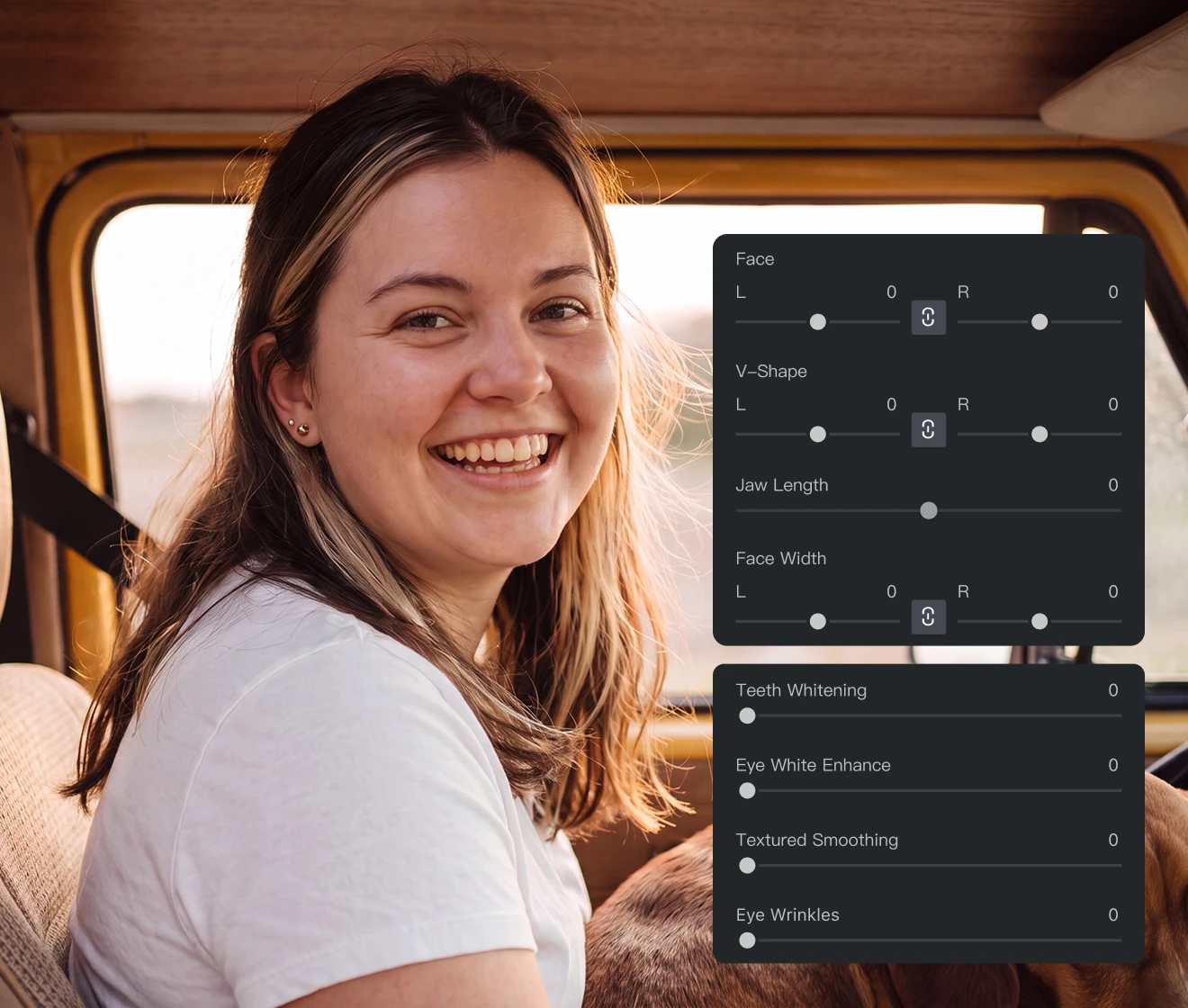
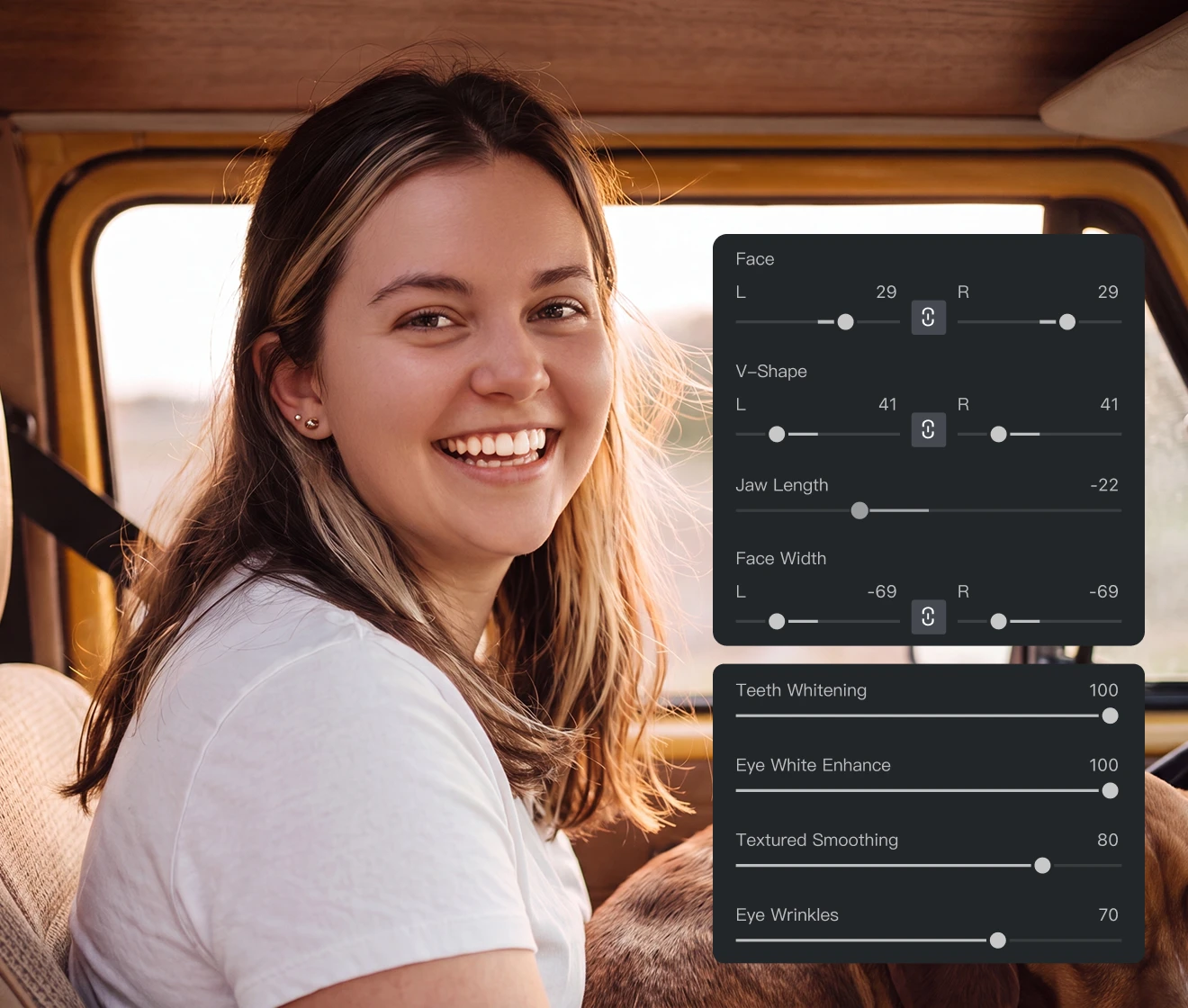
Reshape face shape with 16+ controls — jaw, cheekbones, V-shape, chin, forehead — plus brows, eyes, nose, and mouth, each with left/right control. Brighten eyes, enhance whites, whiten teeth. AI tracking holds it all through every turn.

Video portrait with face shape reshaped, eyes brightened, and teeth whitened, maintained during head turn
Before
After

Full-Glam Makeup in One Tap

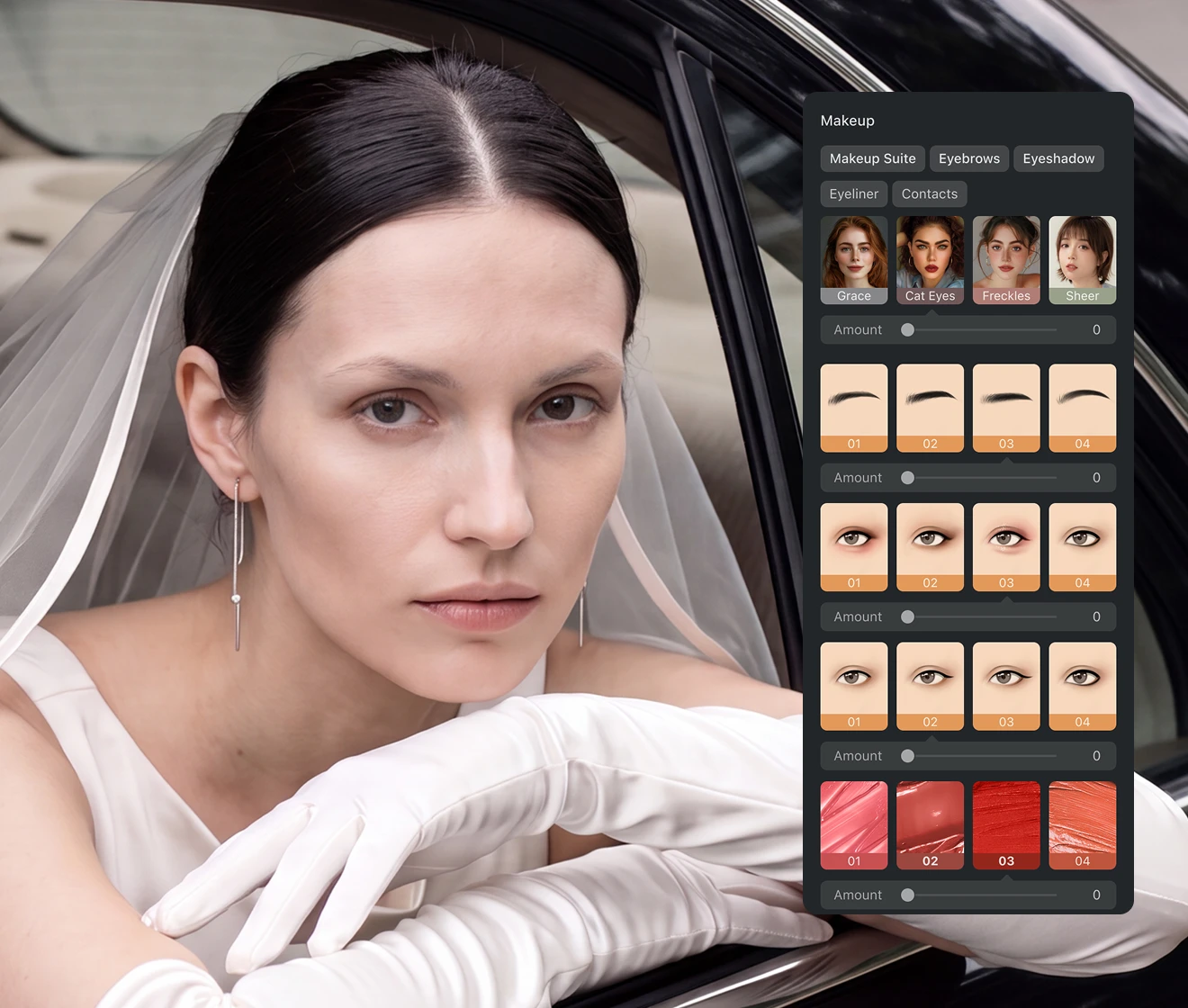
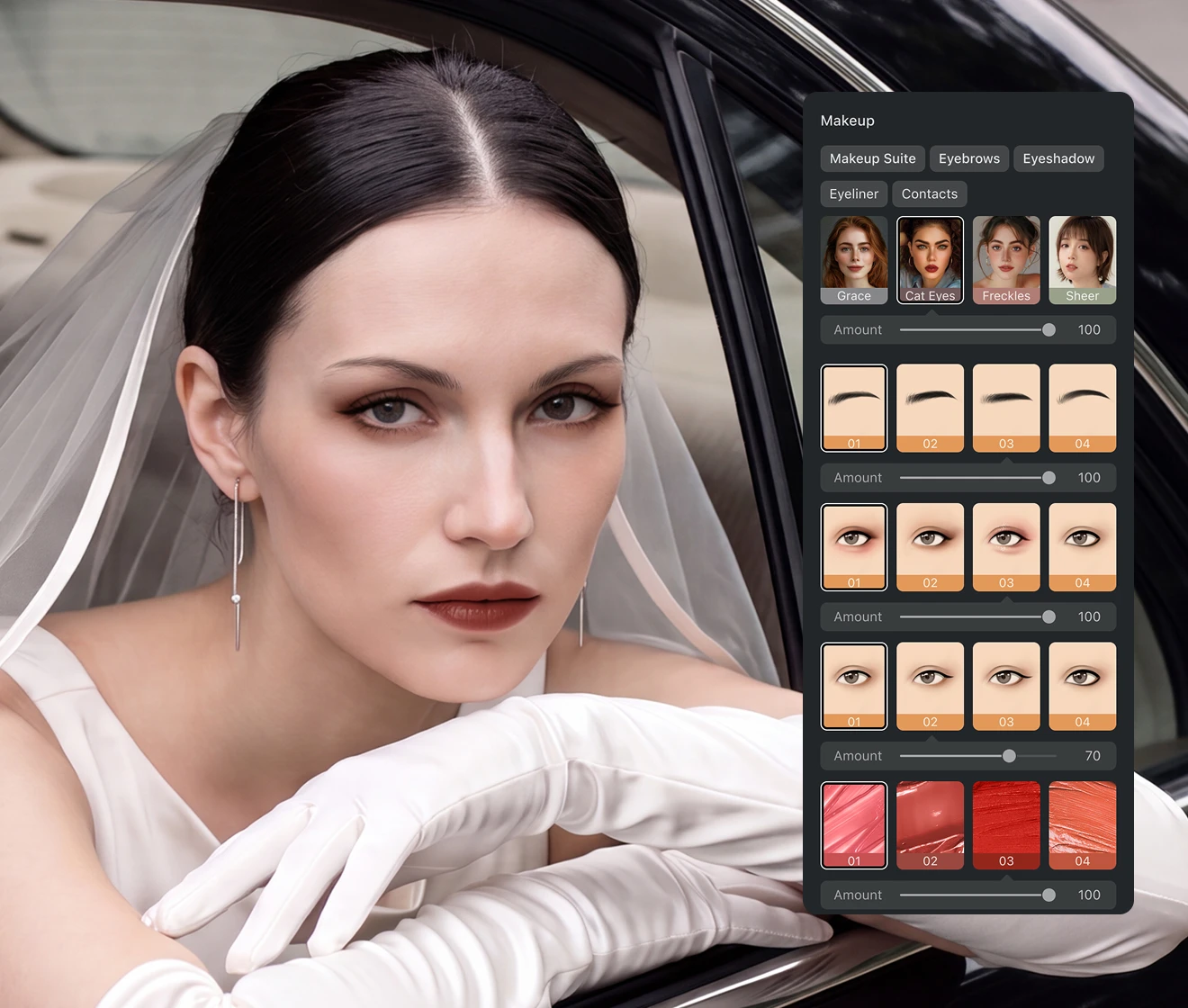
Drop a complete look in seconds — Nude, Chic, Sweet, Vintage, and more — then tweak brows, eyeshadow, liner, blush, lips, even colored contacts. Slide the intensity from barely-there to bold. It stays locked on as the face moves.

Makeup preset panel showing looks like Nude and Vintage applied to a video portrait with intensity slider
Before
After

Built for Video, Not Bolted On

A real face editor for footage — not a photo tool with video tacked on, and definitely not a basic beauty filter.
  • Timeline view showing consistent face editing maintained across frames during a head-turn sequence

    Edits That Never Flicker

    Set your edits once — the AI carries them across every frame through turns, expressions, and light changes. No keyframing, no jitter, no blemishes blinking in and out.
  • Export dialog showing 4K resolution and original frame rate preserved

    Full 4K Quality, Start to Finish

    Import 4K, export 4K. Your footage keeps its original resolution and frame rate, with no quality loss anywhere along the way.
  • Clean slider interface showing facial reshape and makeup controls with left/right toggles

    Pro Results, Just Drag a Slider

    Every tweak is a slider — push to add, pull to ease off. Left/right and intensity controls keep features and makeup believable, never overcooked.
  • Preset panel showing a saved face-editing look being applied to another clip

    Save Once, Reuse Everywhere

    Save your look as a preset and apply it to any clip in a click — a consistent face edit across an entire project, no re-adjusting.

How to Edit Faces in Video — 4 Steps

Evoto Video interface with a video clip loaded on the timeline
1.Import Your Video234
Open Evoto Video and import your clip. Supports MP4, MOV, and M4V at resolutions up to 4K. Your footage appears on the timeline — scrub to the frame you want to edit.
  1. 1. Import Your Video

    Open Evoto Video and import your clip. Supports MP4, MOV, and M4V at resolutions up to 4K. Your footage appears on the timeline — scrub to the frame you want to edit.
  2. 2. Edit the Face

    Open the Portrait Retouching panel — the AI detects and tracks each face automatically. Just drag the sliders to reshape face shape, brighten eyes, whiten teeth, smooth skin, and add makeup. In multi-person shots, pick a face to edit it on its own.
  3. 3. Apply to the Whole Video

    Once your edits look right, click Apply Effects and Evoto renders them across the entire clip — every frame, automatically.
  4. 4. Save a Preset & Export

    Save your settings as a preset to reuse on other clips, then click Export. Choose Regular or Segment Export, and pick from a range of industry-standard resolutions (720p, 1080p, 2K, 4K) and frame rates (24–60 fps) — or match your project's original.

Ready to Edit Faces in Your Next Video?

Reshape, refine, and apply makeup — tracked across every frame and adjustable per face. Download Evoto Video and get 60 free credits to start.

FAQs

  • Does the face editing look natural in motion?

  • Can I reshape face shape without distorting the background?

  • Can I adjust the left and right sides of the face independently?

  • Does it work on all face shapes, skin tones, and ages?

  • Do edits stay consistent across the whole clip, even with multiple people?

  • What video formats and resolutions are supported?

  • How long can my video be?

  • Can I edit faces in footage shot on my phone?

  • Will editing lag or slow down my computer?

  • Do I need video-editing experience to use it?

Last updated: 2026-07-24. Reviewed by: Evoto Product Team. Results may vary depending on image quality, lighting, subject pose, file format, and selected settings.