




Take a full retouching toolkit wherever you go. Edit anytime and save your results with ease.Download Evoto

AI Moire Removal: Remove Moire Pattern Online

Remove moire from photos with automatic correction that tackles both unwanted color and light-and-dark ripples. Evoto AI Moire Removal helps preserve natural texture and detail as it reduces interference, giving you a cleaner result in one click.
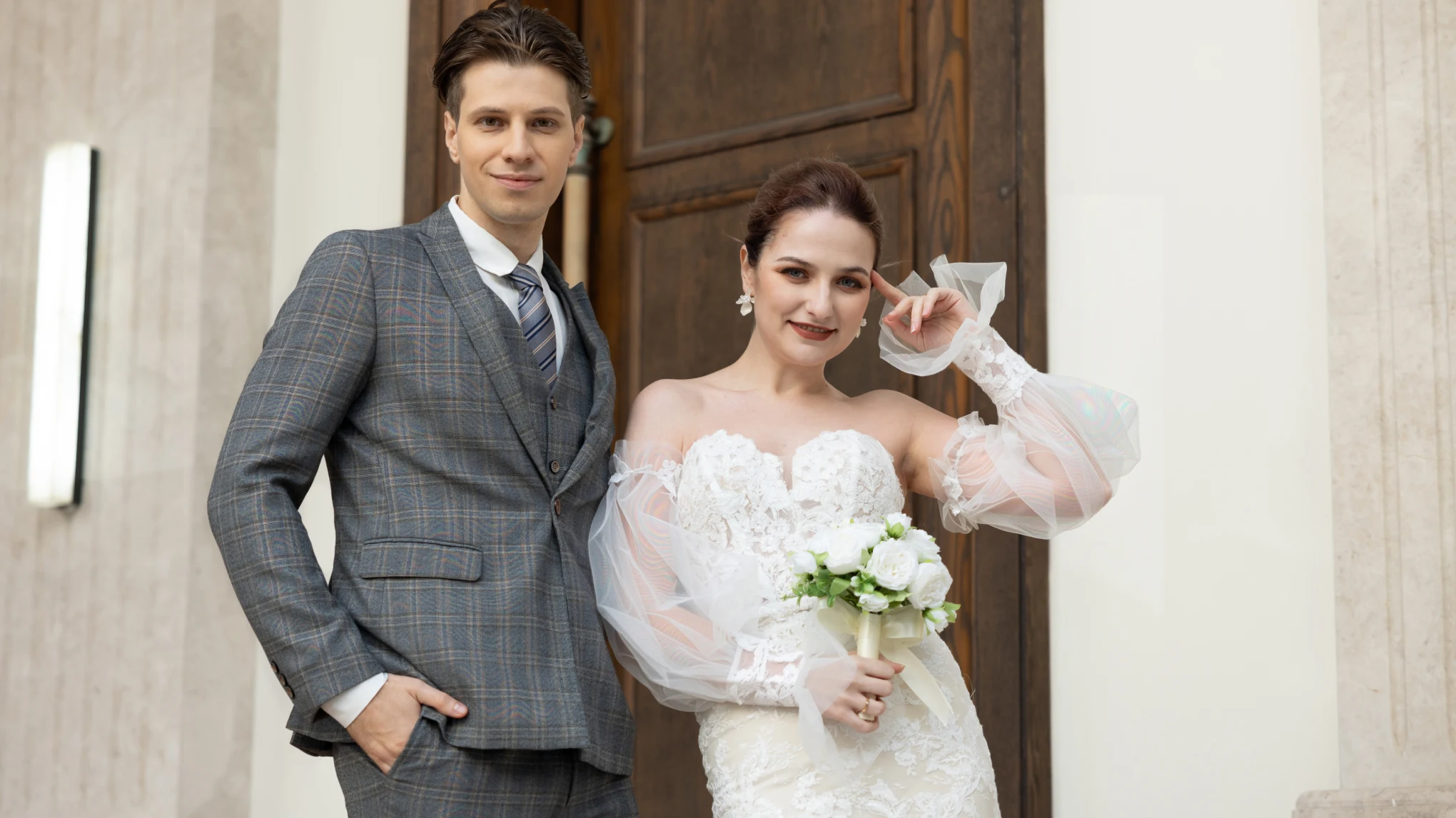
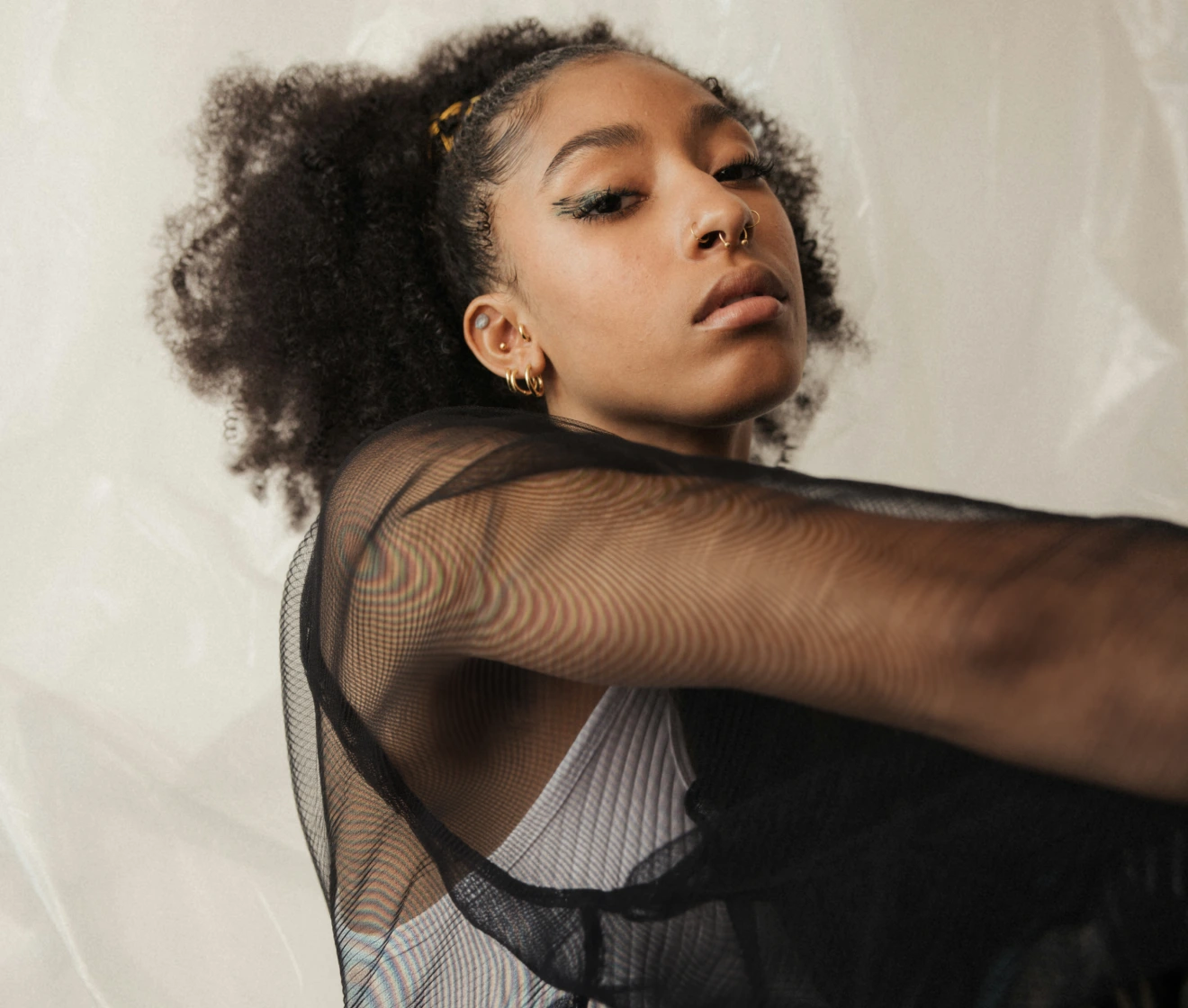
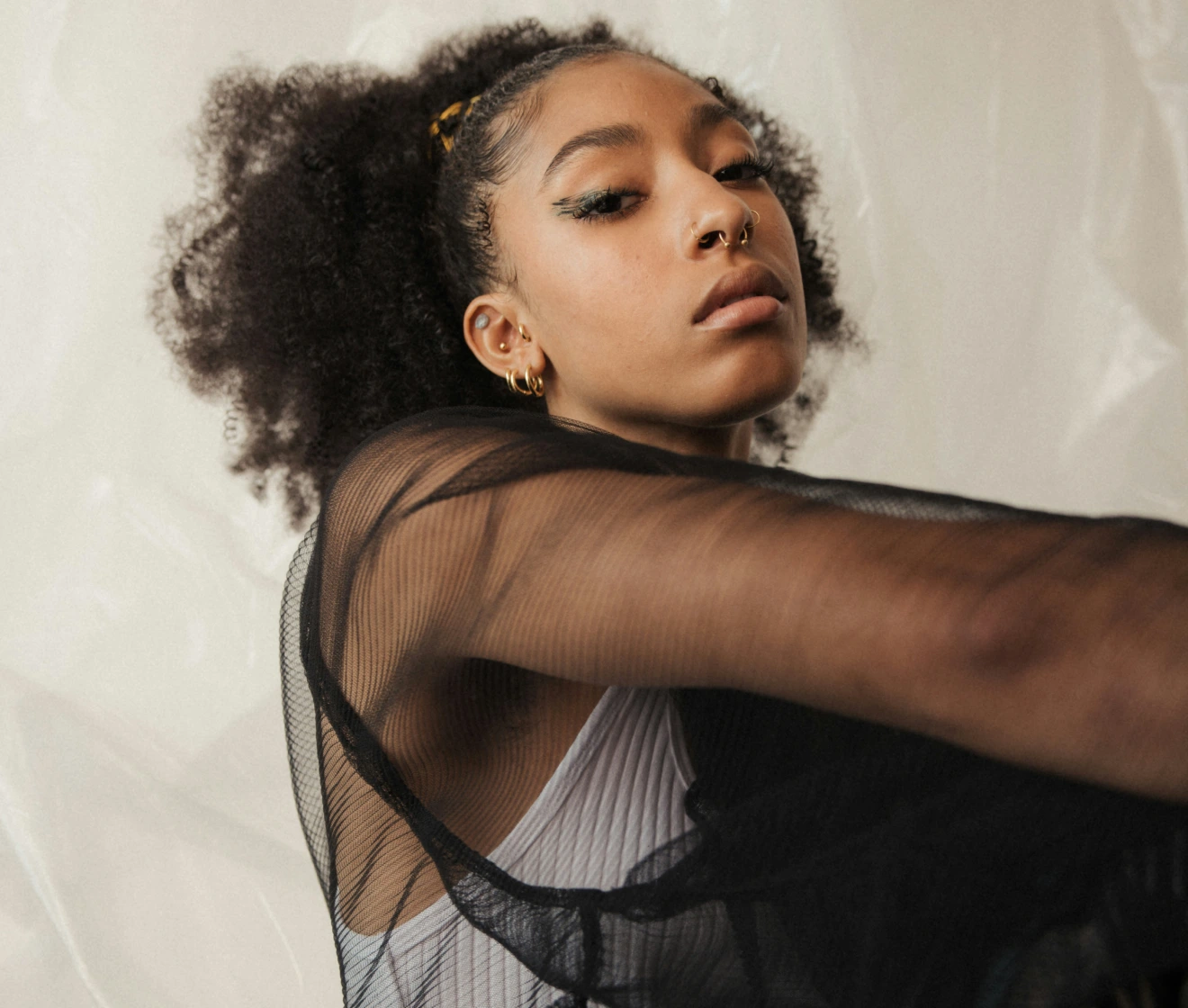
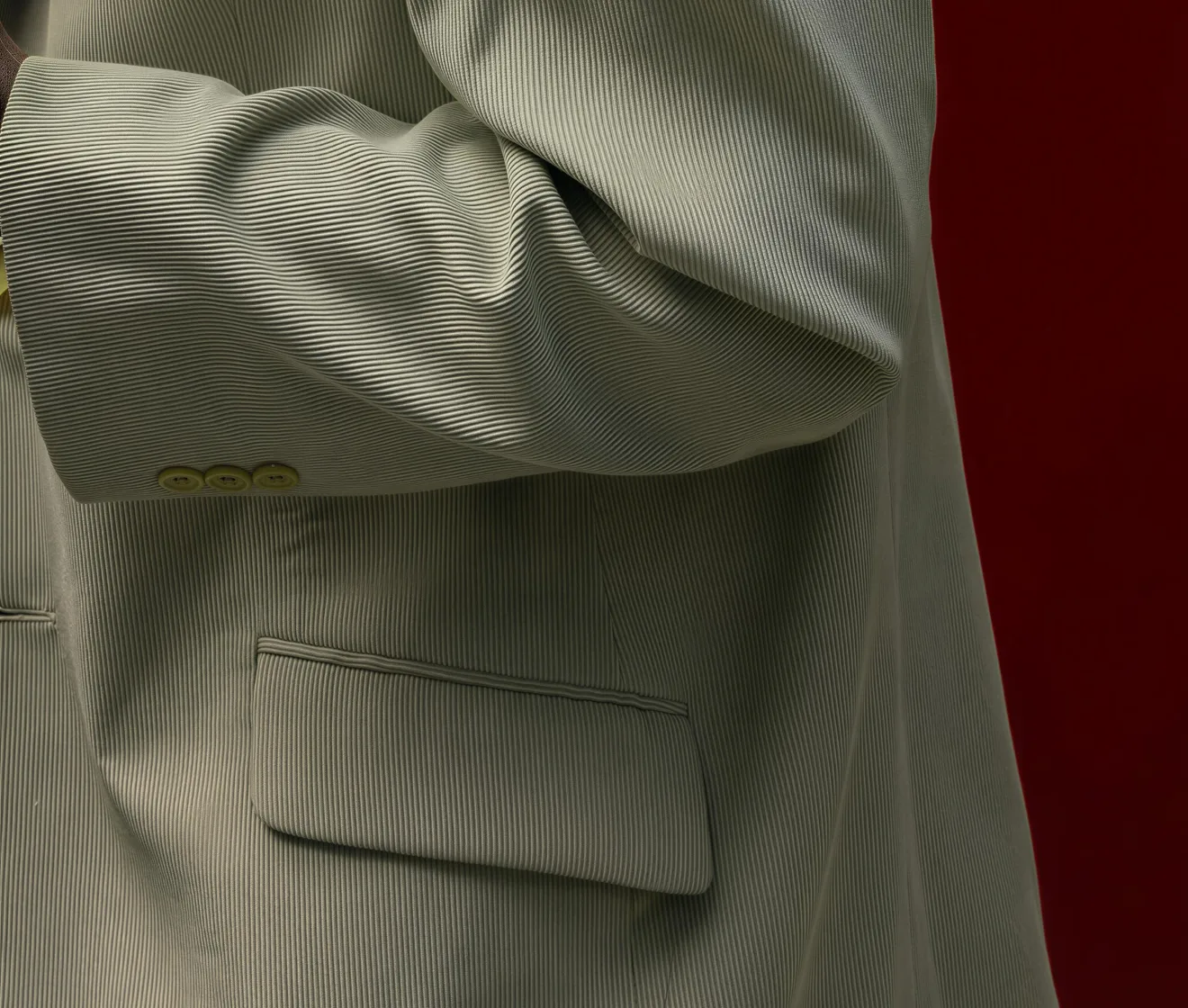
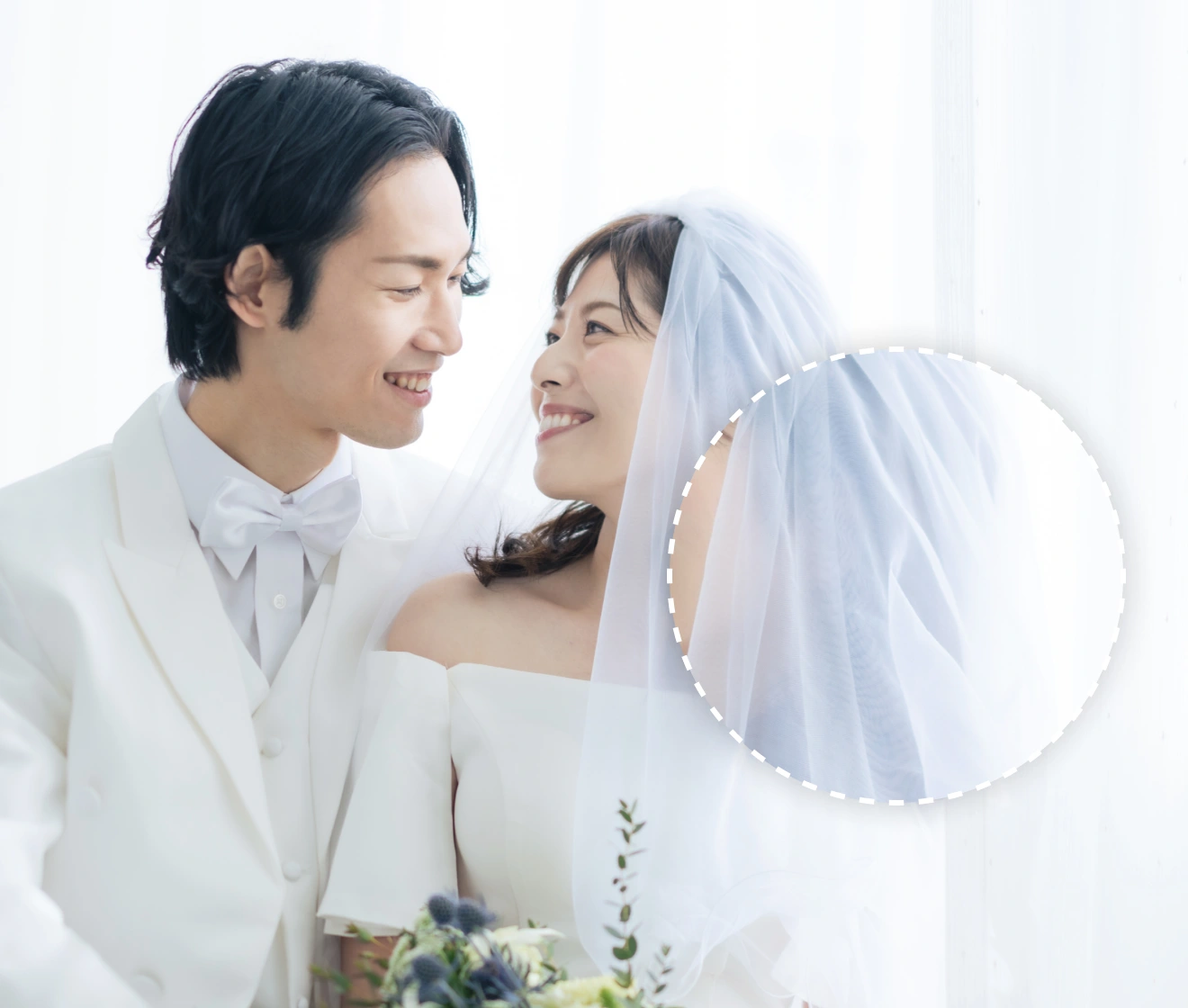
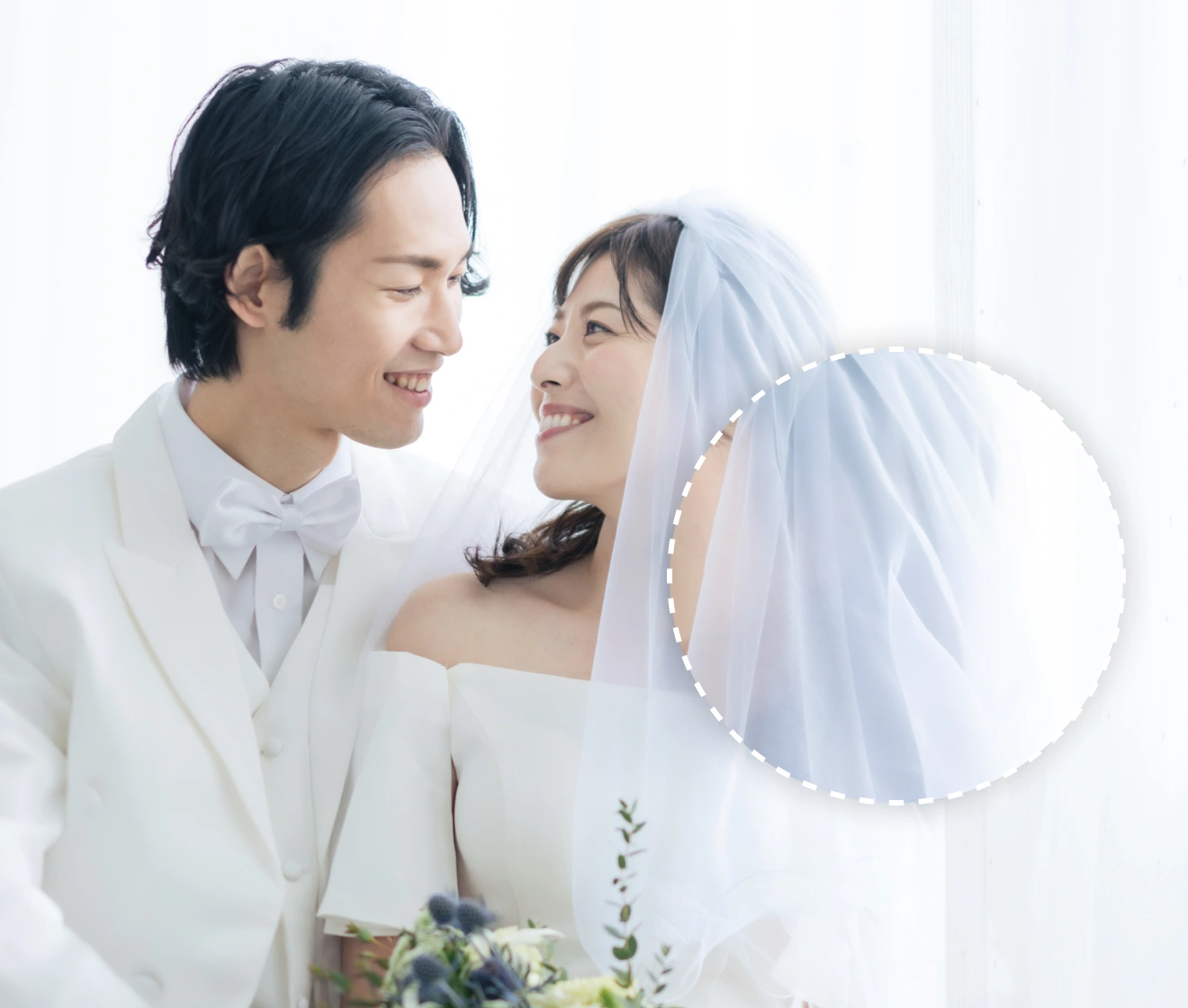
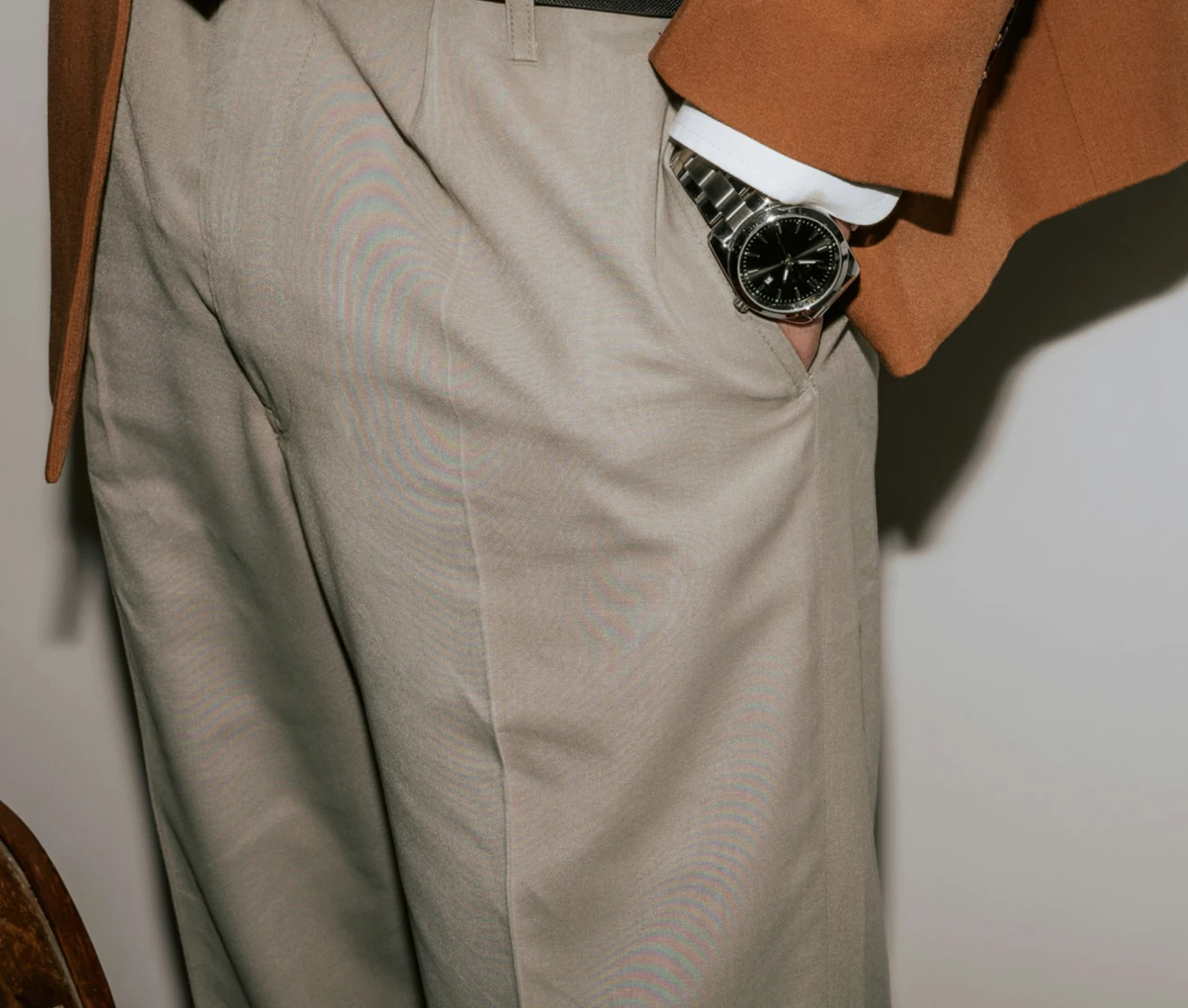
Photo before and after moire removal, with the repeating ripple gone and surface detail still visible Before
Photo before and after moire removal, with the repeating ripple gone and surface detail still visible After
Before
After
Upload Image
* JPEG, JPG, PNG or WebP image allowed.

Private processing · Preview without signing up

No image? Try one of these
Photo before and after moire removal, with the repeating ripple gone and surface detail still visible
AI Photo Editor
AI Photo Editor
Upload Image
Free to try. Pro Editing at Your Fingertips.
buy now
buy now

Automatic Moire Removal for a Cleaner Image

Designed for photographed clothing, Evoto identifies fabric areas and reduces moire while helping retain their texture and folds.

Precise AI Detection for Cleaner Results

Evoto AI Moire Removal automatically identifies clothing and fabric areas affected by interference. It reduces luminance moire as well as color fringe, so light-and-dark ripples clean up instead of lingering as a tinted wave. Checks, stripes, lace, mesh, knits, tweed, denim, silk, and other fine weaves all come out cleaner.

Close-up of checked fabric after AI moire detection with cleaner luminance and color fringe
Before
After

Skip Manual Brushing in One Click

Skip manual brushing and detailed selection work. Upload your photo, then click Generate in the online editor to apply AI Moire Removal. Evoto handles the detected fabric areas automatically, so you can review the correction without painting over each patch.

Generate control in the Clothing Moiré Removal online editor with a before-and-after preview
Before
After

Preserve Natural Texture and Folds

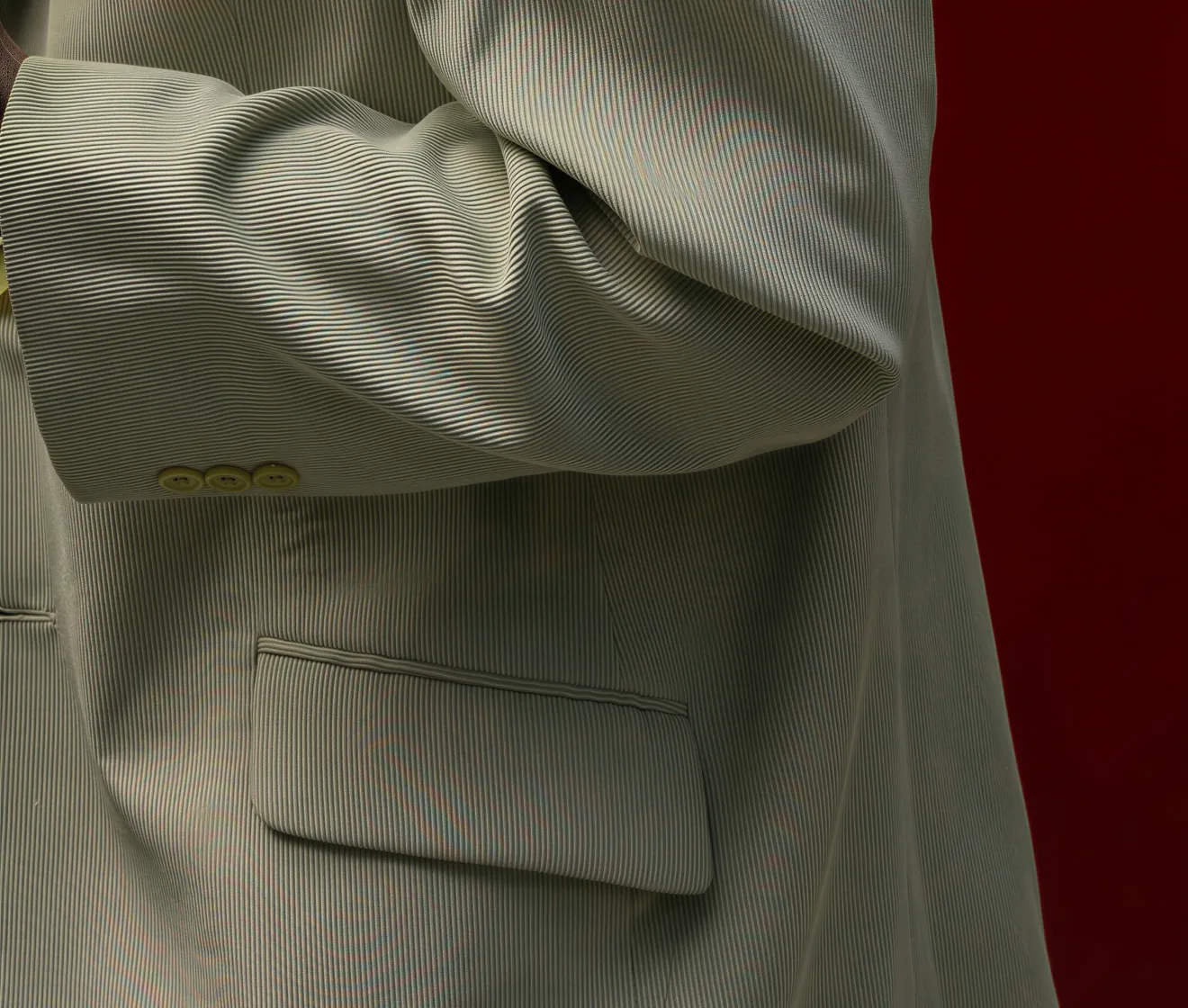
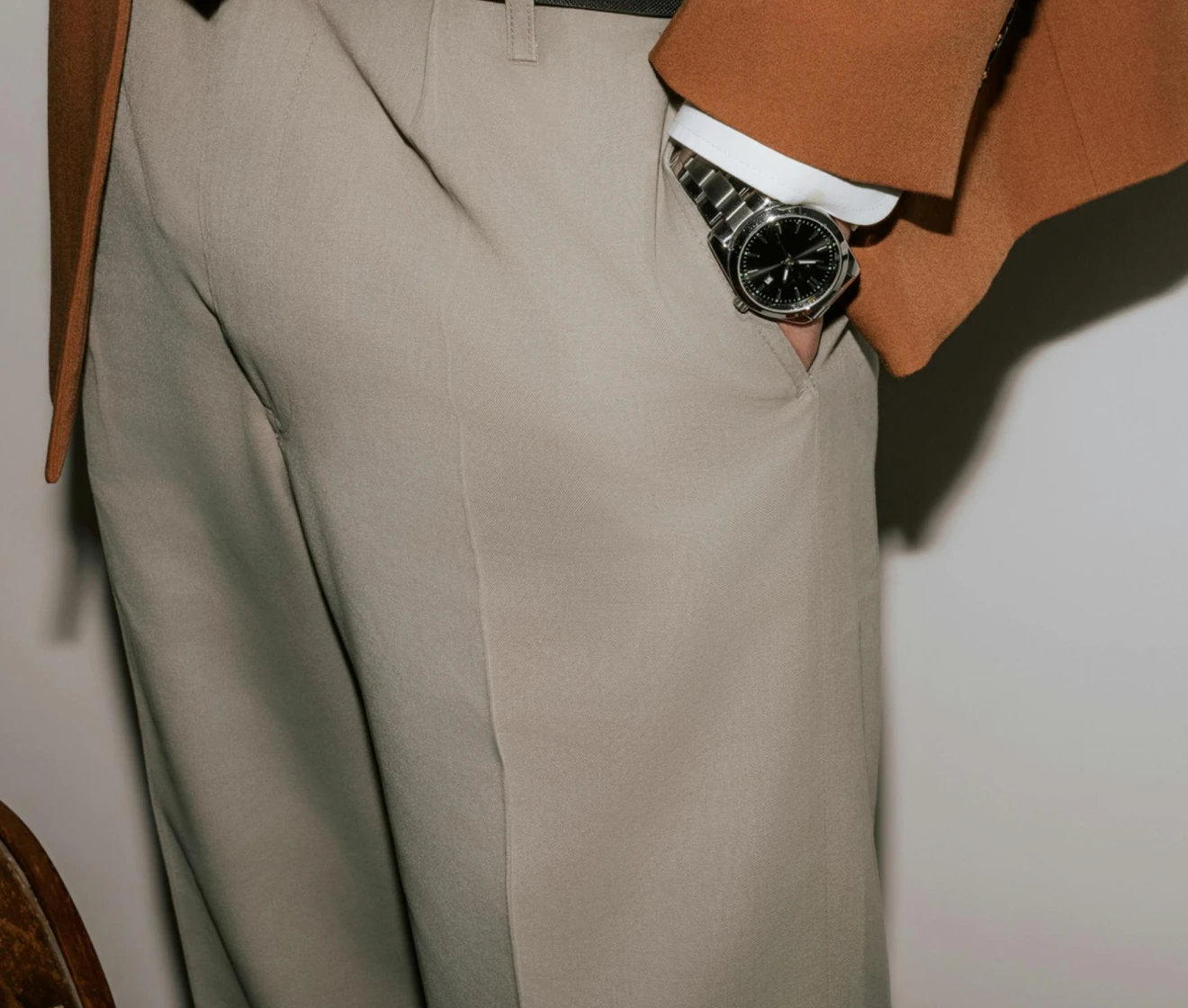
Removing a moire pattern should not iron the garment flat. Evoto AI Moire Removal reduces these artifacts while working to preserve the underlying weave and folds as much as possible, helping clothing retain its natural appearance after correction.

Garment folds and fabric weave still visible after moire removal
Before
After

More Clothing Tools in One Editor

Continue refining your photo in Evoto’s clothing editor after moire correction. Use other tools to remove lint, pilling, and small stains, smooth unwanted wrinkles, or change clothing colors. Choose the edits your photo needs to complete the clothing retouch.

Clothing editor with moire removal plus wrinkle, lint, and clothes color tools
Before
After

Why Choose Evoto for Moire Removal?

Spend less effort on manual selection and get correction designed around the details you want to keep.
  • AI highlighting clothing fabric before automatic moire removal

    AI Smart Detection

    AI recognizes clothing and fabric areas automatically, directing moire correction to the material that needs attention.
  • Side-by-side where banding in the pattern is reduced beyond a color-only cleanup

    Cleaner on Light-and-Dark Moire

    Evoto reduces luminance moire as well as color fringe, so contrast ripples clean up instead of lingering as a tinted wave.
  • One Generate action instead of a painted local-adjustment mask

    No Mask to Paint

    Skip the Camera Raw mask brush. Automatic fabric detection removes the need to brush over each affected area before applying the correction.
  • Garment detail showing the weave and folds after moire reduction

    A More Natural Finish

    Keep attention on the photograph, with correction that aims to retain fabric texture and the shape of its folds.

How to Remove Moire from Photos

Photo upload into the Clothing Moiré Removal online editor
1.Upload Your Photo234
Upload the still photo into Evoto's Clothing Moiré Removal online editor. JPEG, JPG, PNG, or WebP files are supported.
  1. 1. Upload Your Photo

    Upload the still photo into Evoto's Clothing Moiré Removal online editor. JPEG, JPG, PNG, or WebP files are supported.
  2. 2. Click Generate in Clothing Moiré Removal

    In the Clothing Moiré Removal online editor, click Generate. Evoto automatically detects clothing and fabric areas and reduces color and light-and-dark interference.
  3. 3. Do More in the Clothing Editor (Optional)

    In the clothing editor, use other tools to remove wrinkles, clean up lint and pilling, or change clothing colors. This step is optional.
  4. 4. Preview and Export

    Review your finished photo, checking the corrected texture and any additional edits. Export the result to your device.

Faster Edits, Finer Control.

Upload your photo and let AI reduce distracting color and light-and-dark ripples. Continue with optional clothing edits, then download your finished result.

FAQs

  • What is moire in photography?

  • Do I need to paint a mask before removing moire?

  • Will the fabric still look natural after moire removal?

  • Does it clear both color fringes and dark ripples?

  • Can I use it on clothing product photos?

  • Can it remove moire from several garments in one photo?

  • Will moire removal change the garment's real color?

  • What photo formats can I upload?

  • Does it fix moire on screens or scanned pages?

  • How can I reduce moire when taking photos?

Last updated: 2026-11-19. Reviewed by: Evoto Product Team. Results may vary depending on image quality, lighting, subject pose, file format, and selected settings.