



AI Family Photo Editor Built for Full Sessions


Edit a full family session in one pass. Evoto's family photo editor smooths skin across every age, balances mixed-light tones and blurs backgrounds, then carries the same look across the whole gallery — so the album is ready to deliver while the shoot is still fresh.
AI photo editor
AI photo editor
Before
After
Family portrait before and after AI editing in Evoto1
Example 22

Everything You Need in a Family Photo Editor

From skin to color to background, Evoto brings together the retouching tools a family photoshoot calls for
— from newborns to multi-generation albums.

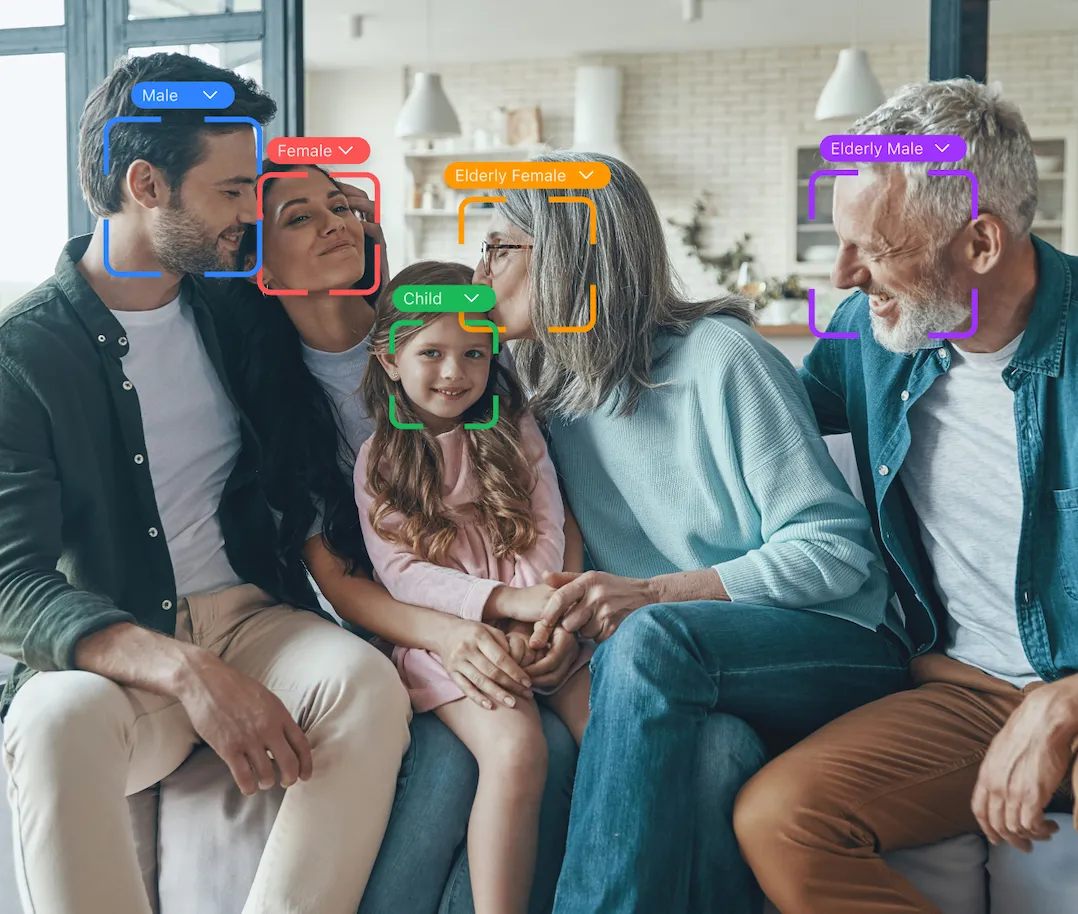
Natural Skin Retouching for Every Age

Evoto's AI recognizes each person in the frame individually, letting you adjust the skin smoothing for each one on the slider — without losing the real texture of the skin.

AI family photo editor smoothing skin across three generations in one photo
Before
After

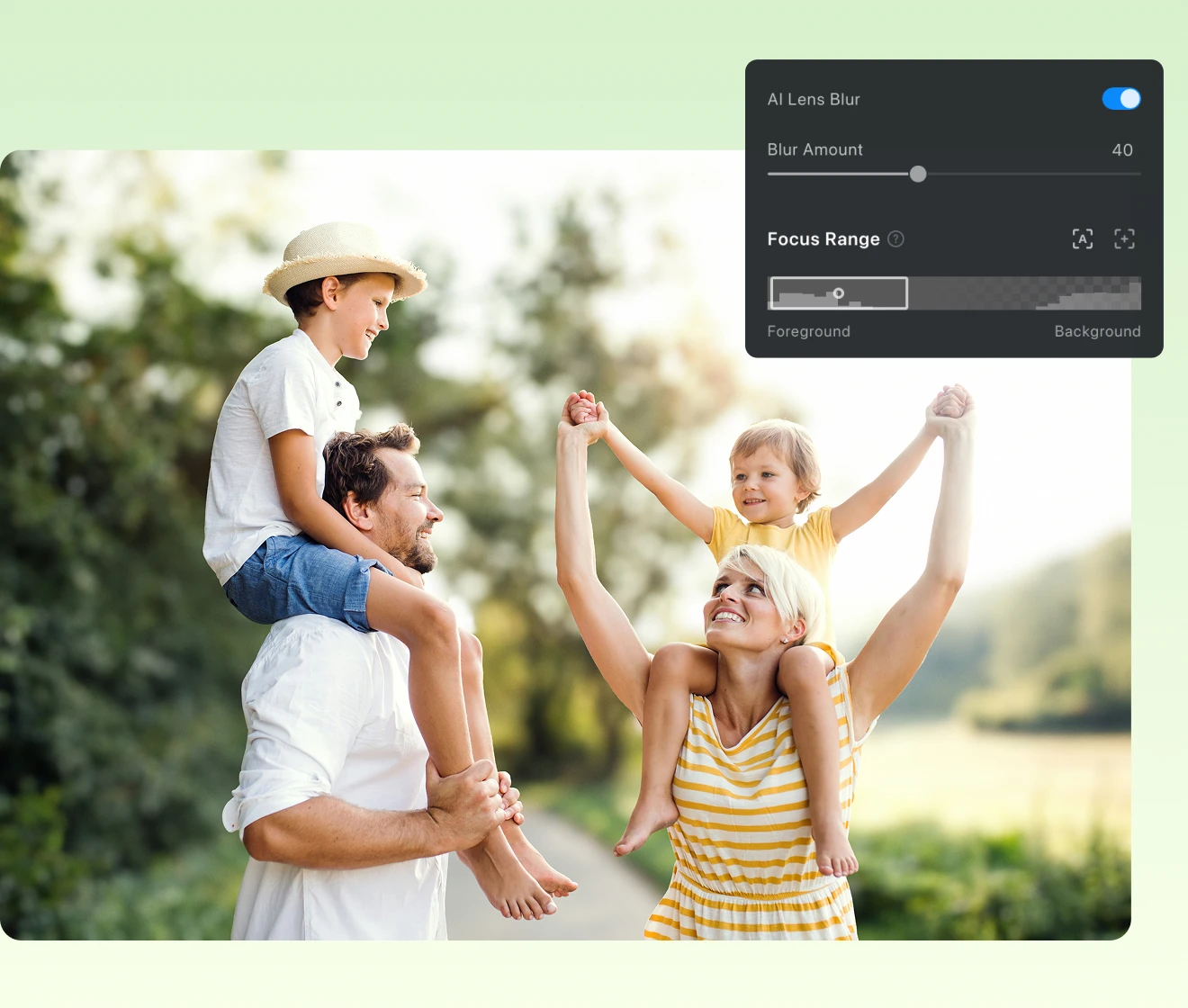
Background Blur to Make Every Face Stand Out

Home or park backgrounds compete with family faces. AI Background Blur detects each person's edges and blurs the background in one click, keeping every face sharp.

Family portrait background blurred with AI in Evoto, with every face in focus
Before
After

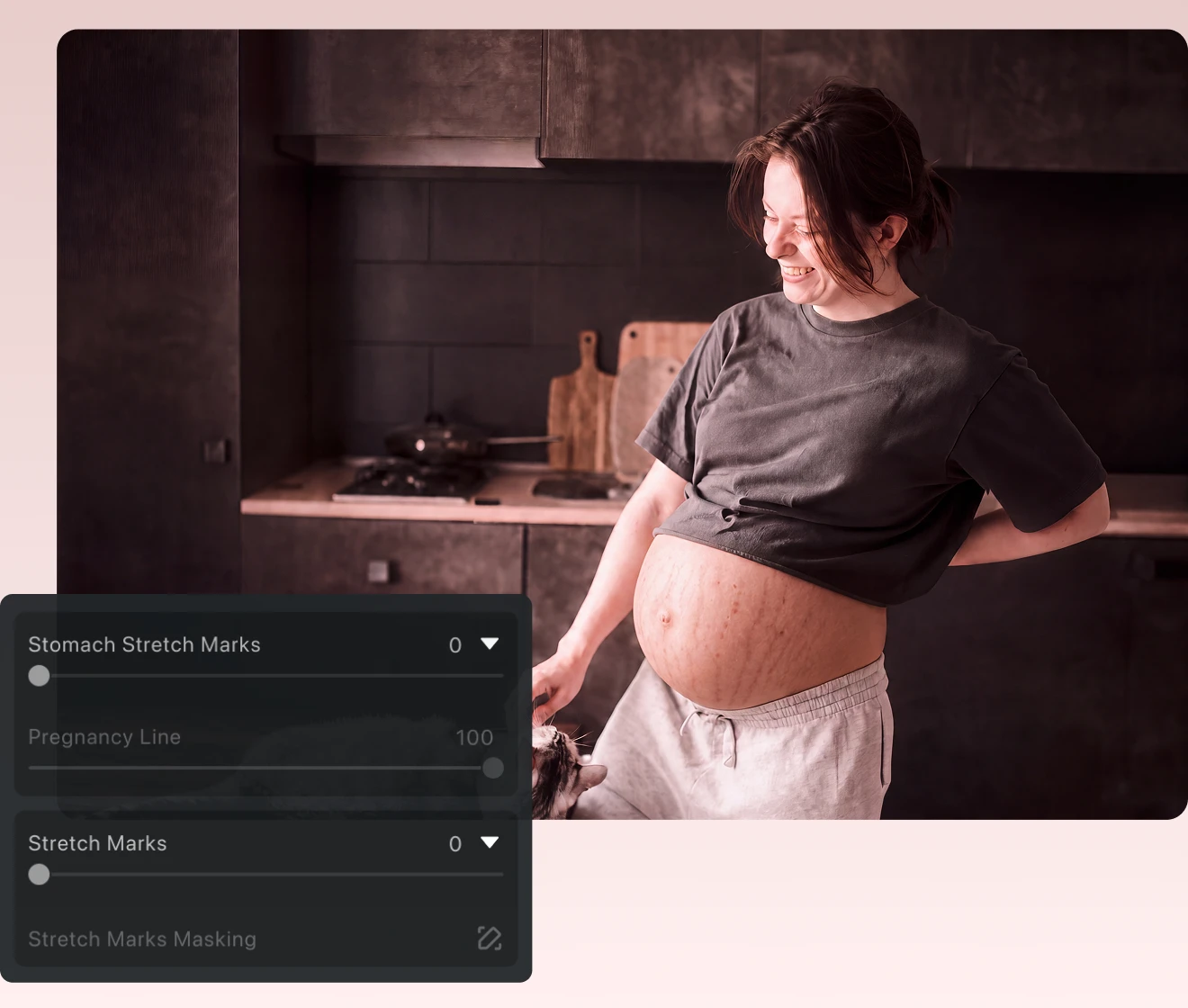
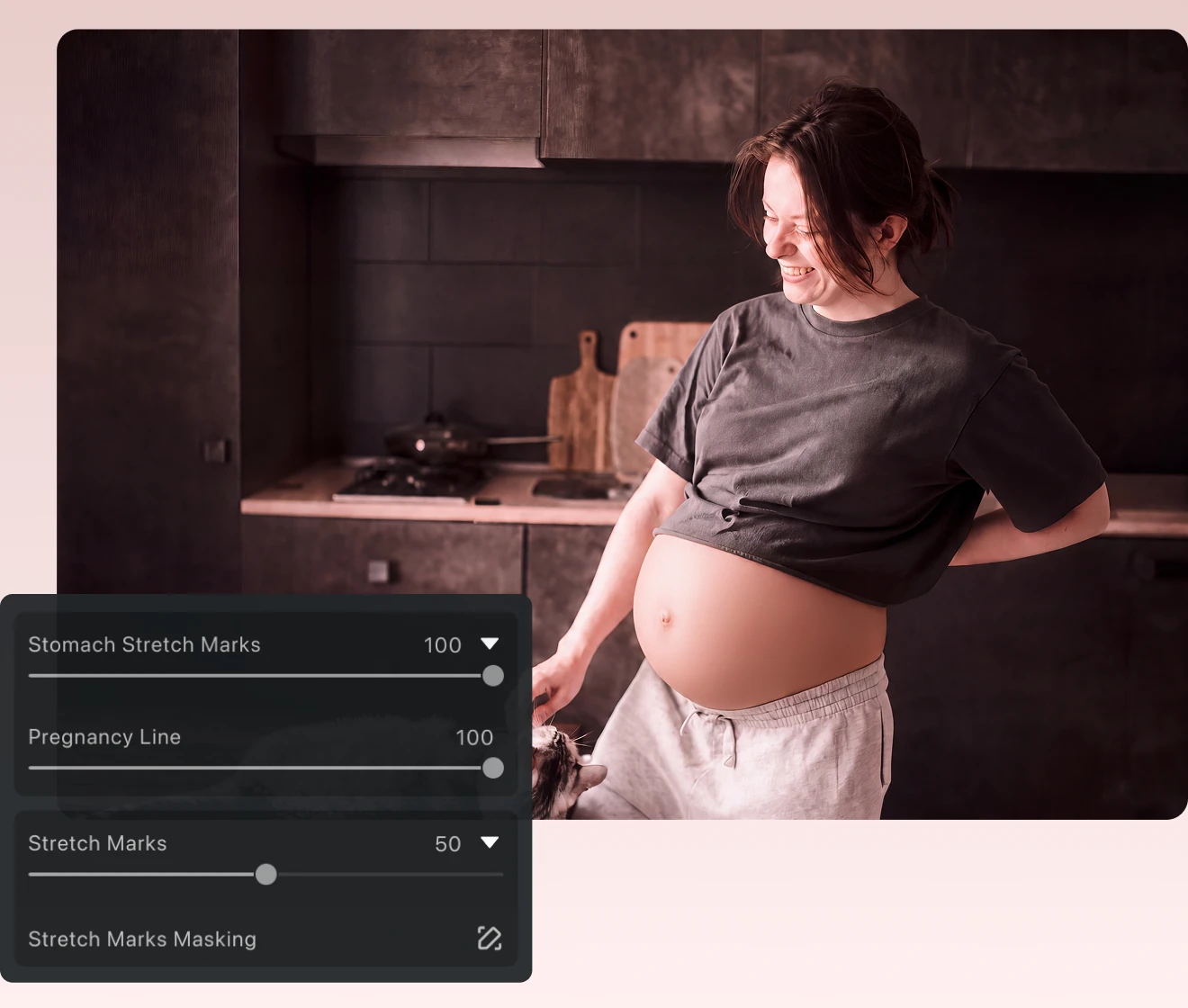
Remove Stretch Marks and Highlight Maternity Curves

Use Evoto's Maternity Photography to smooth stretch marks on the belly, reduce pigmentation spots and highlight pregnancy curves, keeping the mother's natural beauty.

Maternity photo with stretch marks smoothed and skin retouched in Evoto
Before
After

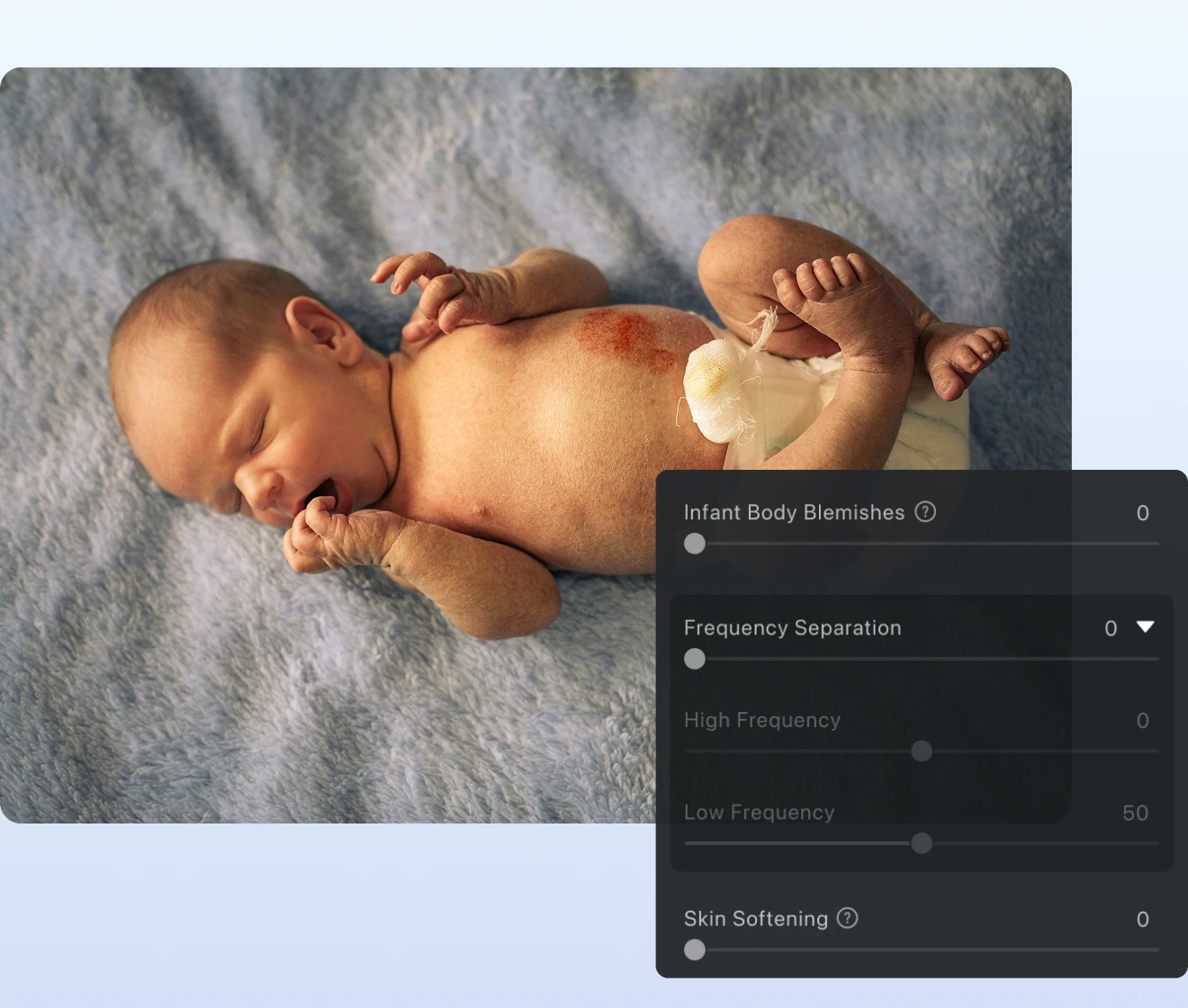
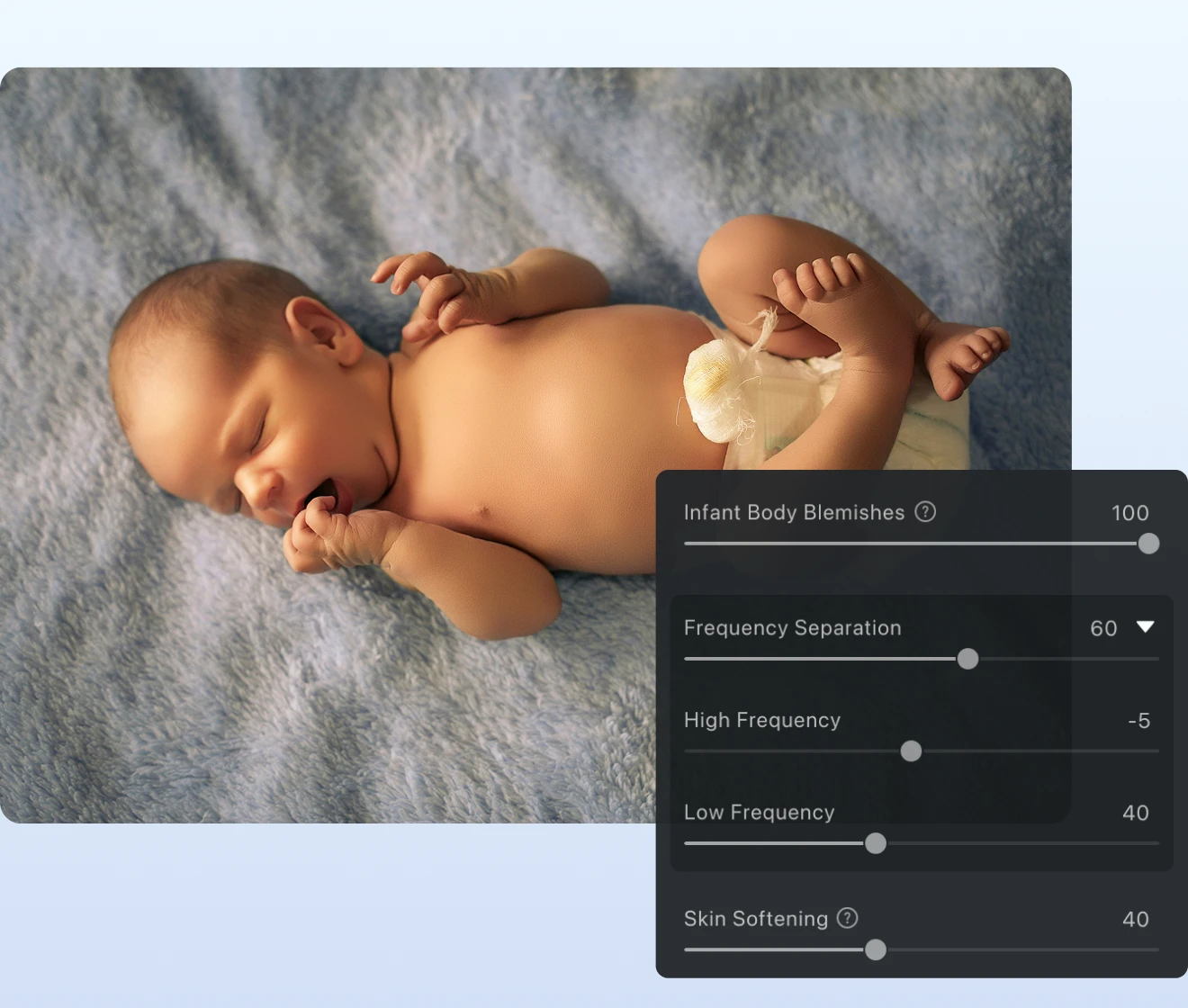
Remove Blemishes from Newborn Skin

Evoto's Newborn Photo Editing removes blemishes, redness and peeling from the baby's skin with gentle retouches, preserving the natural texture and innocence of the newborn.

Newborn baby skin retouched without blemishes in Evoto
Before
After

Restore Old Family Photos and Revive Good Memories

In Evoto's AI Lab, Old Photo Restoration repairs tears and stains, brings back faded colors and colorizes black-and-white photos when needed — perfect for reviving that childhood album kept for years and bringing back good family memories.

Old family photos restored and colorized in Evoto

Why Family Photographers Choose Evoto

Natural retouching, a fast workflow and consistency across the whole session — see why Evoto fits into family-photo delivery.
  • Before-and-after comparison of natural skin retouching on a child in Evoto

    Natural Skin and Tones, No Over-Editing

    Adjust each person's skin smoothing and tone with the help of Evoto's AI, without erasing the natural texture or leaving the result looking artificial.
  • Skin retouching and background blur slider panel in Evoto

    Fine Control with Simple Sliders

    Adjust the intensity of skin retouching, background blur and color with simple sliders, keeping creative control over every family portrait.
  • Family photo album with consistent color and tone edited in Evoto

    Consistent Albums from Start to Finish

    A long family gallery falls apart when frame 200 doesn't match frame 1. Evoto carries one edit across the whole session and fits it to each photo, so the album reads as one piece of work.
  • Privacy and data-security seal for family photo editing in Evoto

    Your Family Photos Protected in Every Session

    Family sessions are personal, and your clients trust you with them. Evoto processes photos securely, keeps nothing once the edit is done, and never feeds them to AI training without your say-so.

How to Edit Family Photos in Evoto

Importing family session photos into Evoto Desktop
1.**Import the Family Session**234
Open Evoto Desktop and load the photos from your family session. JPG, PNG, WebP, TIFF and major camera RAW formats are supported.
  1. 1. Import the Family Session

    Open Evoto Desktop and load the photos from your family session. JPG, PNG, WebP, TIFF and major camera RAW formats are supported.
  2. 2. Apply an AI Look, Then Fine-Tune

    Start with one photo. Open the AI Look panel, pick a style that fits the session, and use the Amount slider to set the strength. Evoto reads the photo's own lighting as it applies the Look, so skin tones stay natural instead of going flat. Then refine skin and background where the frame needs it.
  3. 3. Sync the Edit Across the Gallery

    Apply the same Look across the whole session in one pass, and sync your skin and background settings along with it. Evoto fits the Look to each photo individually, so the set holds together without every frame getting identical numbers.
  4. 4. Export and Deliver

    Export at full resolution in your usual delivery format, ready to hand off.

A Faster Family Photo Editor for More Consistent Albums

Transform your photos with the Evoto family photo editor today.
Available for Windows, macOS and iPadOS.

FAQs

  • What's the best way to edit family photos?

  • What are Evoto's editing presets, and how do they help with family sessions?

  • What image formats does Evoto accept?

  • Can I balance different skin tones in the same family photo?

  • Does the editing make skin look artificial?

  • What's the best restorer for old family photos?

  • Does it work with large group photos or several generations in the same image?

  • Can I edit family photos on my phone?

  • Can I edit the entire family session at once?

  • Are my family photos kept private?

Last updated: 2026-09-02. Reviewed by: Evoto Product Team. Results may vary depending on image quality, lighting, subject pose, file format, and selected settings.