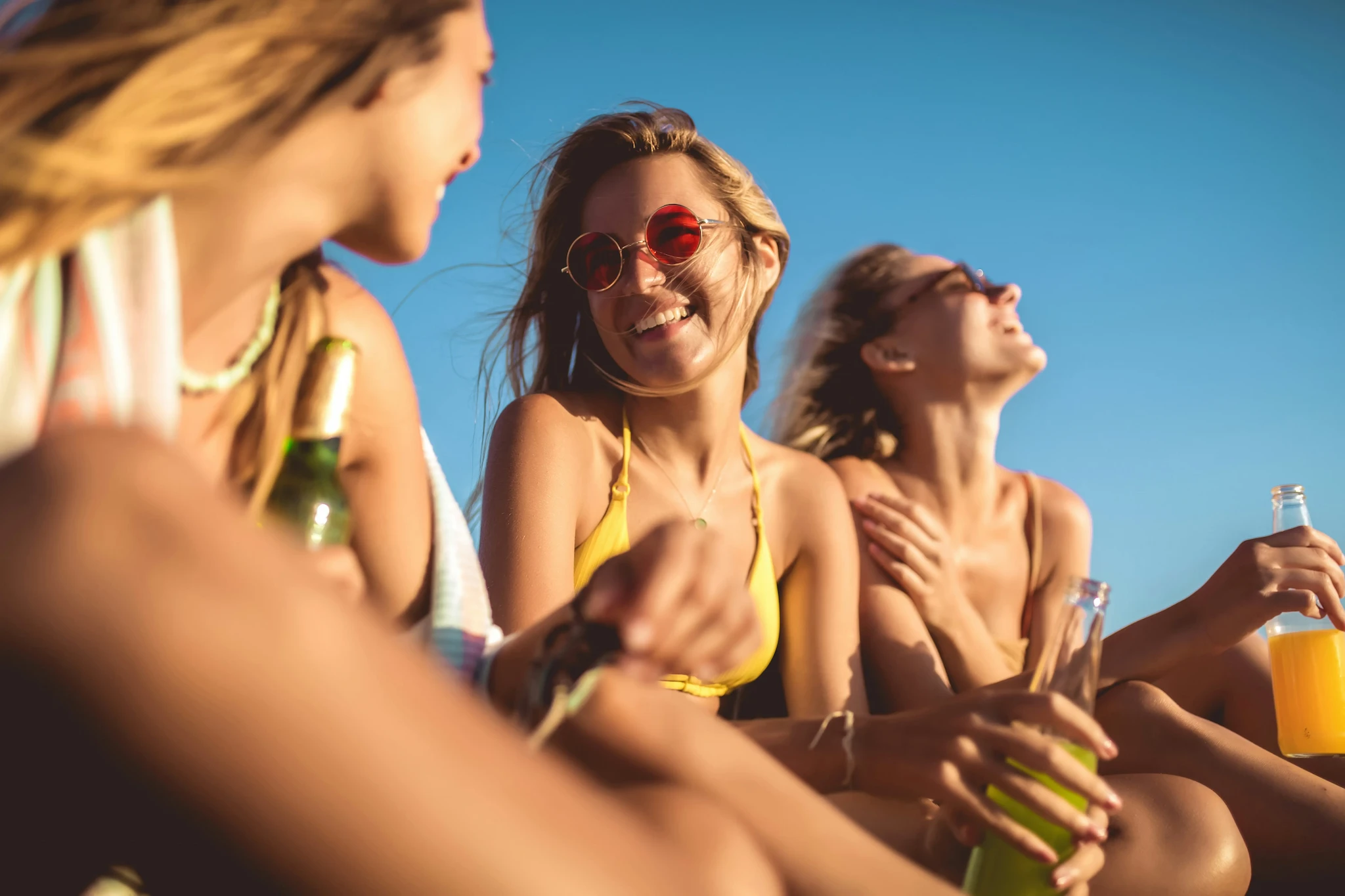
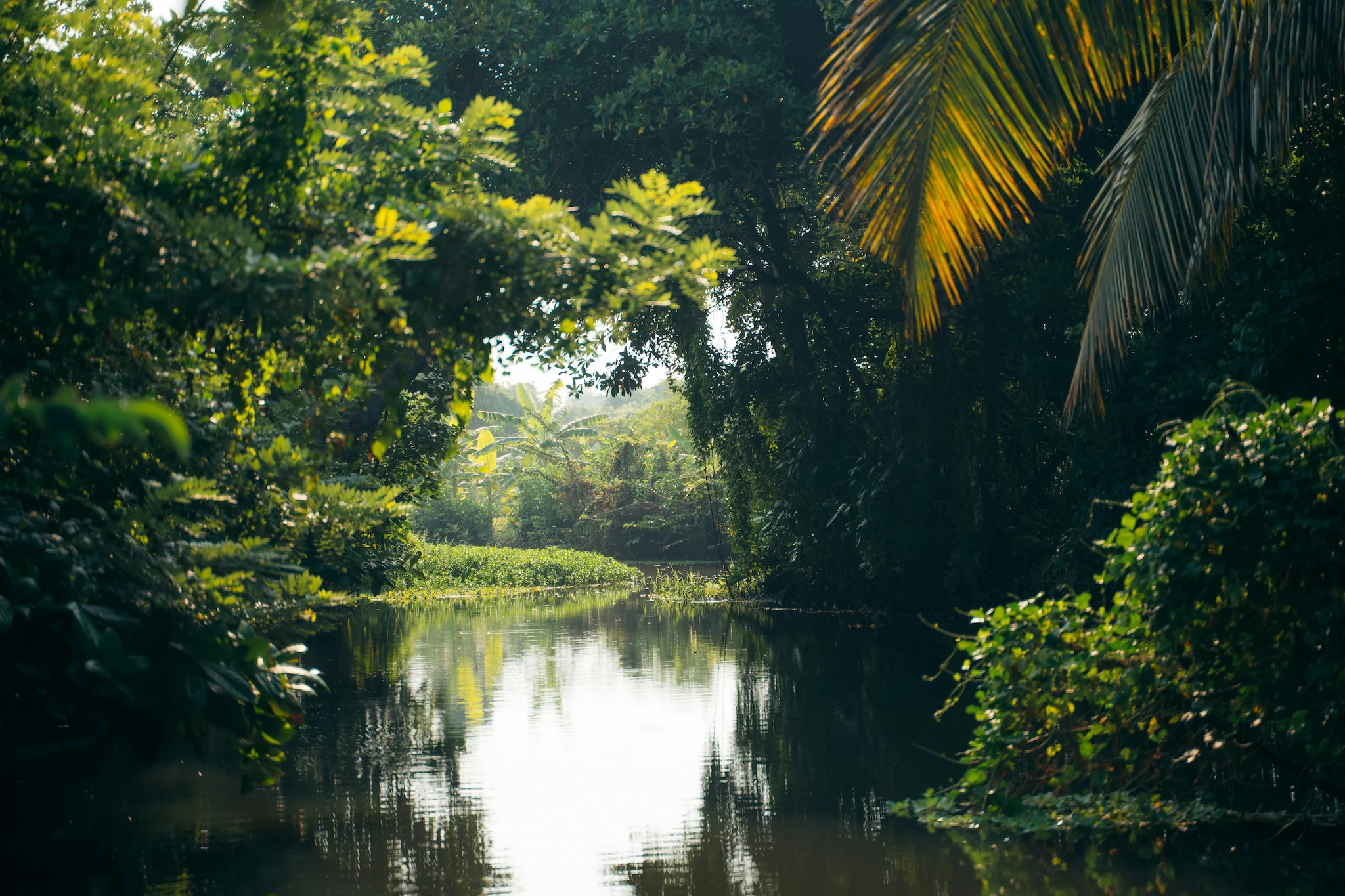
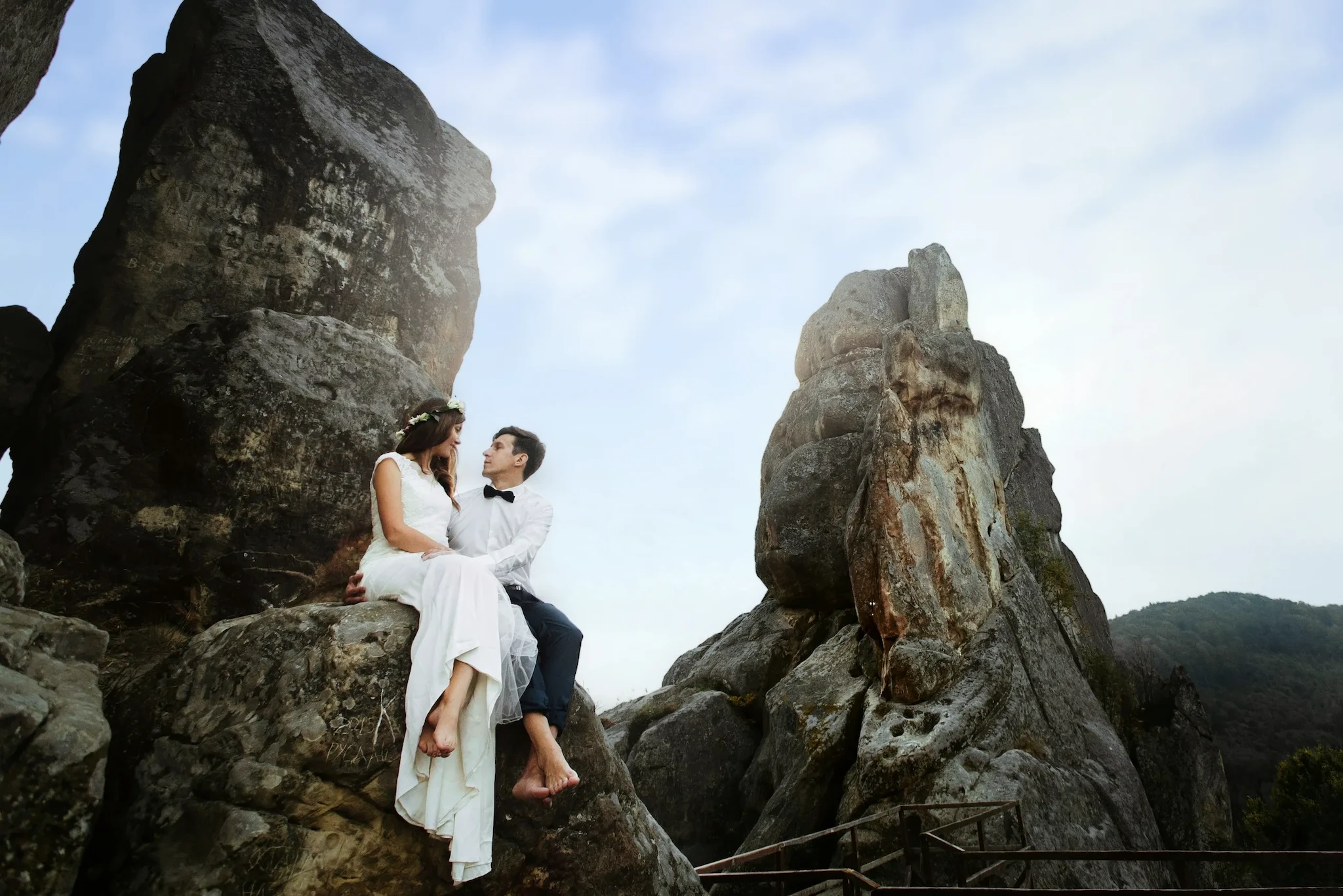

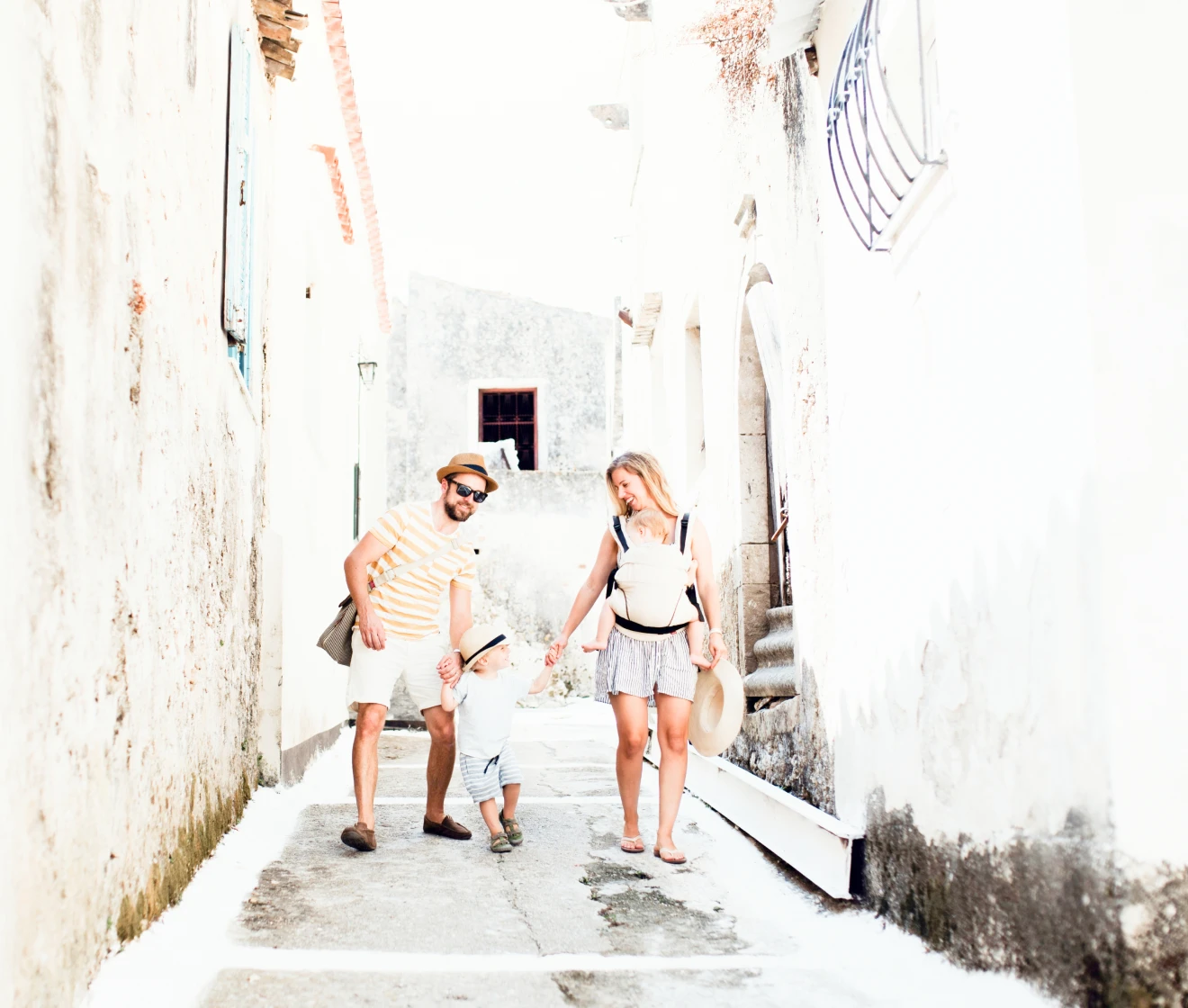

How to Fix Overexposed Photos

Bright, washed-out photos don’t have to be lost. Evoto helps you recover detail, balance harsh lighting, and create naturally exposed photos with less editing. Try it free today.
Desktop
AI photo editor
AI photo editor
Before
After
Overexposed photo fixed in Evoto1
Overexposed photo fixed in Evoto2
Overexposed photo fixed in Evoto3
Overexposed photo fixed in Evoto4

Fix Overexposed Photos with Evoto

Overexposure can wash out highlights, create distracting bright spots, weaken color, and affect an entire shoot. Evoto helps you restore recoverable detail, correct only the areas that are too bright, and apply consistent adjustments across every photo.

Recover Detail in Bright Highlights

Problem
The brightest areas are usually the first to lose detail. Skies turn white, clouds disappear, and light-colored clothing loses its texture. If those highlights are fully clipped, the missing detail cannot be recovered, but RAW files often retain more image information than the initial preview reveals.

Evoto Solution
Use the histogram to identify clipped highlights, then adjust Exposure, Highlights, and Whites to bring recoverable detail back into view. Evoto’s automatic exposure adjustment gives you a balanced starting point, while Contrast and Blacks help restore depth without making the image look flat.

Desktop
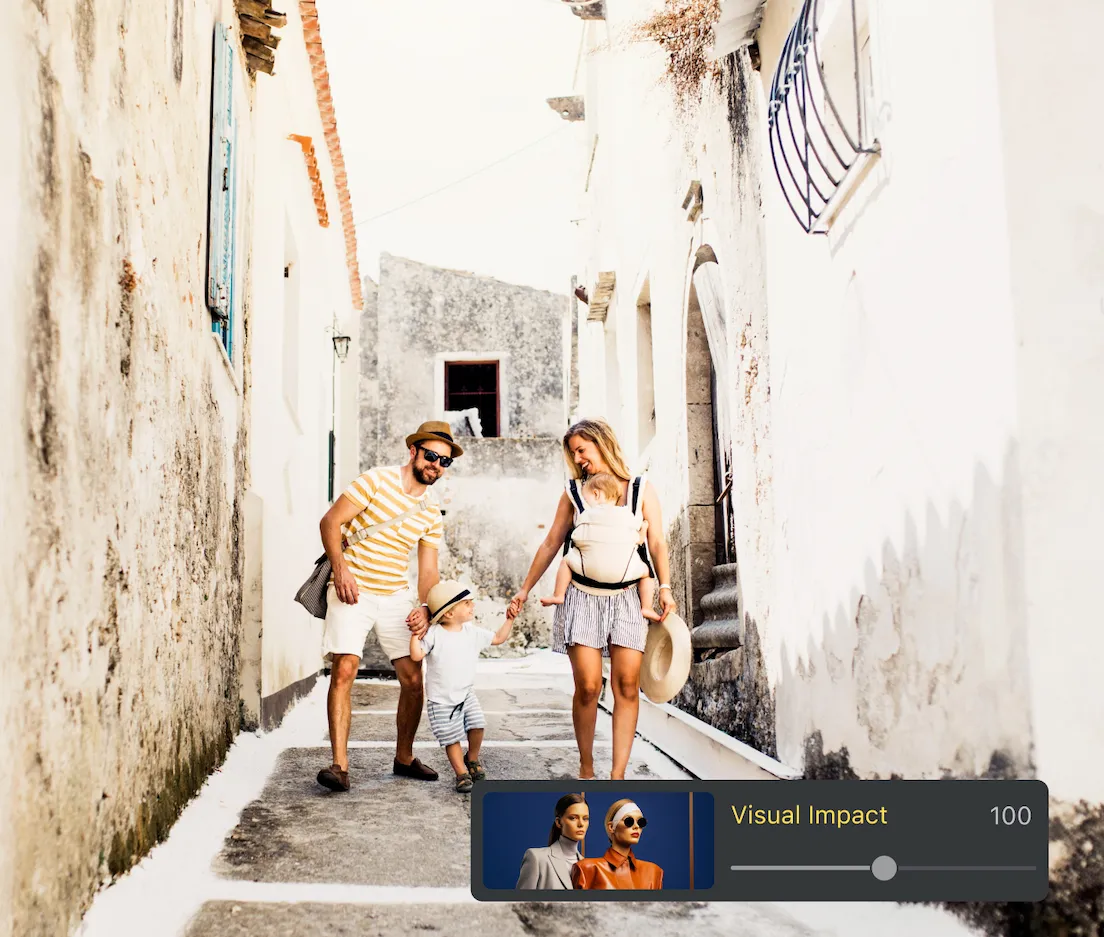
Before and after recovering blown highlights on an overexposed sky and white dress in Evoto

Fix Only the Overexposed Areas

Problem
Overexposure is not always spread evenly across a photo. A bright window, a sunlit face, or a washed-out sky may be surrounded by areas that are already correctly exposed. Darkening the entire image can fix one area while making everything else too dark.

Evoto Solution
Use a brush, gradient, or Auto Mask to select the sky, subject, face, or another bright area. Lower the exposure and highlights only where needed, preserving the parts of the image that are already balanced.

Desktop
Selective mask lowering highlights on a blown window while the subject stays balanced in Evoto

Refine Color, or Shape a Style

Problem
Reducing brightness does not always restore color. Overexposed skies may remain pale, while skin can look washed out or lose its natural warmth.

Evoto Solution
Refine White Balance, HSL, and Vibrance to restore color without oversaturating the entire image. You can also apply a Color Look to turn the bright exposure into an intentional high-key, cinematic, or black-and-white style.

Desktop
Skin warmth and sky color refined after an overexposed shot in Evoto
Before
After

Fix Overexposure Across a Whole Shoot

Problem
The same lighting problem can affect hundreds of photos from one session. Finding and correcting every overexposed frame one by one takes time and can lead to inconsistent results across the gallery.

Evoto Solution
Use Smart Culling to detect exposure issues and quickly filter the affected photos. Correct one representative image, sync the exposure and color adjustments across similar frames, then fine-tune only the exceptions. You get a more consistent gallery with far less repetitive editing.

Desktop
AI Culling gathering overexposed frames, then one correction synced across the set in Evoto
Before
After

Why Evoto Works for Overexposure

What you get whether you're rescuing one frame or clearing an entire event.
  • Real-time highlight preview while adjusting an overexposed photo in Evoto

    See Every Change in Real Time

    Highlights and midtones update the instant you move a slider. You can stop the moment detail returns, or tell right away when an area is clipped and needs a salvage finish instead, so there's no guessing and no wasted passes.
  • Evoto's beginner-friendly color and tone panel

    Free Basic Tools, Easy to Learn

    Core color and tone adjustments are free to use, and the layout is built for beginners. You can correct a bright photo on your first try without learning complex, professional software.
  • Exposure, color, and export handled in a single Evoto workspace

    One App from Import to Export

    Correct exposure, adjust color, retouch, and deliver in the same place, with no round-trips to a second editor. Everything stays connected, so the corrected look carries straight through to your final files.
  • Full-resolution export with natural skin tones after exposure recovery in Evoto

    Natural, High-Quality Results

    Recovery keeps skin tones and color realistic instead of flat or gray, and exports stay at full resolution. RAW support and non-destructive editing protect the original file, so you can always dial an edit back.

How to Fix Overexposed Photos in Evoto

Desktop
Importing RAW and JPEG photos into Evoto
1.**Import Your Photos**234
Open Evoto and bring in your overexposed shots. Both RAW and JPEG are supported, and RAW gives the most room to recover highlights. Import a single image, or load a full shoot and use Smart Culling to pull out every overexposed frame first.
  1. 1. Import Your Photos

    Open Evoto and bring in your overexposed shots. Both RAW and JPEG are supported, and RAW gives the most room to recover highlights. Import a single image, or load a full shoot and use Smart Culling to pull out every overexposed frame first.
  2. 2. Apply AI Exposure Correction

    Run AI exposure correction for a quick baseline. Evoto analyzes the photo and balances brightness automatically, recovering most of the overexposed areas before you do any manual work.
  3. 3. Fine-Tune and Target Blown Areas

    Adjust the Highlights, Whites, and Exposure sliders to refine the result, then rebuild depth with Shadows, Blacks, and Contrast.
    If only part of the frame is blown, use a brush, gradient, or auto mask to lower highlights on just the sky, window, or face.
    Correct Temperature, Tint, and HSL if the color looks washed out.
  4. 4. Style, Batch, and Export

    Finish with a one-click filter or preset for a consistent style. Sync your adjustments across the rest of the shoot to batch-fix similar photos, then export at full resolution in the format you need.
Desktop

Fix Overexposed Photos with Evoto

Recover blown highlights, balance uneven light, and restore natural color, on one photo or an entire shoot. Free basic tools, RAW support, and AI that handles most of the work.

Desktop

FAQs

  • What is an overexposed photo?

  • Can Evoto fix overexposed photos automatically?

  • How do I know if highlight detail is recoverable?

  • Which sliders should I use, and in what order to fix overexpose?

  • Why does my photo look gray after I fix the exposure?

  • How do I fix only the part of a photo that's overexposed?

  • Can I fix a photo that's completely blown out?

  • Does RAW recover more detail than JPEG?

  • How do I fix overexposed photos across a whole event?

  • What's the difference between overexposure and high-key?

Last updated: 2026-08-05. Reviewed by: Evoto Product Team. Results may vary depending on image quality, lighting, subject pose, file format, and selected settings.