

Free Black and White Filter

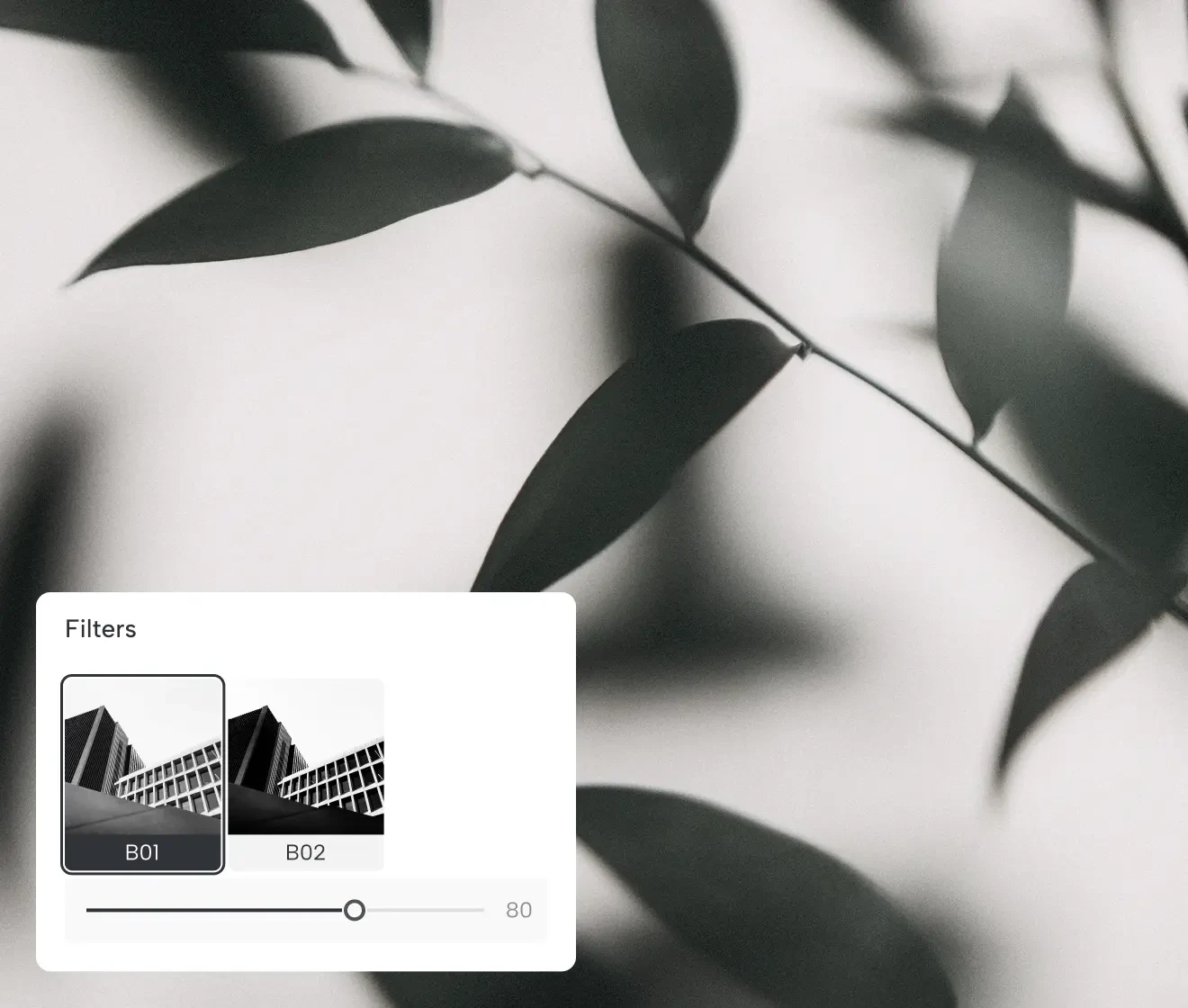
Turn color photos into striking black-and-white images in one click. Keep details sharp, enhance contrast, and create a timeless look for portraits, street photography, and product shots.
Before and after applying a black and white filter to a image Before
Before and after applying a black and white filter to a image After
Before
After
Upload Image
* JPEG, JPG, PNG or WebP image allowed.
No image? Try one of these
Before and after applying a black and white filter to a image
Upload Image
Free to try. Pro Editing at Your Fingertips.
Download for Free
Buy Now
Buy Now

What Can the Black and White Filter Do?

Instantly turn color images into clean, expressive black-and-white photos while keeping important details, texture, and tonal depth.

Convert Photos to Black and White Instantly

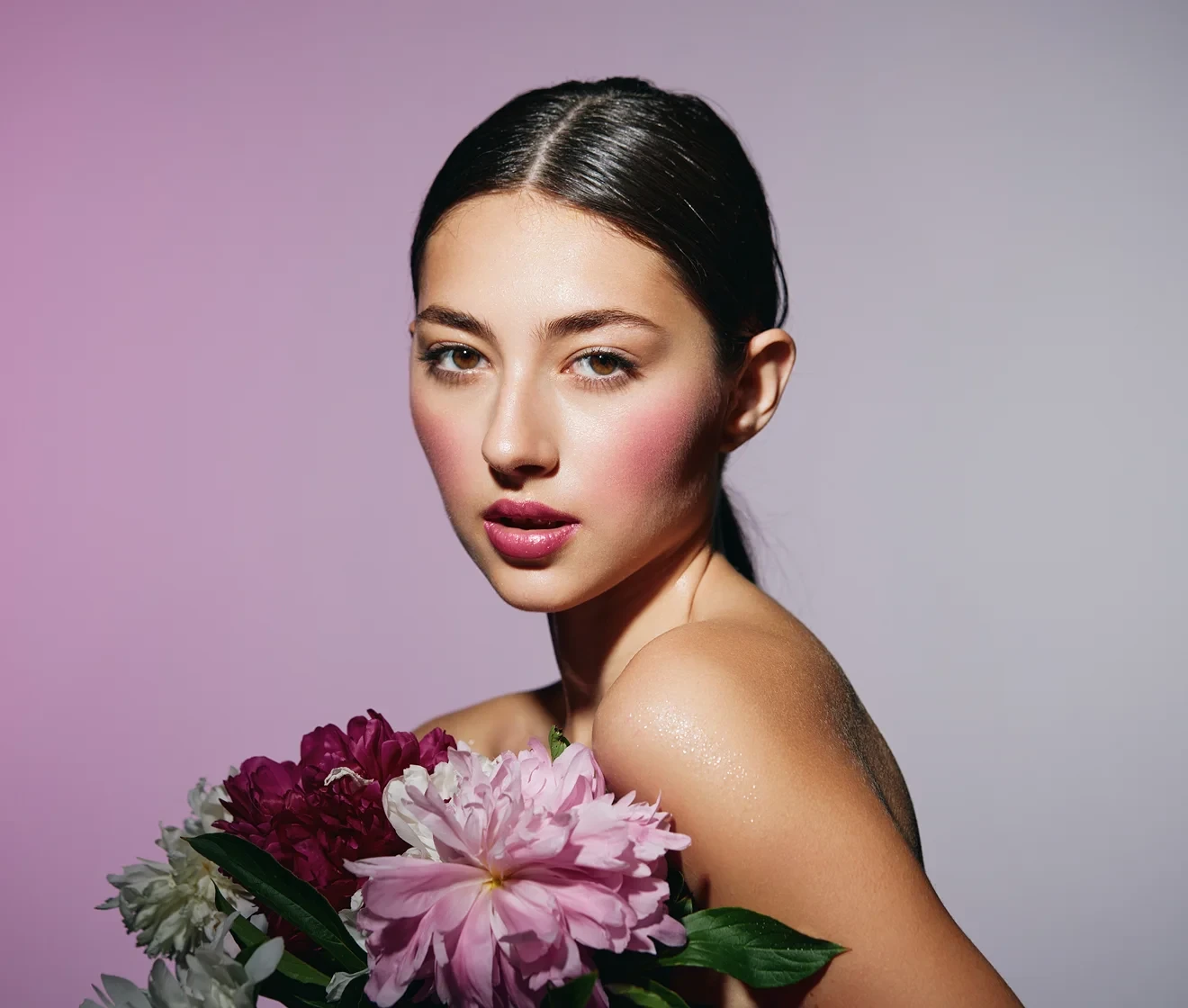
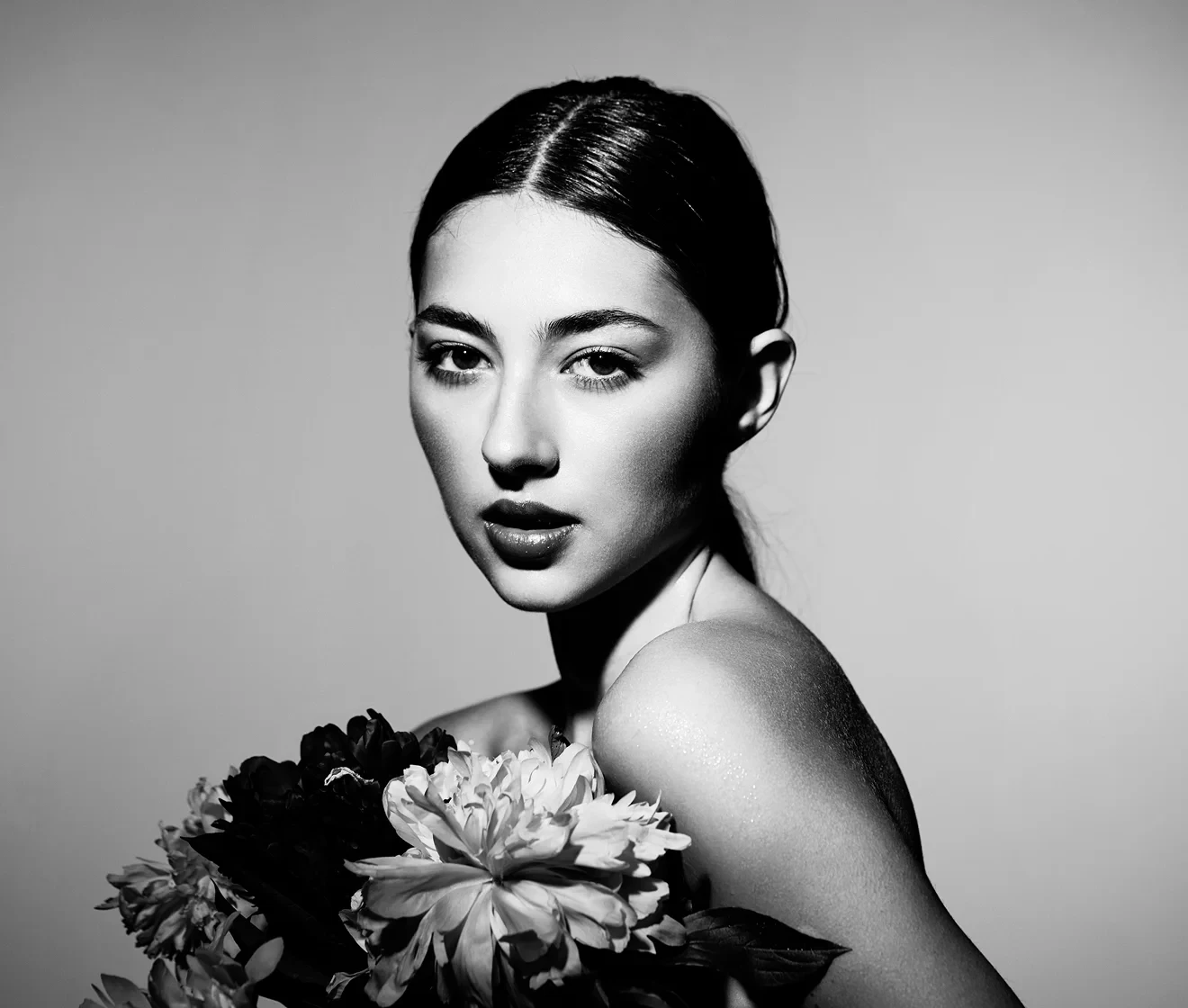
Apply a black and white look in one click to simplify your workflow and quickly create a classic monochrome style.

Desktop
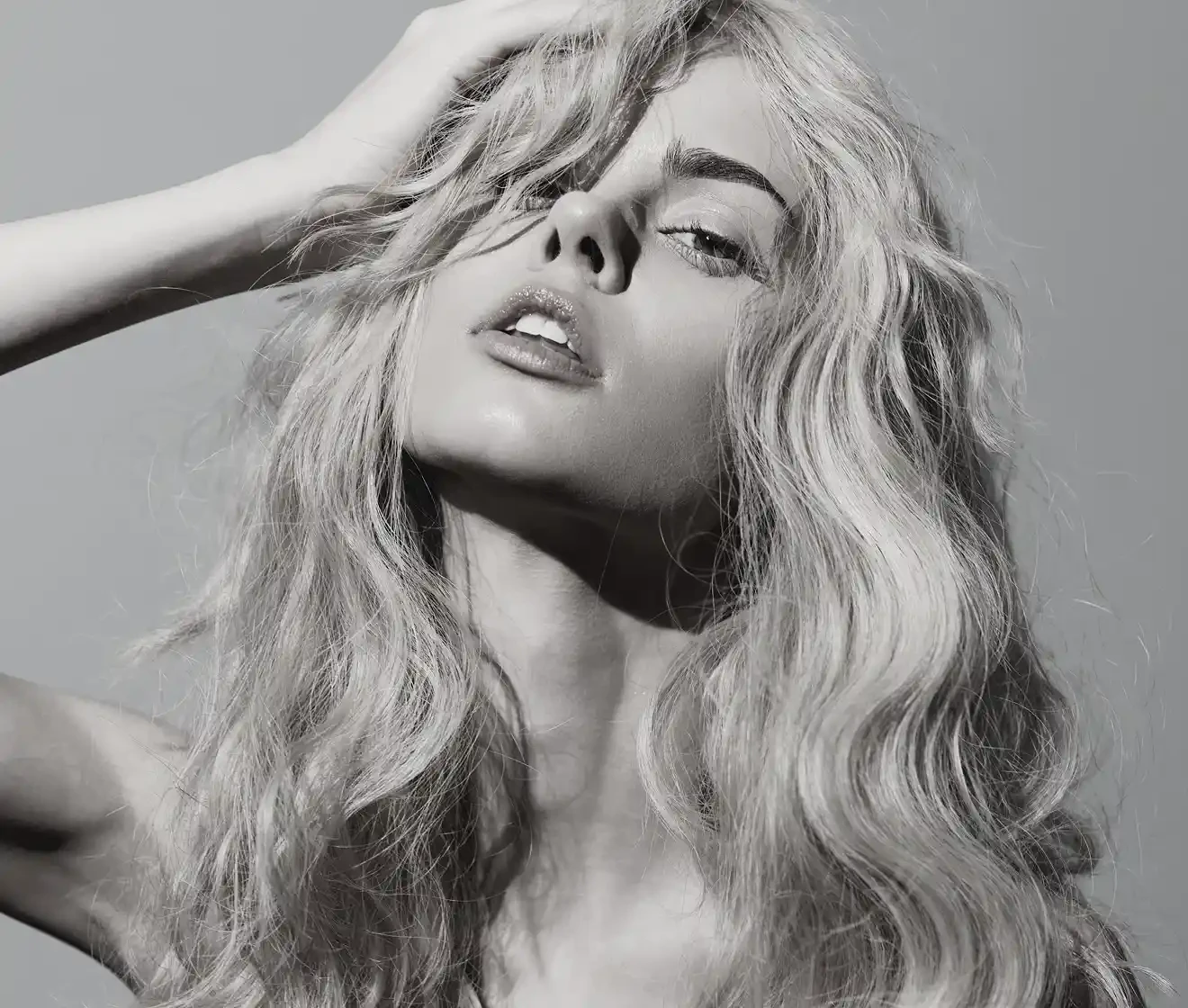
One-click black and white conversion on a portrait photo
Before
After

Fine-Tune Contrast and Tones

Adjust brightness, contrast, and tonal balance to create anything from a soft grayscale look to a bold, dramatic black-and-white effect.

Desktop
Adjusting contrast and tonal balance for a black and white photo
Before
After

Keep Texture and Details Sharp

Bring out textures in hair, fabric, skin, and architecture so your monochrome images still feel rich, crisp, and full of depth.

Black and white filter preserving fabric and facial details
Before
After

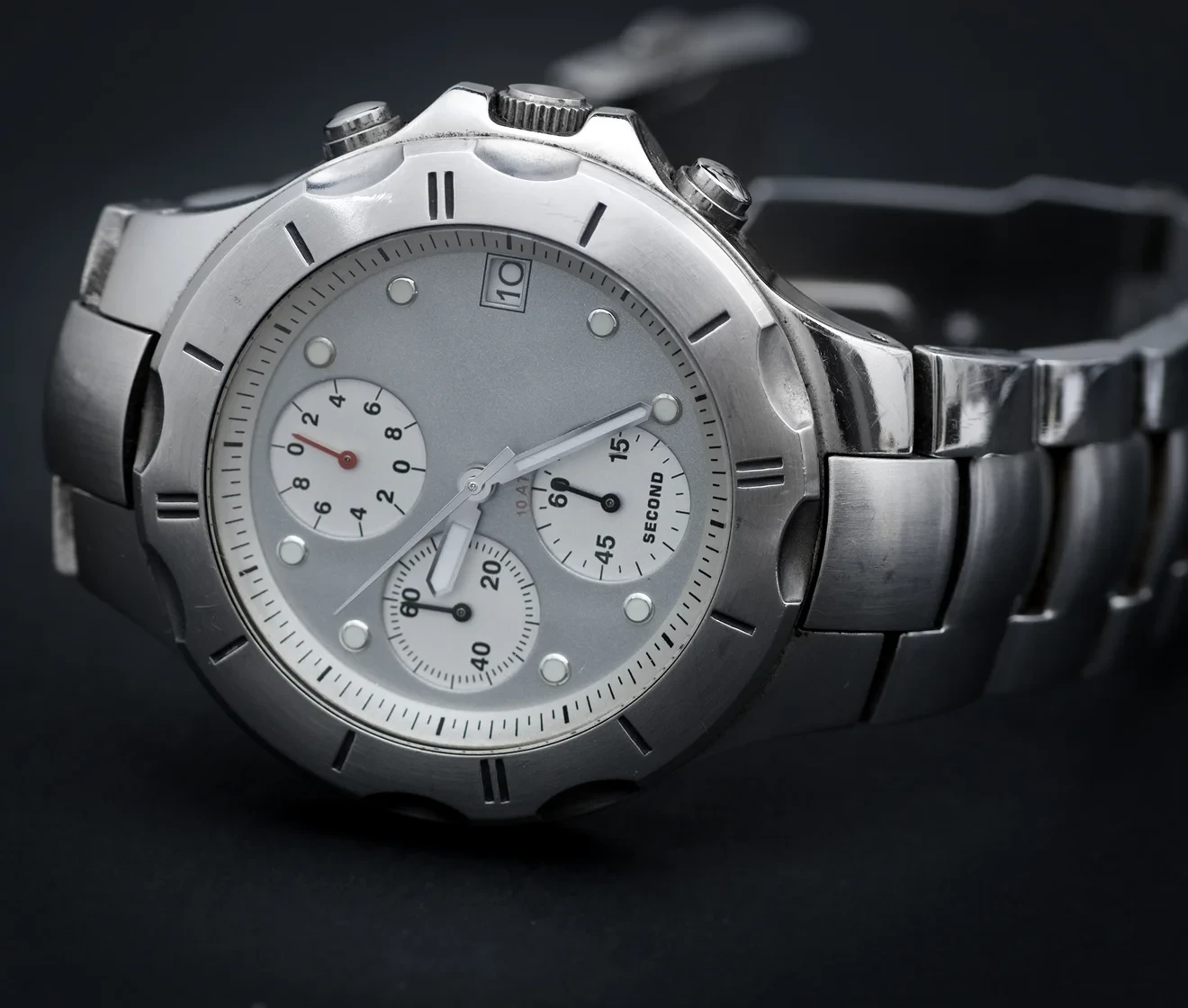
Perfect for Product Photos

Use the filter across creative, editorial, and commercial images to build a consistent black-and-white visual style.

Black and white examples for portrait, street, and product photography
Before
After

Why Use a Black and White Filter?

Black and white editing removes color distractions and lets composition, lighting, and texture take center stage.

  • Classic black and white style

    Create a Timeless Visual Style

    Black-and-white images feel classic, cinematic, and editorial, making them suitable for portfolios, campaigns, and social content.
  • Secure private photo editing

    Secure Processing and Privacy Protection

    All images are processed in a secure online environment, and Evoto helps keep your uploaded photos private and protected. You can apply the black and white filter and edit your images with confidence.
  • Background color selection with pure black option

    Keep a Series of Photos Consistent

    Using the same monochrome treatment across multiple images gives a gallery, campaign, or product set a more unified look.
  • fast editing workflow and quick export

    Edit Faster with a Simpler Workflow

    One-click conversion and basic tone adjustments are faster than building a monochrome style from scratch.
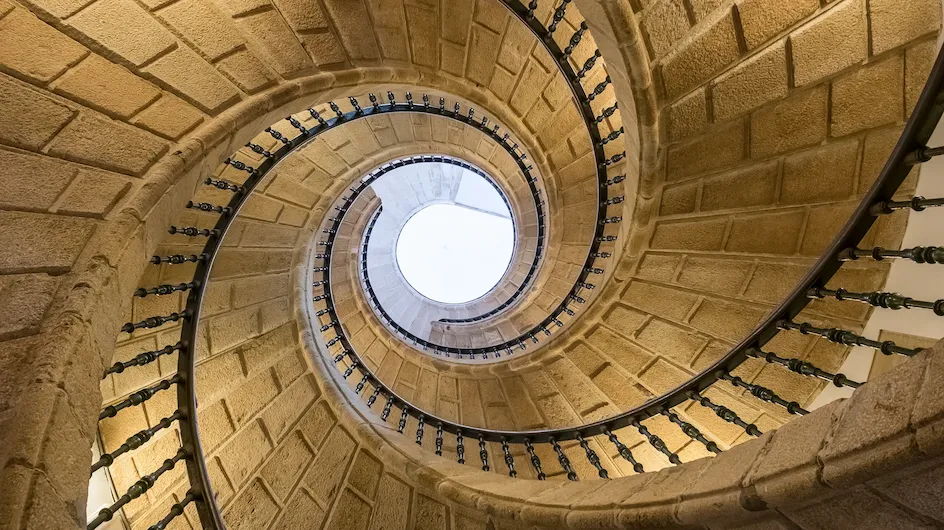
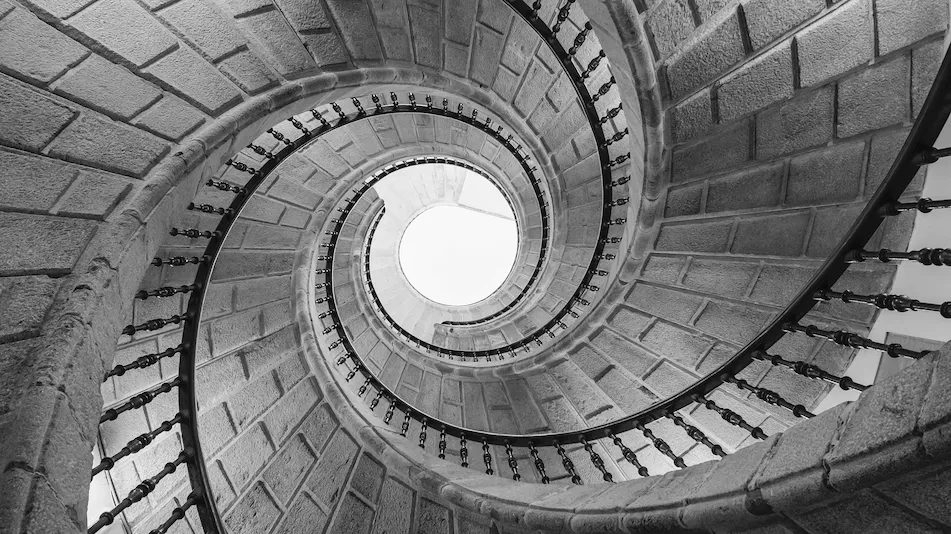
Do More with Evoto AI Photo Editor

From professional skin retouching to color grading and more, we’ve got you covered.

How to Make a Photo Black and White

Upload a color photo in the app before applying the black and white filter
1.Import the color photo you want to transform. 23
Import the image you want to convert to black and white.
  1. 1. Import the color photo you want to transform.

    Import the image you want to convert to black and white.
  2. 2. Apply the Black and White Filter

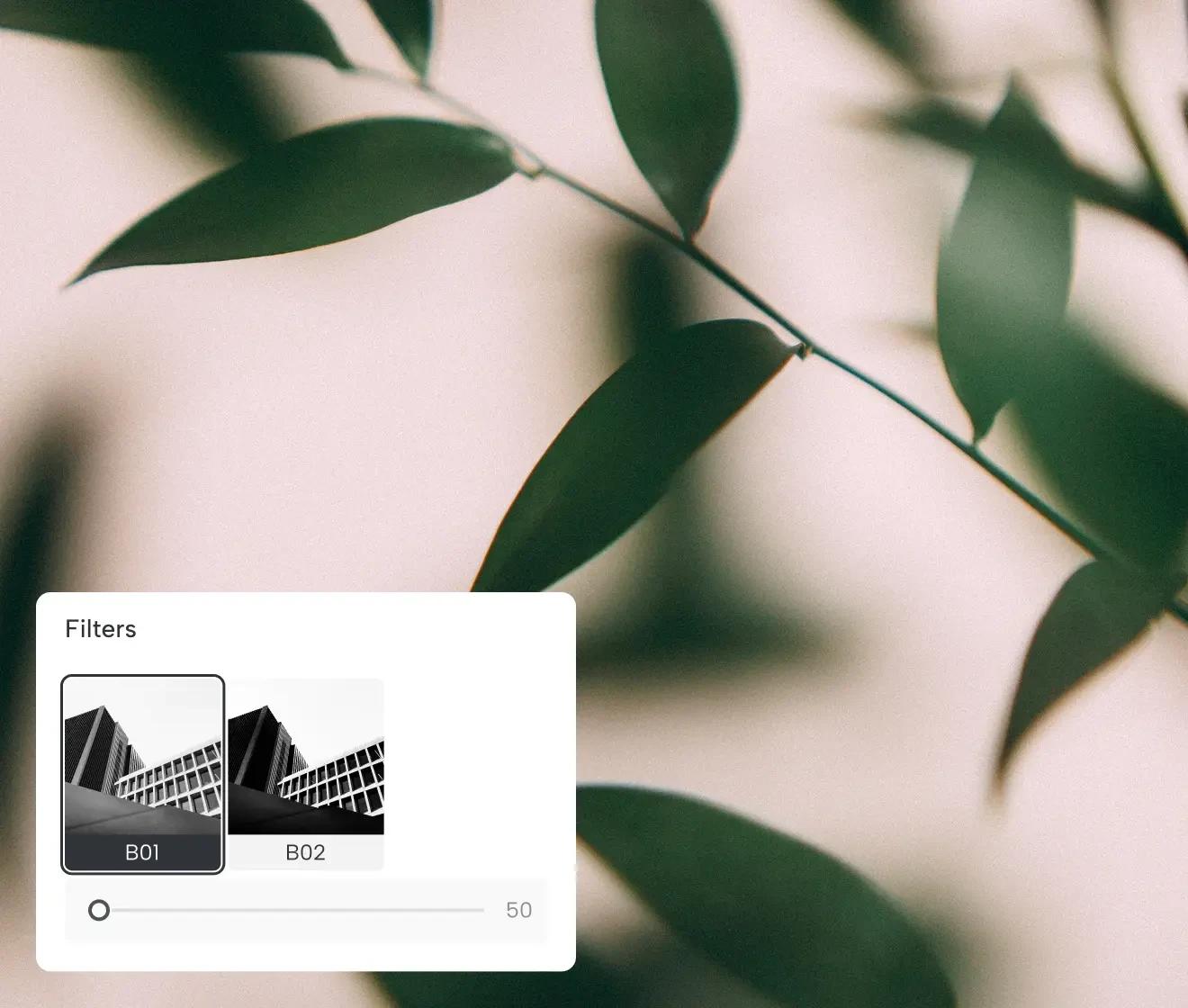
    Go to the [Color adjustments] menu, tap on [More Filters], and enter the [Black & White] category.
  3. 3. Download and Share

    Export your finished black-and-white photo in high quality and use it for social media, portfolio work, or product pages.

Discover More about Black and White

Faster Edits, Finer Control.

Transform your photos with Evoto B&W Filters today.
Available for Windows, macOS, and iPadOS.

FAQs

  • What does a black and white filter do?

  • Can I convert product photos to black and white?

  • Which image formats are supported?

  • Will converting to black and white reduce quality?

  • Can I use a black and white filter for social media photos?

  • Can I keep portraits looking natural in black and white?

  • Can I apply the same black-and-white look to multiple photos?

  • Is my photo stored after I upload it?

  • Does this work on mobile devices?

  • Is user privacy protected when using the Black and White Filter?