
AI Eye Contact Correction — Make Eyes Look at Camera

Create natural eye contact in one click with AI-powered gaze correction.
Desktop
AI photo editor
AI photo editor
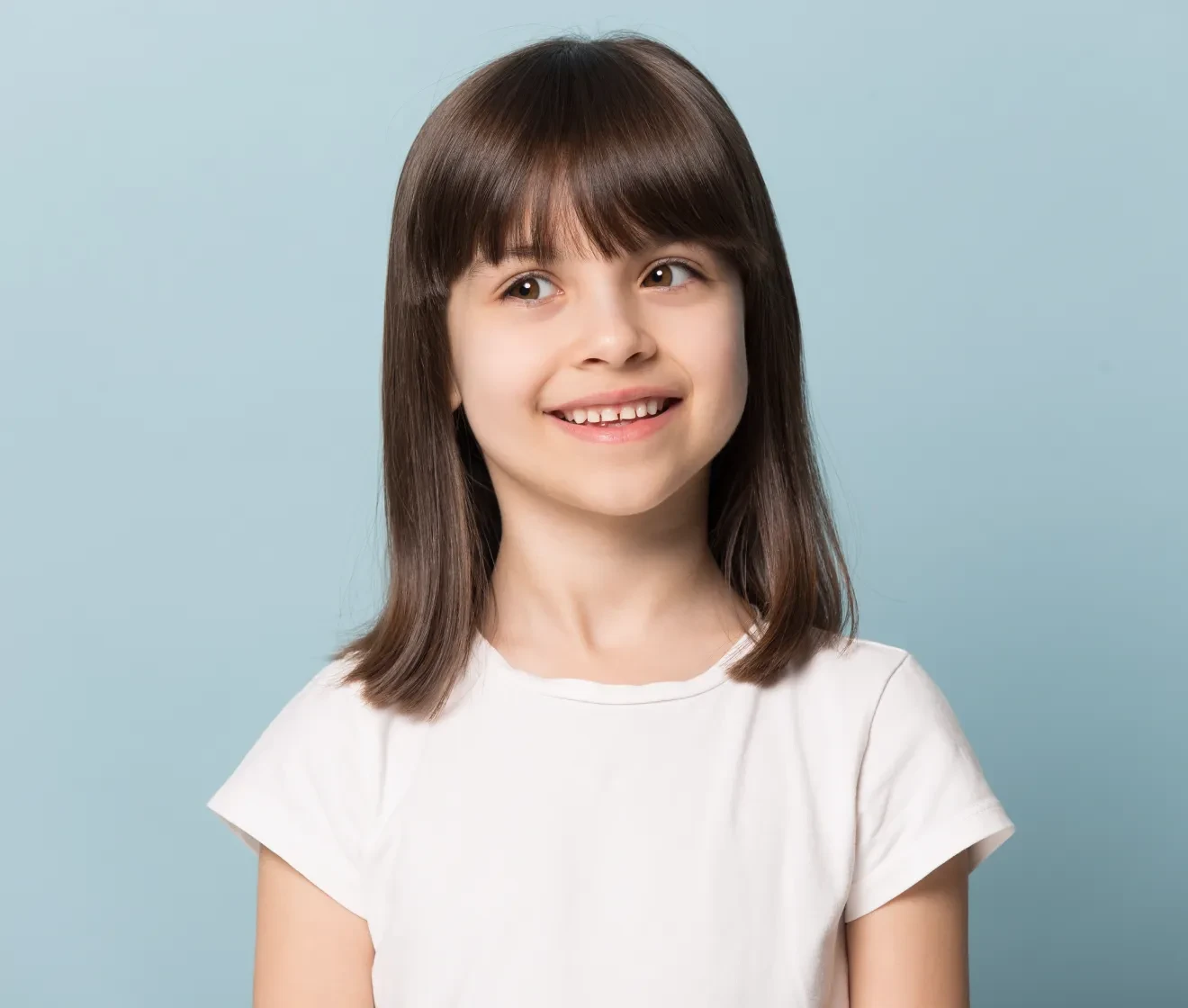
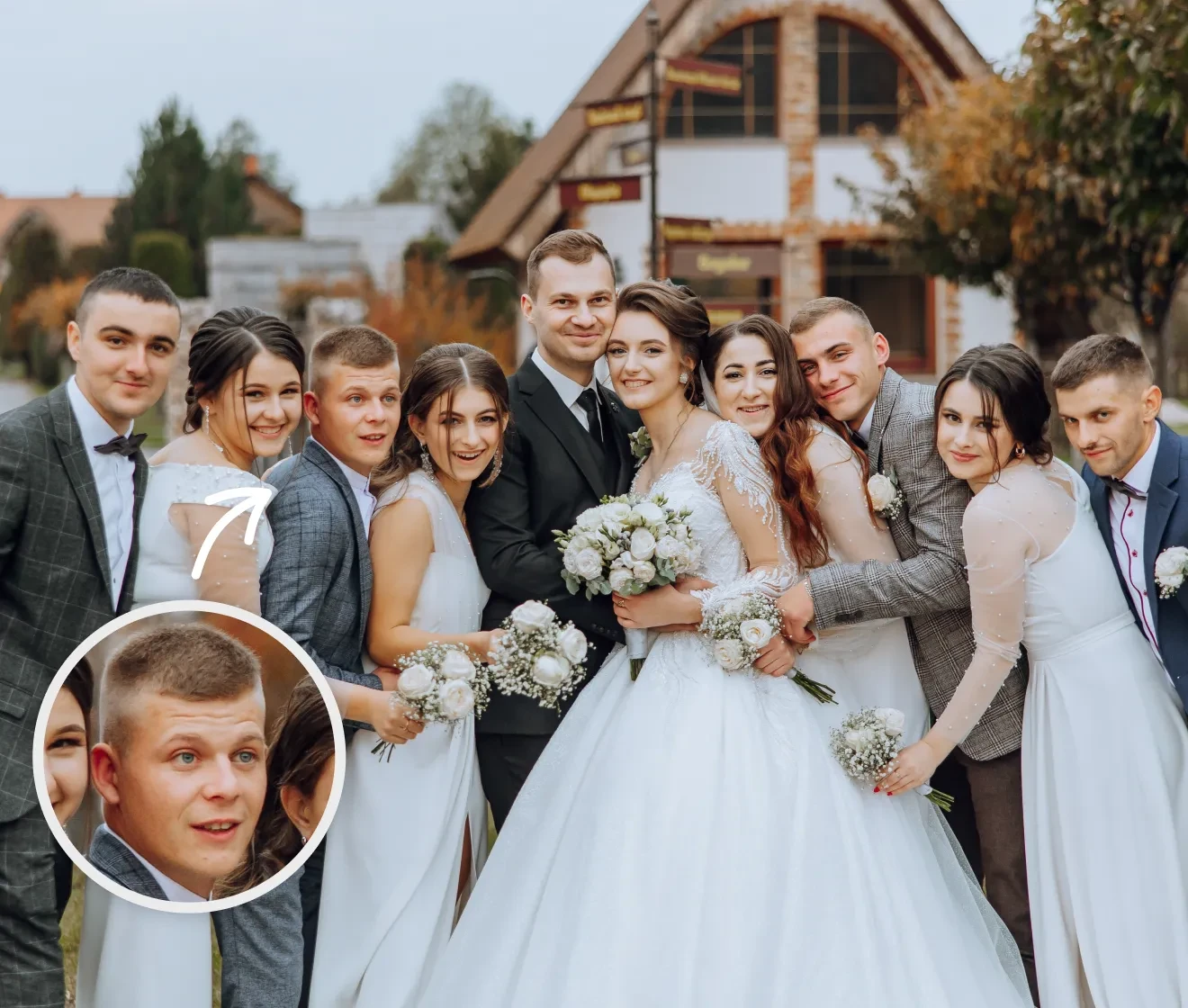
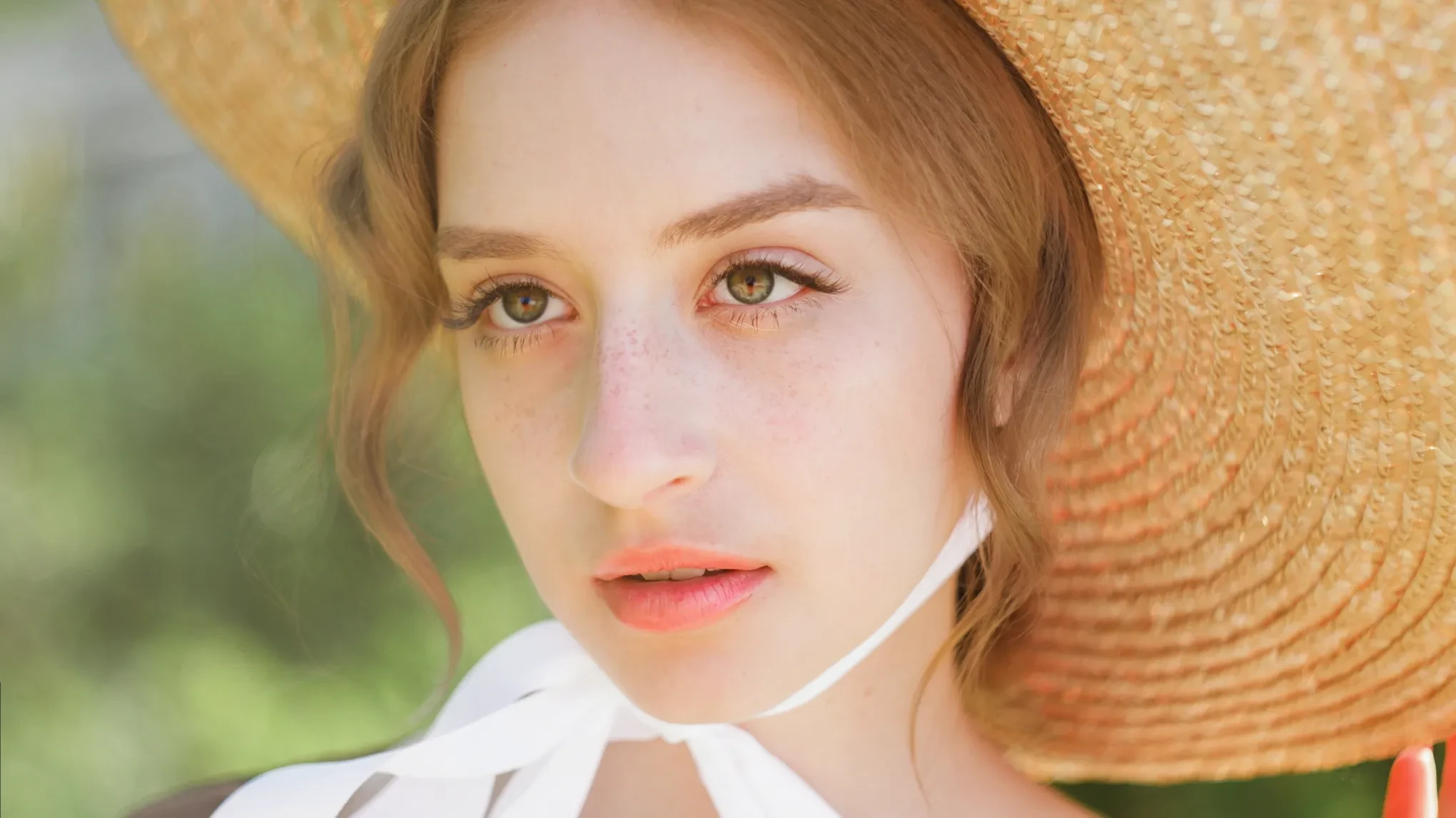
Before
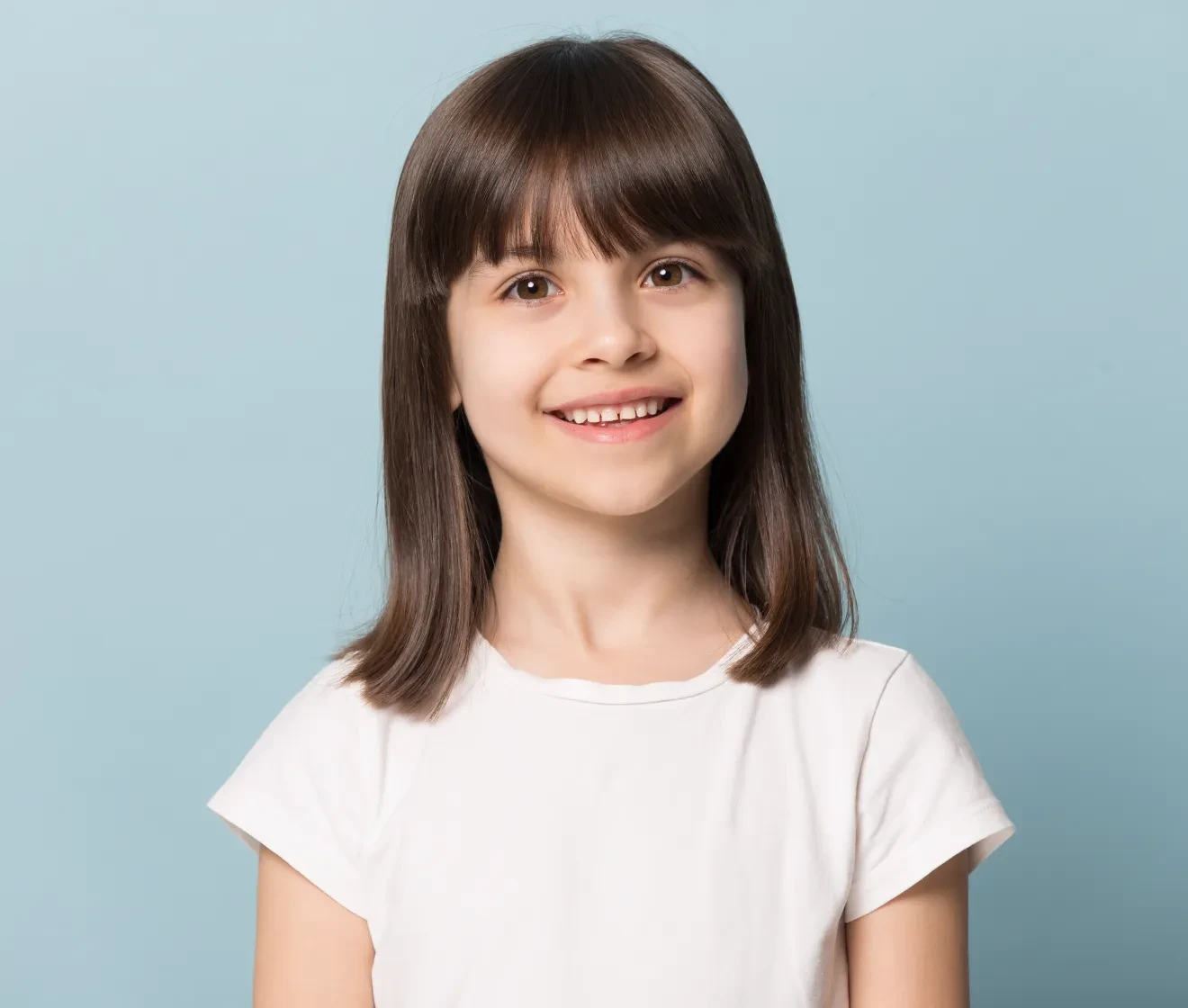
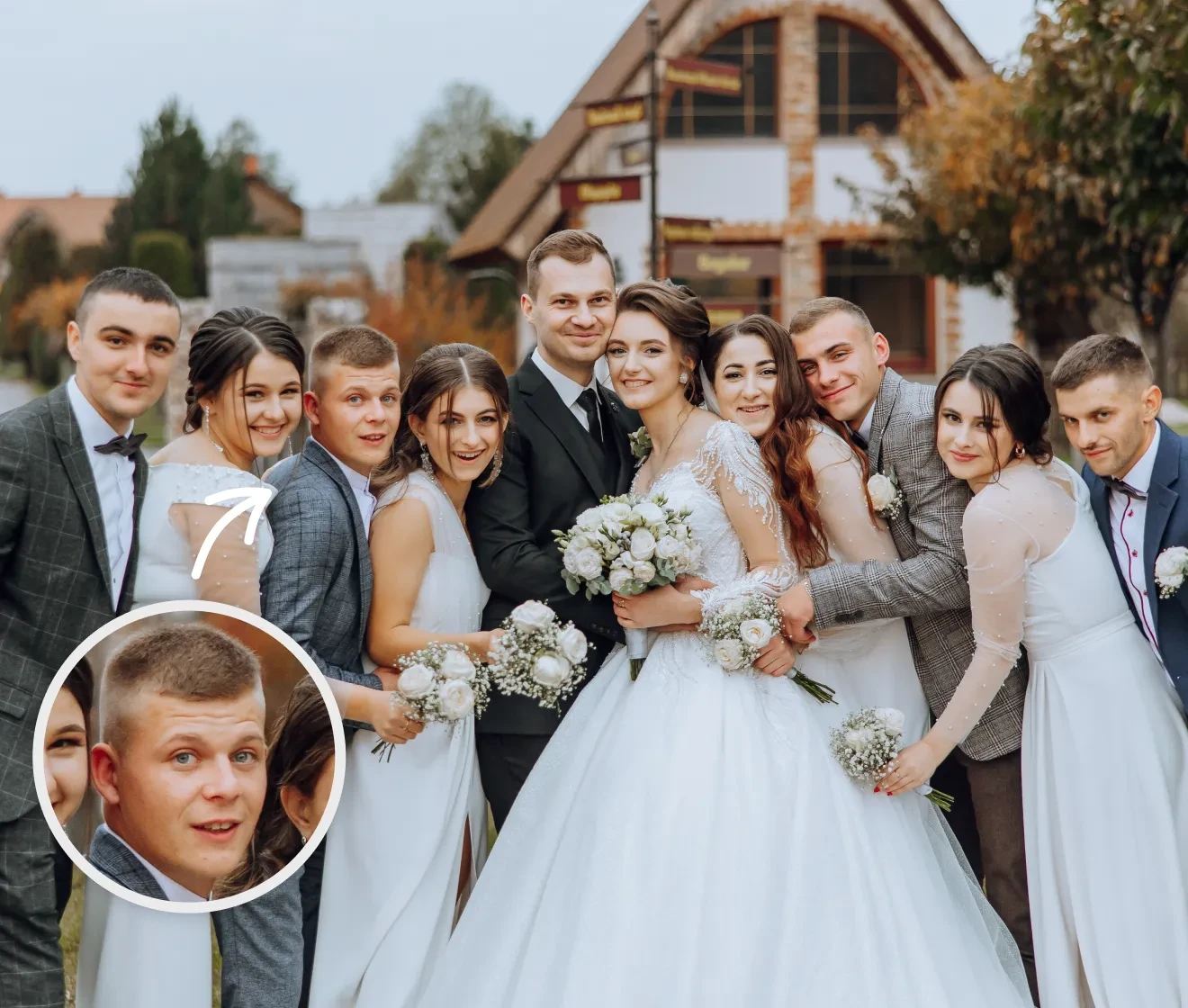
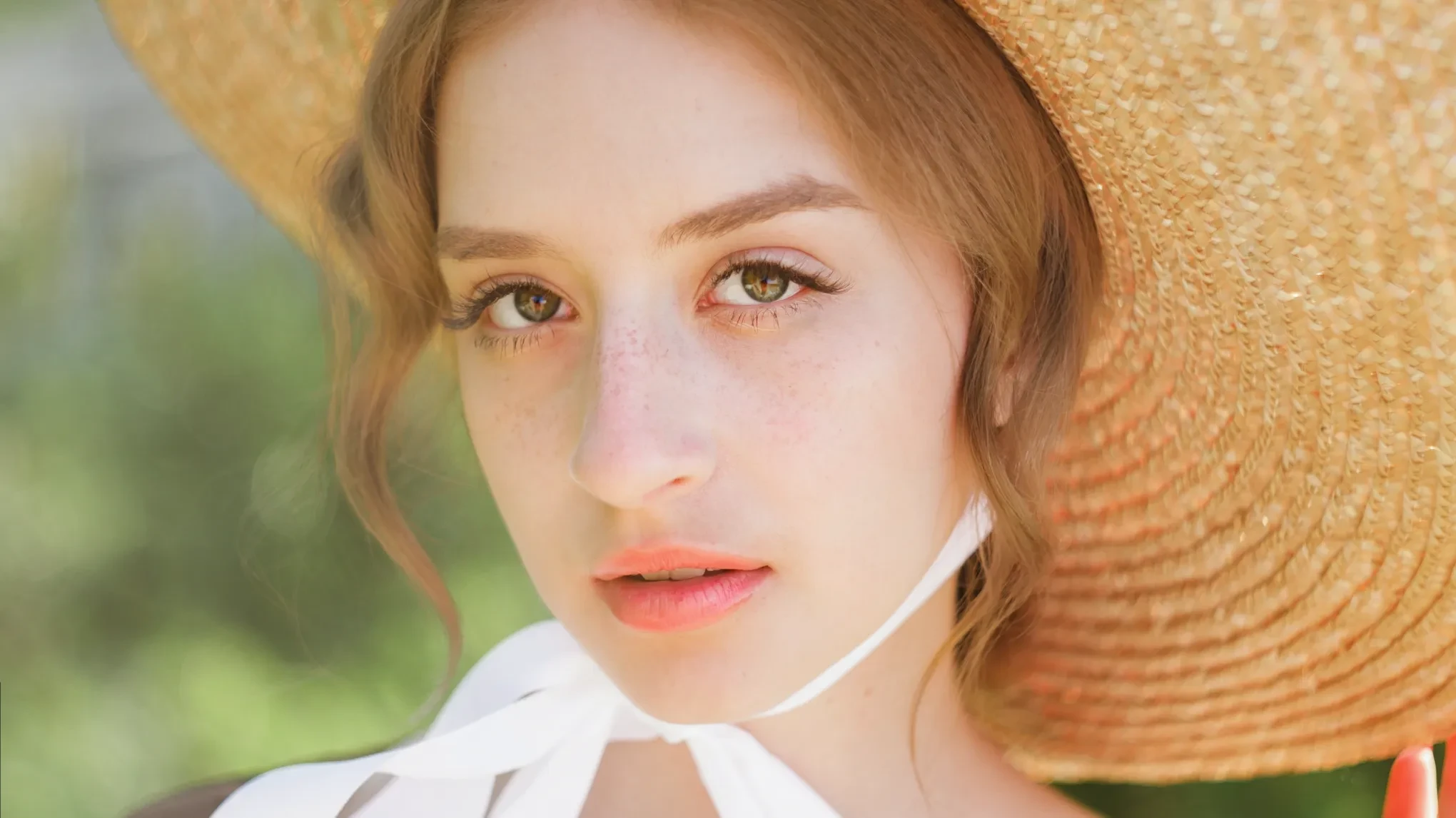
After
direct gaze1
direct gaze 22
direct gaze 33

Fix Eye Contact and Perfect Every Portrait

Turn off-camera glances into natural eye contact in seconds.

Realistic Eye Direction Adjustment

Nailed the moment but the subject glanced away at the last second? Evoto's AI subtly changes eye direction so the gaze lands on the camera. It reads the pose and lighting of the scene, so the corrected eye contact looks studio-perfect rather than edited.

Desktop
Cut out person from photo and cut out shape from image — subject auto-masked in Evoto
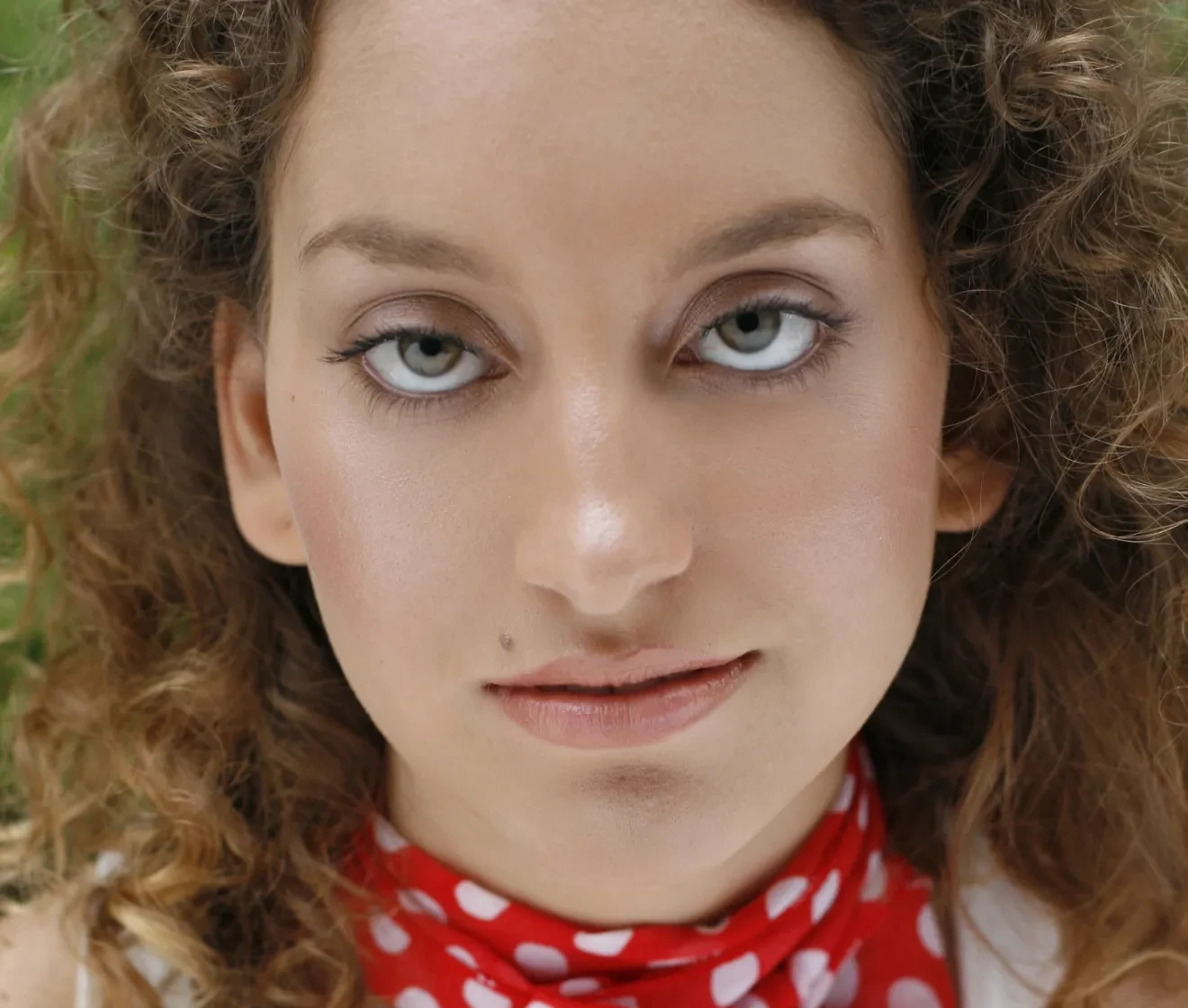
Before
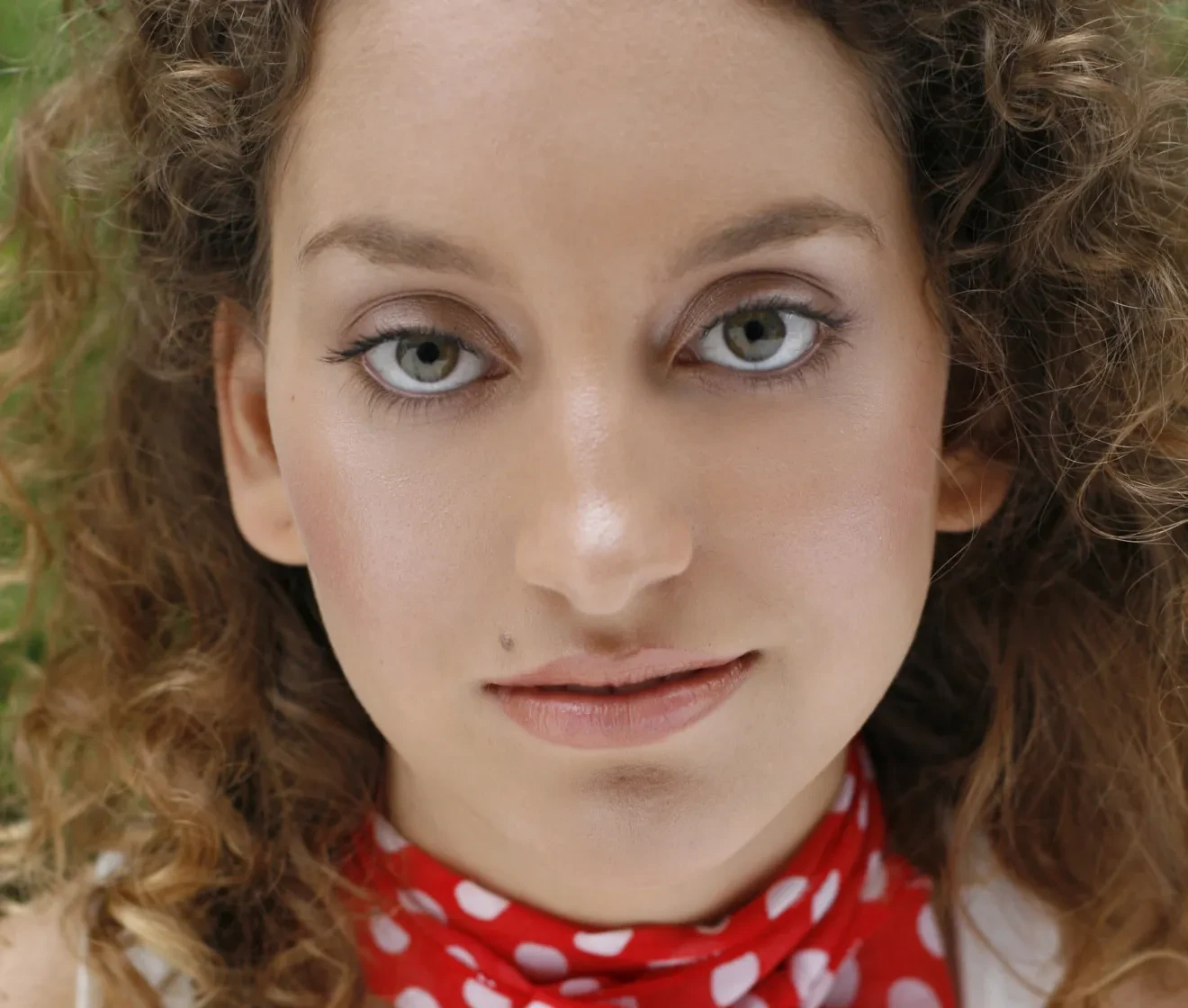
After

Natural-Looking Results You Can Trust

No awkward edits or uncanny stares. Evoto preserves catchlights, iris texture, and eyelid shape while blending the corrected gaze into the original photo — keeping skin, lighting, and expression intact. The eyes look captured right the first time, not pasted on.

Desktop
A transparent PNG cutout shown on a checkerboard background in Evoto

Fix Eyes in Any Photo — Headshots, Groups, Lazy Eye

Headshots where the subject looked off-frame. Group photos where one person glanced away. Portraits with a mild lazy eye or too much sclera showing. Evoto's eye contact correction adapts to any portrait and delivers a consistent, believable result across the whole set.

Desktop
Close-up of sharp hair-strand and pet-fur edges in an Evoto cutout
Before
After

Direct Gaze and Per-Eye Control on Evoto Desktop

For full control, the Evoto desktop app powers this with AI Iris Correction. Use Direct Gaze to guide both eyes naturally toward the camera, or fine-tune each eye's horizontal position, vertical position, and size by hand — then retouch, grade, and export in the same app.

Desktop
Sports team photo background replacement made easy with Evoto
Before
After

Why Photographers Use Evoto to Fix Eye Contact

Change eye direction without reshooting. Fast to apply, natural at the iris.

Desktop
  • Evoto editing a cutout — retouch, color grade, and export in one app

    Auto Detect & Precise Control

    Evoto's AI detects each eye automatically — no manual masking or brushing. You can also take over with precise control on Evoto Desktop: use Direct Gaze to point both eyes toward the camera, or fine-tune each eye's horizontal position, vertical position, and size by hand for a result that's exactly right.
  • Evoto cutting out a full catalog of photos in batch

    Photo-Grade Quality, Not Video

    Unlike other video gaze tools, Evoto direct gaze is built for still photography. Corrections render at the full resolution of your original file, with RAW support and non-destructive editing — no compression, no softening around the eyes, no quality loss.
  • A full-resolution RAW cutout exported without quality loss

    All-in-One Eye Editor

    Gaze direction is just the start. Evoto's Eyes toolkit can also brightens the iris and whites, adds catchlights, removes glasses glare, clears red veins, fixes red-eye, and balances eye symmetry — perfect every detail of the eyes in one place, then carry on to full portrait retouching.
  • Free image cutout in Evoto

    Effortless for Batch

    Most tools fix one photo at a time. With Evoto on desktop, import a whole wedding, event, or headshot session and correct eye contact across the entire batch — so every deliverable has a consistent, camera-facing gaze without editing each frame by hand.
How to Fix Eye Contact in a Photo

Desktop
upload image for eye contact correction
1.Upload Your Photo234
Open the Evoto eye contact correction tool and drag your photo in. Supports JPG, PNG, and WebP — plus RAW and TIFF in the desktop app.
  1. 1. Upload Your Photo

    Open the Evoto eye contact correction tool and drag your photo in. Supports JPG, PNG, and WebP — plus RAW and TIFF in the desktop app.
  2. 2. Let AI Correct the Gaze

    Evoto's AI automatically detects the eyes and redirects the gaze toward the camera — no masking, no manual settings. Profiles or deliberately side-looking gazes are left untouched; for those, fine-tune each eye by hand in Evoto desktop with AI Iris Correction.
  3. 3. Fine-Tune and Export

    Check the result up close, regenerate if needed, then hit Export to save at full resolution — no watermark, no quality loss, ready for delivery, print, or social.
  4. 4. Go Pro with AI Iris Correction on Desktop

    For batch correction, RAW files, and full control, download Evoto desktop and go to 'Portrait Retouching' > 'Eyes', open 'AI Iris Correction'. Then use 'Direct Gaze' to point both eyes at the camera, or fine-tune each eye by hand. Free to try.
Desktop

Discover More about Evoto Direct Gaze

Ready to Perfect Every Gaze?

One-click AI eye contact correction with natural iris detail and full-resolution export — free to try, no watermarks.

Desktop

FAQs

  • What is AI eye contact correction?

  • How do I make eyes look at the camera in a photo?

  • How do I fix eyes in a picture that aren't looking at the camera?

  • Can I fix eye contact for everyone in a group photo?

  • Can it fix a lazy eye or mild strabismus in photos?

  • Will the corrected eyes look natural and realistic?

  • Does it work on RAW files and high-resolution portraits?

  • Is eye contact correction for photos or videos?

  • Eye contact correction vs Photoshop — which is better for photographers?

  • What angles and photos work best for eye contact correction?

Last updated: 2026-07-20. Reviewed by: Evoto Product Team. Results may vary depending on image quality, lighting, subject pose, file format, and selected settings.