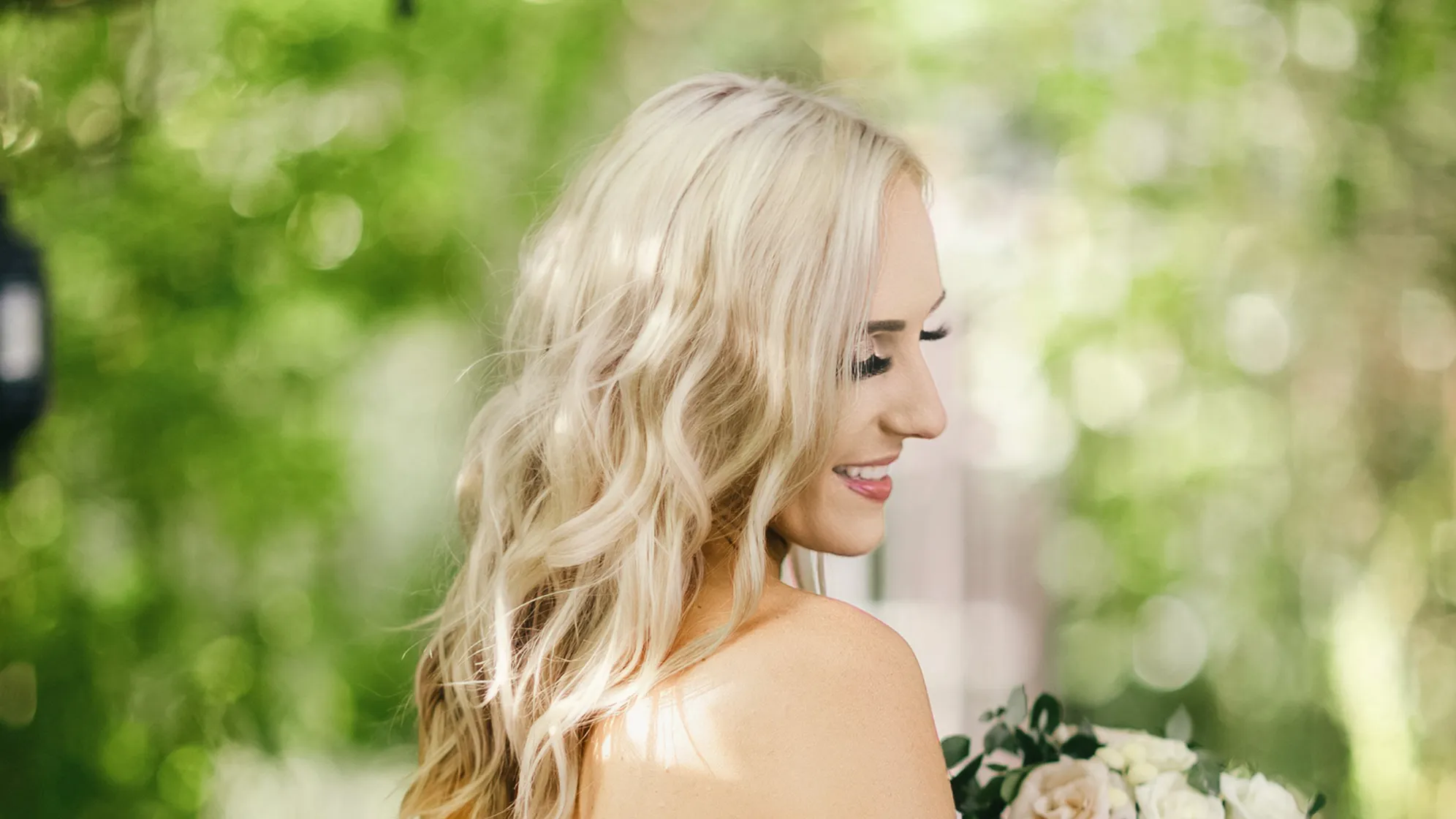
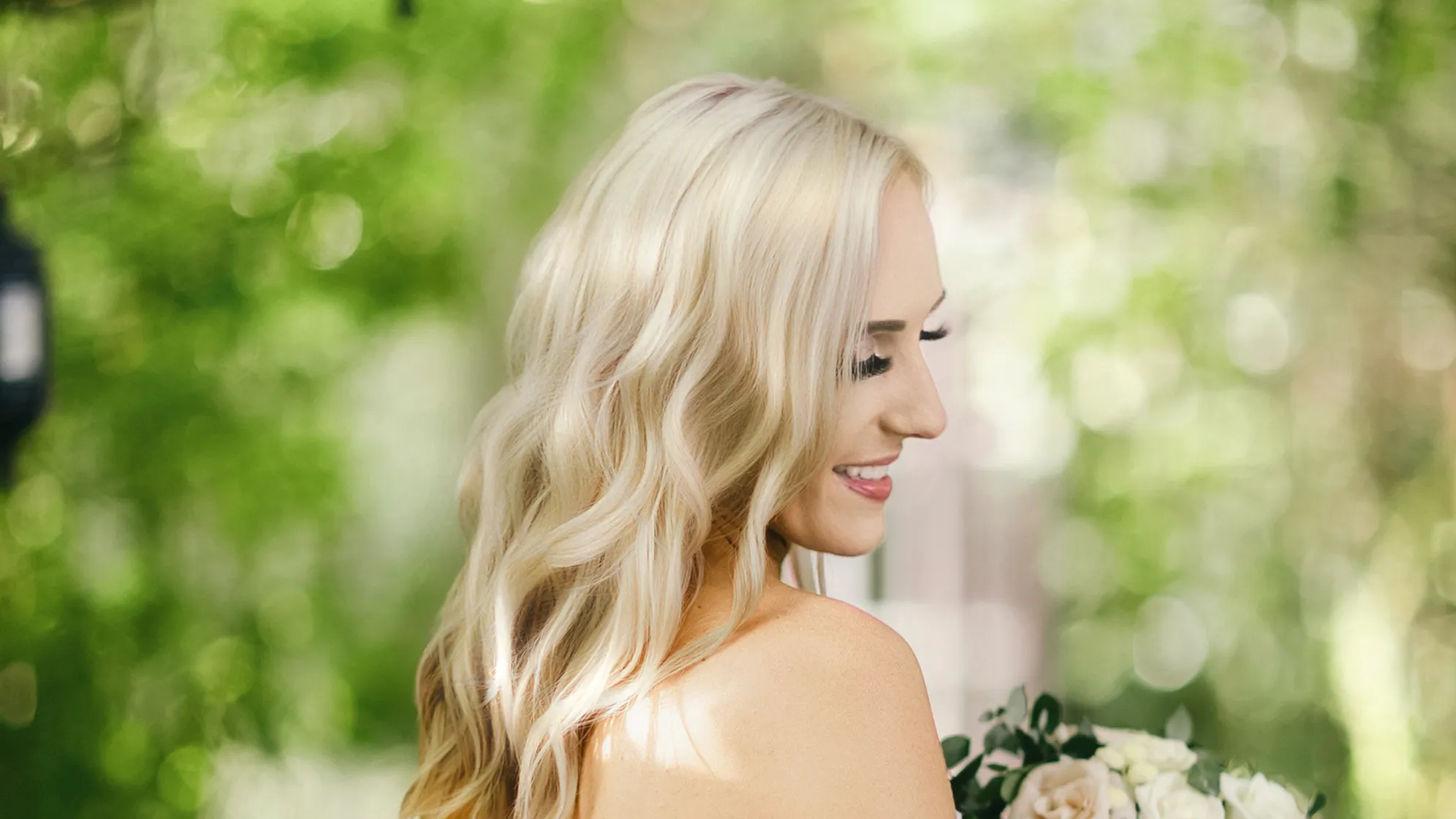
Eliminate flyaway hair effortlessly, ensuring every portrait image looks flawless and professional.
Stray Hair Removal within Portrait
Smooth out stray hair within the portrait outline in e-commerce, fine-art, or wedding photography, refining uneven edges or baby hairs for a sleek, natural-looking photo.
Tame frizzy, flyaway, and static hair beyond the portrait outline in passport or professional headshot photography, retouching the photo for a clean backdrop.
More than flyaway hair removal! Fill in hair gaps, adjust hairline, and add shine to hair, creating a seamless, silky, glossy appearance in various portrait photographs.
Import the photo you wish to remove stray or staticky hair from your device's gallery or file directory. Once imported, the AI hair editor will automatically assess the image to identify areas for hair editing.
Navigate to the "Portrait Retouching" panel and expand the "Hair" section. Find the "Stray Hairs Removal" sliders and other hair retouching options.
Move the slider to remove frizzy or stray hair from the photo. Adjust other related sliders to achieve natural, polished hair looks.
Click "Export" and set the format and quality you want. Then, save the hair edited photo to your device.
1. Import Photos
Import the photo you wish to remove stray or staticky hair from your device's gallery or file directory. Once imported, the AI hair editor will automatically assess the image to identify areas for hair editing.
2. Access the Hair Panel
Navigate to the "Portrait Retouching" panel and expand the "Hair" section. Find the "Stray Hairs Removal" sliders and other hair retouching options.
3. Remove Flyaway Hairs
Move the slider to remove frizzy or stray hair from the photo. Adjust other related sliders to achieve natural, polished hair looks.
4. Export the Photo
Click "Export" and set the format and quality you want. Then, save the hair edited photo to your device.
How does AI Stray Hair Remover detect static hair accurately?
A
AI uses advanced image algorithms to detect the portrait hair area and analyze hair texture, direction, and luminance. The algorithms can distinguish the irregular, standing-up nature of static hair from normal, smooth hair patterns in the photo. Then, the tool removes flyaway hairs, ensuring a flawless finish with minimal effort.
Q
Can I use this to remove flyaway hair from group photos?
A
Yes. The AI can handle multiple subjects in a photo. It detects and removes flyaways from each person's hair, adapting to different hair lengths, styles, and colors within the group to achieve a polished look for the whole photo.
Q
Can I use AI to remove flyaways in a dyed hair portrait photo?
A
Absolutely, the AI flyaway hair remover is effective for removing stray hair regardless of whether the hair is natural or dyed.
Q
Does this tool offer any additional hair retouching features?
A
Yes, it includes features like hairline refinement and hair gap filling for a comprehensive hair editing experience. You can also change hair color, add hair shine, or increase hair volume to the portrait in photography.
Q
Can I preview the changes before actually removing the flyaway hair?
A
Yes, you can get instant previews of the editing results. With just one click, you can check the before-and-after changes after the AI Stray Hair Remover starts to erase the flyaways.
Q
Can this flyaway hair remover be used for professional photo editing?
A
Yes, it is an AI photo editor equipped with professional-grade tools, making it suitable for both amateur and professional photo editors.
Q
How can I ensure the hair looks natural after removing stray hair?
A
Start with small adjustments on the relevant sliders. Observe how the tool blends the areas where stray hair was removed. You can also use the preview function to compare with the original hair and make further fine-tuning.
Q
Is Evoto compatible with all image formats?
A
It supports a wide range of image formats (PNG, JPG, RAW, TIFF and more), ensuring flexibility and convenience in your editing workflow.
Q
How does the batch hair adjustment work for removing flyaways?
A
When you finish the hair retouching on a photo, you can use shortcut "Ctrl + C/ Command + C" to copy the edits. Then, select multiple photos and apply "Ctrl + V/ Command + V" for batch processing, the tool applies the same set of flyaway-removal algorithms to each photo.
Q
Can I use the AI Stray Hair Remover to tame static hair in passport photography?
A
Yes, you can use the stray hair removal and hair smoother to tame the frizzy static hair beyond the portrait outline in ID card, headshot or passport photography, retouching the photo for a clean backdrop.
Last updated: 2026-06-11. Reviewed by: Evoto Product Team. Results may vary depending on image quality, lighting, subject pose, file format, and selected settings.