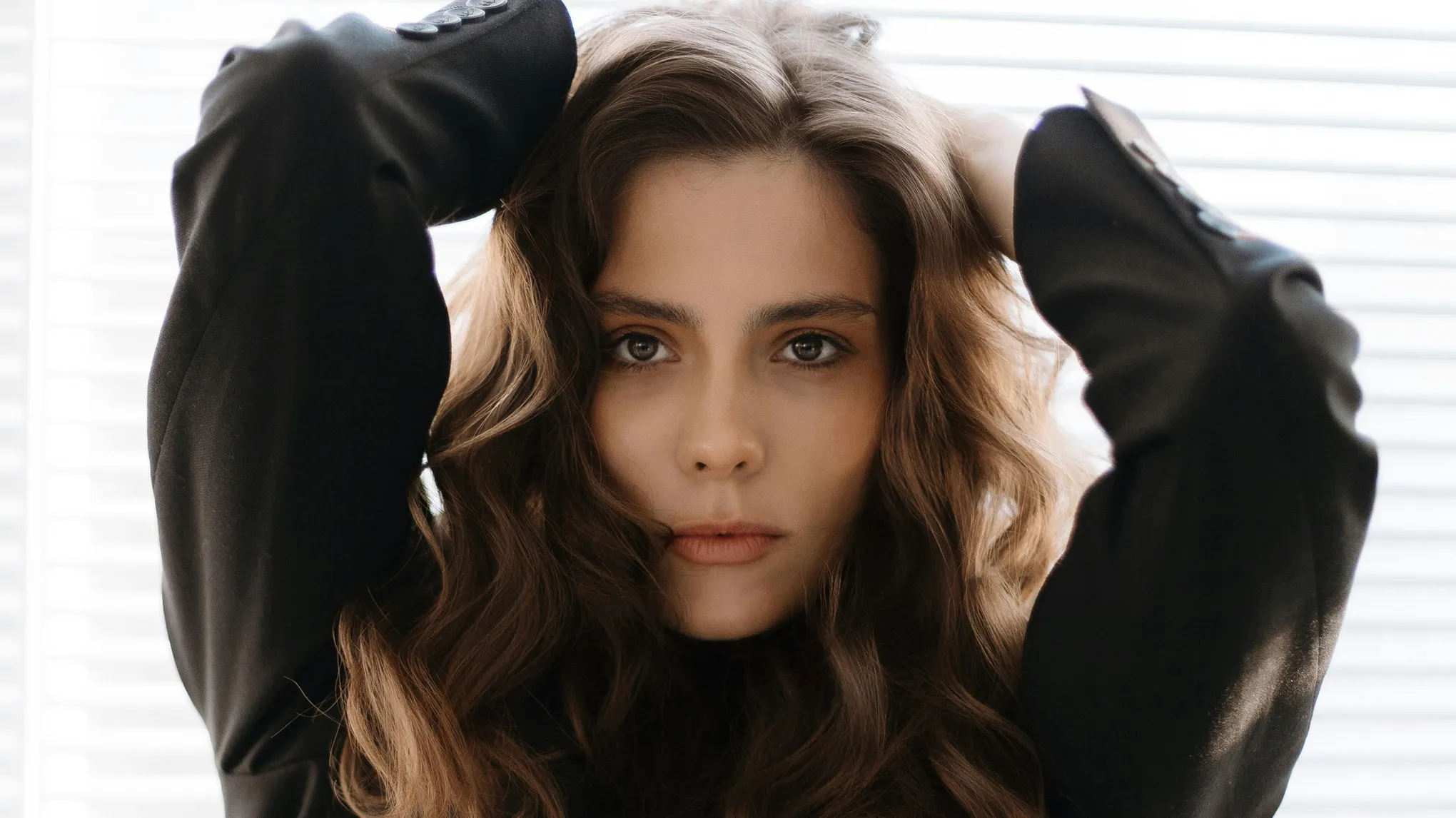
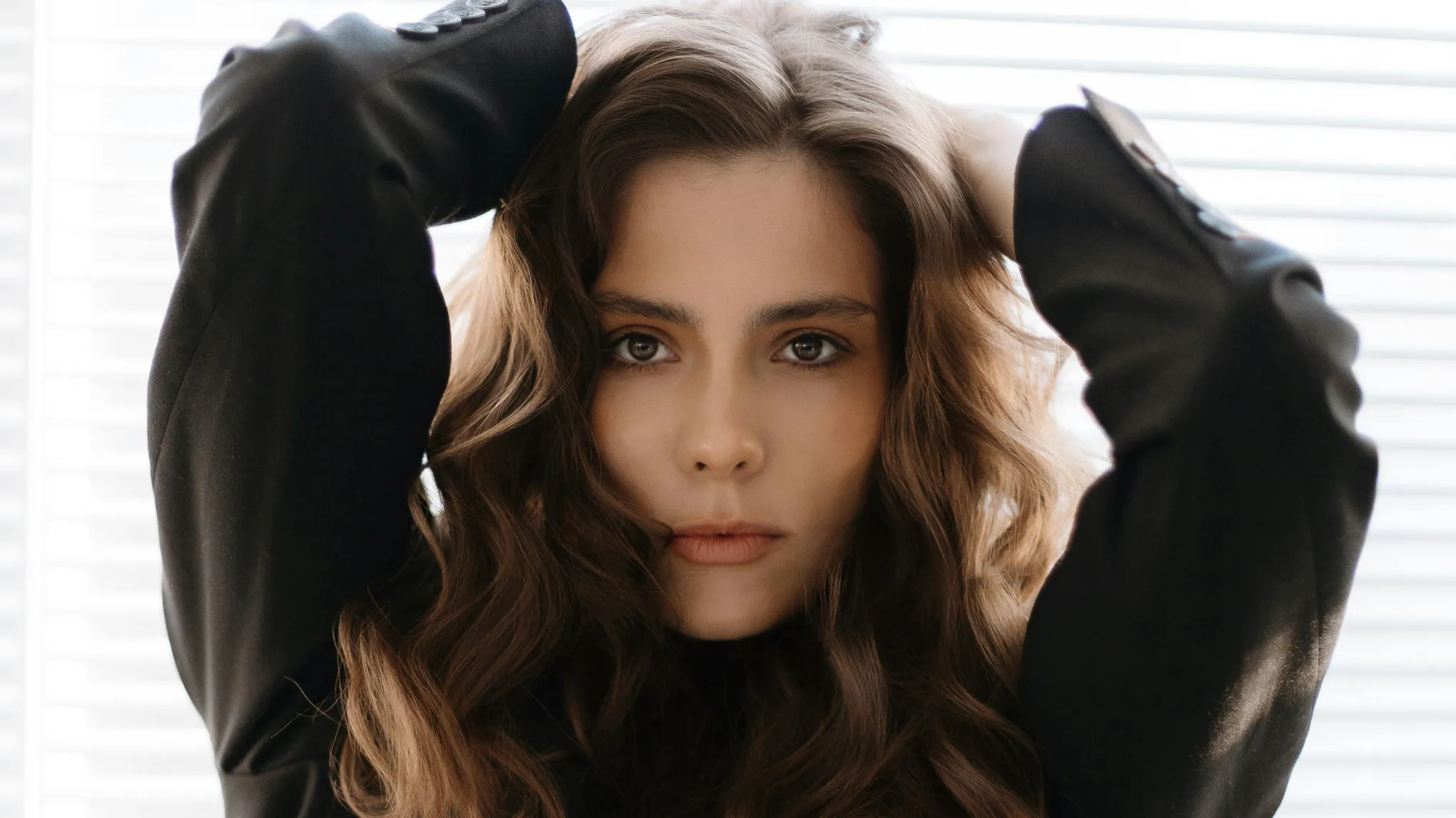
Remove dark circles from your photos online in one click. Evoto's AI dark circle remover detects under-eye shadows with precision, preserves natural skin texture, and supports batch processing — free to try on Windows, macOS, and iPadOS.
Get Rid of Dark Circles in Photos with AI Precision
Use Evoto's AI dark circle remover to brighten under-eye areas in seconds. It adapts to different skin tones and lighting automatically, keeps pores and texture intact, and works on a single portrait or a full batch of photos.
AI-Powered Precision Dark Circle Detection
Evoto uses advanced facial recognition to automatically detect and target dark circles with precision. It adapts to different skin tones and lighting, enhancing only the under-eye area without affecting natural shadows or contours. The result? Flawless edits with zero manual work.
Say goodbye to tedious manual selections and complex masking! Evoto removes dark circles with a single click. Use the simple slider to adjust intensity and give your subject a refreshed, well-rested look in seconds.
Evoto's cutting-edge technology enhances the under-eye area while scrupulously preserving natural skin texture and detail. Unlike blurring filters, our AI intelligently lightens dark circles, ensuring beautiful, believable results that retain pores and fine lines.
Processing many photos is easy. Evoto's intelligent batch processing applies consistent, natural dark circle removal across entire photoshoots. Refine one image, then let our AI instantly correct hundreds, drastically cutting post-production time and ensuring uniformity.
Get a dark circle remover built for photo work — AI precision detection, true batch processing, and pro-grade texture control across Windows, macOS, and iPadOS.
Skip complex tools. Evoto simplifies dark circle removal, offering instant, real-time results as you adjust a slider. Get precise control and perfect edits in seconds.
Naturally Retouched, Not Overdone
Achieve a refreshed, natural look without over-smoothing. Evoto brightens the under-eye area while preserving skin texture, tone, and facial expression — ensuring your edits look real, not artificial.
Consistent, Professional Results Across Batches
Apply consistent dark circle removal across an entire shoot. Evoto's batch processing reuses the same correction settings on every photo, cutting post-production time for portrait sessions, weddings, and commercial shoots.
Open Evoto and upload the portrait photo you want to enhance. You can import a single image or multiple photos for batch editing.
Navigate to the “Portrait Retouching” panel, then select “Blemish Removal” > “Dark Circles” to access the tool.
Use the intuitive sliders to fine-tune the intensity of the dark circle removal. Instantly preview your edits with real-time before-and-after comparisons.
Click “Export” to save your image in JPG, PNG, RAW, or TIFF format. Pro Tip: Use Ctrl + C / Ctrl + V to copy and paste settings for fast batch editing across multiple images.
1. Import Your Image
Open Evoto and upload the portrait photo you want to enhance. You can import a single image or multiple photos for batch editing.
2. Find the Dark Circles Removal Tool
Navigate to the “Portrait Retouching” panel, then select “Blemish Removal” > “Dark Circles” to access the tool.
3. Adjust with Smart Sliders
Use the intuitive sliders to fine-tune the intensity of the dark circle removal. Instantly preview your edits with real-time before-and-after comparisons.
4. Export Your Edited Photos
Click “Export” to save your image in JPG, PNG, RAW, or TIFF format. Pro Tip: Use Ctrl + C / Ctrl + V to copy and paste settings for fast batch editing across multiple images.
Dark circles in photos typically appear as shadows, discoloration, or puffiness under the eyes, making a person look tired, stressed, or older. They can be caused by various factors like lighting, sleep deprivation, genetics, or dehydration.
Q
Why do dark circles appear more noticeable in pictures?
A
Lighting, camera angles, or lack of makeup can emphasize natural shadows under the eyes, making dark circles appear more prominent.
Q
Types of Dark Circles and What Causes Them?
A
Dark circles under the eyes can be classified into four main types based on their appearance and underlying causes. Pigmented dark circles appear brown or tan and are usually caused by excess melanin, sun exposure, frequent eye rubbing, or genetic predisposition—most common in medium to dark skin tones. Vascular dark circles appear bluish or purplish due to visible blood vessels beneath thin skin, often triggered by fatigue, poor circulation, allergies, or aging. Structural dark circles are not caused by discoloration but by shadows created by facial anatomy, such as deep tear troughs or loss of fat and collagen with age. Finally, mixed-type dark circles involve a combination of pigmentation, vascular visibility, and hollowness, making them more complex to treat. Contributing factors across all types include genetics, lack of sleep, aging, allergies, and sun exposure.
Q
How do AI dark circle removers work?
A
AI dark circle removers use advanced algorithms trained on vast datasets of images. They intelligently identify the specific areas of discoloration and shadows under the eyes. The AI then applies precise adjustments to brighten and even out the skin tone, aiming for a natural, flawless result while preserving skin texture.
Q
Does removing dark circles affect other parts of my face in the photo?
A
No. Evoto's AI focuses only on the under-eye area it detects. The dark circle slider lightens shadows there, while other facial features, contours, and overall skin tone stay untouched — so the rest of the portrait keeps its natural look.
Q
What's the difference between dark circle removal and general skin smoothing?
A
Dark circle removal in Evoto targets under-eye shadows and discoloration only, lightening the area without flattening pores or skin texture. General skin retouching, in the same panel, can even out broader skin tone and reduce blemishes across the face. You can use them together or independently per photo.
Q
Can I get rid of dark circles in my photos if they are very severe?
A
Evoto's intensity slider lets you control how much the under-eye shadows are lightened, so even pronounced dark circles can be visibly reduced while keeping skin texture natural. Results depend on the original photo's lighting and resolution; very heavy shadows may need a slightly stronger setting or a quick combination with the skin retouching tools in Evoto.
Q
Can Evoto's dark circle remover also handle eye bags?
A
Yes. Evoto's blemish-removal panel includes both Dark Circles and Eye Bags sliders, so you can correct under-eye shadows and puffiness in the same session — same precision, same batch workflow.
Q
How does Evoto compare with other AI dark circle removers?
A
Evoto focuses on professional photo workflows: precision detection across skin tones, preservation of pores and fine texture, and true batch processing on Windows, macOS, and iPadOS. Lighter online tools usually handle a single selfie at a time and rely on smoothing filters — Evoto keeps natural skin texture and applies consistent results across hundreds of photos.
Q
Can Evoto remove dark circles in batch photos?
A
Yes. Edit one photo first, then copy and paste the selected adjustments to multiple images (Ctrl/Cmd + C → Ctrl/Cmd + V), or save those edits as a preset and apply it to a batch. This keeps results consistent across large sets like wedding, event, and portrait shoots.
Last updated: 2026-06-11. Reviewed by: Evoto Product Team. Results may vary depending on image quality, lighting, subject pose, file format, and selected settings.