
AI Eye Editor: Brighten, Sharpen, Perfect

Edit eyes in photos online—brighten, reshape, fix red-eye, and change eye color in seconds. Natural, pro-level results with AI; no manual masking required.

Evoto AI Eye Editor
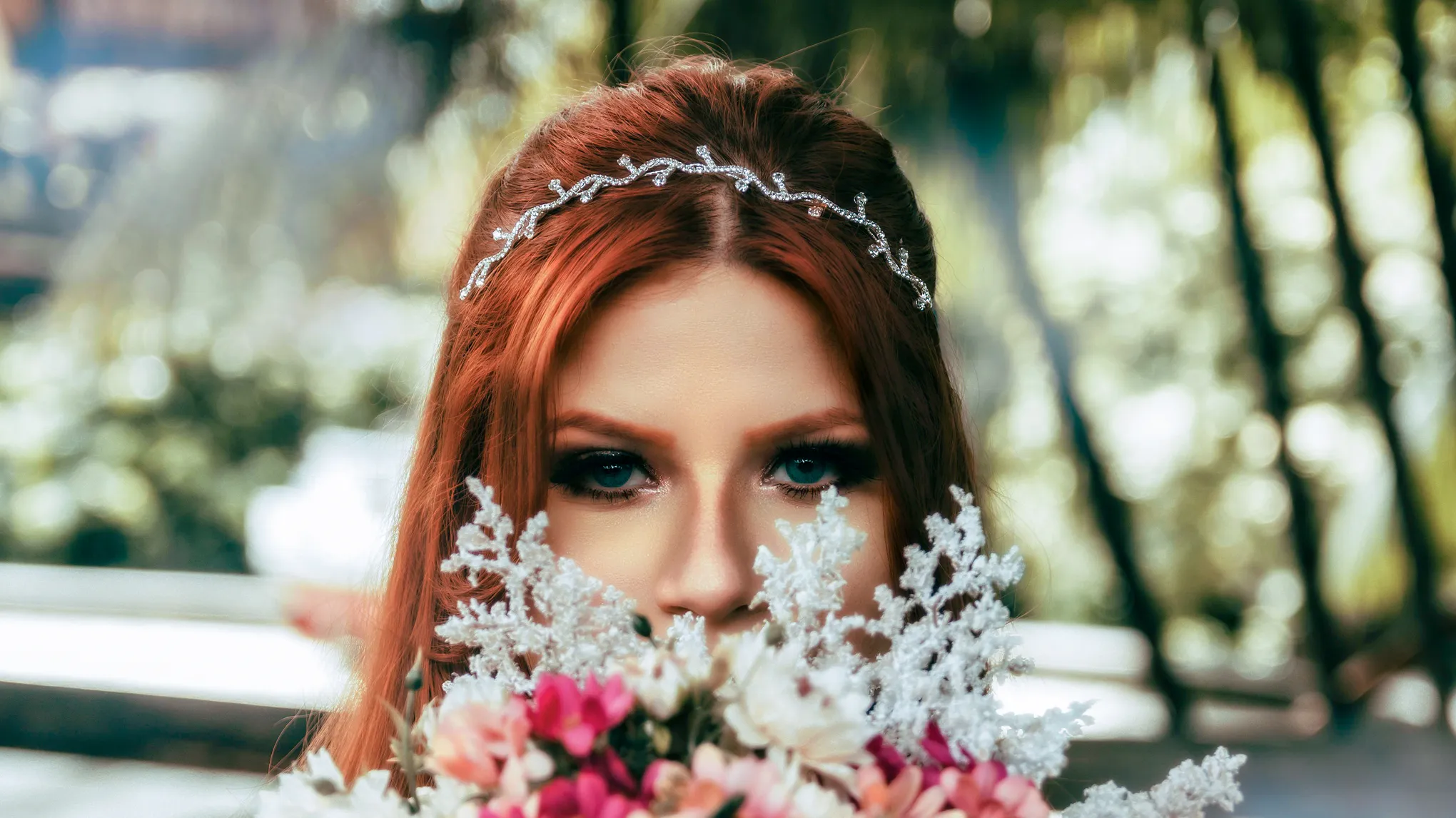
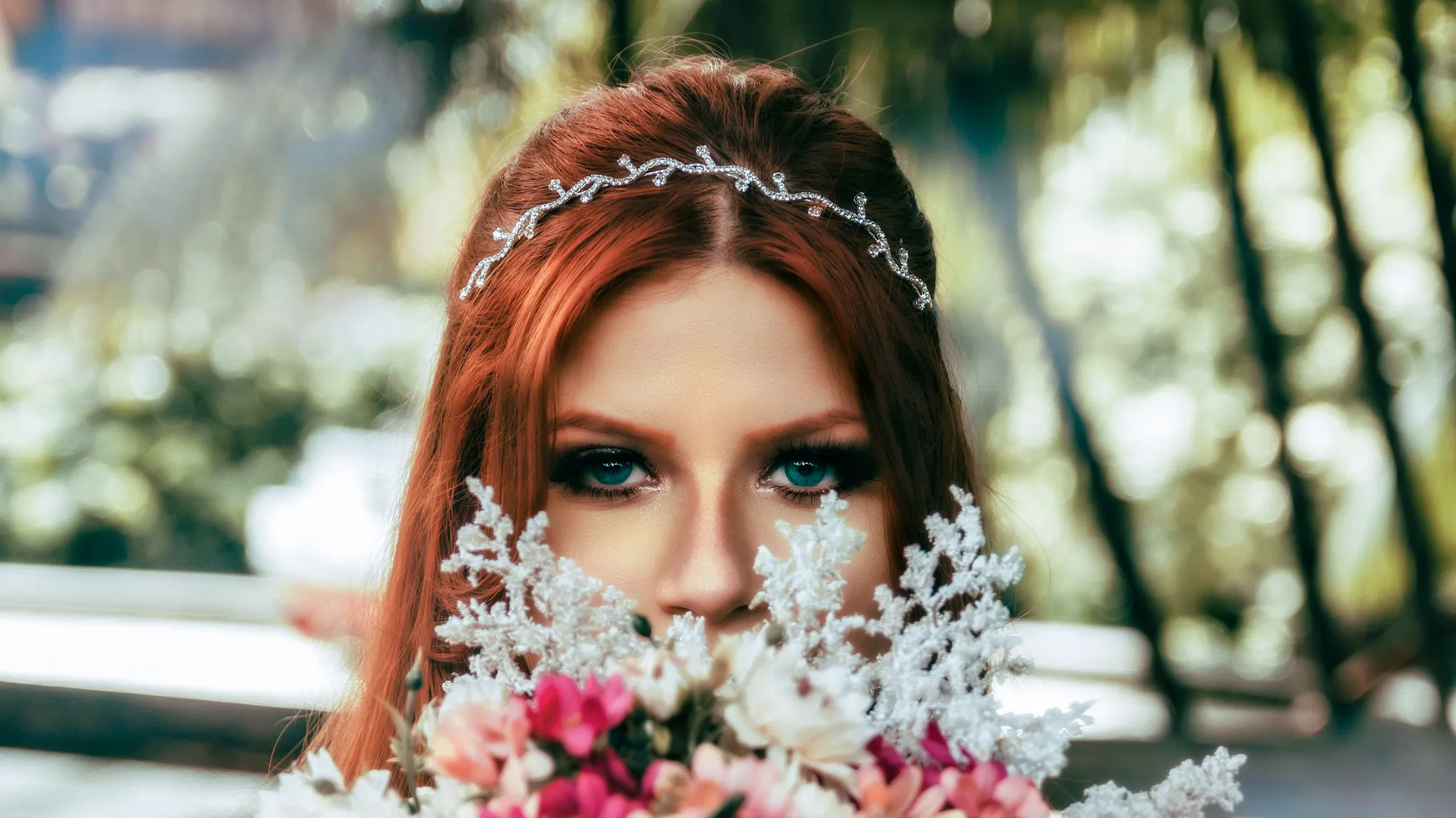
bride eye retouching
Before
After
Upload Image
* JPEG, JPG, PNG or WebP image allowed.
No image? Try one of these
Evoto AI Eye Editor
eye brighten
Upload Image
Free to try. Pro Editing at Your Fingertips.
Download Now
Buy Now
Buy Now

All-in-One AI Eye Editing: Enhance, Correct, Shape & Recolor

Brighten, sharpen, correct, reshape, and recolor eyes—all in a few clicks. Evoto's AI Eye Editor gives full control for natural, professional eye retouching, no manual work needed.

Intelligent Eye Enhancements

Let your eyes shine. Evoto's AI auto-detects the iris, sclera, and catchlights to brighten, sharpen, and add clarity—no manual masking. Capture portraits with eyes that truly captivate.

Eye enhancements before
Brighten Eyes in Photo with AI
Before
After

Natural Correction, No Over-Editing

Fix red-eye, dark circles, and eye bags in photos without compromising skin texture. Smart algorithms correct only what's needed—every portrait stays authentic and emotionally engaging.

Eyes Retouching
Eyes wrinkle remover
Before
After

Adjust Eye Shape & Balance

Subtle tweaks, powerful impact. Refine eye shape, size, and symmetry with intuitive sliders—natural, unretouched-looking results, every time.

Adjust Eye Shape in Photo
Adjust Eye Shape in Photo & makeup
Before
After

AI Eye Color Changer & Eye Makeup Editor

Change eye color or apply virtual eye makeup with pro-level control. From soft browns to vivid greens—or a dramatic lash lift—Evoto's AI eye color changer keeps every edit customizable and non-destructive.

Eye Color Editor
Eye Color changer
Before
After

Why Pros Choose Evoto AI Eye Editor

From wedding shoots to commercial portraits, Evoto AI Eye Editor delivers fast, natural, batch-ready eye retouching trusted by professional photographers.

  • Efficient Eye Retouching at Scale

    Fast, Flawless Results

    One-click eye retouching cuts hours of manual editing—perfect for batch processing and fast client delivery.

  • Powerful AI Eye Editor with auto detection

    Effortless Pro Quality

    Evoto's AI precisely detects the iris, sclera, eyelids, and lashes—then adapts to different lighting and angles for consistent, pro-grade output.

  • All-in-One AI Eye Editor

    Full Creative Control

    Fine-tune every aspect—iris color, eye shape, brightness, makeup, and catchlights—with total flexibility and slider precision.

  • Pro Eye Editor for tethered and batch workflows

    Smooth Editing Flow

    Evoto streamlines everything from tethered shooting to batch edits, keeping your creativity flowing.

Do More with Evoto AI Photo Editor

From professional skin retouching to color grading and more, we’ve got you covered.

How to Use AI Eye Editor in Evoto

Uploading a photo into evoto
1.Import Photos234

Click "Import" to upload your photo. Evoto supports RAW, TIFF, PNG, and JPG—ideal for high-quality eye retouching.

  1. 1. Import Photos

    Click "Import" to upload your photo. Evoto supports RAW, TIFF, PNG, and JPG—ideal for high-quality eye retouching.

  2. 2. Open the Eye Editor

    Navigate to the "Portrait Retouching" panel and select "Eyes." Use intuitive sliders to brighten eyes, enhance catchlights, fix red-eye, adjust eye shape, or change eye color instantly.

  3. 3. Sync Edits Across Multiple Photos (Optional)

    Want consistent eye edits across a set? Select additional images and apply your edits in one go with Batch Sync.

  4. 4. Save the Results

    Once you're satisfied, click "Export" to save your retouched portraits directly to Mac, Windows, or iPad.

Faster Edits, Finer Control.

Transform your photos with Evoto AI Eye Editor today. Available for Windows, macOS, and iPadOS.

FAQs

  • Can I change eye color naturally with Evoto?

  • How can I enhance my eyes in a photo?

  • Does Evoto Eye Editor support virtual eye makeup?

  • How do I fix red-eye in photos with Evoto?

  • Can I edit each eye separately?

  • Will my eye edits look natural?

  • Is manual masking required to use the AI Eye Editor?

  • Is the Eye Editor available on all platforms?

  • Can I use Eye Editor in batch mode?

  • Can AI remove red eye from my photos automatically?