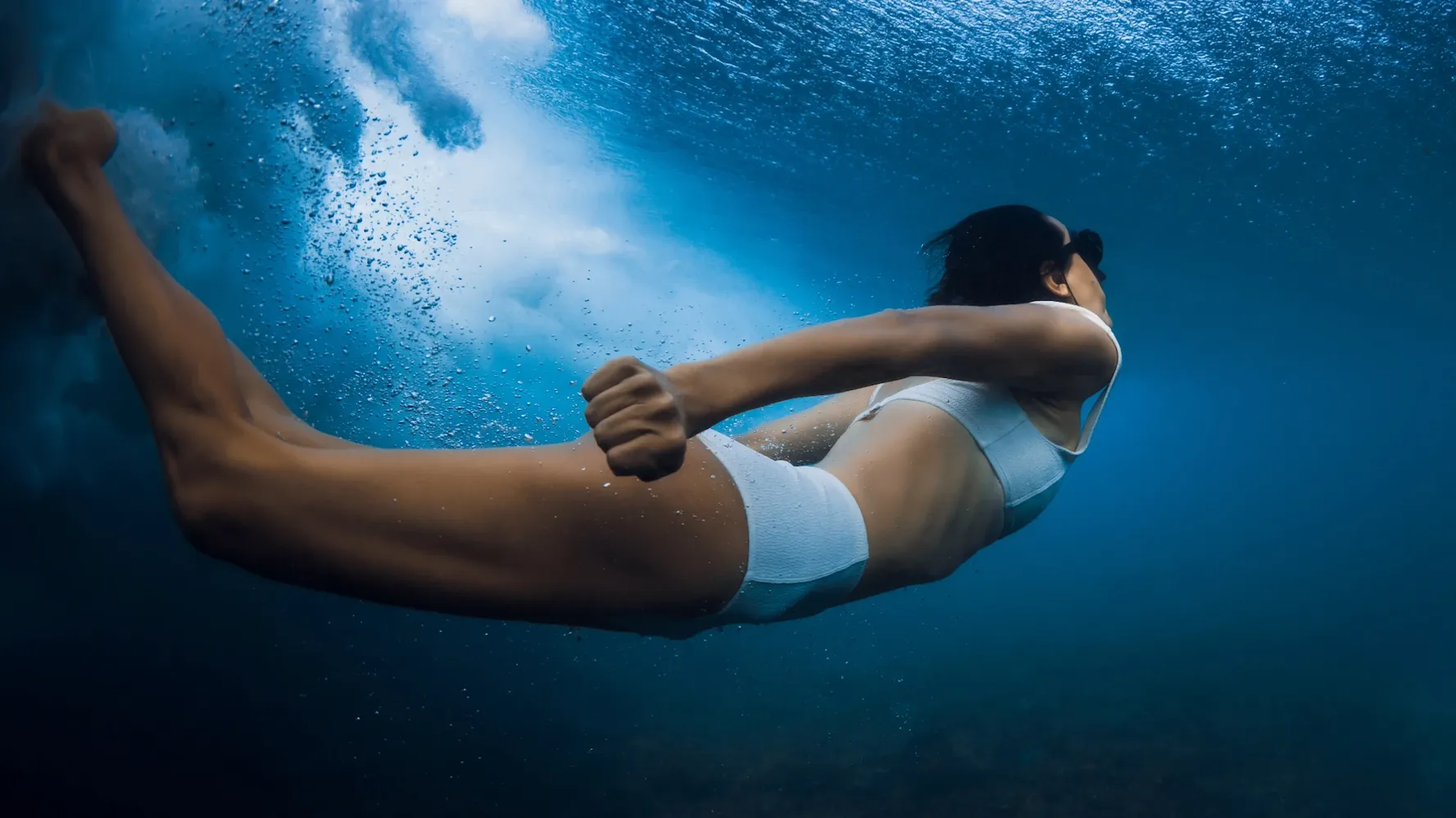
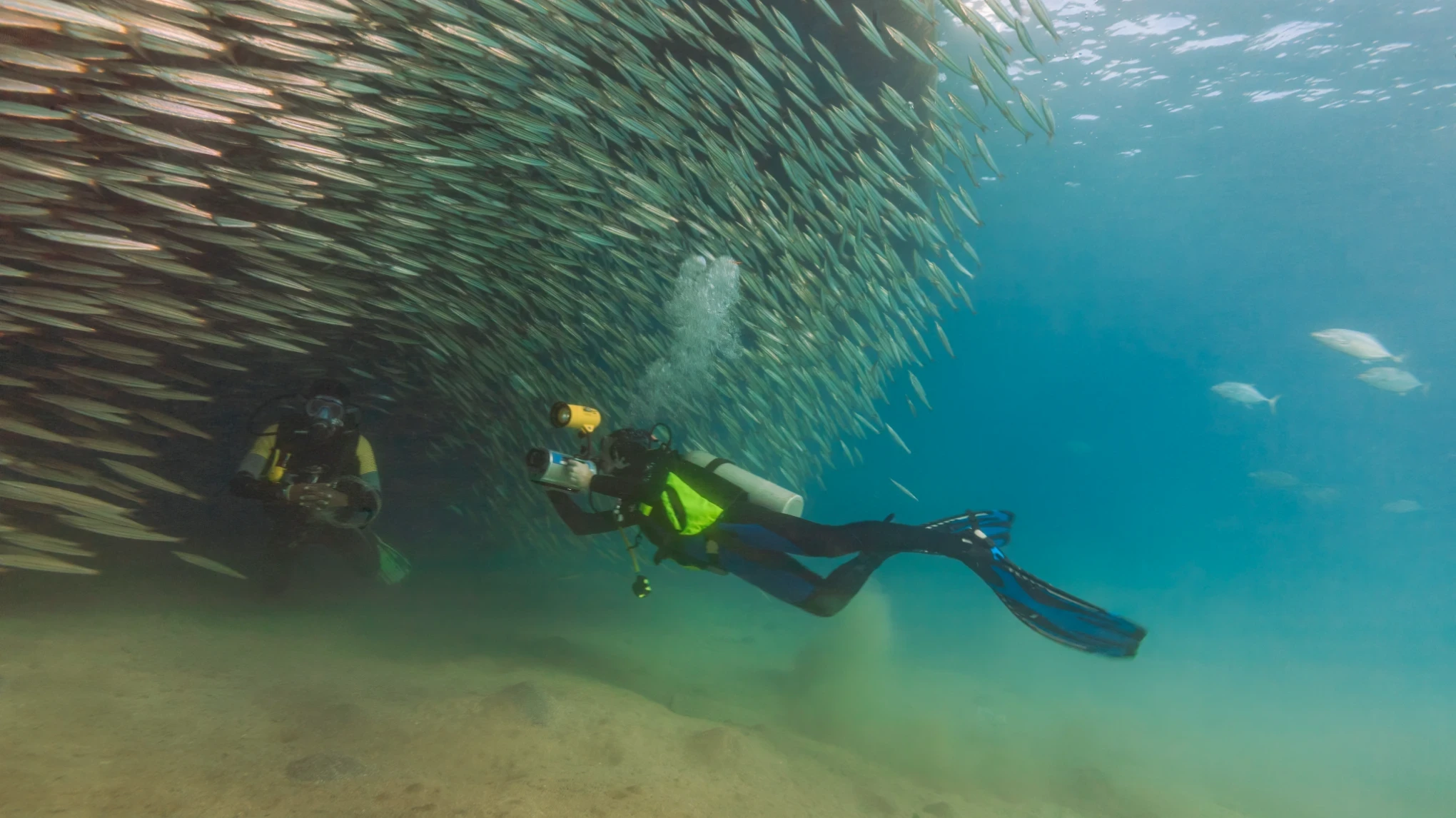
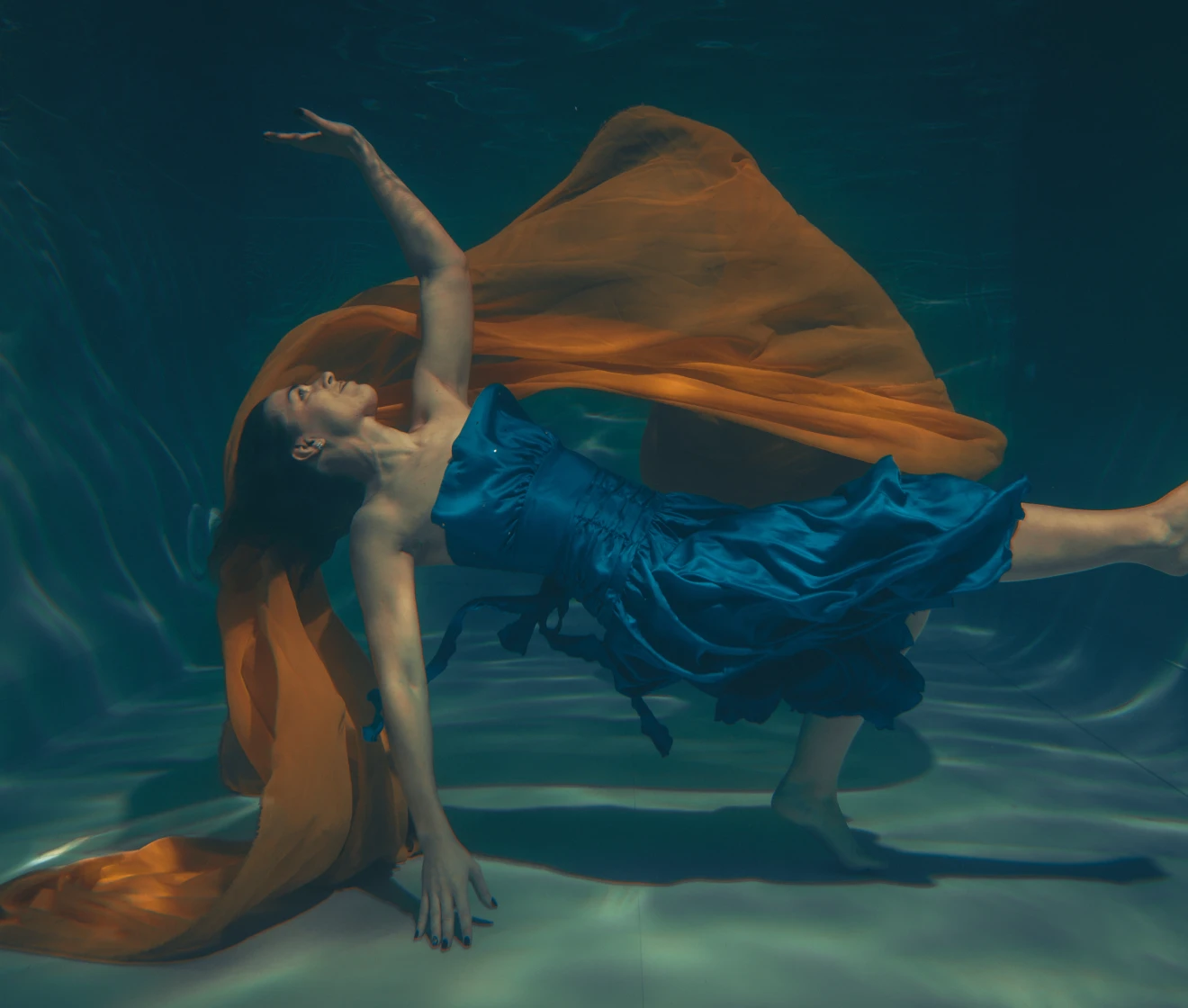
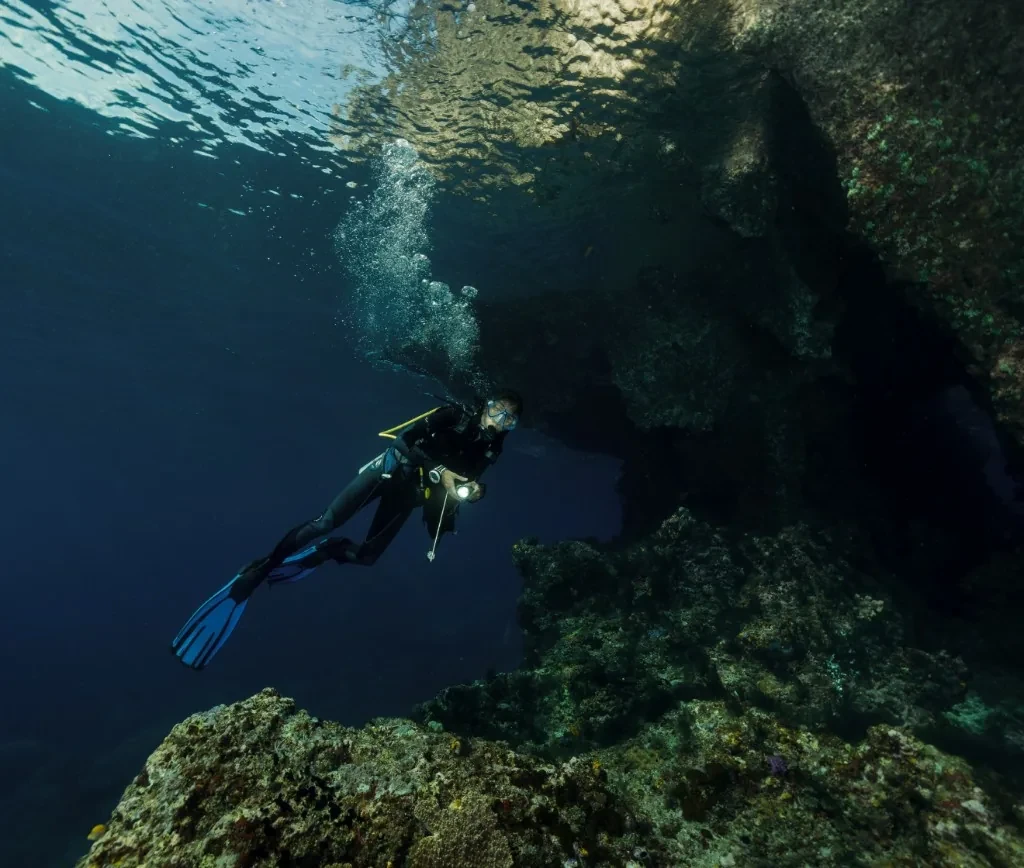
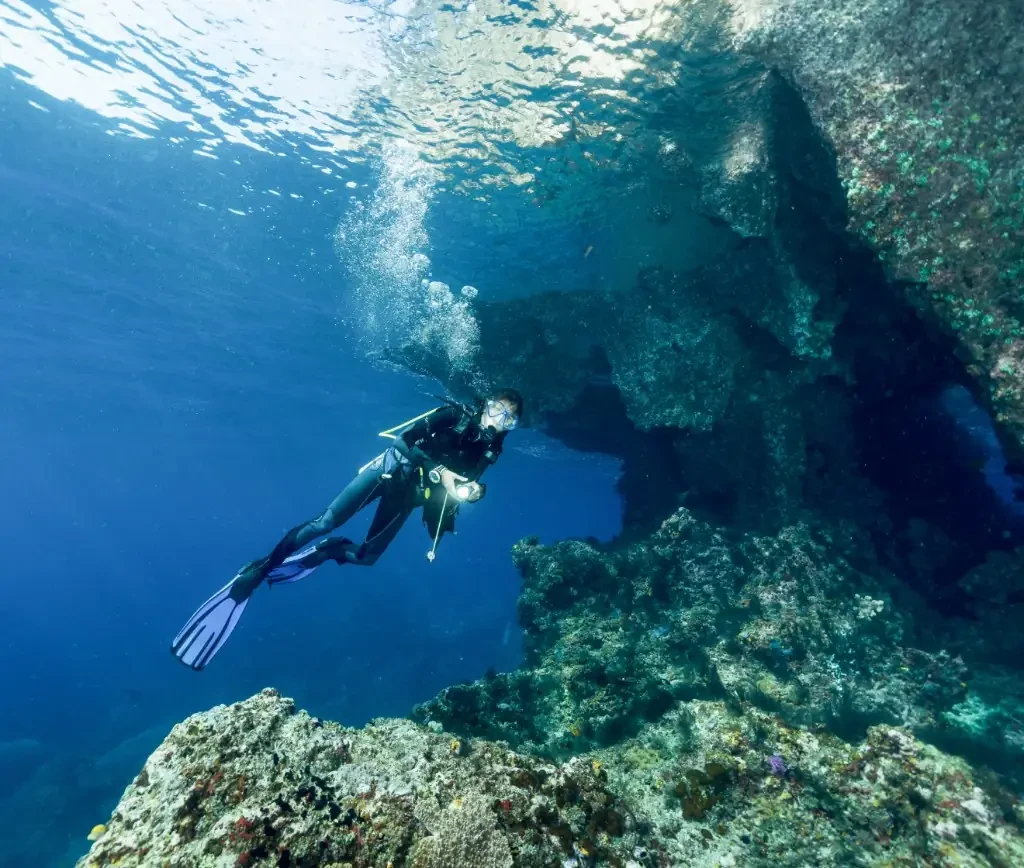
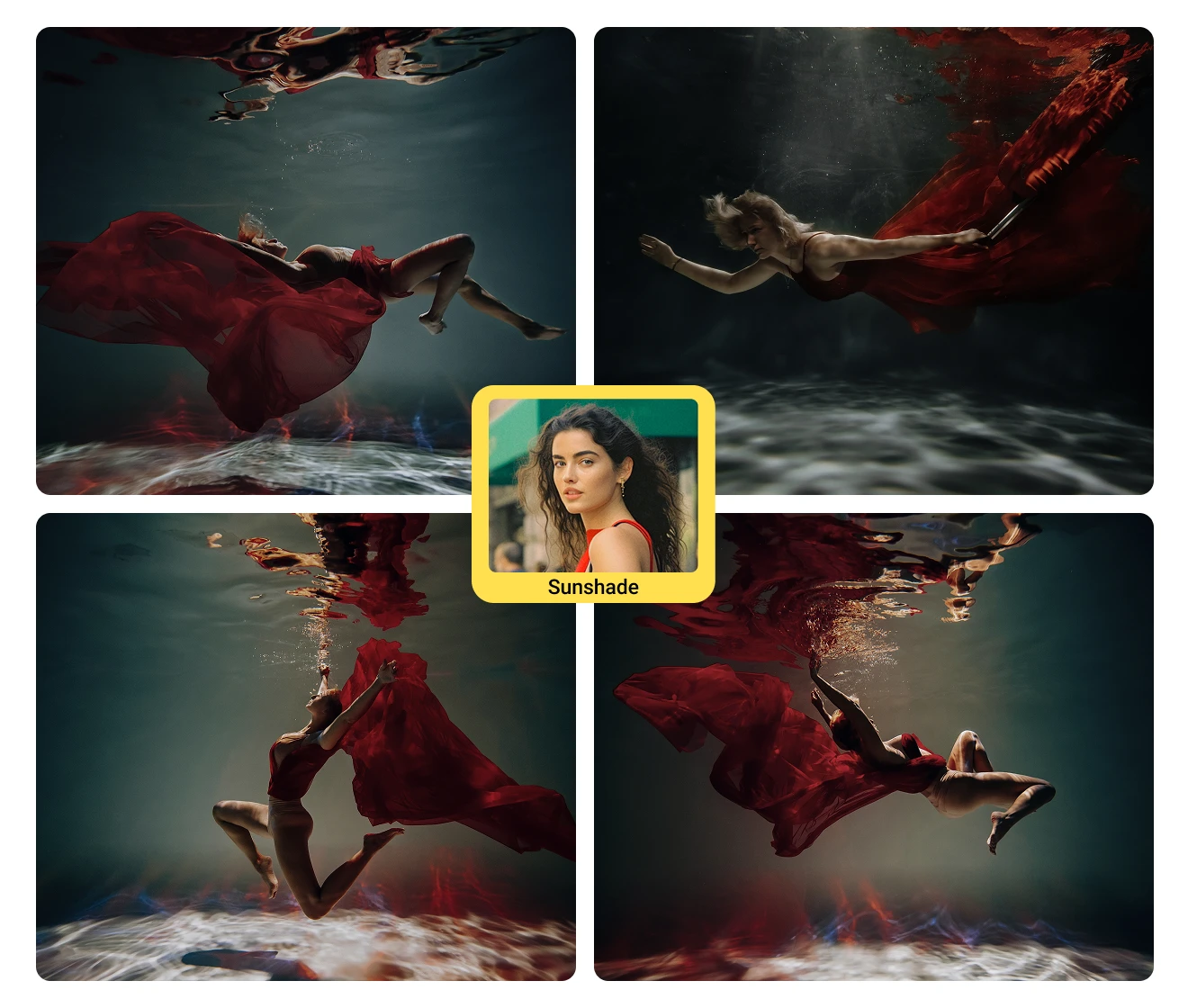
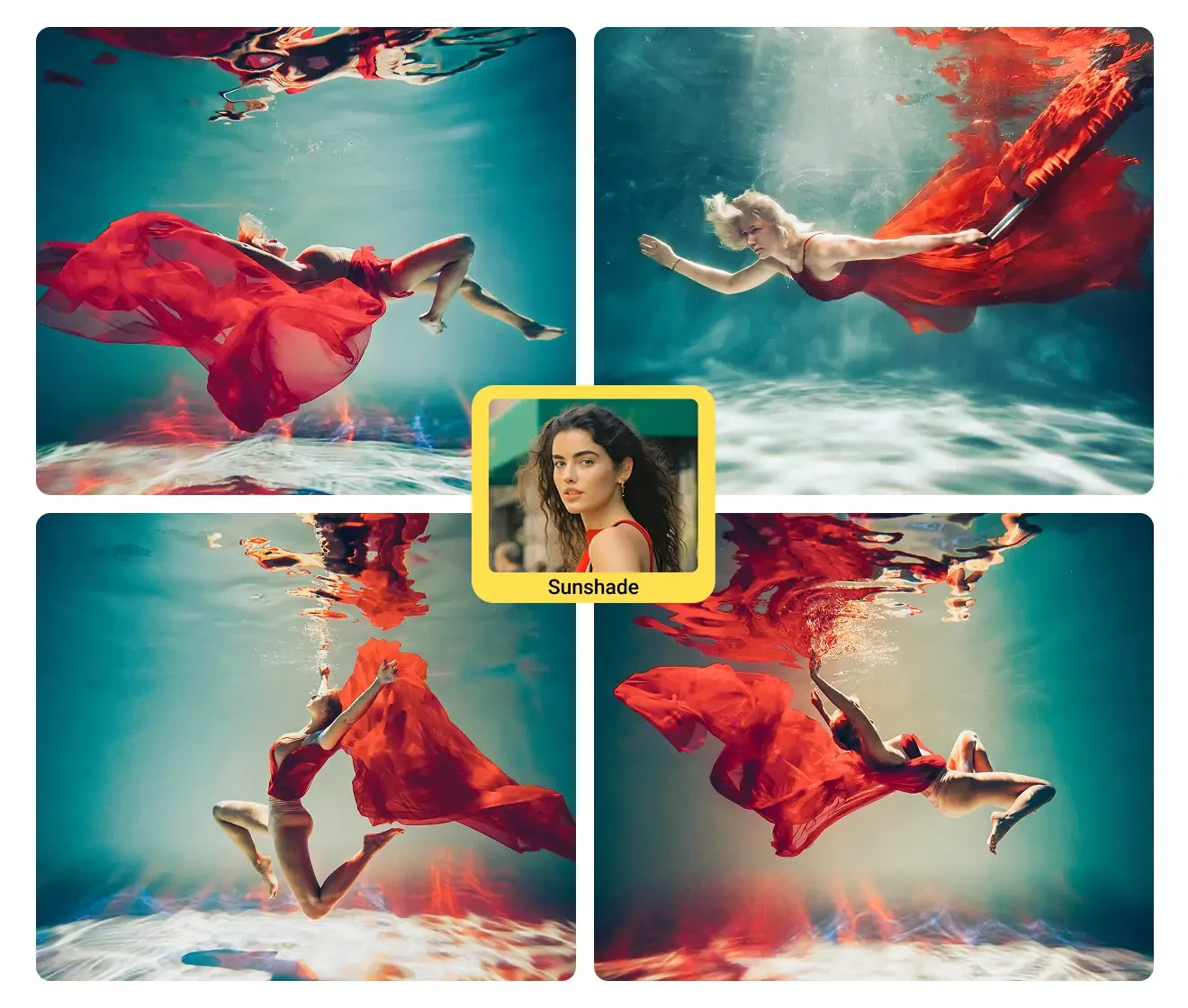
Underwater photography often brings color loss, soft detail, and busy backgrounds. Evoto restores natural colors, recovers visible edge detail, and syncs consistent edits across a dive session—RAW or JPEG—in one professional workflow.
Four Useful Tools for Underwater Portrait and Dive Workflows
Every dive session tends to bring the same post-processing jobs: blue/green color casts, soft edge detail, distracting particles or clutter, and dozens or hundreds of frames that need the same look. Evoto covers these with White Balance, sharpening/clarity, Smart Removal or Lens Blur, and Batch Editing—RAW or JPEG.
Optional Body Reshaping for Underwater Portraits
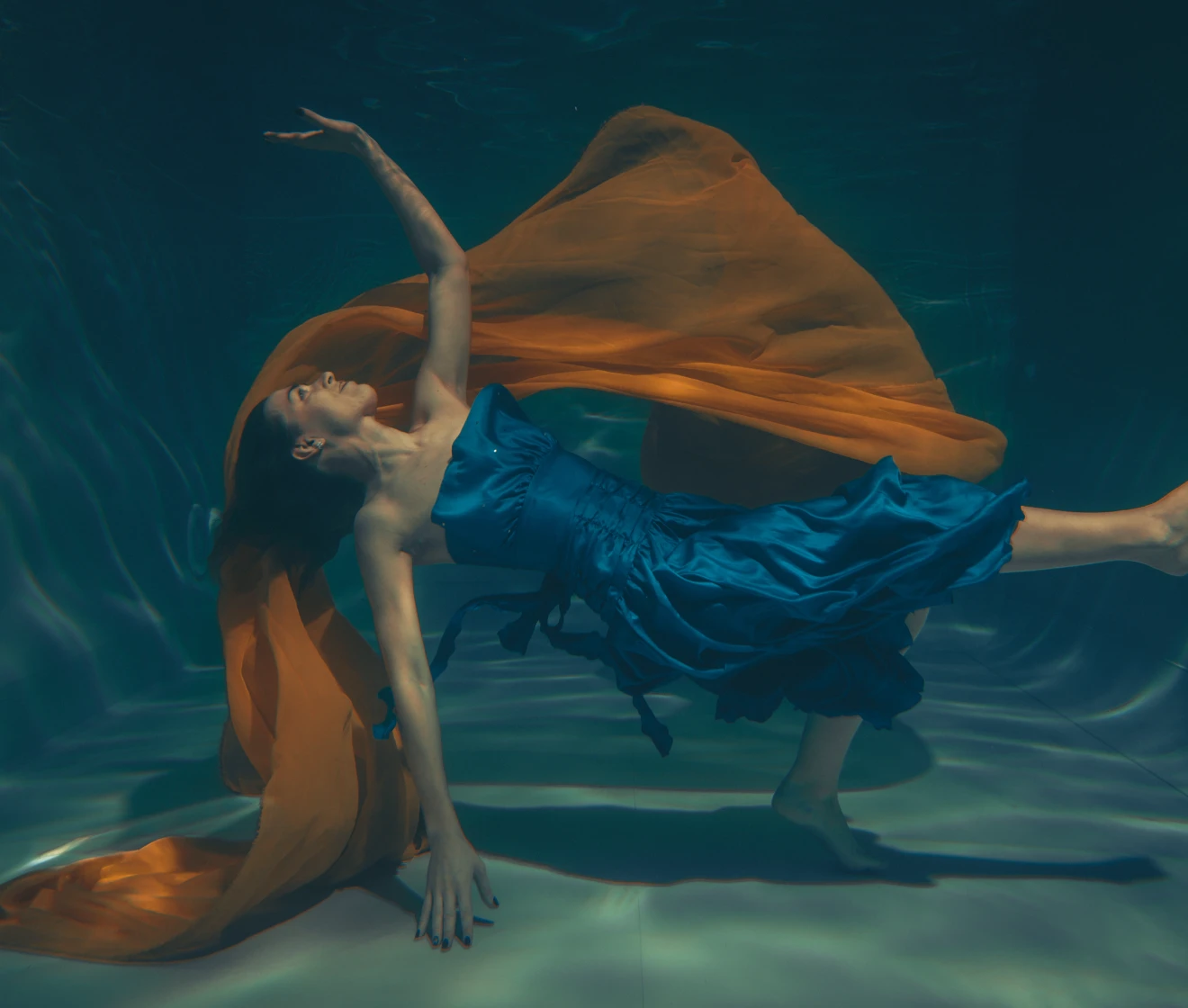
Light refraction and shooting angles can change how body proportions read underwater. When a subject or client requests it, Evoto’s Full Body Reshape tools help you refine areas such as the waist, arms, and legs while keeping the water and background stable. Skip this step for wildlife, documentary, or unretouched work.
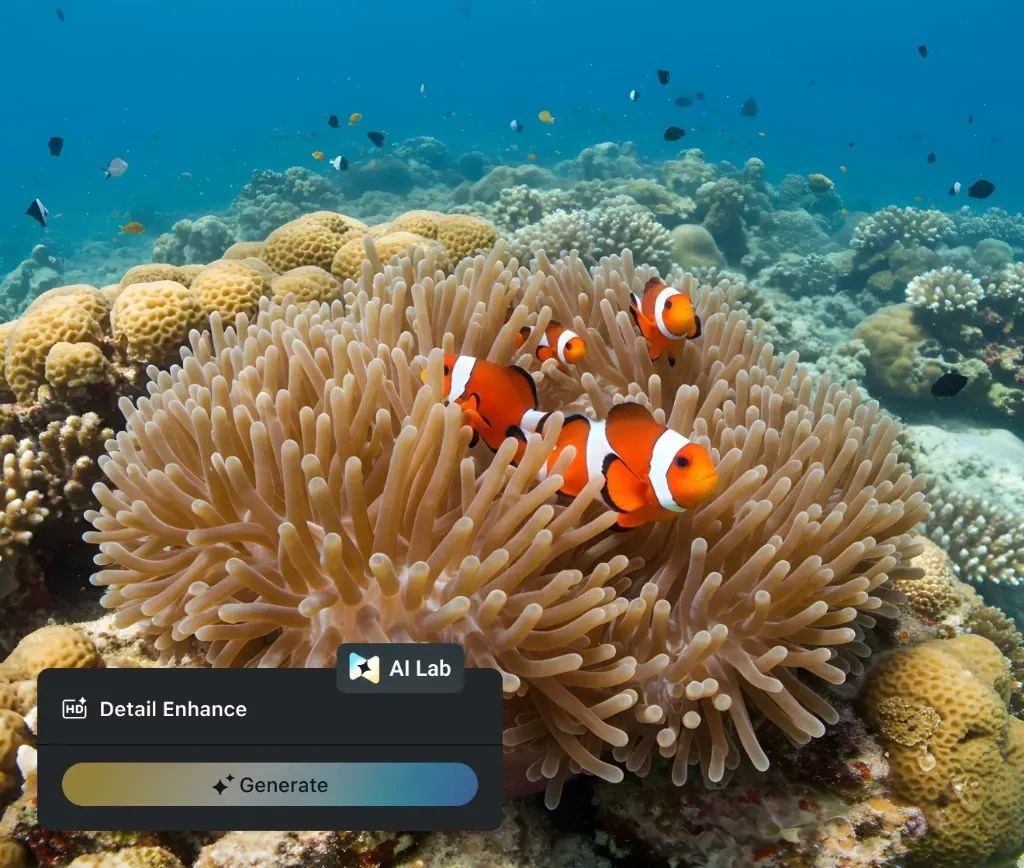
Motion, low light, and turbidity soften edges in macro and wide-angle frames. Use sharpening and clarity controls to improve visible edge detail, then inspect the result at 100% before export. Results depend on the original sharpness, noise, and water clarity.
Motion blur, low light, and murky water soften fish scales, coral edges, and diver outlines. Apply targeted sharpening and clarity so macro and wide-angle shots stay crisp at full resolution.
One dive often means dozens or hundreds of frames with a similar cast and lighting setup. Sync color correction, cleanup, sharpening, and blur across the set—then spot-check depth and lighting outliers individually before export.
Restore warm tones lost underwater, clean distracting particles with Smart Removal when needed, recover sharper edge detail, and isolate your subject with Lens Blur. Sync compatible settings across a dive set and deliver from one pipeline—built for high-volume professional workflows.
AI Culling helps you review a full dive session by flagging blurry, overexposed, underexposed, or duplicate shots. Review the suggestions before editing so creative frames are not removed by mistake.
Sharper Edges You Can Inspect at 100%
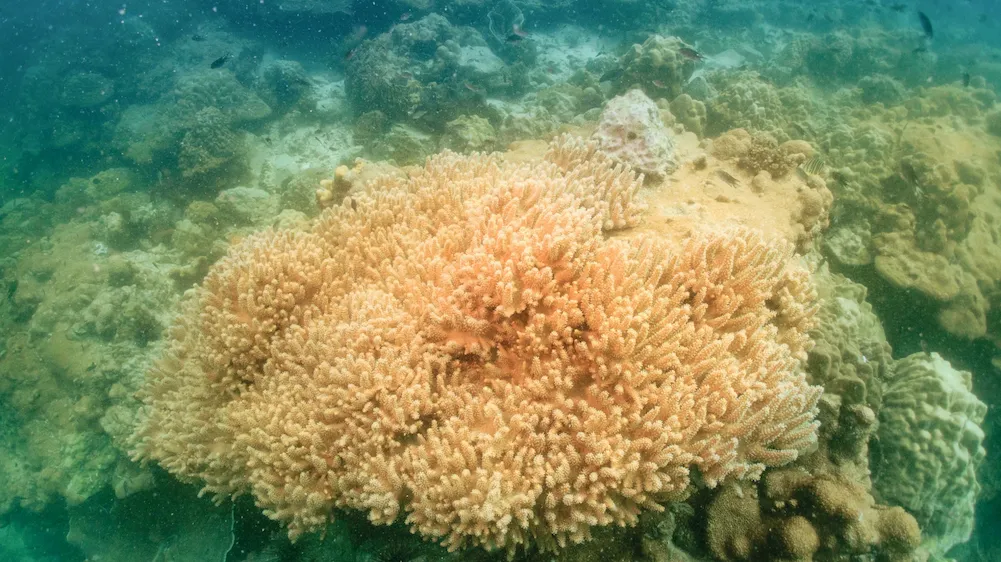
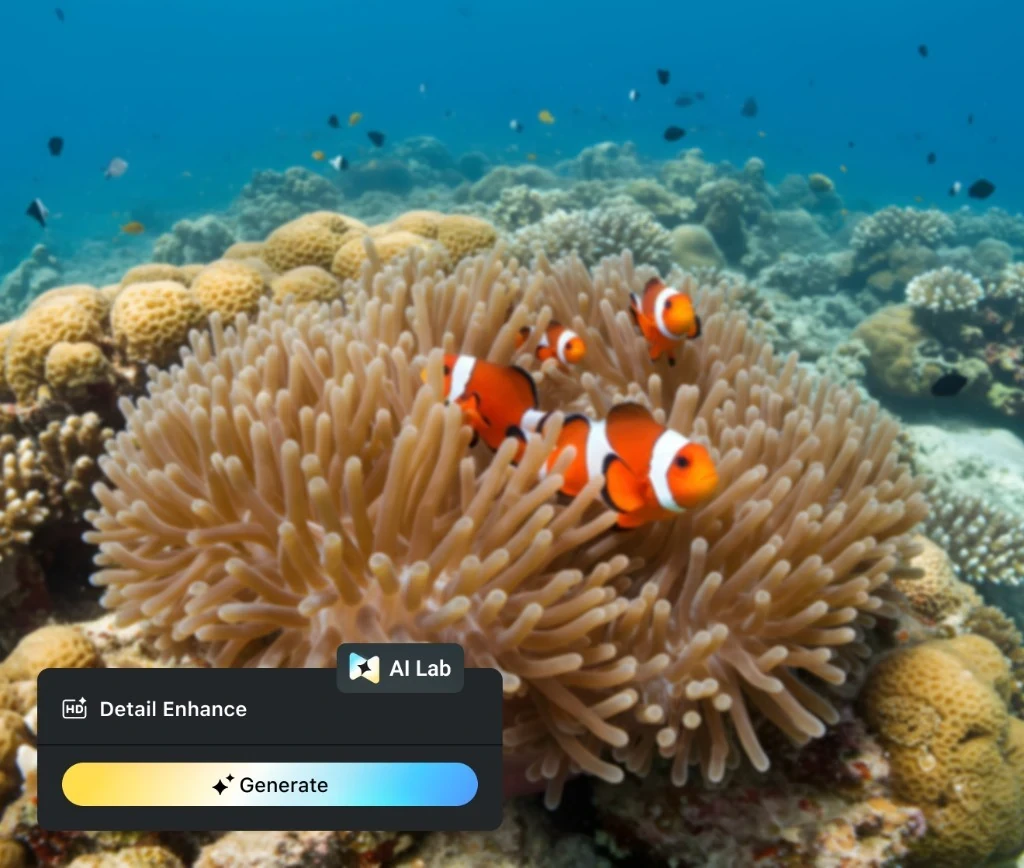
Sharpening and clarity help recover visible edges in fish, macro subjects, and reef scenes. Always check critical frames at 100%—outcomes vary with original sharpness, noise, and turbidity.
One Workflow from Import to Export
Color, cleanup, sharpening, blur, and export live in one pipeline. Sync compatible settings across dozens or hundreds of frames, spot-check deeper stops, and deliver without jumping between apps.
Privacy & Security Policy
Evoto processes your images securely and never uses your images, edits, or facial data to train its AI models without your explicit opt-in consent. Learn more in our Privacy Policy: https://res.evoto.ai/protocol/en/evoto/privacy
Do More with Evoto AI Photo Editor
From professional skin retouching to color grading and more, we’ve got you covered.
Add RAW or JPEG files from your dive session to an Evoto project. Gathering the set in one place is the start of culling and batch editing.
Pick a representative frame at your main depth. Adjust exposure, then White Balance to reduce the blue or green cast and restore more natural skin and reef color. Use before/after preview and stop when the cast looks balanced—not overcorrected.
Use sharpening/clarity for soft edges, Smart Removal for distracting particles or a buddy at the frame edge, and Lens Blur when the reef behind the subject is too busy. Select matching frames and Sync only compatible settings—verify each tool’s sync behavior in your build.
Review deeper stops, different lighting setups, and motion-blur frames individually. Then Export at the quality and format you need for print, portfolio, or client delivery. Results still depend on visibility, subject separation, and the original exposure.
1. 1. Import your dive photos
Add RAW or JPEG files from your dive session to an Evoto project. Gathering the set in one place is the start of culling and batch editing.
2. 2. Correct exposure and white balance on one frame
Pick a representative frame at your main depth. Adjust exposure, then White Balance to reduce the blue or green cast and restore more natural skin and reef color. Use before/after preview and stop when the cast looks balanced—not overcorrected.
3. 3. Refine detail or distractions, then sync
Use sharpening/clarity for soft edges, Smart Removal for distracting particles or a buddy at the frame edge, and Lens Blur when the reef behind the subject is too busy. Select matching frames and Sync only compatible settings—verify each tool’s sync behavior in your build.
4. 4. Spot-check outliers, then export
Review deeper stops, different lighting setups, and motion-blur frames individually. Then Export at the quality and format you need for print, portfolio, or client delivery. Results still depend on visibility, subject separation, and the original exposure.
How do I correct a blue or green cast in underwater photos?
A
Start with White Balance on a representative frame, then fine-tune exposure and contrast. Match skin and reef color to how the scene felt underwater, use before/after preview, and avoid over-warming. Sync the proven settings across similar depths and lighting.
Q
What is the best order for editing underwater RAW photos?
A
A reliable order is: cull first, then exposure and White Balance, then cleanup (Smart Removal / spot cleanup), then sharpening and clarity, then Lens Blur if needed, then sync across similar frames and spot-check outliers. Always inspect critical frames at 100% before export.
Q
Can I sharpen soft or blurry underwater shots?
A
Yes—within limits. Sharpening and clarity can recover visible edge detail after color is corrected. They cannot fully restore severe motion blur or soft focus; check results at 100% and keep strength conservative on noisy or murky frames.
Q
Can I blur a cluttered reef behind my subject?
A
Yes. Lens Blur can soften a busy reef or open water behind the subject.AI-powered subject/depth separation may need Manual Refinement on complex edges, and transparent graphics are not supported.
Q
Can I batch edit photos from one dive?
A
Yes. Edit one representative frame, select matching shots, and Sync compatible settings (white balance, cleanup, sharpening, blur, finishing). Spot-check different depths and lighting before export.
Q
Can I remove another diver from the background?
A
Yes. Use Smart Removal / people-removal style cleanup when a buddy or snorkeler sits at the frame edge. Complex silhouettes against busy reef or bubbles may need careful review; avoid promising perfect edges on every frame.
Q
Does Evoto support underwater RAW files?
A
Evoto commonly supports RAW, TIFF, JPEG, JPG, and PNG. Confirm the latest format list in-app for your release.
Q
Will edits look natural on coral and fish?
A
Work gradually and use before/after preview. Aim for balanced color and texture rather than oversharpened edges. Outcomes still depend on original sharpness, noise, and water clarity.
Q
What limits should I expect underwater?
A
Results vary with visibility, subject separation, motion blur, original exposure, and file type. Overlapping people, complex water, and severe soft focus usually need manual review. Full Body Reshape may be limited on multi-person or non-full-body frames.
Q
Is my photo data kept private?
A
Evoto processes images securely and never uses your images, edits, or facial data to train its AI models without your explicit opt-in consent. Full details: https://res.evoto.ai/protocol/en/evoto/privacy
Cập nhật lần cuối: 2026-10-16. Được đánh giá bởi: Đội ngũ sản phẩm Evoto. Kết quả có thể khác nhau tùy thuộc vào chất lượng hình ảnh, ánh sáng, tư thế chủ thể, định dạng tệp và các cài đặt được chọn.