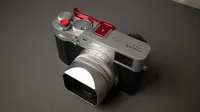
Evoto’s Rotate tools help you fix orientation, straighten tilted frames, and improve composition. Easily, you can rotate the image in the direction you want for quick and easy editing.
Rotate Images Clockwise or Counterclockwise
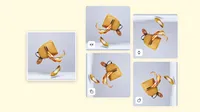
Use the left and right rotate controls to turn images in fixed steps and quickly correct sideways or upside-down photos.
Before
After
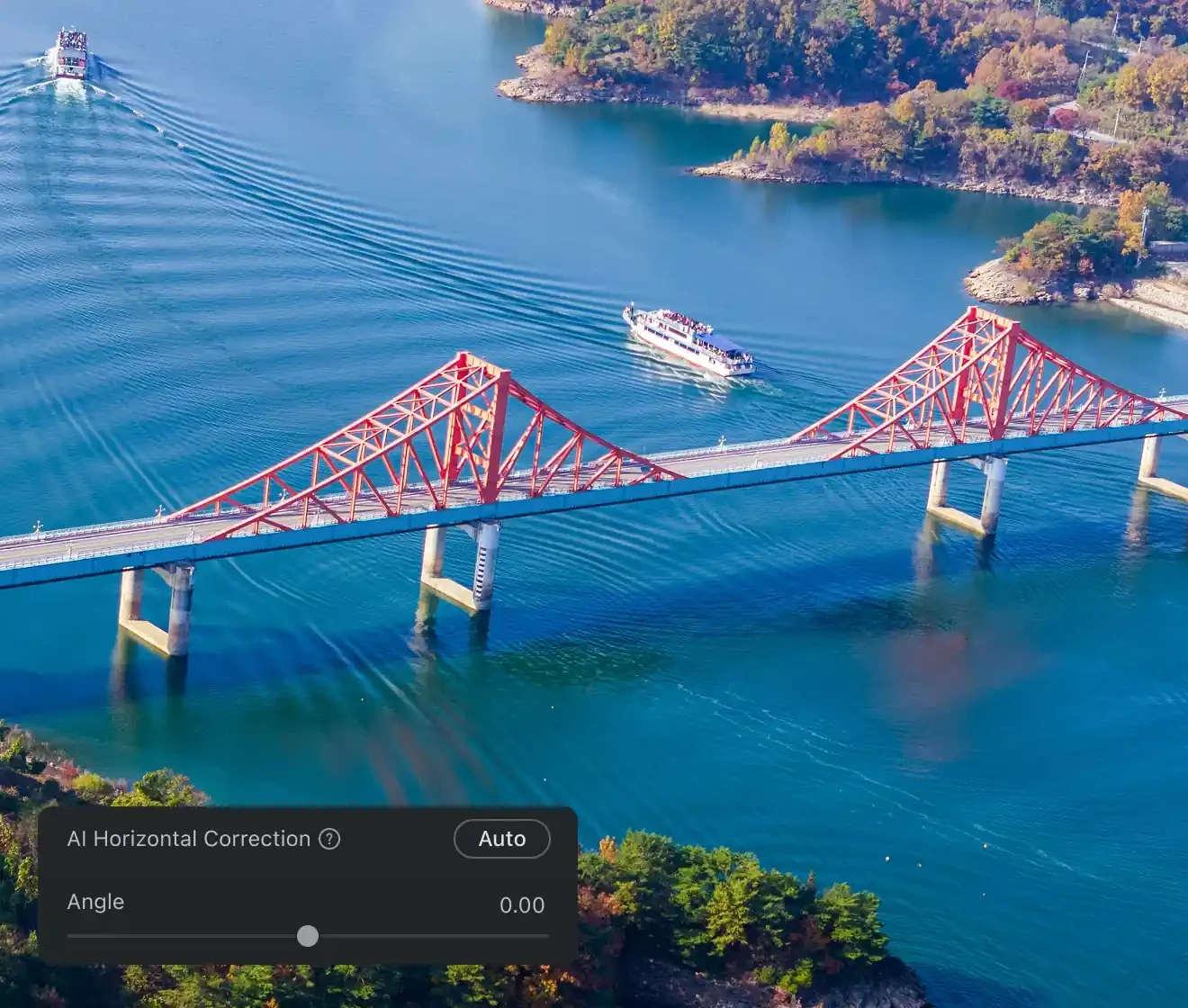
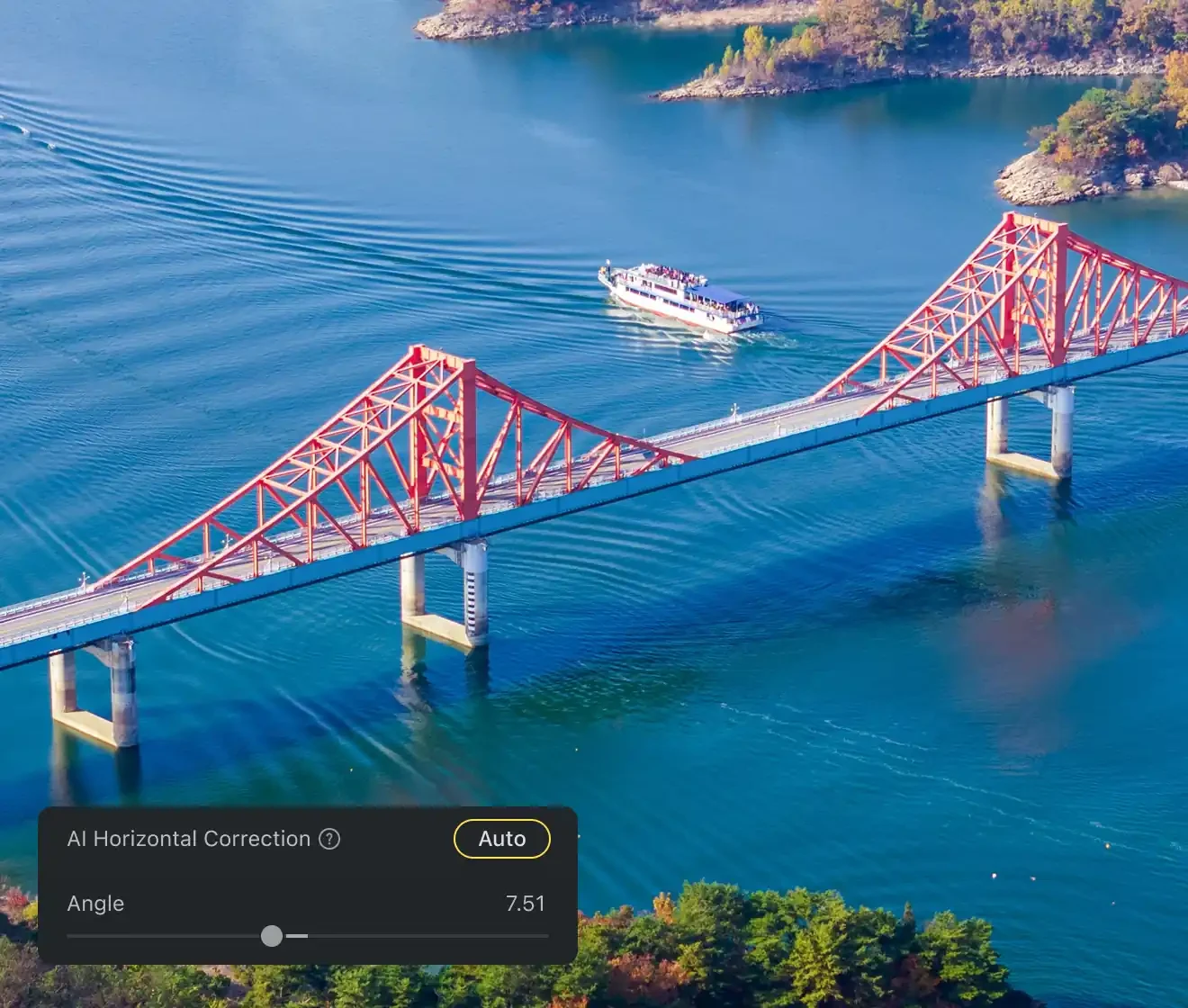
Adjust the Angle with Precision
Drag the angle slider or enter a value to make precise adjustments when a horizon, wall line, or subject feels slightly off.
Before
After
Flip Images Horizontally or Vertically
Flip photos horizontally or vertically to correct mirrored shots, adjust layout direction, or create better visual balance.
Maintain Consistent Composition and Orientation
Using the same rotate image settings across multiple photos helps create a cohesive and polished look. It’s especially useful for product images, social media content, and portfolios, and with batch rotate image editing, you can apply the same adjustments to multiple images at once for a faster and more efficient workflow.
Why Use Rotate and Straighten Tools?
Rotation is more than a quick fix for sideways photos. It helps recover alignment, improve composition, and prepare cleaner images for delivery.
Transform your photos with Evoto today using powerful rotate image tools. Available for Windows, macOS, and iPadOS.
FAQs
Q
What does a rotate image tool do?
A
A rotate image tool changes photo orientation, corrects tilted frames, and helps images look upright and properly aligned.
Q
Can I rotate an image clockwise or counterclockwise?
A
Yes. You can rotate images in either direction to correct orientation quickly.
Q
Can I straighten a slightly tilted photo?
A
Yes. Use precise angle controls or AI correction to straighten slightly tilted photos and level the horizon.
Q
Can I rotate images in any direction?
A
Yes, you can freely rotate images in any direction to adjust their orientation as needed. This makes it easy to correct the angle, align the composition, or achieve the exact look you want.
Q
Does Evoto support flipping images too?
A
Yes. Evoto also supports horizontal and vertical image flipping in the same Crop & Rotate workflow.
Q
Which image formats are supported?
A
Evoto supports common image formats for photo editing. Check your app version for the latest format support details.
Q
Will rotating an image reduce quality?
A
The goal is to preserve image clarity during rotation and straightening. Final quality depends on the original file and export settings.
Q
Can I use this for product photos and social media images?
A
Yes. It works well for product images, social content, travel photos, and portfolio work that needs clean alignment.
Q
Can I continue editing after rotating the image?
A
Yes. You can keep editing after rotation, including cropping, retouching, and other adjustments in Evoto.
Q
Is user privacy protected when using the rotate image tool?
A
User data and imported images are handled according to Evoto's Privacy Policy and product security standards.
Last updated: 2026-06-25. Reviewed by: Evoto Product Team. Results may vary depending on image quality, lighting, subject pose, file format, and selected settings.