Photo Filters for Fast, Pro-Level Edits

Evoto puts photo filters, color matching, and manual tweaks at your fingertips. Quickly apply filters, adjust with precision, and batch edit—all designed for speed and flawless results.

Desktop
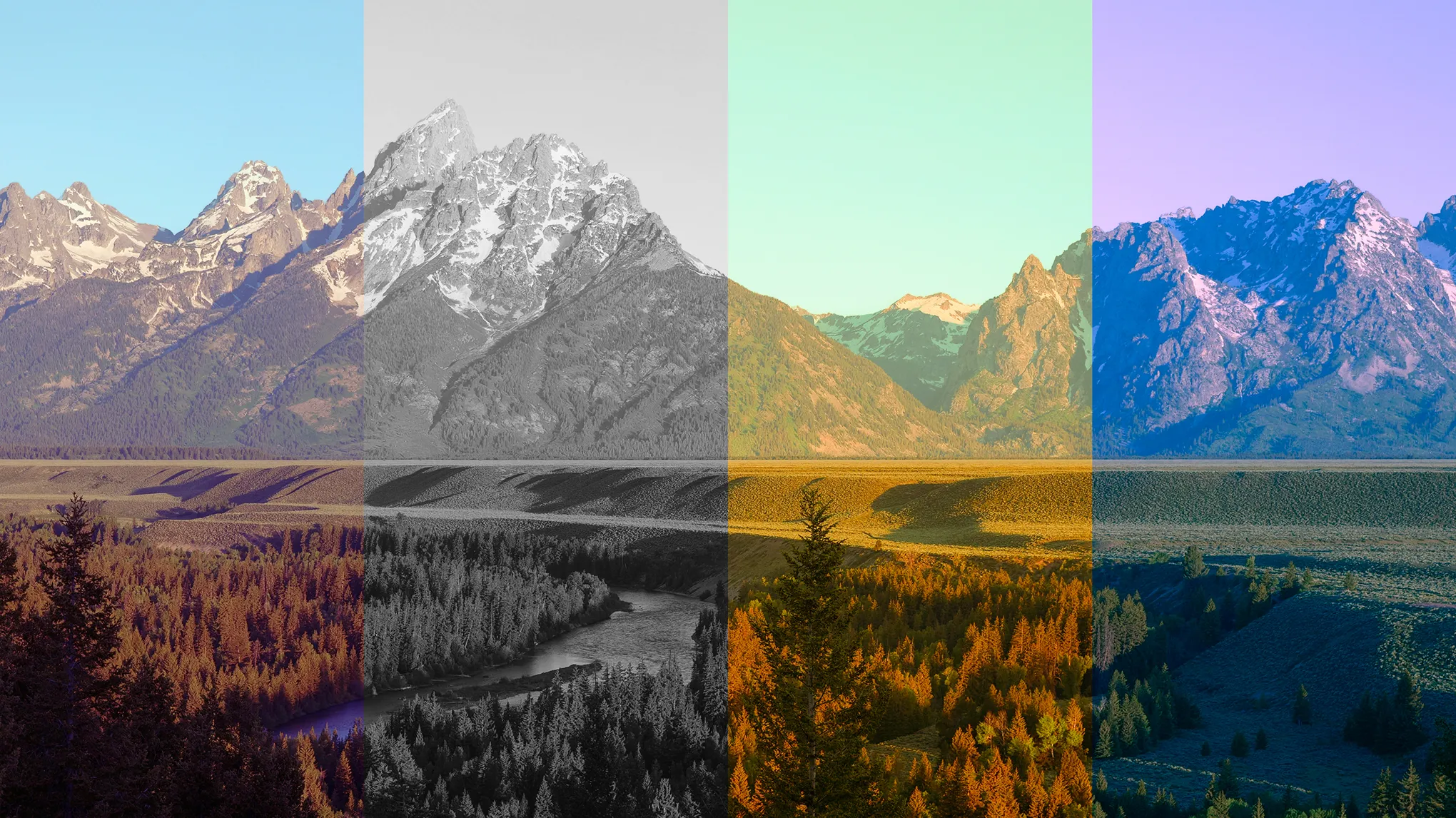
Landscape Photo Filters
Landscape Photo Filters1
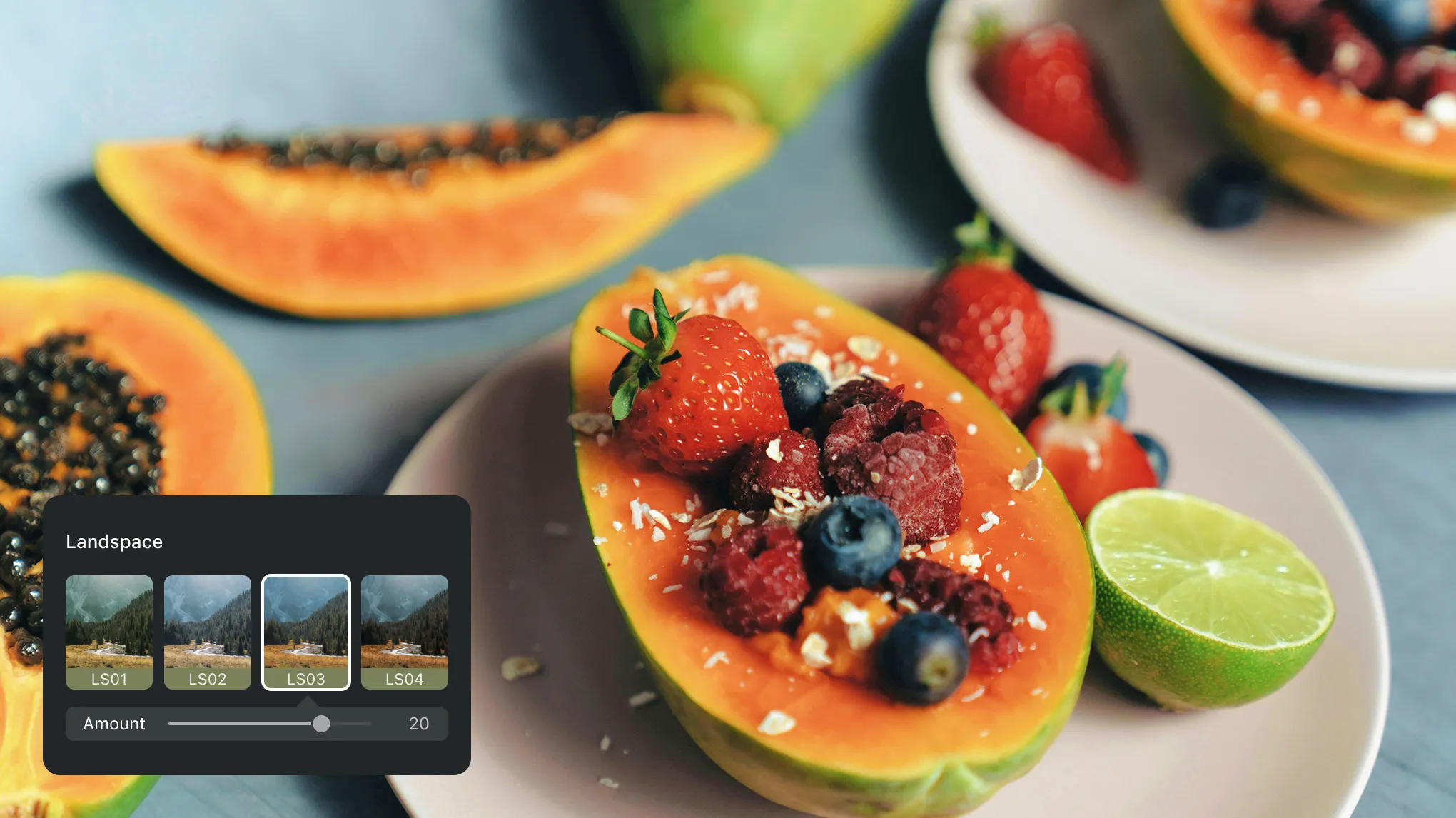
Food Photo filters2
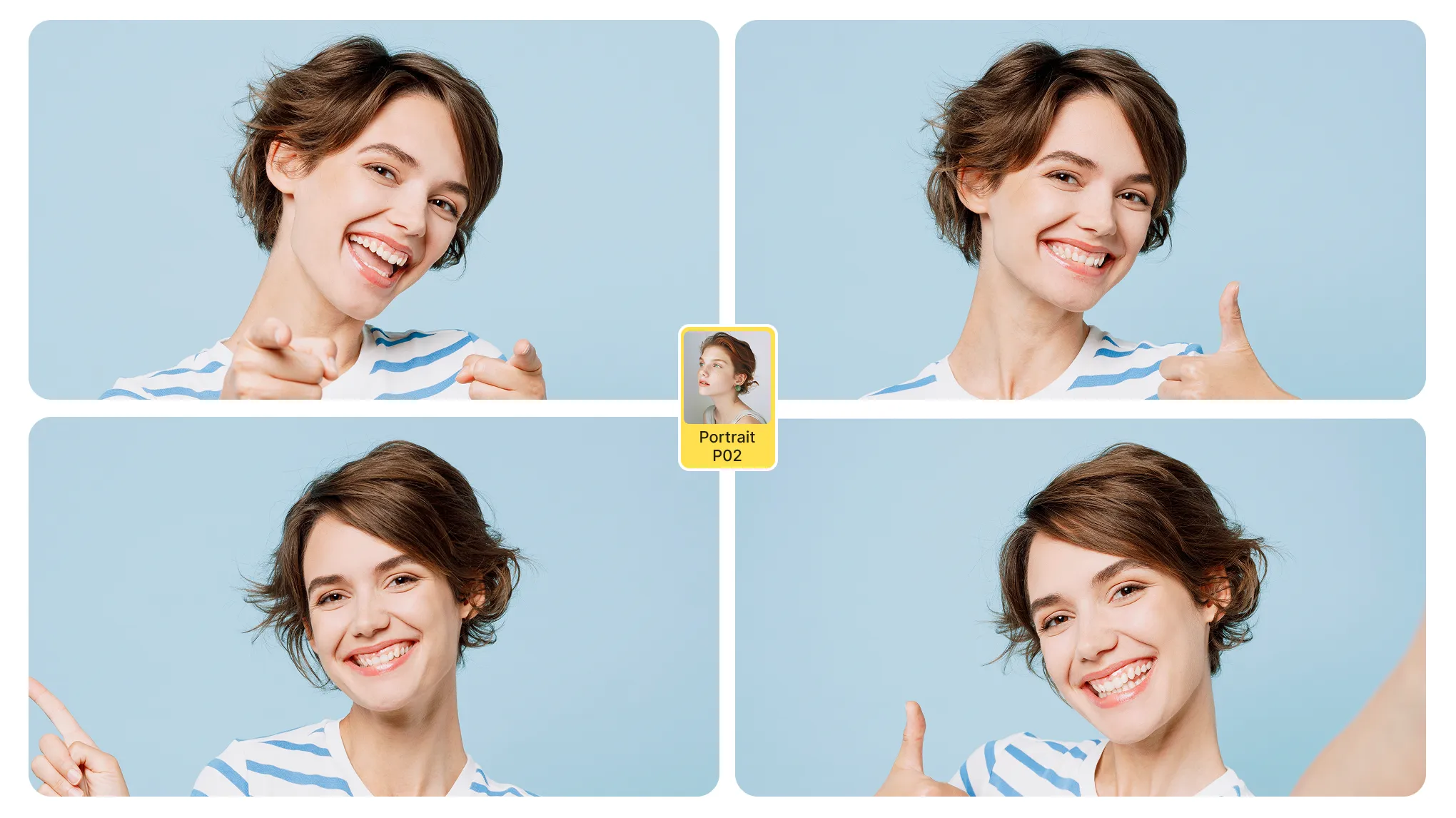
portrait filters3

Reimagine What Photo Filters Can Do

Evoto elevates photo filters with pro-designed looks, full creative freedom, and powerful AI — so you can achieve stunning results with ease.

Discover Filters for Every Mood

From portrait to cinematic, landscape to lifestyle, pick from a versatile collection of filters crafted to instantly elevate your photos. Stylish, effortless, and ready to impress.

Desktop
baby photo with dark light
filters for baby photo
Before
After

Total Creative Control, Layered Effects

Filters are just the start. Fine-tune every detail with intuitive sliders for white balance, tone, presence, HSL, and more. Stack effects and adjustments to create a look that’s truly yours.

Desktop
Photo Color Adjustment
photo filters for sports
Before
After

Batch Edits, Ready-to-Go Presets

Working on a whole series? Apply your favorite filter to dozens of photos at once and keep the vibe consistent. Save your custom settings as a preset to use again anytime, perfect for streamlining your workflow.

Desktop

AI Color Match, Done Right

Take your ideas from inspiration to reality in seconds. Upload a reference image and let AI do the rest — matching not just the overall color palette, but also fine details like skin, hair, clothing, and background with remarkable accuracy.

Desktop
AI Color Match
match color from other image
Before
After

Why Still On the Fence?

We get it. Sometimes you just gotta try it out for yourself.

Desktop
  • Efficient Color grading

    Save Time on Repetitive Grading

    Apply polished color looks with one click, no more manual tweaks across hundreds of photos.

  • Color adjustment consistency

    Ensure Brand Consistency

    Whether for e-commerce, editorial, or portraits, maintain a unified tone that matches your client’s brand identity.

  • Standardize photo filters

    Simplify Team Collaboration

    Standardize filters and presets so your entire team—from retouchers to photographers—works within the same visual language.

  • Esay-to-use Color filter Tools

    Empower Non-Experts to Edit

    With AI filters and presets, even junior staff can produce professional-grade results—cutting training time and rework.

Do More with Evoto AI Photo Editor

From professional skin retouching to color grading and more, we’ve got you covered.

How to Use Photo Filters in Evoto

Desktop
Uploading a photo into evoto
1.Import Photos234

Click “Import” to upload your image. Evoto supports RAW, TIFF, PNG, JPG, and more, ideal for high-quality edits.

  1. 1. Import Photos

    Click “Import” to upload your image. Evoto supports RAW, TIFF, PNG, JPG, and more, ideal for high-quality edits.

  2. 2. Choose Photo Filter

    Go to the “Color Adjustments” panel, find “Filter”, and pick the style you love.

  3. 3. Sync to Other Images (Optional)

    Select more photos and sync your filter and edits to keep a consistent style across all images.

  4. 4. Save the Results

    When you’re happy with the edit, hit “Export” to save your photos to your Windows, Mac, or iPad device.

Desktop

Faster Edits, Finer Control.

Transform your photos with Evoto AI Photo Filters today. Available for Windows, macOS, and iPadOS.

Desktop

FAQs

  • How do photo filters enhance my image?

  • Will filters lower image quality?

  • Can I use filters on RAW images?

  • Are these filters good for social media?

  • What’s AI Color Match and how is it different from regular filters?

  • Can I customize a filter after applying it?

  • Do filters change my skin tone?

  • What if I want a cinematic look?

  • Can I batch apply filters to multiple photos?

  • Is the Evoto photo filters compatible with different image formats?