Instantly Build Your Own AI Preset

Your style is your brand. Now, you can make it automatic. By learning from your past photos, Evoto mimics exactly how you edit. Apply your unique look to thousands of shots in just one click.
Desktop

Scale Your Creativity with Personalized AI Presets

Evoto transforms your creative intuition into a powerful AI engine, allowing you to replicate your signature look with surgical precision. Stop spending hours on repetitive tasks and start scaling your business with automation that truly understands your vision.

Quickly Generate Your AI Preset

Turn your style into an asset. Just upload a minimum of 200 edited photos, and let Evoto replicate your signature look. In just minutes, your custom AI Preset will be generated and ready to bring your style to life.

Desktop
Converting professional photo edits into a smart AI Preset in minutes.

Pro-Level Color Accuracy

Say goodbye to color shifts. Your custom AI Preset understands the nuances of your editing style, applying precise adjustments to every new photo. It intelligently adapts to different lighting and environments, ensuring your signature look is perfectly rendered across your entire gallery.

Desktop
Demonstration of Evoto AI Preset adapting colors perfectly to various shooting environments.

Fine-Tune Your AI Preset

Perfect your AI Preset with precision. After generation, you can still adjust the preset’s settings to sharpen your style. It’s a flexible foundation that gives you the power to master your own automation.

Desktop
Visualizing the precision control tools used to sharpen a personal AI style.

Build Your Personal Style Collection

One look isn't enough for every shoot. Create and save up to 100 personalized AI Presets to cover all your needs—from weddings and portraits to commercial work. Easily organize your own library of styles so you’re always ready for any project.

Desktop
Visual representation of a photographer's expanding personal library of smart AI Presets

Combine Features for Full Automation

After applying your AI Preset, you can seamlessly layer on Evoto’s powerful portrait retouching and smart AI cropping tools to refine skin, improve composition, and keep large photo sets visually consistent. Save the entire workflow as a master template to automate your post-production process in a single click.

Desktop
Combine Features for Full Automation

High-Volume Batch Edit

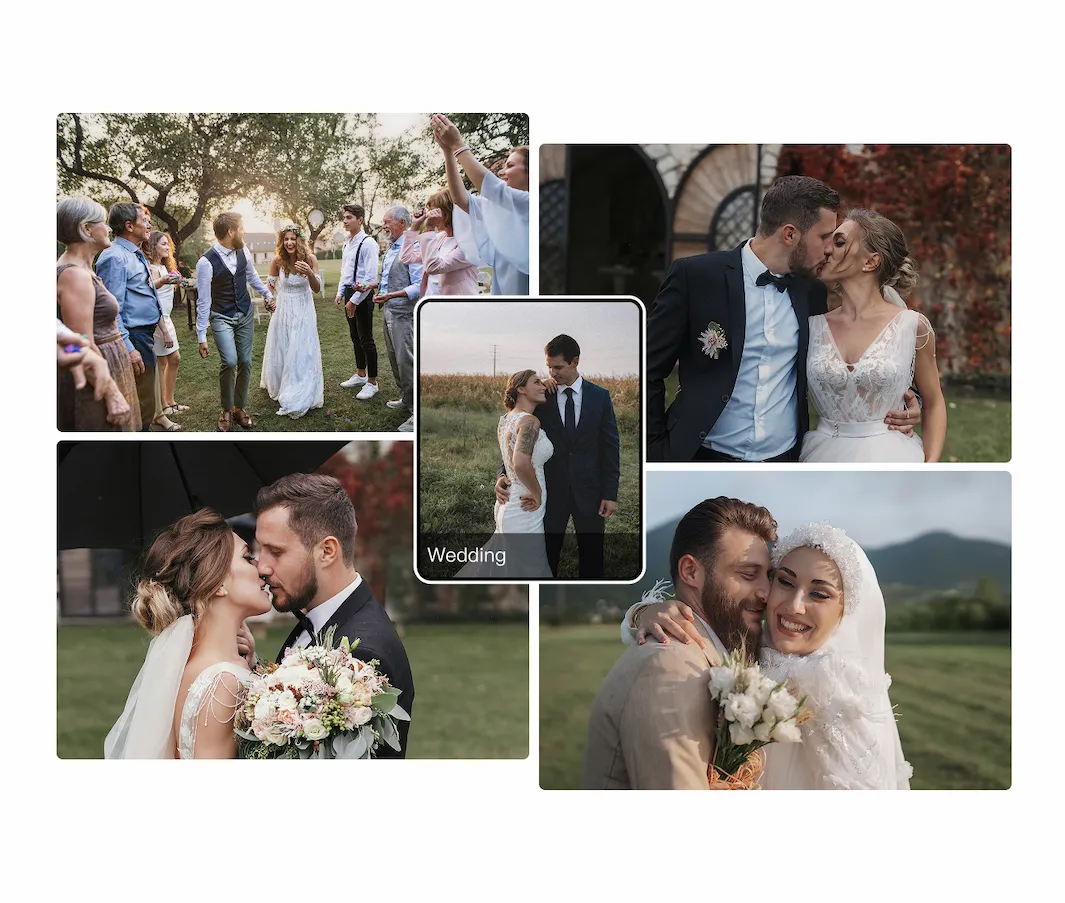
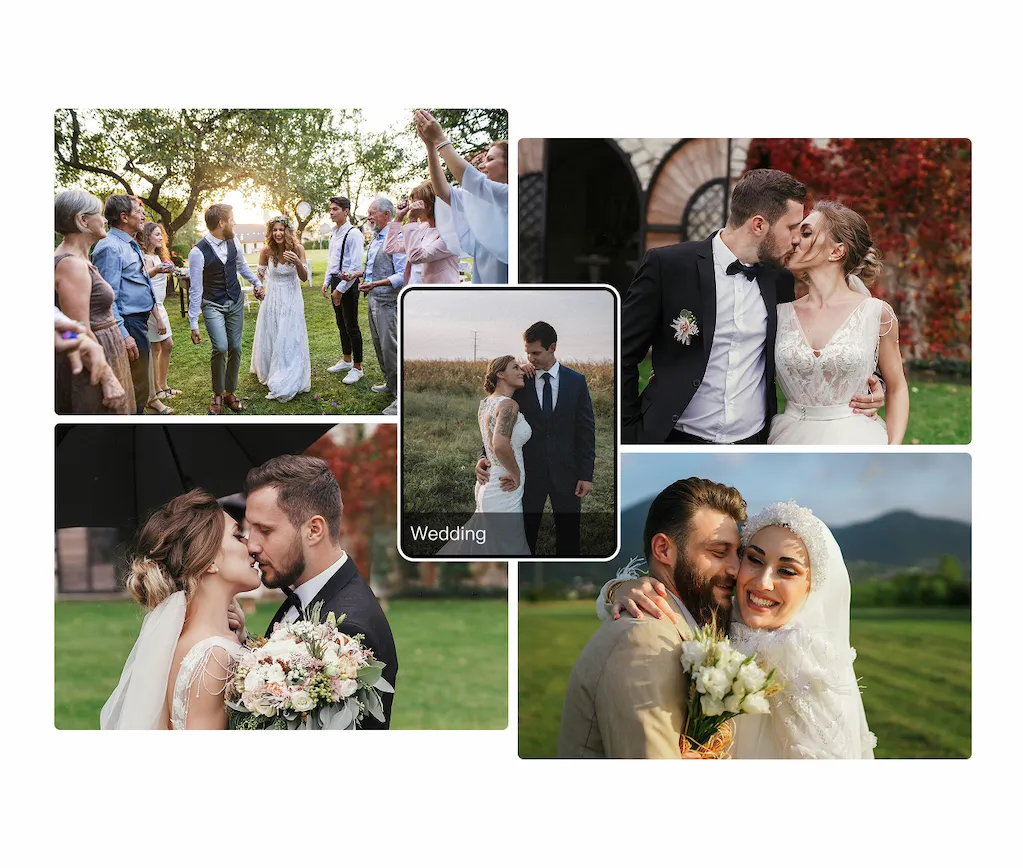
Our AI Presets are specifically built for high-volume batch edits, allowing you to sync your signature look across thousands of frames in seconds without sacrificing a hint of quality.
Desktop
Massive photo collection showing flawless, high-quality color consistency after a batch edit.
Before
After

Do More with Evoto AI Photo Editor

From professional skin retouching to color grading and more, we’ve got you covered.

How to Create Your Personal Preset in Evoto

1
Find the Training Entry
2
Define Your Look
3
Configure Your Specs
4
Source Your Edited Photos
5
AI Preset Generation
6
Apply Your Personal AI Preset

Find the Training Entry

Open Evoto and navigate to the Color Adjustment module. Under the AI Style tab, select Train Your AI Look to enter the dedicated workspace where your personal style transformation begins.
Screenshot of Evoto interface showing the Color Adjustment module and the 'Train Your AI Look' button under the AI Style tab.

How to Create Your Personal Preset in Evoto

1

Find the Training Entry

Open Evoto and navigate to the Color Adjustment module. Under the AI Style tab, select Train Your AI Look to enter the dedicated workspace where your personal style transformation begins.
Screenshot of Evoto interface showing the Color Adjustment module and the 'Train Your AI Look' button under the AI Style tab.
2

Define Your Look

Set the foundation. Give your AI Preset a name and select the photography category—such as Wedding, Portrait, or Family—to help the AI understand the specific context of your work.
The setup screen where a user enters a custom name and selects a photography category like Wedding or Portrait for their AI Look.
3

Configure Your Specs

Choose your format and tone. Select your preferred file types (RAW, JPEG, or both) and define your color palette. You can choose to build a vibrant Color preset or a timeless Black & White model.
(Note: Selecting “Both” requires 200 samples of each format.)
Importing edited photos from Lightroom Classic or Evoto into the training engine to capture a photographer's signature style.
4

Source Your Edited Photos

Import your visual data. To train the AI, select photos that have been previously edited in Lightroom Classic or Evoto. By analyzing these edited files, the AI learns exactly how you transform an image into your signature style.
A progress indicator showing Evoto’s AI engine analyzing photo data to build a high-precision style model.
5

AI Preset Generation

Once you click create, Evoto’s engine begins analyzing your edits to replicate your style. This process typically takes between 15 minutes to an hour to build your high-precision model.
A progress indicator showing Evoto’s AI engine analyzing photo data to build a high-precision style model.
6

Apply Your Personal AI Preset

Apply your new AI Preset to any session and watch as it automatically fixes your photos to match your look. It’s the fastest way to get your work done without doing the same edits over and over.
Applying a custom-trained AI Look to new photos to achieve professional consistency in one click.

Do More with Evoto AI Photo Editor

From professional skin retouching to color grading and more, we’ve got you covered.

Desktop

FAQs

  • What is Evoto Personal AI Preset?

  • What kind of edits does the AI actually learn?

  • Why were some of my photos filtered out during import?

  • Are there any limits on image size or quantity?

  • Can I apply any AI Look to both RAW and JPEG photos?

  • Why aren't my "Color Match" or "Filters" being trained?

  • Can I upload multiple batches at once?

  • How can I preview and fine-tune my AI Preset?

  • How many AI Presets can I create and store?

  • Is my data safe?