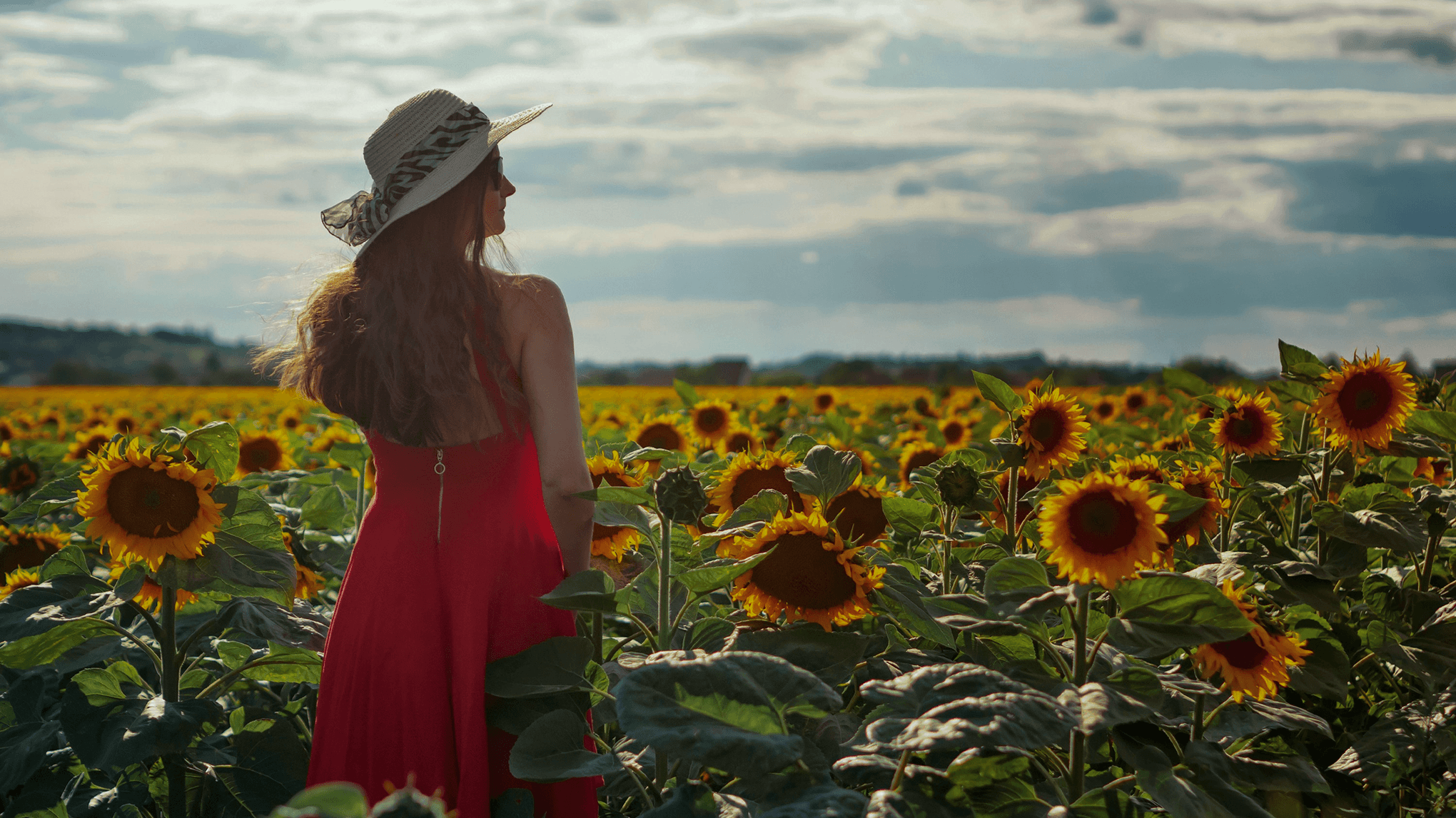
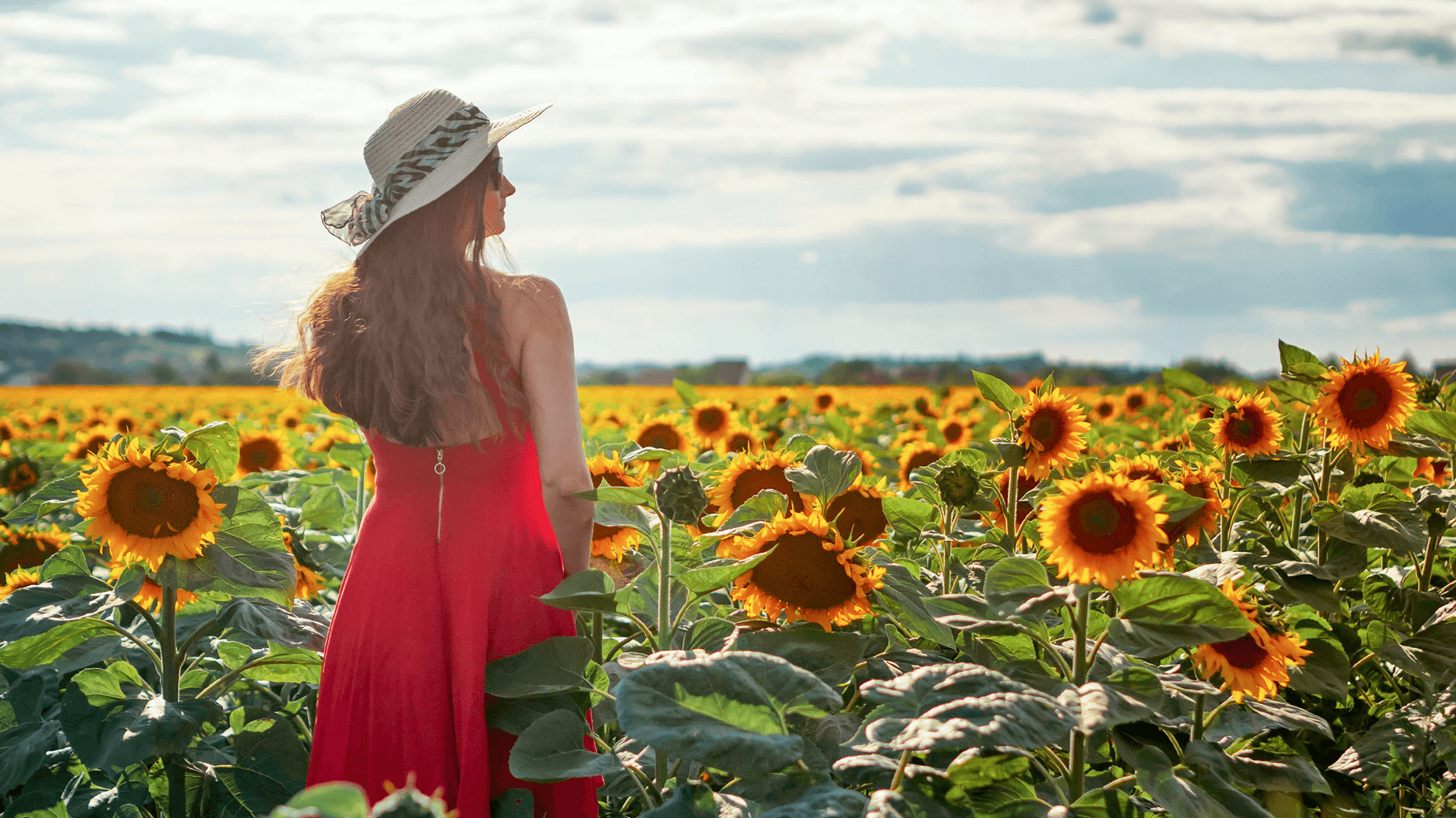
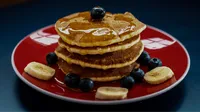
Evoto Image Brightener helps you correct brightness while preserving natural tones — from a single photo to thousands at once.
One-Click Brightness Adjustment
Upload your photo and adjust brightness instantly with a simple slider. Fine-tune exposure, shadows, and highlights in seconds for a natural, well-balanced result.
Evoto's image brightener works across all subjects — people, products, food, interiors, and more. The tool adapts to different skin tones, textures, and materials, ensuring each image gets a tailored brightness correction that looks professional and true to life.
Whether the photo was taken under harsh studio lights, dim indoor ambient, or mixed color temperatures, Evoto helps you address the lighting issues. Lift underexposed areas selectively without overexposing the rest, for an evenly lit, natural result.
For high-volume workflows, download the free Evoto to unlock batch processing. Import an entire photo shoot, apply brightness correction to all images simultaneously, and export with consistent quality — ideal for photographers and e-commerce teams working at scale.
Whether you're a casual user fixing a single photo or a professional handling thousands, Evoto delivers one of the fastest and most private image brightening experience online.
Click the upload button or drag and drop your photo into the editor. Evoto supports JPG, PNG, WebP, and GIF formats. You can also paste an image directly with Ctrl+V.
Fine-tune your image by sliding the brightness control until you achieve the perfect look. Watch shadows lift and highlights balance in real time as you find your ideal setting.
Click the Download button to save your brightened image at its original resolution. No watermarks, no compression, no quality loss. Choose your preferred output format — JPG, PNG, or WebP.
1. Upload Your Image
Click the upload button or drag and drop your photo into the editor. Evoto supports JPG, PNG, WebP, and GIF formats. You can also paste an image directly with Ctrl+V.
2. Adjust Brightness with a Simple Slider
Fine-tune your image by sliding the brightness control until you achieve the perfect look. Watch shadows lift and highlights balance in real time as you find your ideal setting.
3. Download at Full Resolution
Click the Download button to save your brightened image at its original resolution. No watermarks, no compression, no quality loss. Choose your preferred output format — JPG, PNG, or WebP.
Simply visit Evoto's Image Brightener page, upload your dark or underexposed photo, then drag the brightness slider to lift the exposure. Once satisfied with the result, click Download to save the brightened image at full resolution.
Q
Can I brighten multiple images at once?
A
The online Image Brightener processes one photo at a time. For batch processing — brightening hundreds of images simultaneously with consistent results — download the Evoto app. It's ideal for e-commerce product catalogs, event photography, or any project requiring uniform brightness across large volumes.
Q
What image formats does Evoto Image Brightener support?
A
Evoto accepts JPG, PNG, WebP, and GIF uploads. You can download your brightened images in JPG, PNG, or WebP format. Original resolution and EXIF metadata are preserved throughout the process.
Q
Can I use this image brightener on my phone?
A
Absolutely. Evoto's image brightener works directly in your mobile browser — Safari, Chrome, or any modern browser. No app download required. The interface is fully responsive and optimized for touch interaction on smartphones and tablets.
Q
Is my image data safe when using Image Brightener?
A
Yes. Evoto Image Brightener processes images entirely within your browser, so your photos stay on your device throughout the editing session. This is designed to keep your edits private.
Q
Does brightening an image reduce its quality?
A
Not with Evoto Image Brightener. The tool preserves the original resolution, color depth, and fine details during the brightening process. The result is a naturally enhanced image without the washed-out, over-processed look that basic brightness sliders can produce.
Q
Can I get more control over brightness, contrast, and exposure?
A
The online tool offers a quick brightness slider for fast adjustments. For more advanced control over brightness, contrast, exposure, color balance, and more, download the Evoto — it gives you precise sliders and real-time previews for every adjustment.
Q
What's the difference between brightening and enhancing an image?
A
Brightening specifically increases the lightness and exposure of an image, making dark areas more visible. Enhancement is a broader term that includes brightening plus additional improvements like noise reduction, sharpening, color correction, and contrast optimization. Use the online Image Brightener for quick brightness fixes. For comprehensive enhancement with full control over every parameter, download the Evoto app — it combines all these tools in one professional workflow.
Q
Can I brighten just part of an image?
A
The online Image Brightener applies brightness correction to the entire image. If you need selective brightening — such as lifting shadows on a subject's face without overexposing the background — download the Evoto app, which offers localized adjustment tools with smart masking for precise, area-specific edits.
Q
What types of photos benefit most from brightening?
A
Photos taken in low light, backlit portraits, indoor event shots, and underexposed product images all benefit significantly from brightness correction. The tool is especially effective at recovering shadow detail in sunset, nighttime, or window-lit scenes — making it a go-to fix for real estate interiors, restaurant photography, and dimly lit venue coverage. For further refinement like color grading and noise reduction on these shots, download the Evoto app for the full editing toolkit.
Last updated: 2026-06-11. Reviewed by: Evoto Product Team. Results may vary depending on image quality, lighting, subject pose, file format, and selected settings.