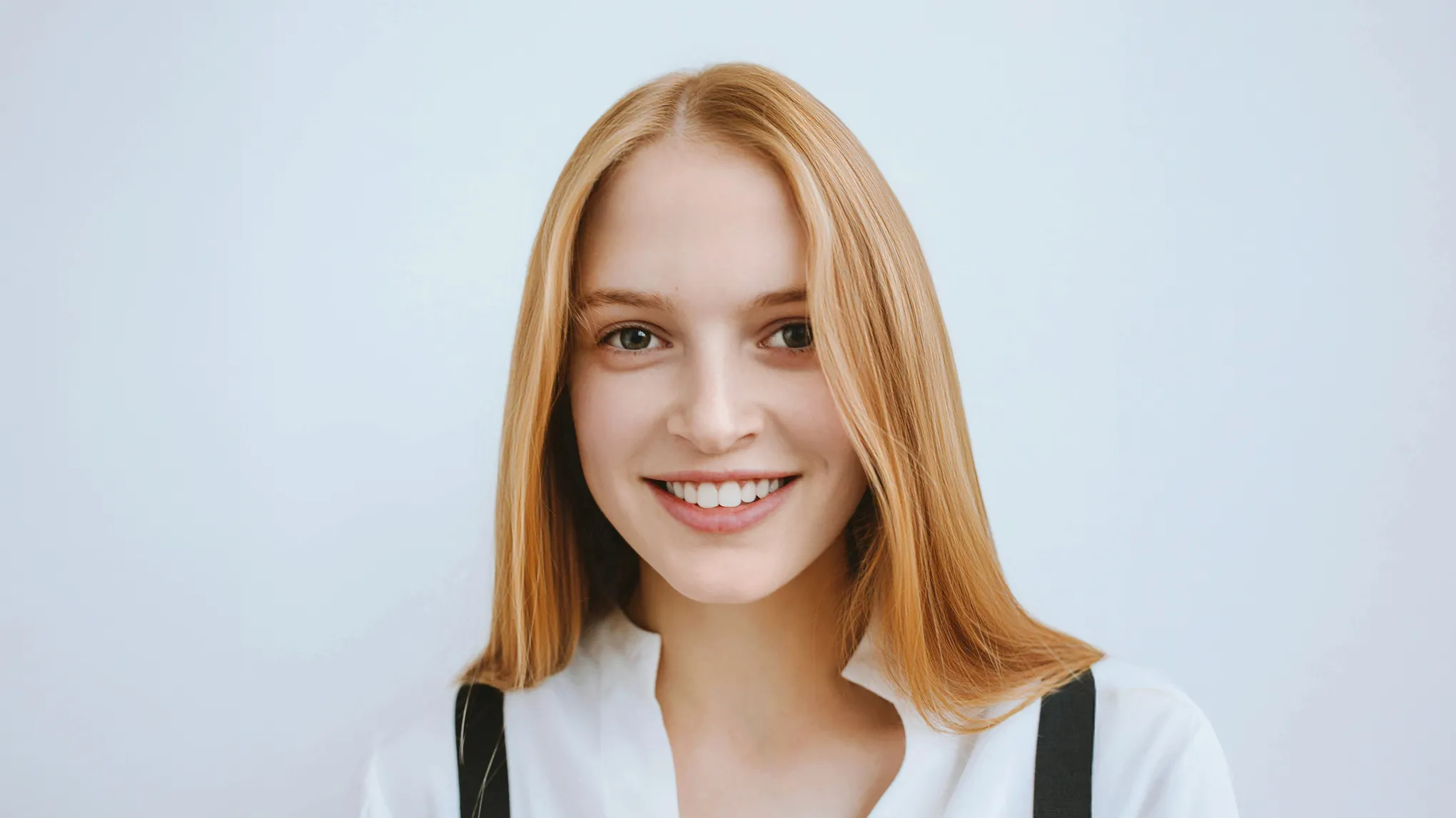
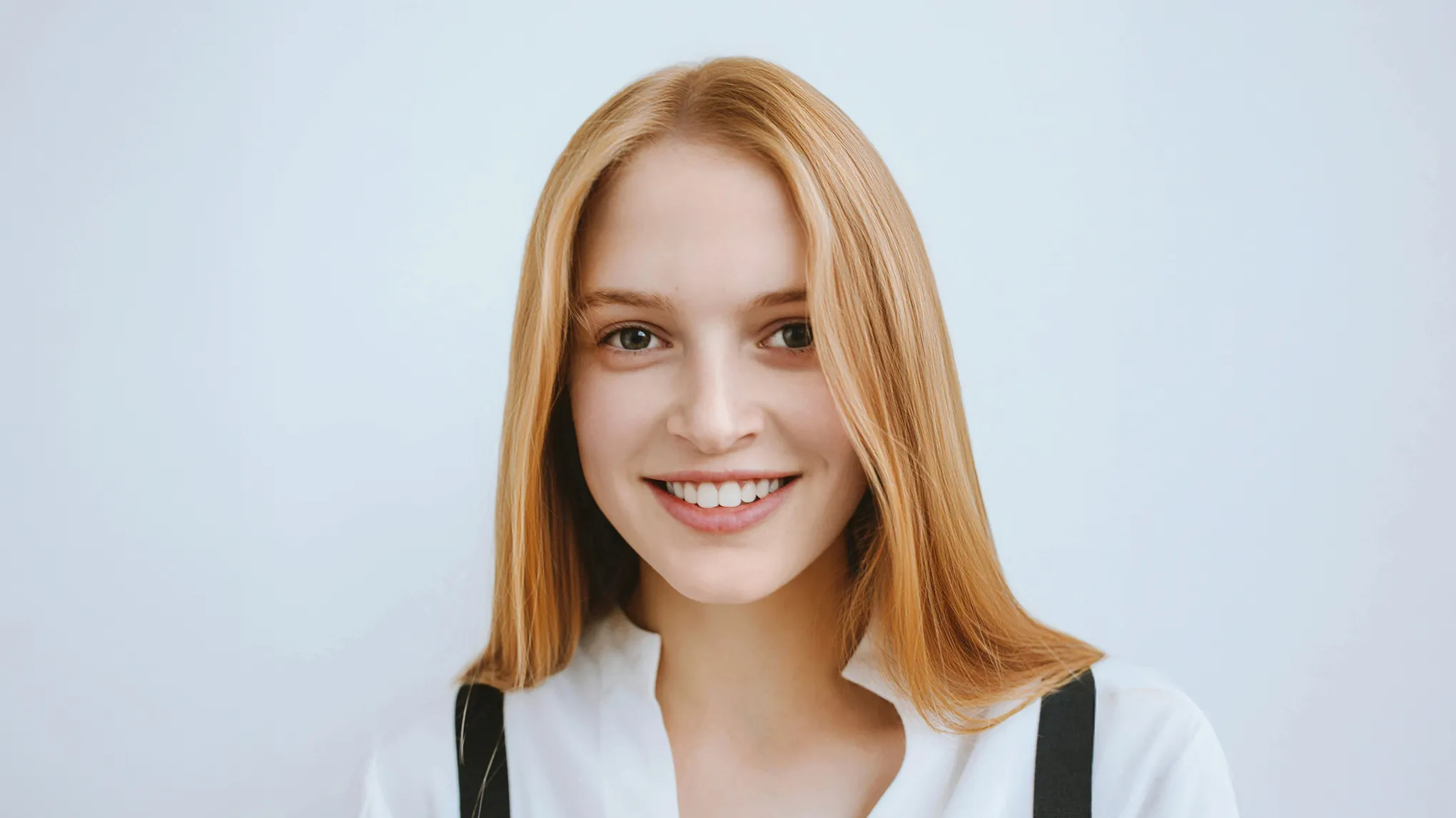
Fill sparse hair parts, balance volume, and refine hairlines in one portrait workflow—powered by Evoto AI Hair Styling tools.
Fill Thinning Hair Parts
AI detects widening or sparse hair parts and fills thinning hair parts with natural texture matching—so scalp lines look softer without changing the person's hairstyle.
It covers visible scalp lines and sparse areas along the hair part in portrait photos—common for headshots, business portraits, senior photos, and social media images.
Q
Will the Hair Part Fill look fake or overly smooth?
A
No. Evoto’s AI mimics natural hair texture, direction, and color for realistic results.
Q
Can I control how much volume or fill is applied?
A
Yes! Every hair tool comes with adjustable sliders, giving you full creative control over intensity and placement, so you get the exact look you want.
Q
What photo do I need to upload?
A
Upload a portrait that clearly shows the subject's face and the top of the head so the AI can detect the hair part. It is not designed for photos without visible hair or scalp areas.
Q
Is this the same as Evoto AI Hair Editor?
A
This page focuses on filling thinning hair parts in portraits. For broader hair editing tools, visit Evoto AI Hair Editor—but this page is optimized for hair part fill workflows.
Q
Can I adjust hairline or volume too?
A
Yes. In Portrait Retouching > Hair, you can also use Hair Part Line, Hair Volume, and Hairline sliders—but hair part fill remains the core workflow on this page.
Q
Do I need editing experience to use the hair tools?
A
Not at all. Evoto’s interface is beginner-friendly, with one-click enhancements and intuitive controls, no retouching background or Photoshop skills required.
Q
Can I undo or fine-tune edits if needed?
A
Definitely. Every change is non-destructive, so you can easily undo, reset, or refine each adjustment at any time during the editing process.
Q
Can I batch edit multiple photos with hair editing?
A
Yes! Evoto supports batch editing, allowing you to apply consistent hair refinements, like part fill or volume boost, across multiple portraits at once. It’s perfect for professional workflows that need speed and precision.
Q
What image formats does this hair editor support?
A
It supports various image formats, allowing users to work with RAW, TIFF, JPEG, JPG, and PNG files without loss of quality.
Last updated: 2026-06-11. Reviewed by: Evoto Product Team. Results may vary depending on image quality, lighting, subject pose, file format, and selected settings.