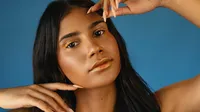
Transform Your Portraits with Evoto AI Smile Filter
Discover the magic of a perfect smile with AI Photo Editor. Our Add Smile Filter enhances your photos by adding a natural, authentic-looking smile in just a single step. Whether you want to brighten up your selfies, enhance group photos, or simply experiment with a new look, the Evoto Smile Filter is your go-to tool.
Easy Smile Editor
Adding a smile to any photo has never been this easy! Simply upload your photo, and let our AI-powered tool work its magic. Reshapes your smile, whitens teeth, and adjusts facial contours, ensuring a flawless, captivating smile every time.
Our All-in-one Face Editor allows you to make a variety of transformations, from adjusting eyebrow angles to whitening teeth. Add makeup, remove blemishes, or smoothen smile lines with our complete toolkit.
Evoto AI also offers super-quick facial enhancements, like removing glare from glasses, fixing teeth positioning, eliminating double chins, and so much more!
Evoto AI is the trusted choice of thousands of industry professionals worldwide, covering commercial weddings, portraits, studio work, and so much more.
Simply drag and drop your photo into the Evoto AI interface before you add smile to photo. Evoto supports multiple formats, including JPG, PNG, TIFF and RAW. Upload your desired photo to get started.
This section houses the add smile to photo tool you need to enhance facial features.
Slide to change, increase, or decrease the intensity of your smile with various expression features.
Export the smile edited photo to your Mac, iPad or Windows, available for formats like JPG, PNG, RAW, TIFF, etc.
1. Upload a Photo
Simply drag and drop your photo into the Evoto AI interface before you add smile to photo. Evoto supports multiple formats, including JPG, PNG, TIFF and RAW. Upload your desired photo to get started.
2. Navigate to Portrait Retouching > Facial Expression
This section houses the add smile to photo tool you need to enhance facial features.
3. Toggle the Slider to Alter the Smile
Slide to change, increase, or decrease the intensity of your smile with various expression features.
4. Save the Edited Photo
Export the smile edited photo to your Mac, iPad or Windows, available for formats like JPG, PNG, RAW, TIFF, etc.
Photographer enhance smiles of graduating students on their graduation photos. Our Smile Filter gave them a confident and happy look, making their memories of this special occasion even more precious.
A hobbyist family photographer uses Evoto to enhance group photos. Smile filter adds radient smiles to everyone's faces, creating lasting memories and sharing them with loved ones.
An entrepreneur in the startup scene uses Evoto to polish their professional photos for marketing materials. Face enhancements, including the Smile Filter, help them project confident imagse.
Travel bloggers use AI Smile Filter to enhance their travel selfies for radiant smile that perfectly complements the beautiful landscapes, making blog posts more engaging and attracting more followers.
How can I create the perfect smile using Evoto’s Smile Filter?
A
The perfect smile is more than just adjusting your lips—it’s about enhancing your entire look. With Evoto, you can smooth out smile lines, whiten your teeth, apply or remove makeup, adjust skin tone, remove braces, or even eliminate distractions like glasses.
Q
How do I add a Smile Filter in Evoto?
A
It’s simple! Use Evoto’s intuitive slider to adjust the intensity of your smile. Whether you want a subtle grin or a beaming expression, you can easily fine-tune your smile with our advanced expression features.
Q
Can Evoto change my facial expressions too?
A
Absolutely! Evoto’s smart tools not only let you add a smile but also adjust a variety of facial expressions to perfectly suit your mood.
Q
What other features does Evoto offer?
A
In addition to the Smile Filter, Evoto lets you remove smile lines, whiten teeth, apply or remove makeup, change skin tones, and batch edit group photos effortlessly.
Q
Is Evoto free to use?
A
Yes, Evoto is free to download and start editing your photos. You’ll only be charged credits when you choose to download your edited images. For more credit and pricing details, click here.
Q
Can I remove unwanted elements like braces or glasses?
A
Yes, with Evoto, you can easily remove distractions like braces or glasses to ensure your smile looks flawless.
Q
Can I apply the Smile Filter to group photos?
A
Of course! Evoto’s powerful batch editing feature lets you apply the Smile Filter to group photos with just a few clicks, making everyone in the picture look their best.
Q
Does Evoto allow skin tone adjustments along with smile enhancements?
A
Yes, Evoto allows you to adjust your skin tone while perfecting your smile, ensuring a harmonious and radiant look in every photo.
Q
Can I add makeup with the Smile Filter?
A
Definitely! You can seamlessly apply makeup as part of your smile transformation, adding extra polish and personality to your photos.
Q
How do I get started with the Smile Filter?
A
Getting started is easy. Simply download Evoto AI Photo Editor, open your photo, and use the Smile Filter to see the magic unfold. Ready to try? Start now!
Last updated: 2026-06-11. Reviewed by: Evoto Product Team. Results may vary depending on image quality, lighting, subject pose, file format, and selected settings.