Boost images color grading! Swiftly transfers a ref photo's color style to your image in one click, like style of painting, film stock, HDR, duotone and more. Streamline color correction process and shine with Evoto AI Color Match!
Before
After
Processing
Rate this result
Upload Image
* JPEG, JPG, PNG or WebP image allowed.
Processing your image
0%
Private processing · Preview without signing up
No image? Try one of these
Select Reference
webEditor.noSelectTips.colorMatch._value
Portrait
Scenery
Wedding 01
Wedding 02
Family
School
Baby
Headshot
Up to 8 images, JPEG, JPG, PNG or WebP image allowed
Achieve natural color grading effortlessly. Match looks, transfer styles and even map local colors of a reference photo to your current photo. Live view, compare and fine-tune images for a harmonious and coherent look.
AI Color Grading Detection
Capture and apply color styles with AI-powered precision! Detect subjects in a photo and map the colors of corresponding areas to your edit, like portrait skin, hair, lips, backgrounds. Instantly get a unified and visually appealing aesthetic similar to the ref photo.
Import photos with your desired color grades, select any project as a reference, or get trendy color looks from presets sharing. Skip hunting for various preset templates and manual color parameter tweaks. Unlock effortless stylish edits with our AI Color Match solution.
What you see is what you get! Instantly preview the transferred color grading from the reference to the target photo. Compare the color mapping result and the original with a simple side-by-side view, or even change reference images on the fly to experience precise visual impact.
Fine-tune full image or local color tones of the reference photo with intuitive sliders. Save personalized ref image as a preset for batch editing onto a series of photos, like wedding, landscape, portrait and more. Streamline your color correction workflow and unlock endless creative possibilities.
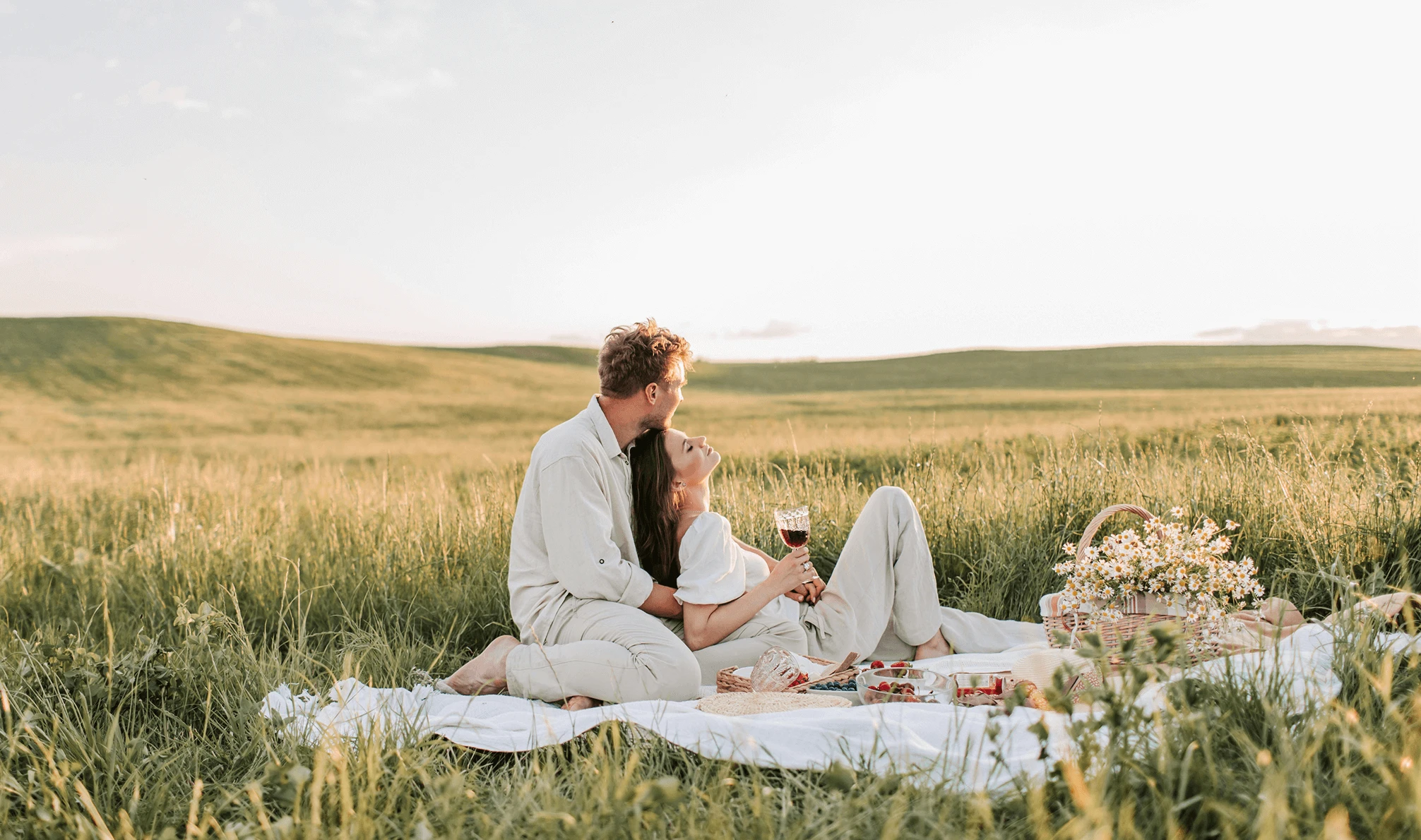
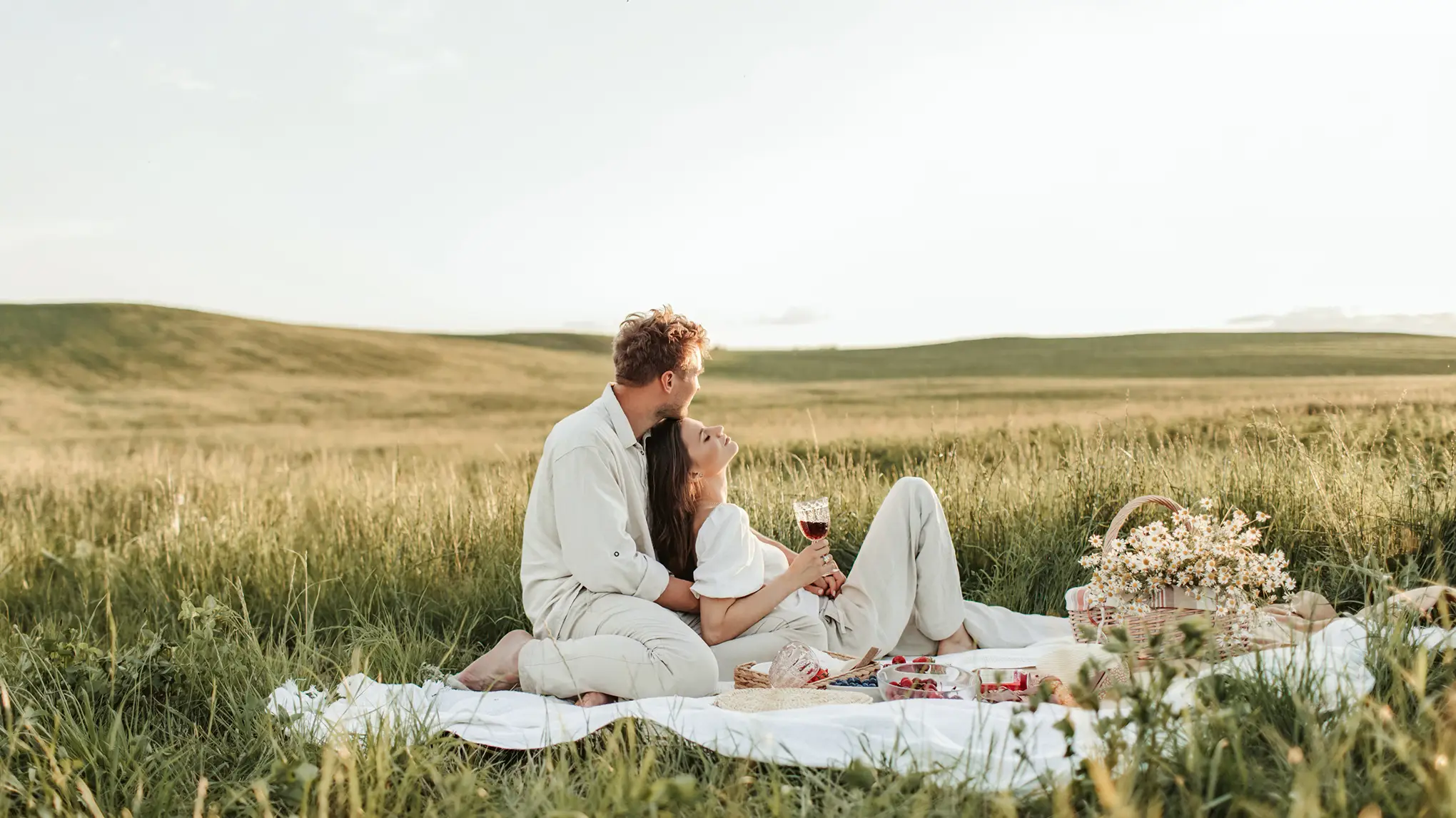
Swiftly match magic color grading to create a fairytale-like tone to newlywed portraits. Map bride's dress, groom's suit, and skin tones precisely. Perfect for wedding photographers and portrait studios to achieve harmonious tones and unified styles in a series of photos.
Before
After
Landscape Photography
Import references with vibrant colors of a sunrise or moody tones of a stormy sky. Transfer alluring local colors to enhance details of mountains, lakes and plants for natural beauty in photography. With professional grade color utility, make your work stand out.
Before
After
Advertising & Marketing
Looking for image style transfer to improve the texture of real estate, automotive, or interior design advertising photos? Evoto AI Color Match ensures professional, uniform, and branded photo for your industries. Enhance visual punch, making products advertising impressive for consumers.
Before
After
Personal & Social Media Content
Get trendy, warm color grades for personal. Capture vivid, eye-catching visuals and batch-edit selfies of the same style genre for a consistent and stylish look. Make photos more engaging and shareable on social media.
Best AI Color Grading Tool to Streamline Workflow
Evoto shines as the ultimate color grading tool with cutting-edge AI image algorithms, and highly effective and friendly editing process.
Detect and extract color schemes with the latest AI color algorithms, providing a seamless starting point for any editing project to simulate color grading from various photos.
One-Click Color Style Match
Say bye to manual color parameter adjustments. Enable a one-click color grading match workflow and focus more on artistic vision on photo looks, more flexible, convenient and timesaving.
Batch Photo Color Grading
Ensure a harmonious and upscale look for themed photo collections. Map photo colors precisely in batches and achieve a cohesive, stereoscopic and layered visual aesthetic.
Multi-Device & Format Support
Available for Windows and MacOS, especially for color correction with camera tethered shooting. Support all major image formats including RAW, TIFF, PNG, JPG, and JPEG.
Navigate to the 'Color Match' in 'Color Adjustment'. Click 'Upload for Color Matching' and import a reference photo or choose a preview image as the color grading reference.
Select a target photo you want to correct colors on from the preview bar. Click the reference image to transfer colors to your target photo. Check the color changes from the main viewer.
Double click the reference photo for color fine-tuning on the entire image or specific areas. You can also click 'Sync' to match looks of the same color grading to other selected photos.
Click "Export" to save your color correction photos to your Windows or MacBook device.
1. Choose a Reference Photo
Navigate to the 'Color Match' in 'Color Adjustment'. Click 'Upload for Color Matching' and import a reference photo or choose a preview image as the color grading reference.
2. Apply the Reference Colors
Select a target photo you want to correct colors on from the preview bar. Click the reference image to transfer colors to your target photo. Check the color changes from the main viewer.
3. Adjust Details or Batch Sync Colors
Double click the reference photo for color fine-tuning on the entire image or specific areas. You can also click 'Sync' to match looks of the same color grading to other selected photos.
4. Export Results
Click "Export" to save your color correction photos to your Windows or MacBook device.
A professional wedding photographer used the batch photo color transfer to quickly adopt the same elegant pastel color grades, perfect for romance style. The couple got a stunning, cohesive album that beautifully told their love story.
A food blogger imported a warm-toned reference photo for her food pics editing with Evoto AI Color Corrector in her dish photography. The blog posts now feature tantalizing images, drawing more readers and boosting engagement.
A landscape photographer took photos of a desert and applied the color grading by a sandy-toned reference image with a sense of vastness aesthetic. The photos captured the true essence of the wildland scene.
An ad agency creating for a luxury car brand used a high-gloss, metallic reference photo to achieve luxurious, unified color grades on a series of car images. The ads caught buyers' eyes, leading to increased interest and showroom visits.
AI color match refers to the use of artificial intelligence technology to match look and transfer colors. It is about advanced Evoto AI color grading algorithms to quickly extract the color grades of a reference photo and apply it to another image with one click. It can match looks, transfer styles, and map local colors precisely.
For example, change a photo’s color grading to the color style of the Mona Lisa painting. Evoto AI can detect the color grades of the face, clothing, and background in it. Then, the image color changer precisely maps these colors to a portrait photo, applying the characteristic warm and soft tones to the portrait's skin, hair, and clothing, instantly giving the photo an artistic and classic color look similar to the famous painting. This process is efficient and allows for creative and professional color grading or correction without the need for complex manual operations.
Q
How does Evoto AI color grading work?
A
Evoto AI Color Match uses AI color grading algorithms to detect colors in ref photos. For example, it identifies and analyzes people and objects in the reference image. Then, it maps the corresponding local colors and transfers their color styles. With one click, you can apply the style and fine-tune for a coherent look.
Q
Can I use Evoto on a mainly used device?
A
Yes, the Evoto image color changer is compatible with multiple devices like Windows PC and macOS PC.
Q
Can I save my custom reference image as a preset for future use?
A
Yes, you can save the personalized reference image as a LUT preset. This allows you to apply the same color grading to a series of photos, like wedding, landscape, or portrait shots.
Q
Are there precautions for color matching?
A
For best results, use a similar-style reference image with the target photo. Otherwise, the large difference may lead to a bad color-matching effect.
Q
What are the differences between AI Color Match and AI Look?
A
The two tools are all about color correction. But the biggest difference is that Evoto AI Color Match gets color grades from unlimited reference image styles, while Evoto AI Look is a fixed number of official color styles. But users can also use the AI Look effect result as a reference and match colors to a new image.
Q
Can I change colors in an image manually?
A
Yes, you can fine-tune full or local color tones of ref photo with intuitive sliders for customized adjustments on Evoto AI Color Changer.
Q
What formats does Evoto support?
A
Evoto supports major image formats like RAW, TIFF, PNG, JPG, and JPEG to meet various image color changing requirements.
Q
What are the differences between AI Color Match and Evoto custom color presets?
A
AI Color Match focuses on obtaining color grades directly, which is friendly to novices and those who are not familiar with color grading skill. Evoto custom color presets require controlling from scratch to get color grading parameters, and it may be hard to achieve a color effect highly similar to the reference image, which is time-consuming and laborious.
Q
Does Evoto AI Color Match support batch processing?
A
Absolutely. It enables batch photo color grading. You can create a reference color preset or color filter, and then sync the preset effect to themed photo collections, matching photo colors precisely in batches.
Last updated: 2025-01-07. Reviewed by: Evoto Product Team. Results may vary depending on image quality, lighting, subject pose, file format, and selected settings.