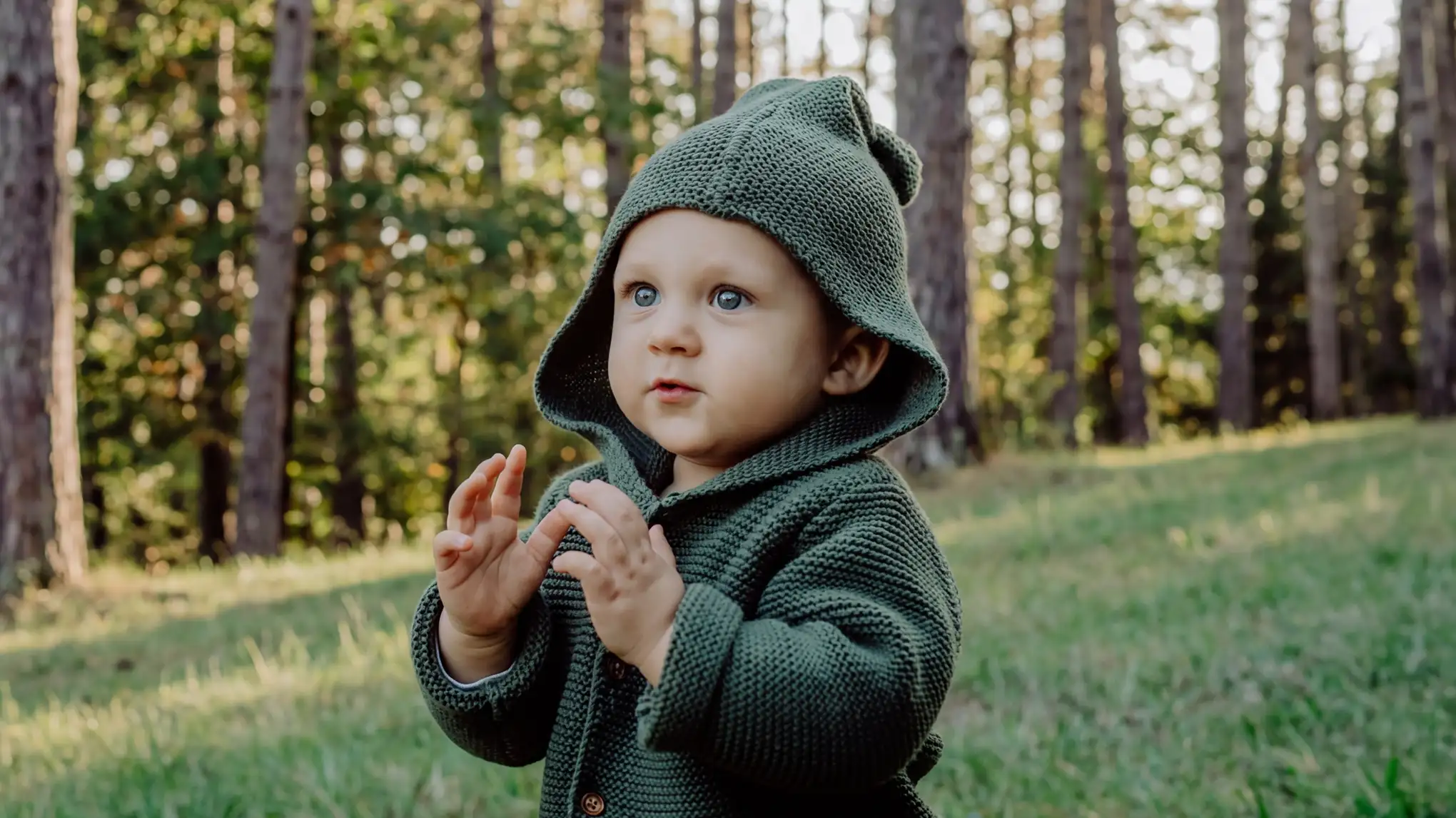
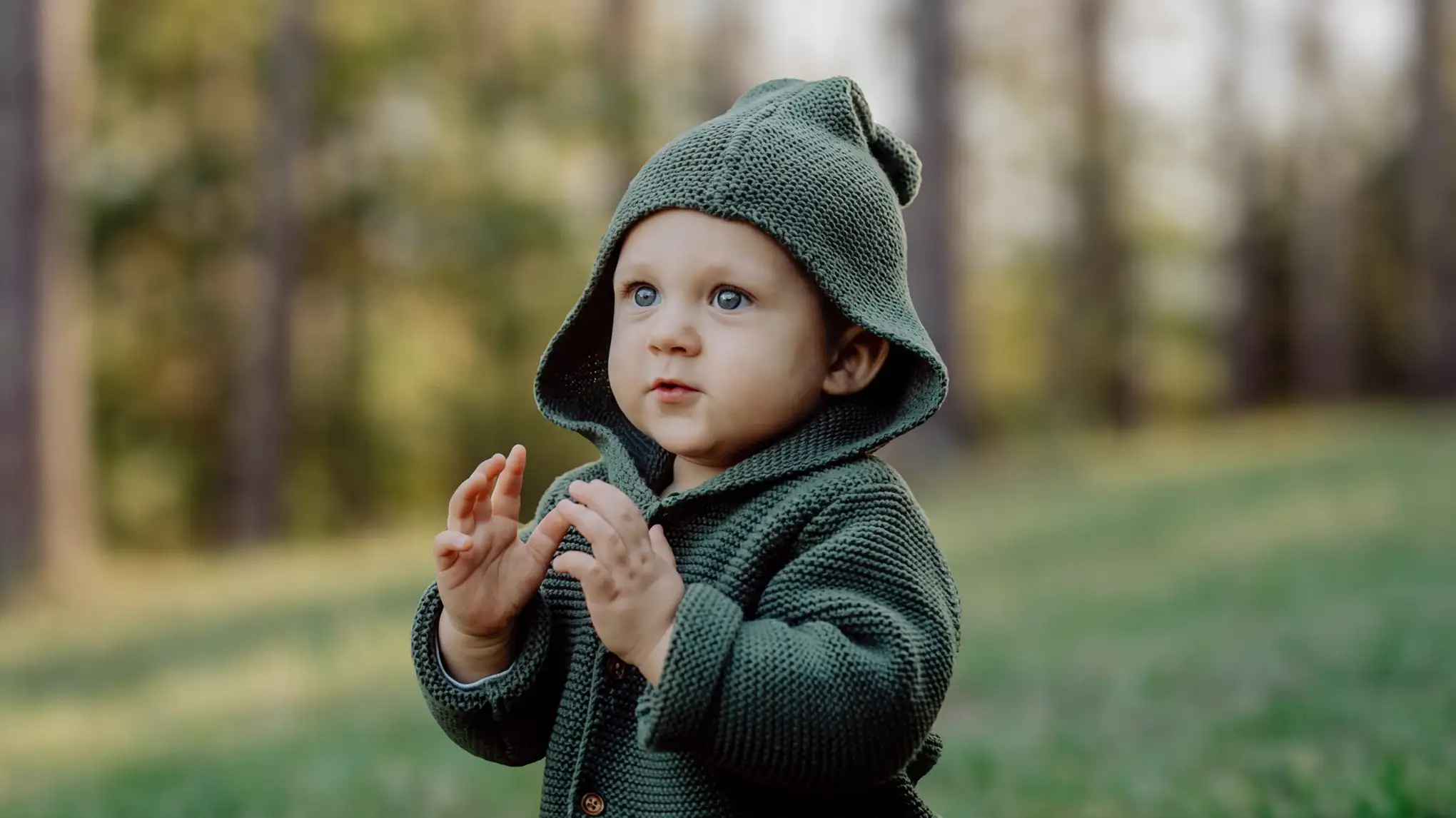
Transform your photos into pro-quality images using AI background blur. Smart edge detection refines the background with one click for a crisp, stunning depth-of-field look in seconds.
Evoto AI Background Blur for Pro-Level Depth in One Click
Use smart edge detection, one-click blur, live preview, and non-destructive editing in Evoto AI Background Blur to get pro-quality depth-of-field effects without any complicated settings.
Smart Edge Detection for Seamlessly Blurred Backgrounds
Precisely detecting the edges of the subject in the photo allows for a cleaner, more natural background blur. The background is softly blurred while keeping the subject sharp and well-defined, creating a polished and professional-looking image.
Enhance Your Portrait Shots with a Beautiful Blurred Background
Blurring the background is a simple way to add depth and highlight your subject. With distractions softened, your photo looks cleaner and more professional. With Evoto AI, you can get a smooth, artistic background blur in just a few clicks.
Achieve a shallow depth of field that draws attention to your subject—just like a photo taken with a high-end camera and lens. With smart background blur enhancement, your image pops effortlessly. No fancy gear or special skills required.
Supports various blur styles such as background blur bokeh effect and motion blur making, it easy to create emotional and artistic expressions in your photos.
AI-Powered Blur Application
The AI analyzes the structure and subjects of the photo to optimize the blur effect, delivering natural and well-balanced results.
Easy for Beginners to Use
Without any complex expertise, the AI automatically recognizes and edits areas, allowing anyone to easily achieve professional-level results.
Integration with Other Editing Features
Seamlessly works with other AI editing functions like skin retouching and color correction to enhance the overall photo quality.
Upload a photo to the online AI image background blur. Image formats like PNG, JPEG, JPG and WEBP are available.
Use the brush tool or the auto-detection feature to select the background you want to blur. The subject will stay sharp while only the background is blurred.
Click the “Blur” button, and the AI will detect the selected area and automatically apply a smooth, natural blur (bokeh) effect.
You can also adjust the blur intensity to match your style.
Click "Export" to save the grainy texture photo to your Windows, Mac OS or iPad OS device.
1. Upload Your Image
Upload a photo to the online AI image background blur. Image formats like PNG, JPEG, JPG and WEBP are available.
2. Select the Background Area
Use the brush tool or the auto-detection feature to select the background you want to blur. The subject will stay sharp while only the background is blurred.
3. Apply Blur Background
Click the “Blur” button, and the AI will detect the selected area and automatically apply a smooth, natural blur (bokeh) effect.
You can also adjust the blur intensity to match your style.
4. Preview & Export
Click "Export" to save the grainy texture photo to your Windows, Mac OS or iPad OS device.
AI background blur automatically detects the main subject in a photo and applies a natural blur effect to the background, creating a shallow depth-of-field look similar to a professional camera.
This feature helps the subject stand out more clearly in portraits, product photos, travel shots, and social media images.
Q
What’s the difference between regular blur and AI background image blur?
A
Regular blur applies a uniform blur to the entire image. AI blur selectively blurs only the background while keeping the subject sharp, creating a more professional and natural result.
Q
What types of photos benefit from blur image background ?
A
It works great for portraits, wedding photos, selfies, product shots, and landscape images where you want to emphasize the main subject.
Q
Does AI blur work well on busy or complex backgrounds?
A
In most cases, yes. AI can accurately separate the subject from the background, but for very detailed scenes, some manual fine-tuning might be helpful.
Q
How do I undo a blur I’ve just applied?
A
Press Ctrl+Z (Cmd+Z) or select the previous step in the History panel to revert your change.
Q
Will the subject remain sharp after applying AI Background image blur?
A
Yes. The AI keeps the subject crisp and clear while only softening the background, creating a pleasing depth-of-field effect.
Q
Can I export the edited photo in high resolution?
A
Yes. Evoto allows you to instantly save your edited photos in crisp, high-resolution quality, making it easy to use your results right away. Whether you're uploading to social media or preparing a portfolio, you can always export your images in the best quality.
Q
Will multiple people in a group photo remain sharp?
A
Yes. The AI automatically identifies and preserves each person in the photo. In group shots, all subjects stay clear while only the background is blurred.
Q
What image formats does Evoto AI support?
A
Evoto AI supports popular image formats like JPG, PNG, TIFF and RAW file, making it versatile for different editing needs.
Q
Can I apply the bokeh effect to multiple photos at once?
A
Some platforms offer batch editing features, allowing you to apply the same bokeh effect to several photos in one go.
Last updated: 2026-06-11. Reviewed by: Evoto Product Team. Results may vary depending on image quality, lighting, subject pose, file format, and selected settings.