Master Fashion Photography Editing

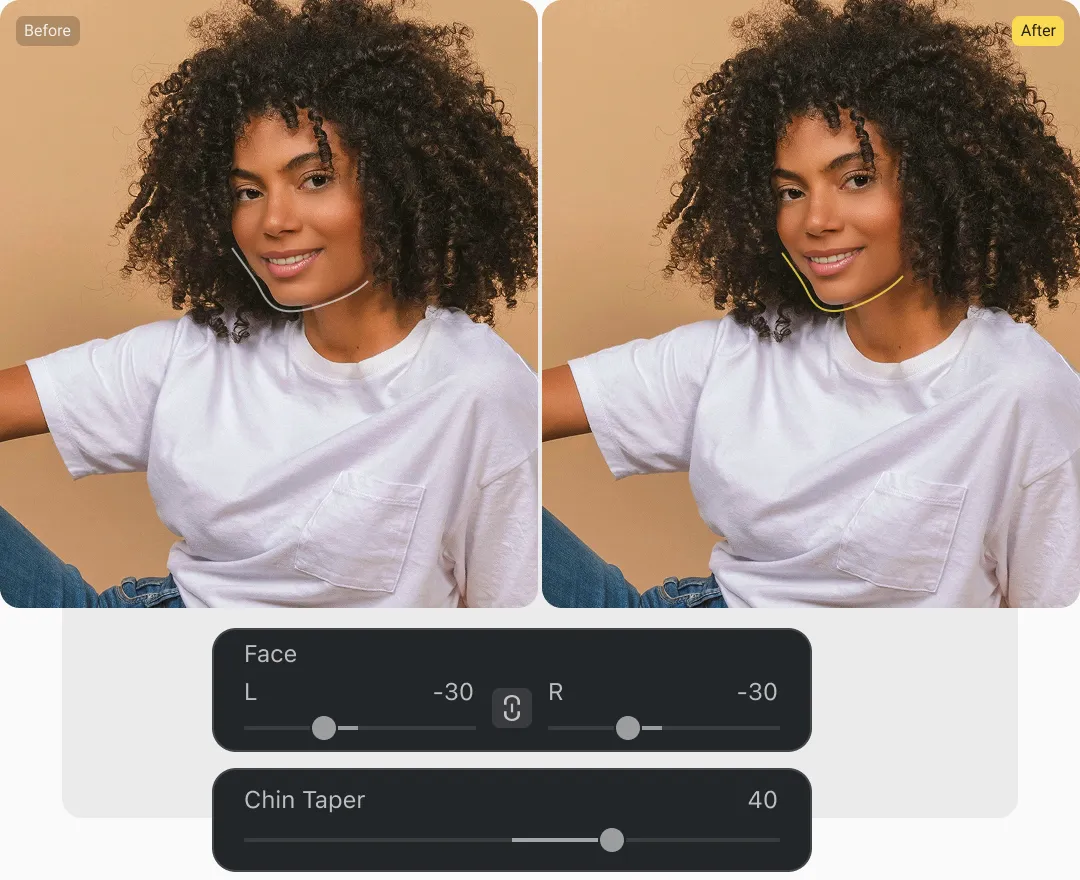
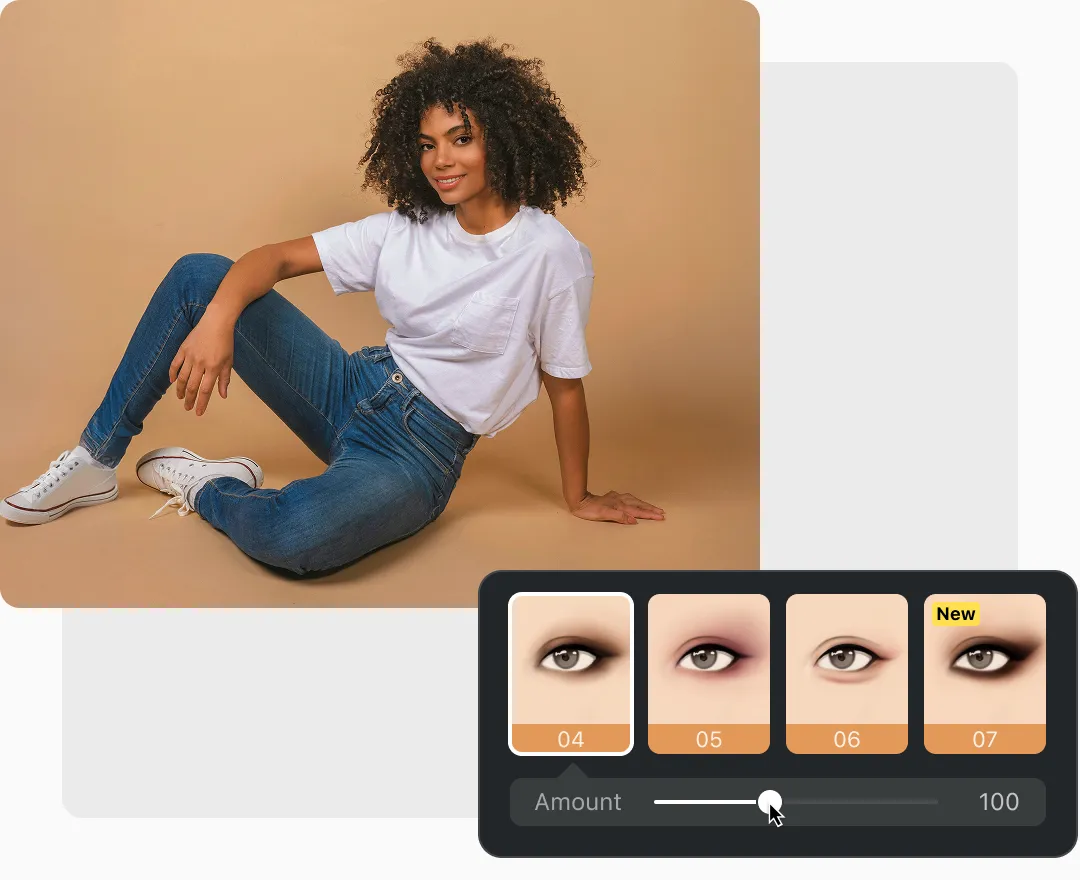
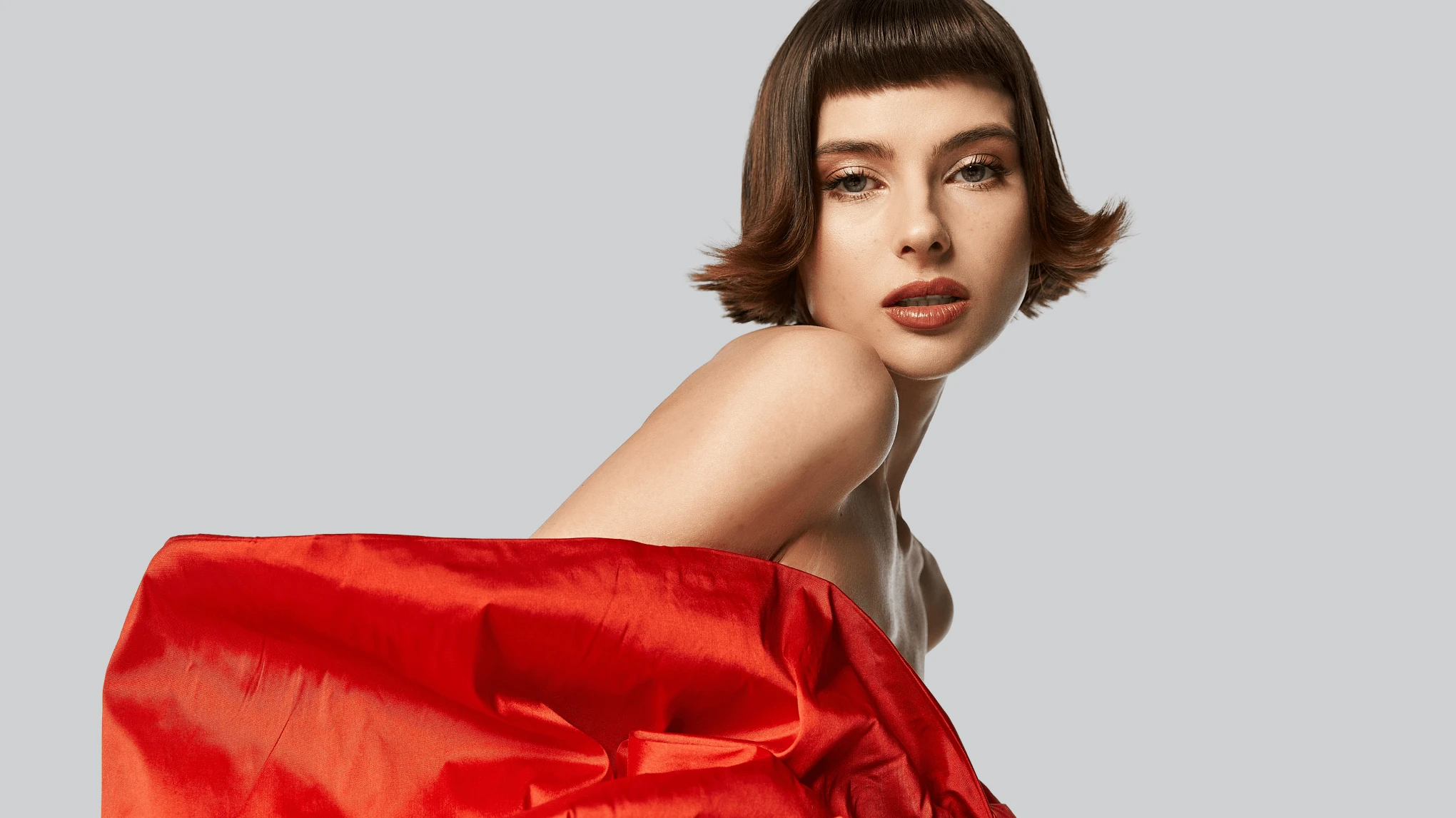
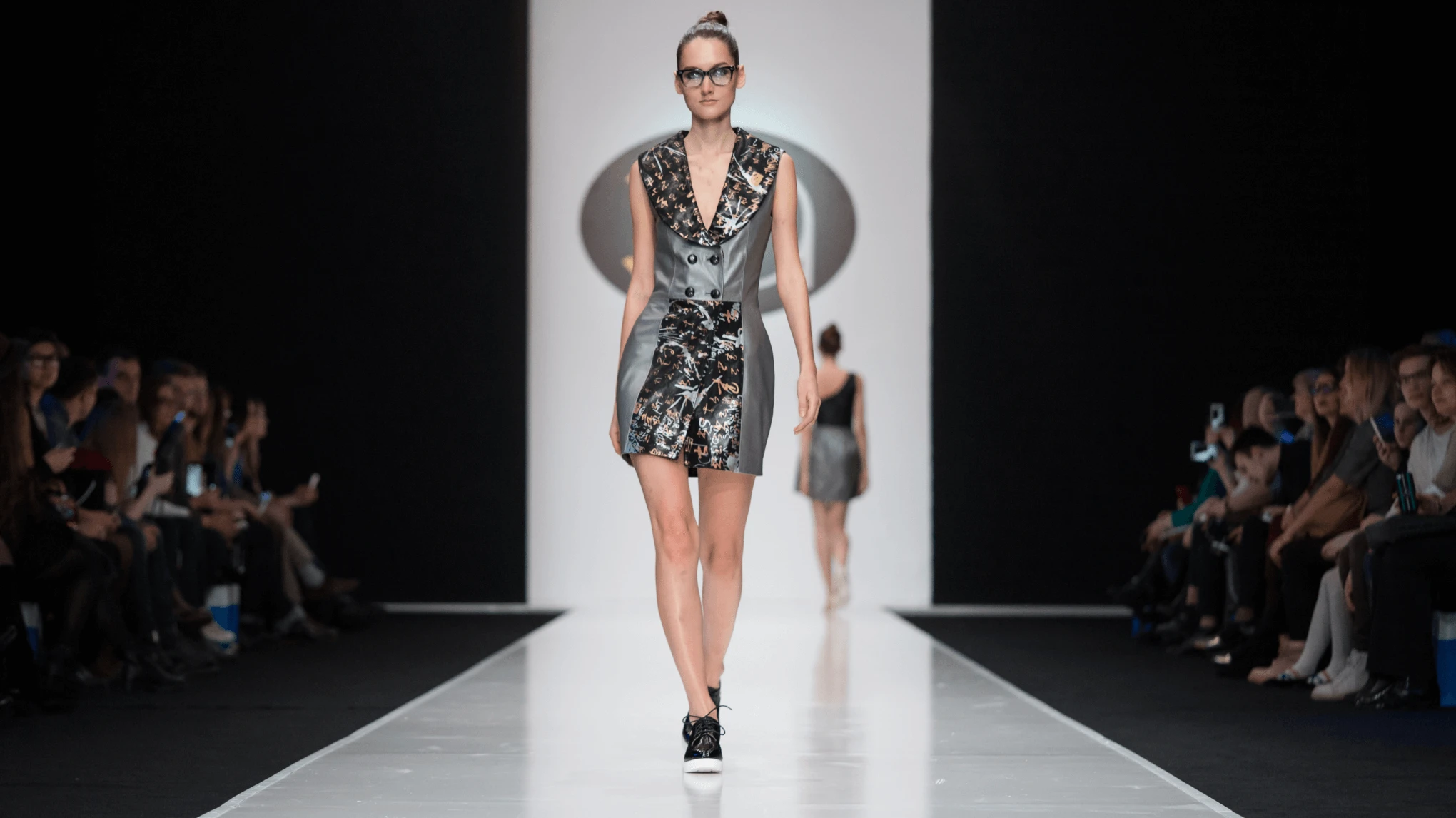
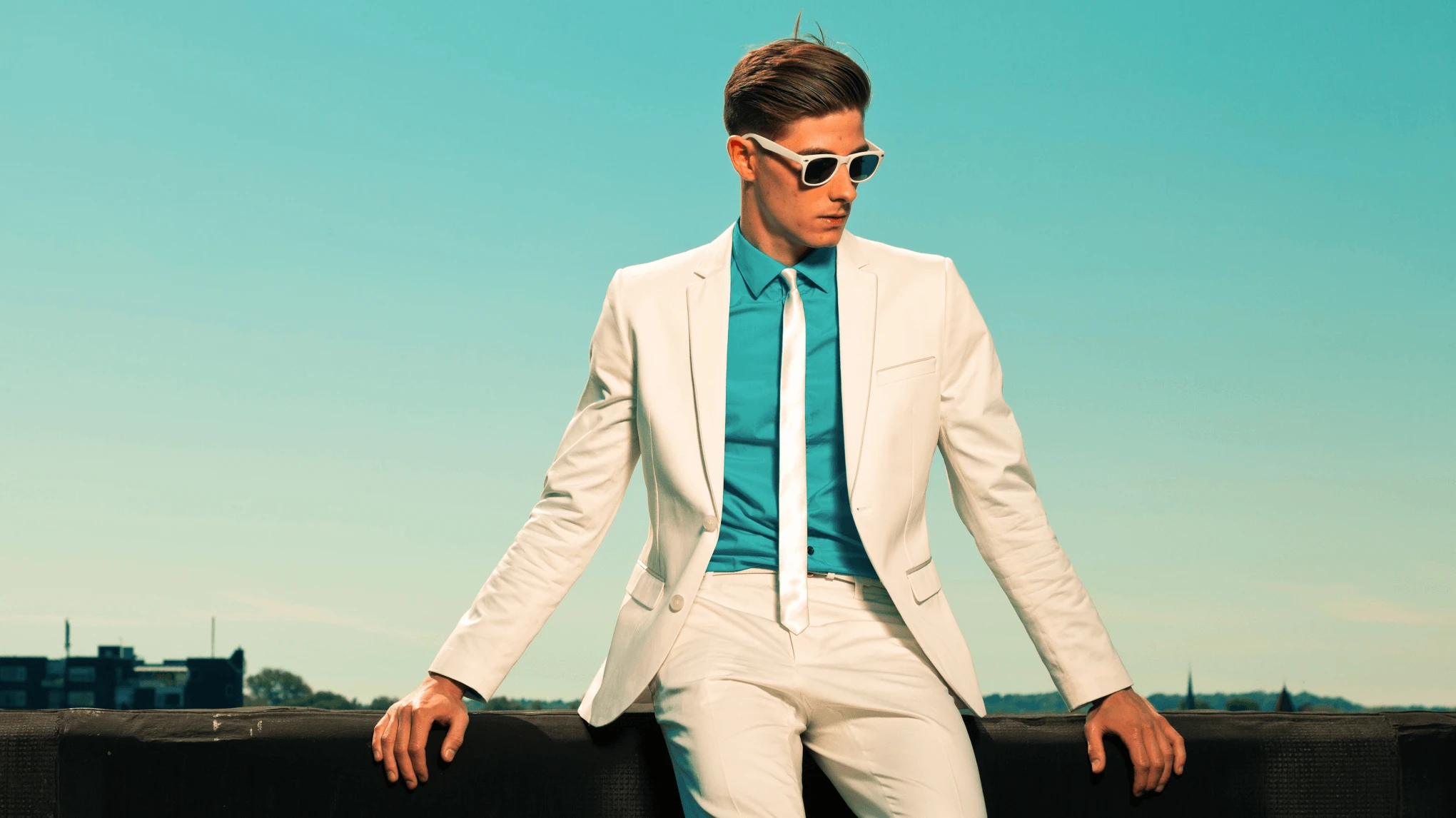
Streamline fashion photo editing workflows with Evoto, using powerful AI tools for quick, precise adjustments and commercial-grade fashion photography results.
Evoto Fashion Photo Editor
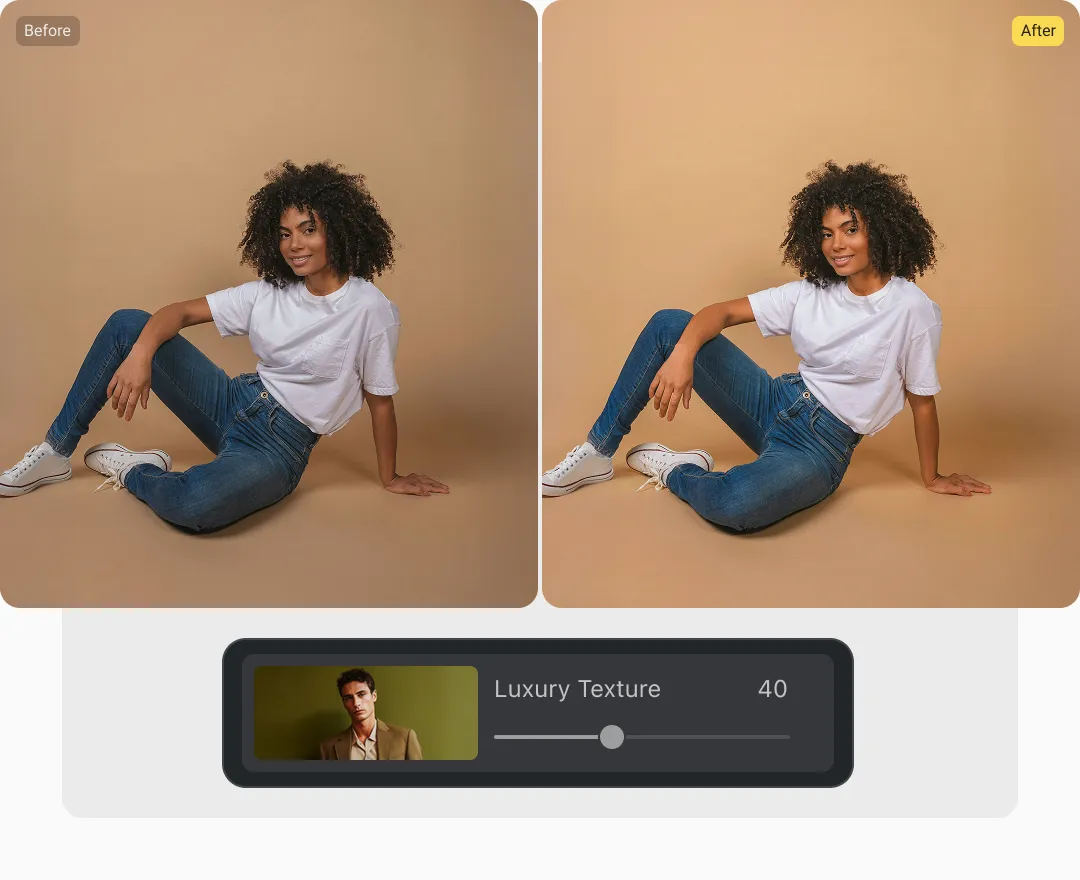
Before
After
Evoto Fashion Photo Editor1
Evoto Fashion Photo Editor2
Evoto Fashion Photo Editor3

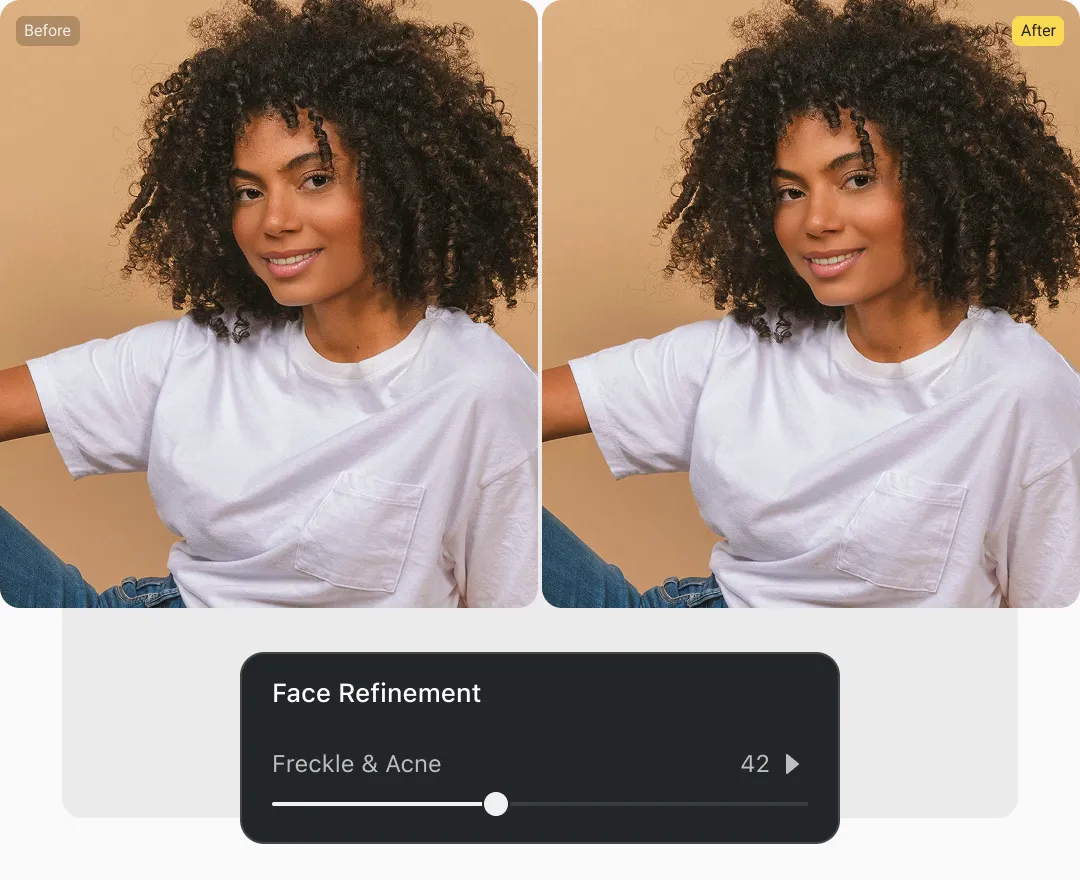
Natural, High-End Portrait Retouching — Real Skin, Refined Results

Enhance portraits with Evoto professional-grade skin retouching tool that preserves natural texture and fine details. Smooth blemishes, adjust intensity, and achieve realistic, polished results without overdoing it.
AI Portrait Retouching Tools for Fashion Photography Before
AI Portrait Retouching Tools for Fashion Photography After
Before
After

Magazine-Quality Color Styles — Fashionable, Artistic, Unique

Enhance your fashion photos with Evoto AI Color Looks or AI Color Match. Choose from a variety of sophisticated styles or upload your own reference image. The AI analyzes and applies the colors to your photos, and you can adjust hue and saturation to create a unique, artistic look for each image.

Fashion-Ready Clothing Edits — Perfect Fabric, Perfect Detail

Evoto transforms clothing retouching for fashion photography by giving you full control over both fine and deep wrinkles. Effortlessly remove deep folds while preserving natural fabric texture and refine delicate wrinkles and minor imperfections, achieving polished, magazine-ready results in every shot.
Remove Clothing Wrinkles in Fashion Photoshoots Before
Remove Clothing Wrinkles in Fashion Photoshoots After
Before
After

Background Refinement — Clean, Customizable, Professional

The background refinement tool in Evoto enhances fashion photography in the studio or on location. Easily remove distractions, replace backdrops using preset backgrounds or your own uploads, swap skies, and add or preserve realistic shadows—while controlling brightness, saturation, and other effects for clean, professional, striking results.
Edit Fashion Photo Background Before
Edit Fashion Photo Background After
Before
After

High-Speed Batch Editing — Save Time, Keep Quality

Simplify your fashion and art photography workflow with Evoto Batch Editing. Edit dozens—or even hundreds—of images at once with a single click. Apply color styles, fine-tune retouching for skin and clothing, and save your adjustments as reusable presets to achieve consistent, high-quality results while dramatically reducing post-production time.

Shoot, Edit, Approve — All in Real Time

In studio setups for fashion and art photography, tethered shooting with Evoto streamlines the entire workflow. Connect your camera, apply live edits, and let clients approve instantly—eliminating manual file export and third-party retouching. Quickly rename files, rate images, and batch edit in real time, saving both time and money while keeping your shoot efficient and professional.
Connect Camera to Laptop for Fashion Photography

All in One Fashion Photography Editing Workflow

Workflow to Connect Camera to Evoto
  • 1

    Tethering Shooting

    Best for: Studio-based fashion photography where real-time adjustments are needed.

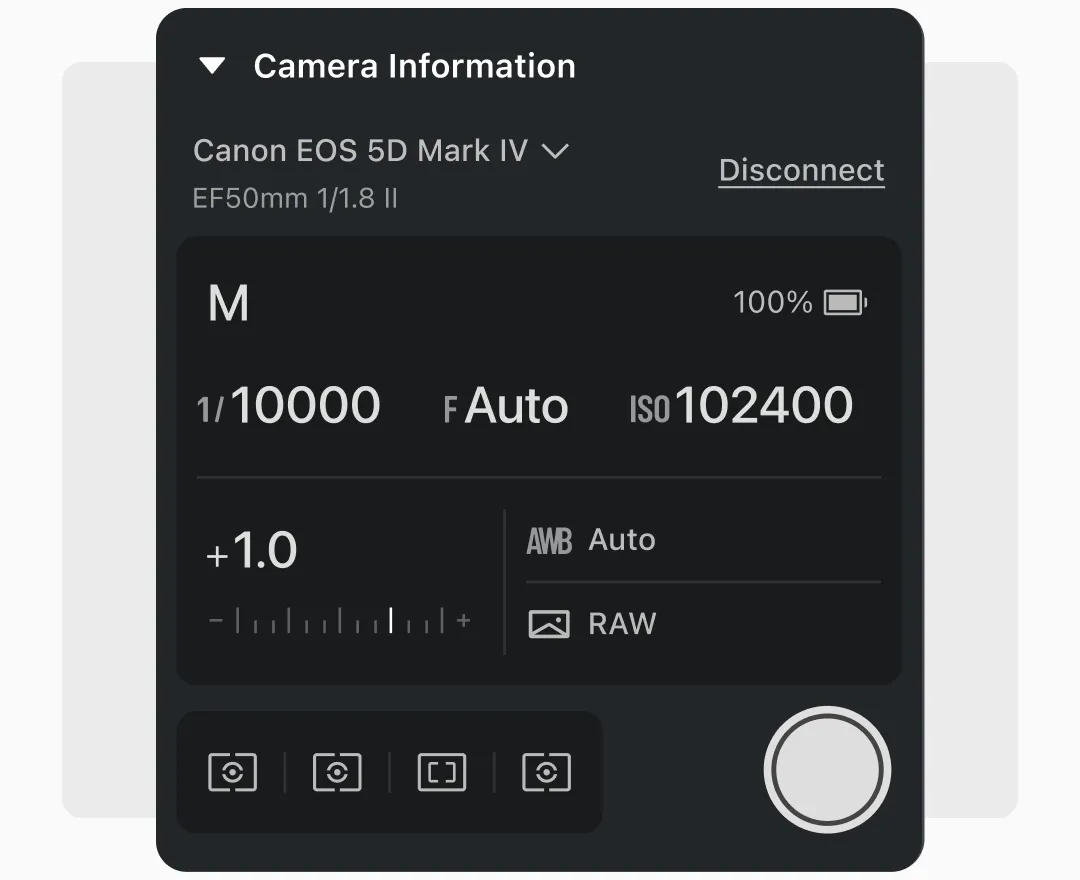
    · Connect your camera to Evoto via the “Tethering” panel.

    · Open the “Tethering” panel and ensure your camera has been detected.

    · Ensure camera settings (aperture, shutter speed, and ISO) are displayed in Evoto.

    · Apply a preset in Evoto or use one of your own; it will update in real time.

    · Use “Compare View” to display the Raw vs edited images instantly side-by-side.

    · Use tethering for corporate shoots where clients require instant reviews.
  • 2

    Color Grading

  • 3

    Skin Retouching

  • 4

    Clothing and Fabric Adjustments

  • 5

    Backdrop Adjustments and Export

  • 6

    Batch Editing

1Tethering Shooting

Best for: Studio-based fashion photography where real-time adjustments are needed.

· Connect your camera to Evoto via the “Tethering” panel.

· Open the “Tethering” panel and ensure your camera has been detected.

· Ensure camera settings (aperture, shutter speed, and ISO) are displayed in Evoto.

· Apply a preset in Evoto or use one of your own; it will update in real time.

· Use “Compare View” to display the Raw vs edited images instantly side-by-side.

· Use tethering for corporate shoots where clients require instant reviews.
Workflow to Connect Camera to Evoto

2Color Grading

Best for: Ensuring consistent color grading across multiple images in a big project.

· Navigate to “Color Adjustment” > “AI Color Adjustments” in the panel.

· Select a preset that fits your creative direction.

· Adjust the intensity slider between 30-50% and assess the effect.

· Upload a reference image if you already have a specific color grade you like.

· For full control, tweak the HSL, color curves, and white balance.

· If required, use selective color adjustments to target specific colors (e.g., if you need to adjust the subject’s clothes without affecting skin tones.

Workflow to Adjust Color Grading

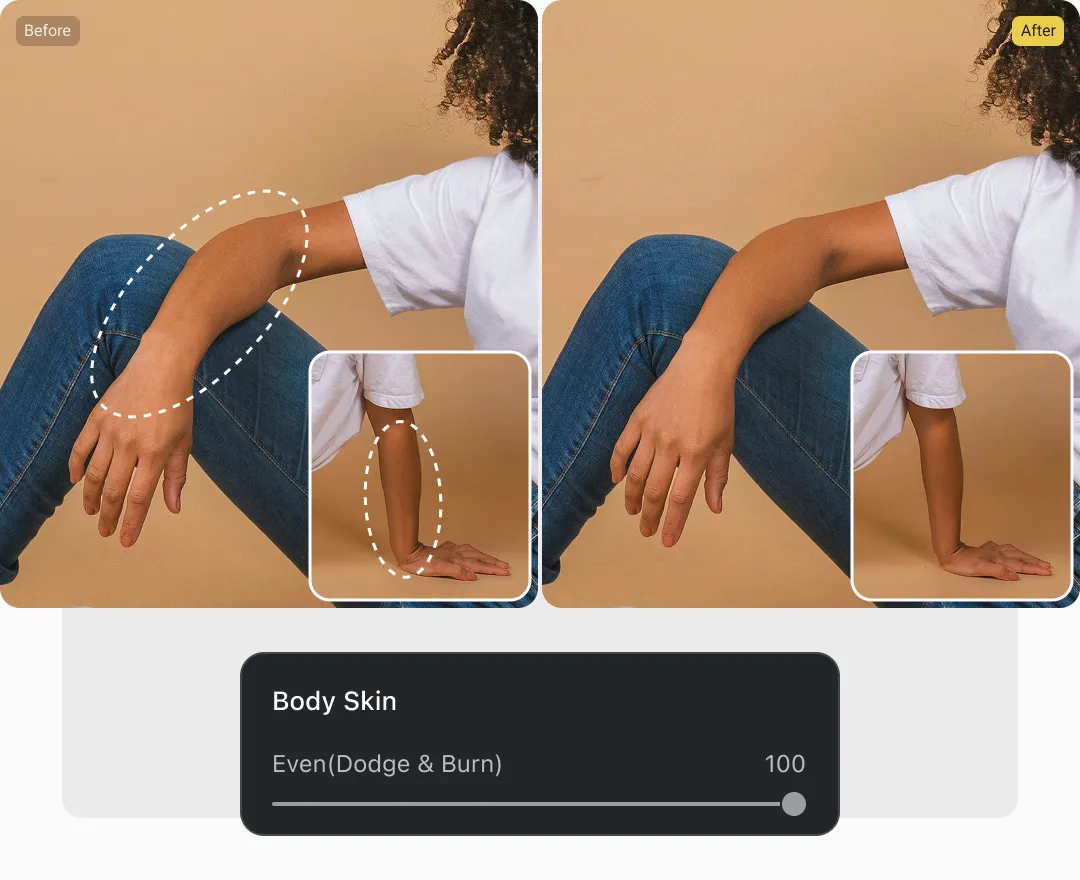
3Skin Retouching

Best for: Creating professional and natural-looking edits.

· Navigate to the “Portrait Retouching” > “Skin Retouching”.

· Move the skin smoothness-related sliders to 30-50% to even out imperfections while maintaining natural texture. Adjust if necessary. If lighting is still uneven, use the “Dodge and Burn” tools to sculpt the facial features naturally.

· Use the “AI Unify Face Complexion” tool and set it to 40-50% to even out facial skin tones.

· Set the “AI Unify Body Complexion” to 40-50% to match bones and face skin tones.

Workflow to Retouch Skin for Fashion Photography

4Clothing and Fabric Adjustments

Best for: making clothing look polished and professional.

· Navigate to the “Clothes & Accessories Adjustments” panel.

· Move the “De-wrinkle Clothing” slider to adjust the general wrinkles.

· To adjust fine wrinkles, set the “Fine Wrinkles Removal” slider to 40-50% for small adjustments. To remove deep wrinkles, set the “Deep Wrinkles Removal” slider to 50-70% for folds or fabric details.

Steps to Remove Clothing Wrinkles from Photos

5Backdrop Adjustments and Export

Best for: Cleaning up studio backgrounds or enhancing outside location details.

· Navigate to the “Backdrop Adjustments” section.

· Select a preset backdrop (e.g., Gray02).

· Adjust the “Edge Adjustments” to 20-30% to maintain a natural look if necessary.

· If outdoors, use “Sky Replacement” to replace skies while ensuring the natural light conditions are harmonious.

Workflow to Change Background

6Batch Editing

· Once you’re satisfied with the edit(s) and want to apply the same changes to other fashion photography works, click the “Settings” icon from the bottom right corner.

· Check the settings you want to apply (e.g., Blemish Removal, Skin Retouching, Background). Click “Save” to confirm the edits you want.

· Use the shortcut key “Control/ Command” + images to select multiple photos from the preview bar. Then, click the “Sync” button to apply the edits to the photos.

· You can also create a preset of the changes for batch editing. Just click “Save Preset” from the bottom right corner. Check the edits you need and name the preset.

· Find the new preset in the “Preset” panel from the top left corner. Then, apply it to the photos.

Batch-Edit Multiple Fine Art Photos

Do More with Evoto Fashion Photo Editor

From professional skin retouching to color grading and more, we’ve got you covered.

FAQs

  • Is this fashion photo editor suitable for beginners in fashion and fine-art photography editing?

  • What kind of support does Evoto offer for fashion photographers using its software?

  • How does Evoto handle large-scale fashion and art projects with hundreds of images?

  • Can this AI tool be used for editorial fashion photography where quick turnarounds are required?

  • Can I use this AI Photo Editor for commercial fashion photography projects?